TABLE OF CONTENTS
- Workflow
- 1. Accessing the Designer's Review page
- 2. Page Structure Overview
- 3. Order View (Default View)
- 4. Product View
Workflow
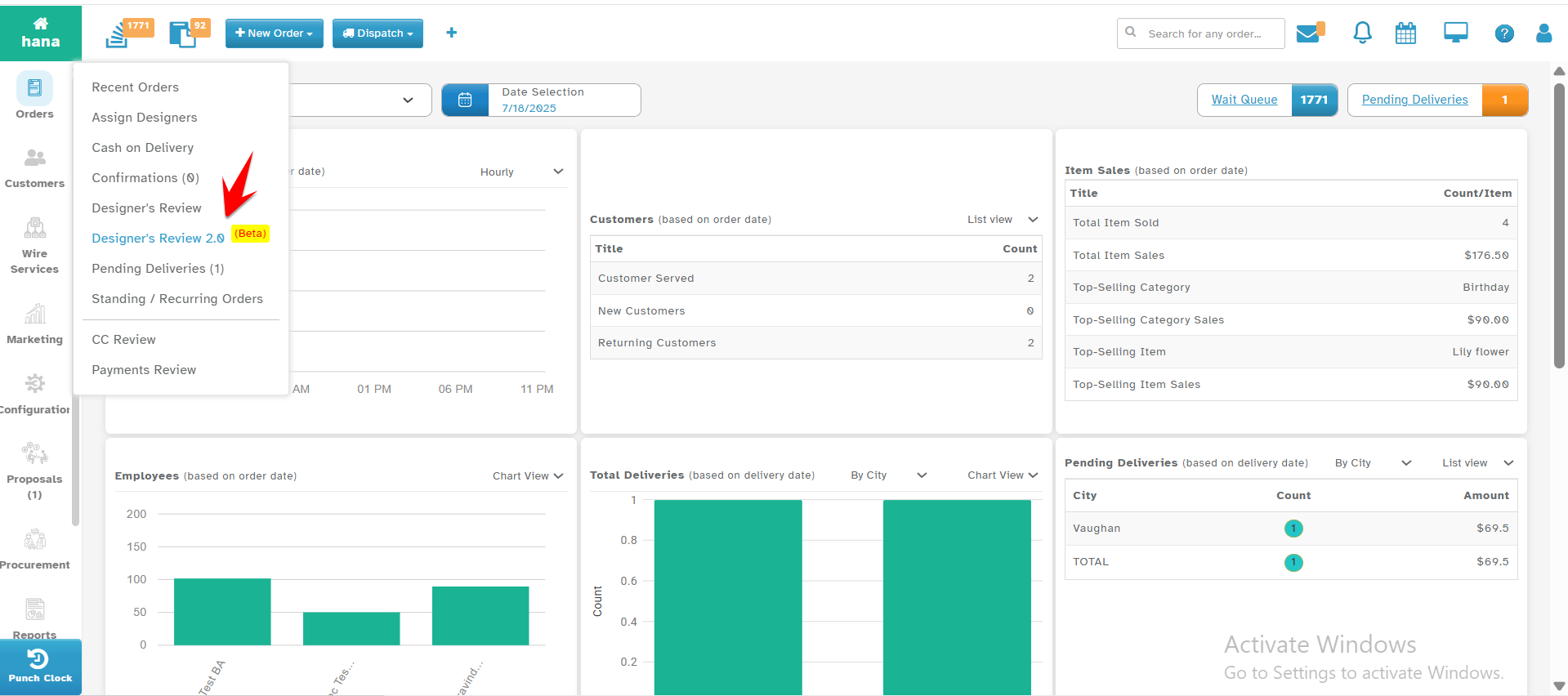
1. Accessing the Designer's Review page
Open the Hana Dashboard.
Navigate to: Orders → Designer’s Review 2.0 (Beta)
2. Page Structure Overview
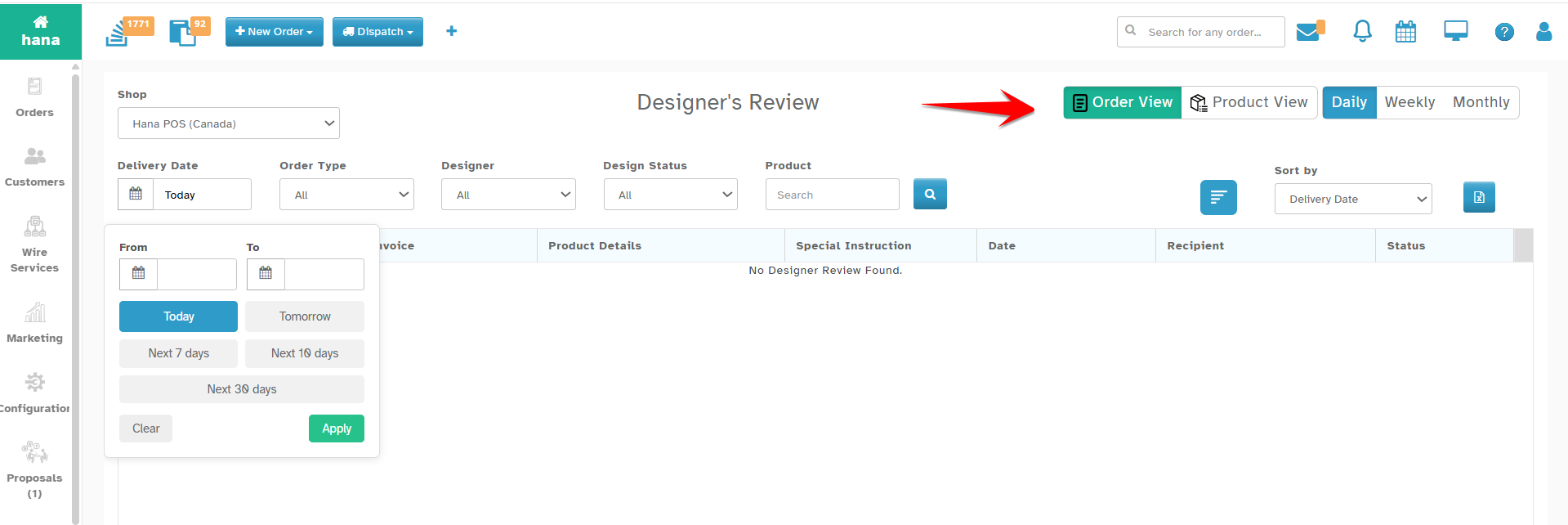
The Designer’s Review page includes two main views:
Order View (Default)
Product View
Each view supports Daily, Weekly, and Monthly display options.
3. Order View (Default View)
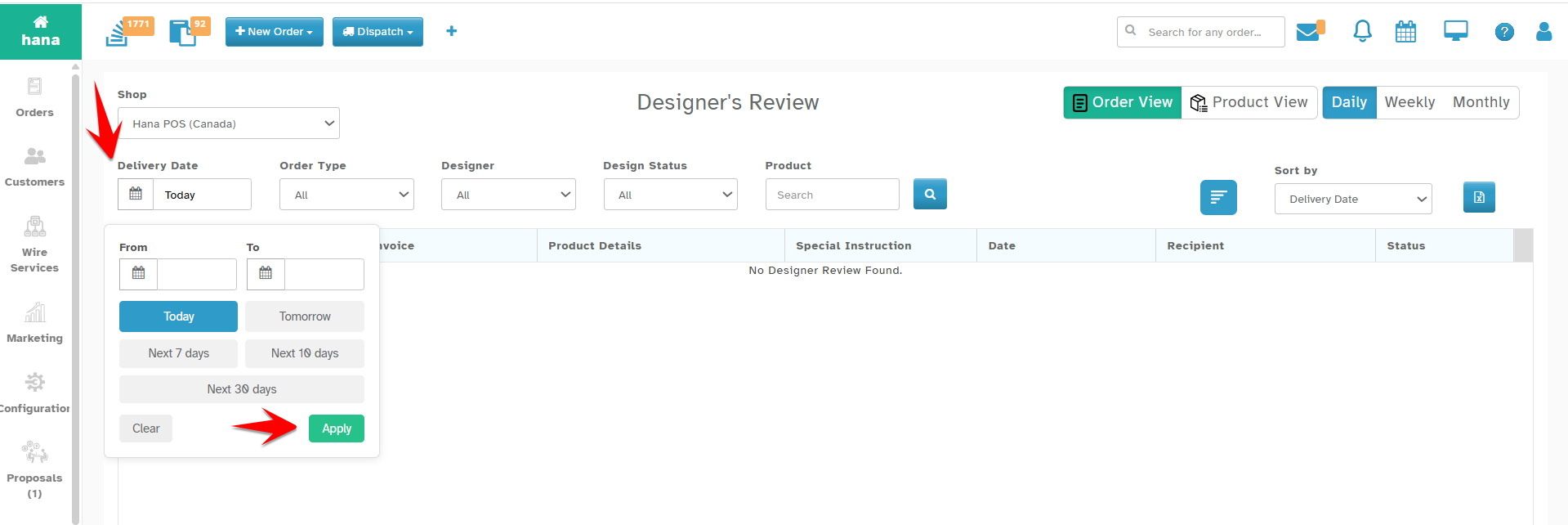
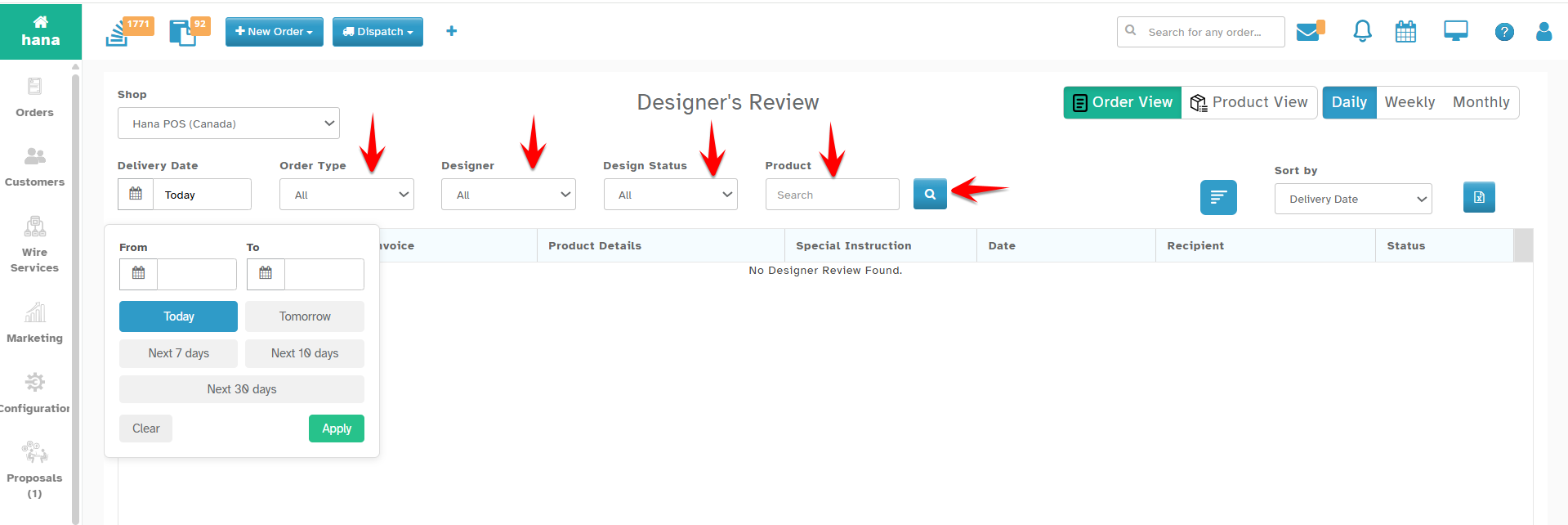
a. Setting the Date Range
By default, Today’s Date is selected.
You can change the date range using the following options:
From & To Date
Tomorrow
Next 7 Days
Next 10 Days
Next 30 Days
Click Apply to update the view .
b. Search Orders
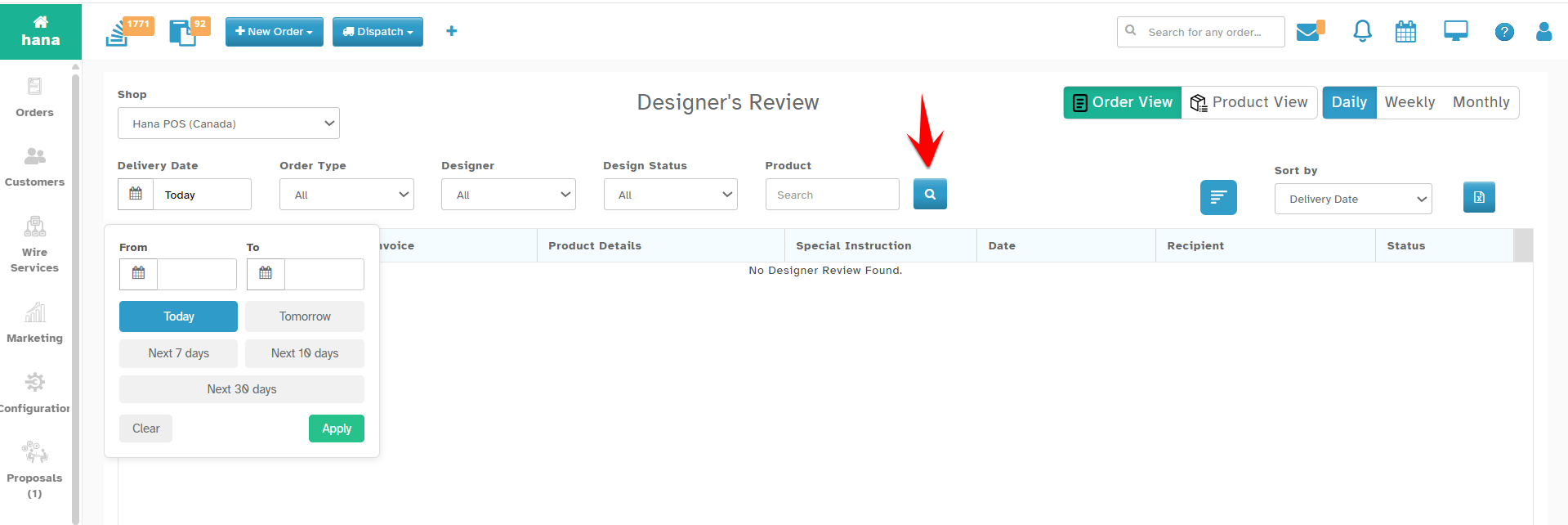
After selecting the date, click Search to fetch matching orders. .
c. Filter Options
You can refine orders using:
Order Type: All / Delivery / Pick Up / Proposal
Designer: Specific Designer / All Designers
Design Status: All / Completed / Pending
Product Search: Options - Search by Product Description / Item Code
After setting filters, click Search again to apply. .
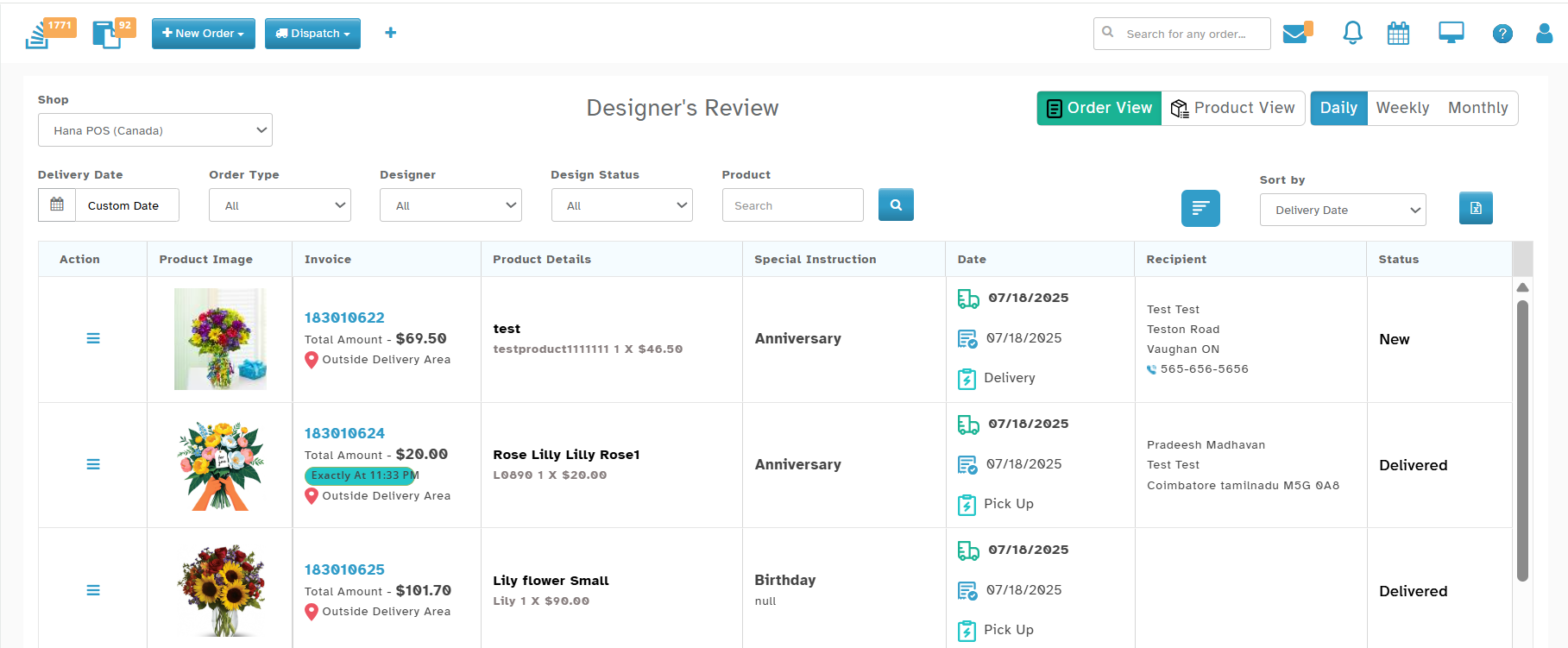
d. Reviewing Orders
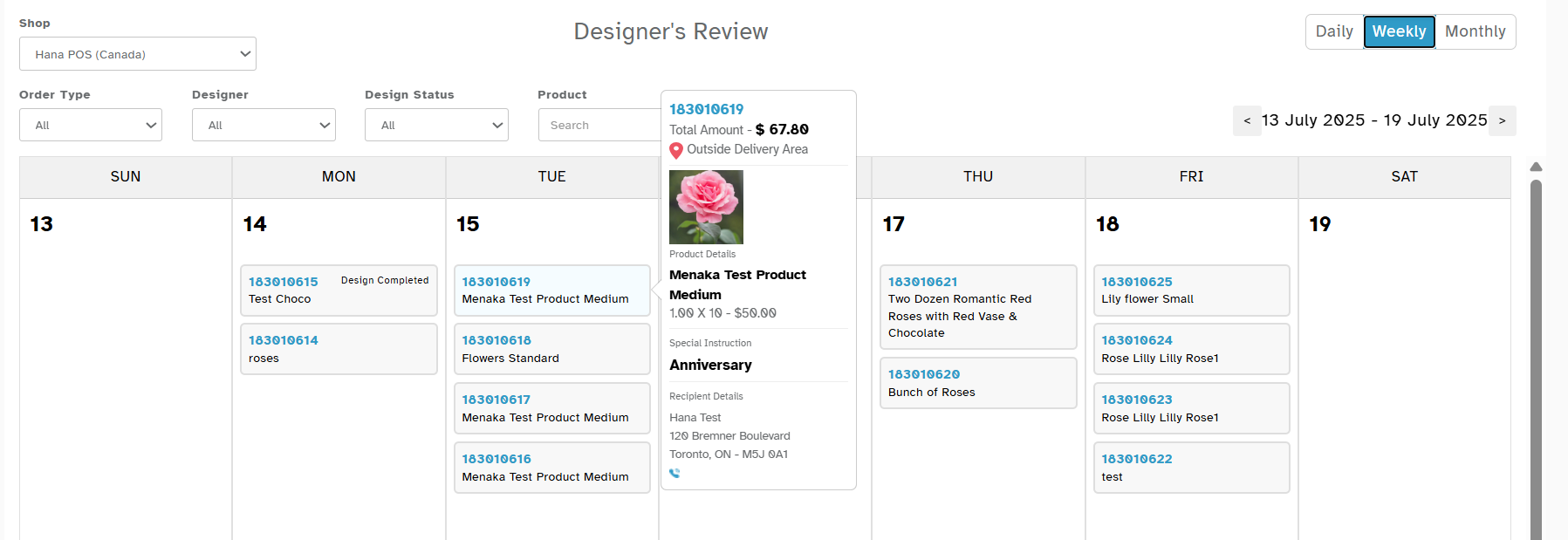
Hover over the Invoice Number for a Quick Glance view of the order.
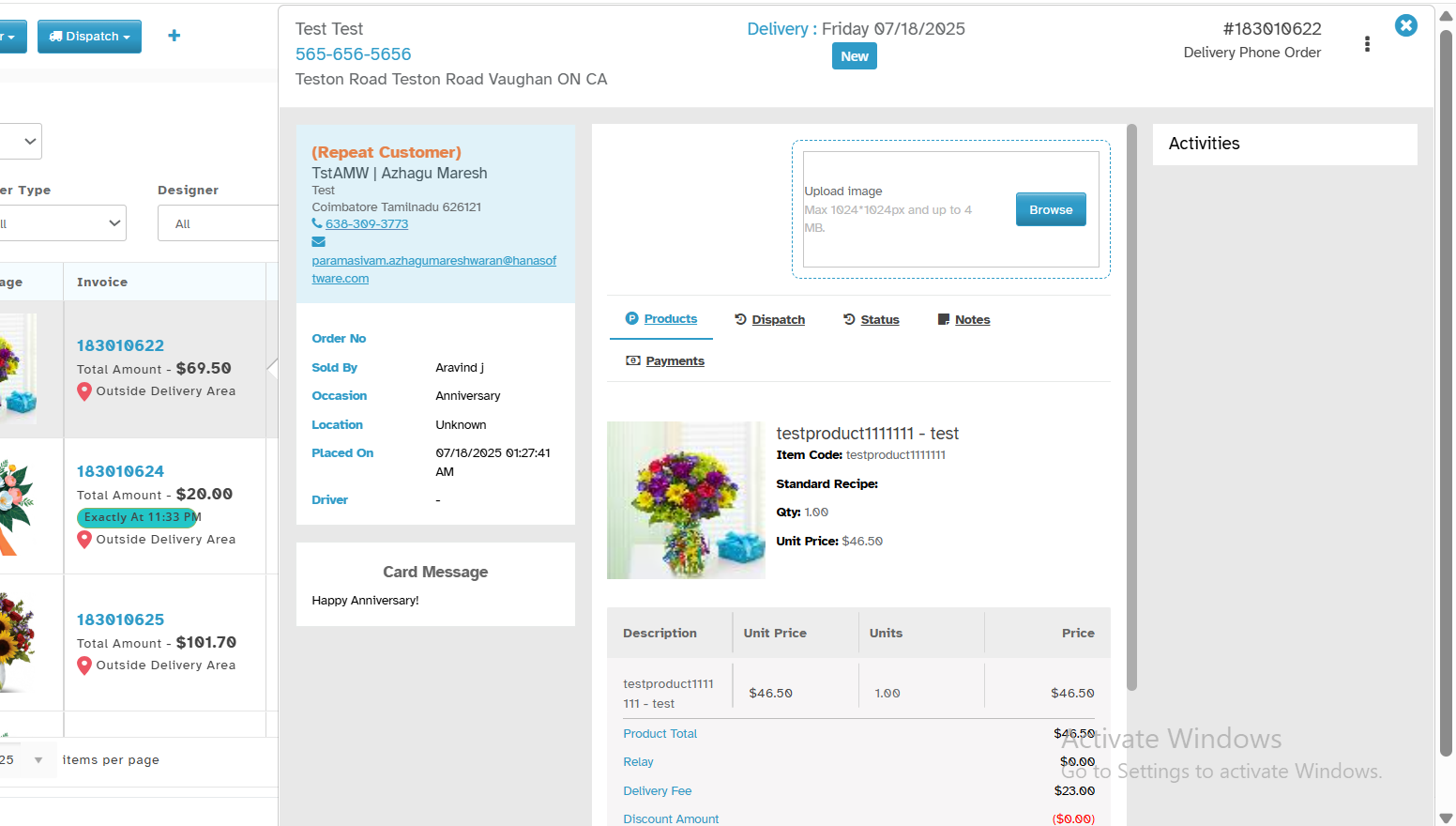
Click on an Invoice Number or other row details to open the Order Summary Page .
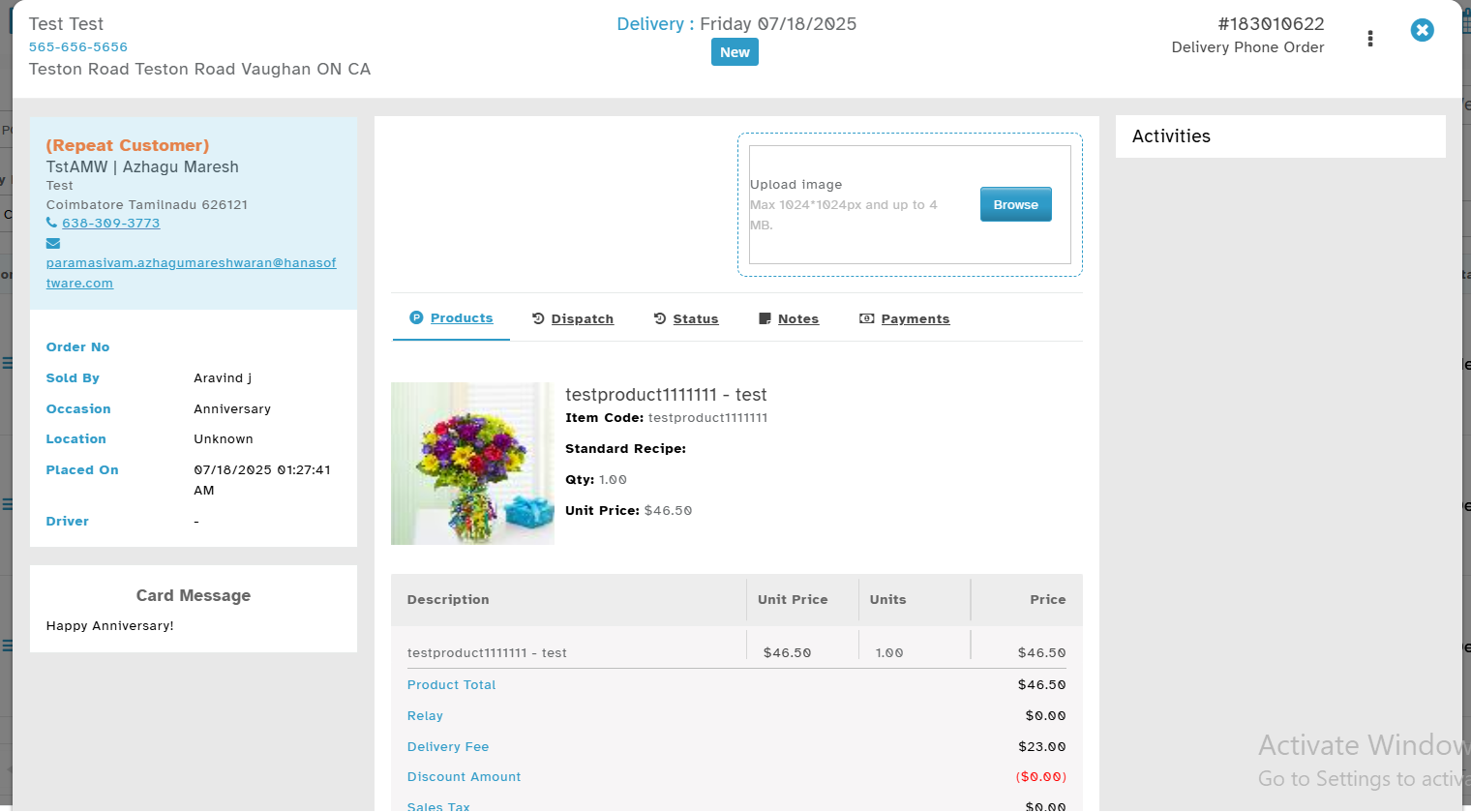
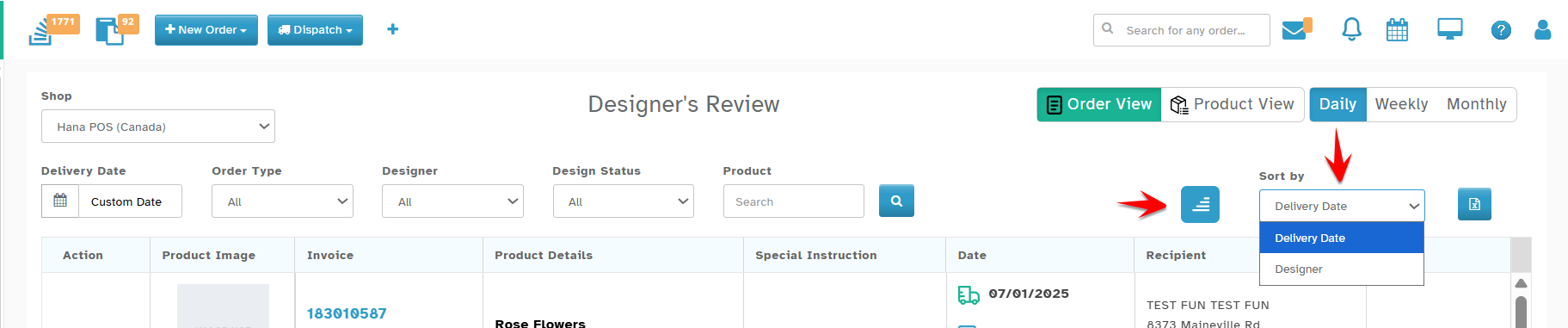
e. Sort By Options
Sort the results using the dropdown:
Delivery Date (default)
Designer
Sort between Ascending/Descending order.
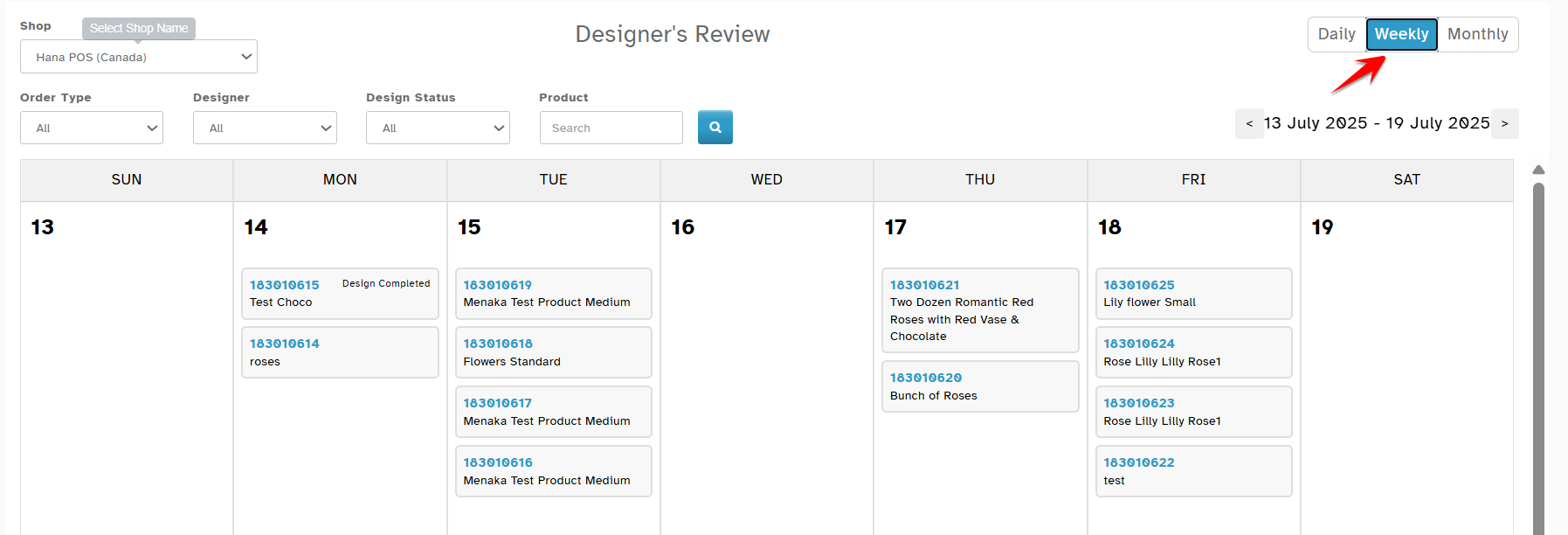
f. Weekly View
Clicking a week section displays orders for that week.
Hovering on an invoice shows order details.
 Clicking an invoice opens the Daily Order View for that order. (Redirects to Daily view of the selected order).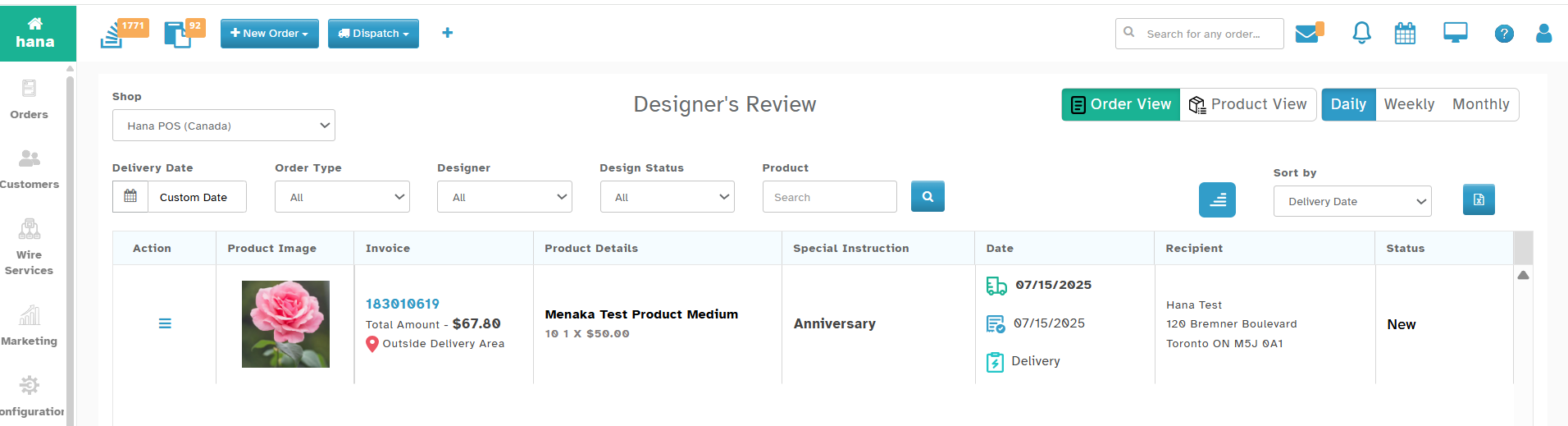
g. Monthly View
Clicking a month displays orders for that month. .
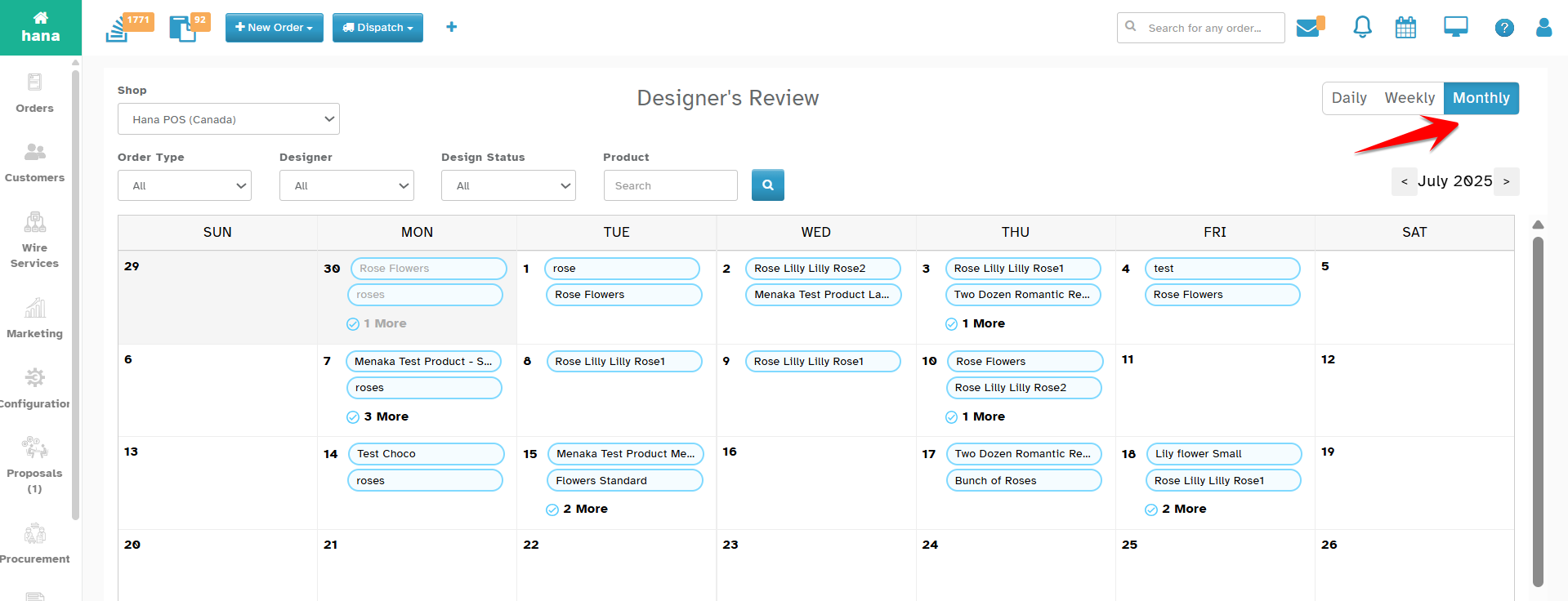
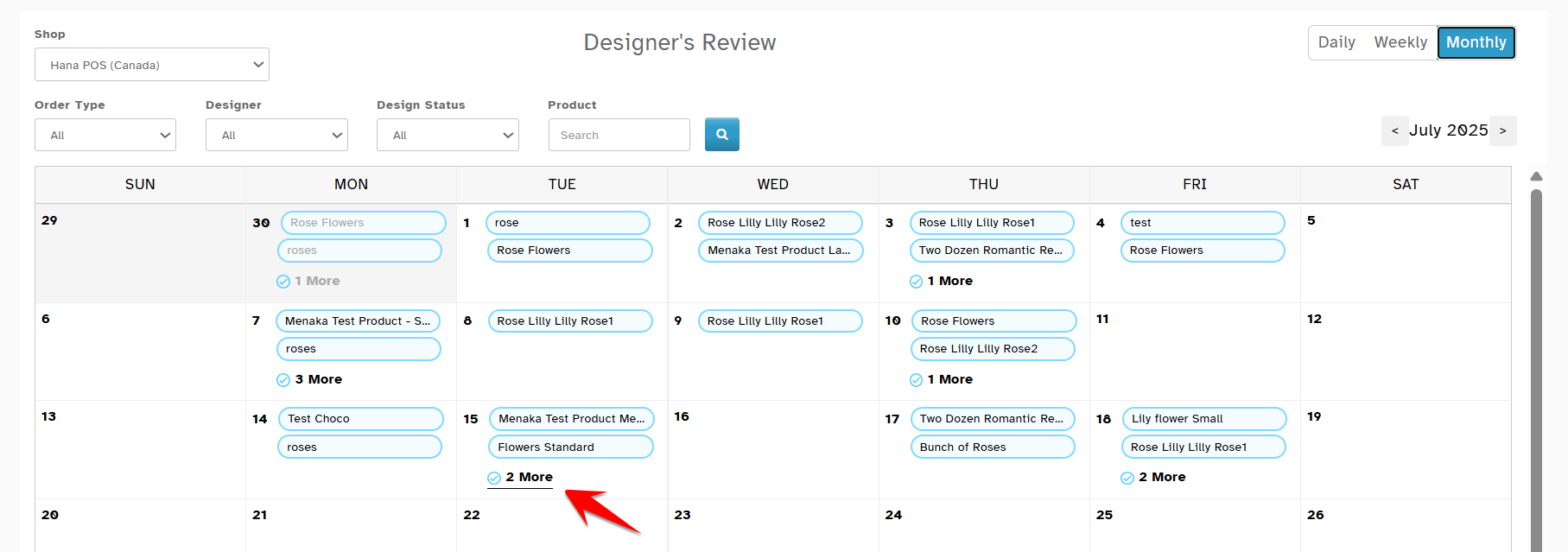
Clicking on more redirects you to the detailed order page
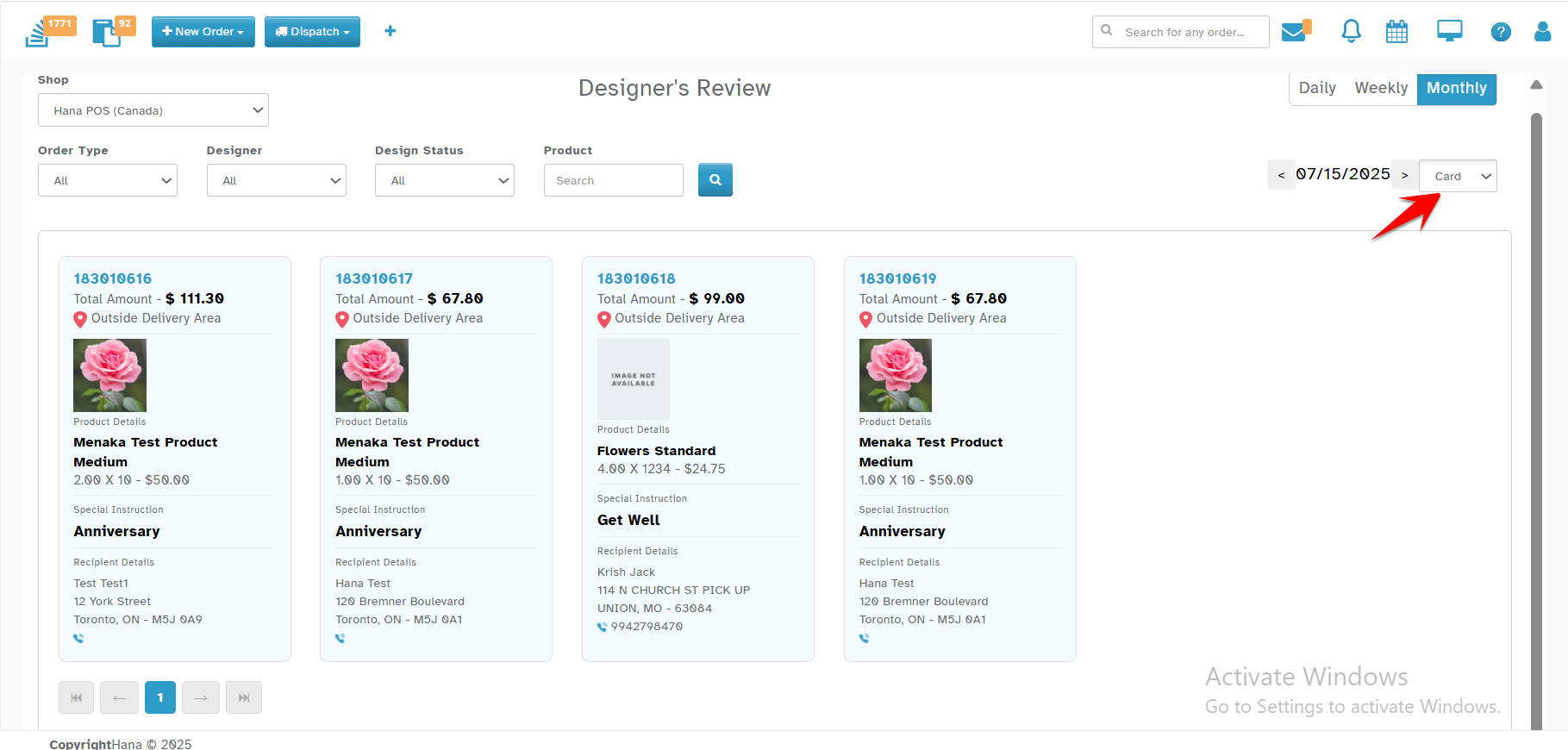
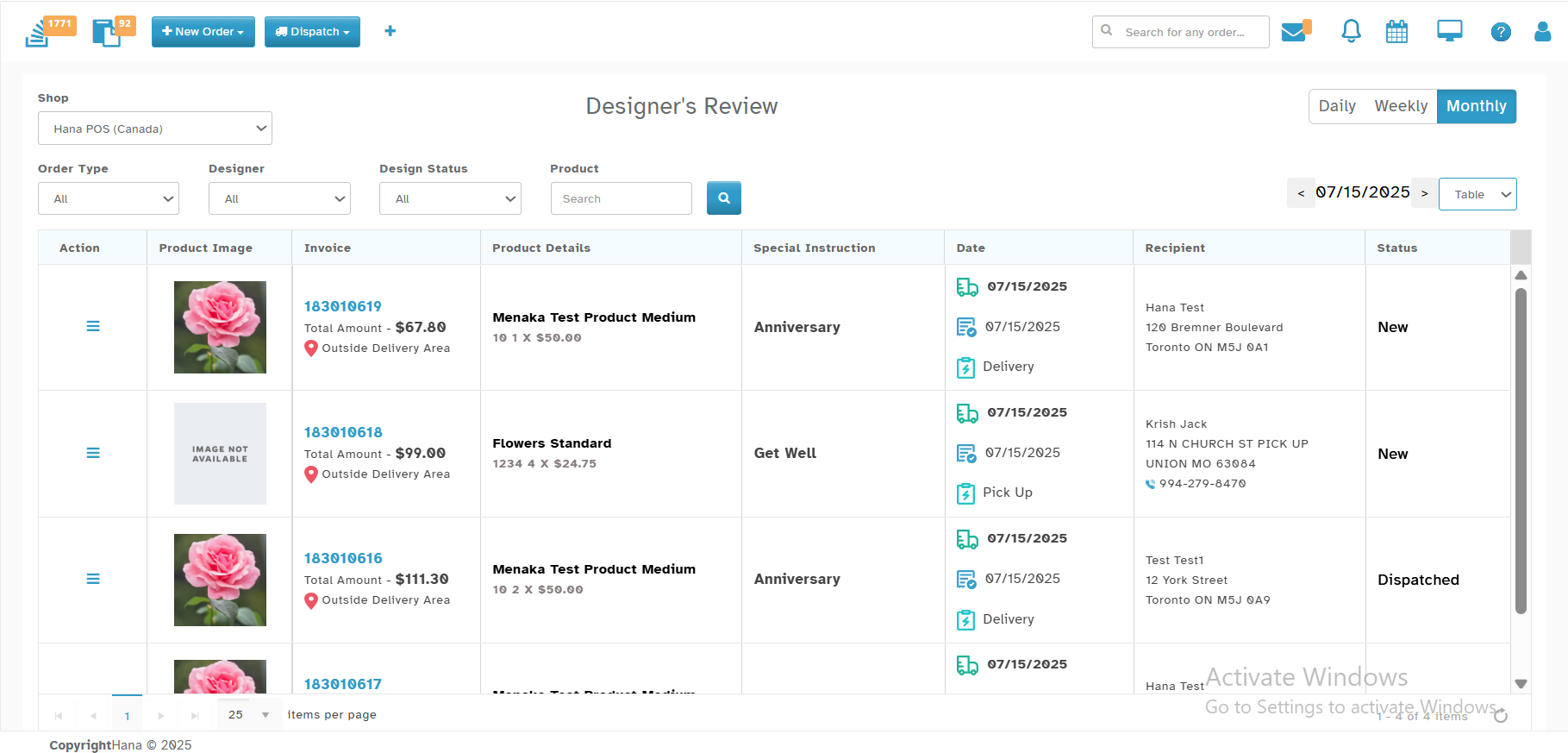
View Options
You can Switch between
Card View and Table View.
Click on “(Eg: 3) More” from monthly view to expand details.
4. Product View
a. Accessing Product View
Click on Product View to see product-level information and actions.
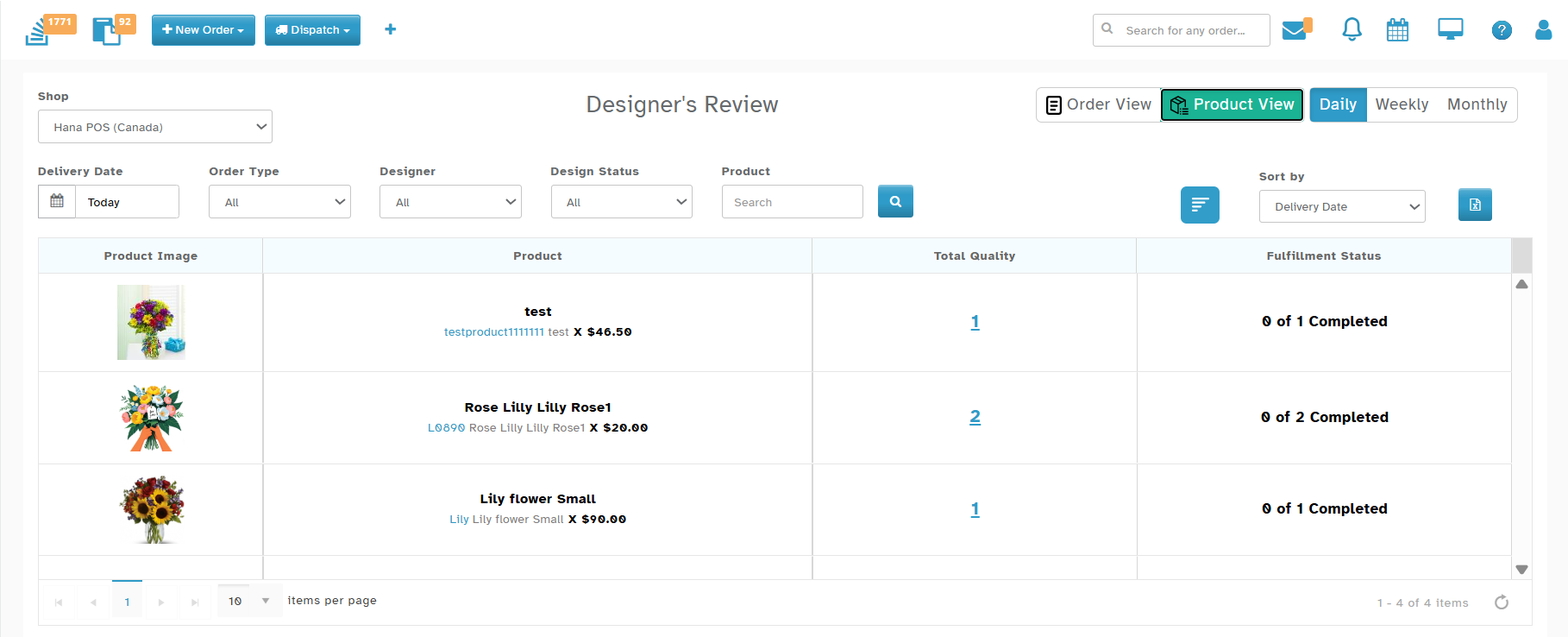
b. Filter & Search
- Similar to Order View
c. Sorting Options
Product (default)
Total Qty
Supports Ascending/Descending order.
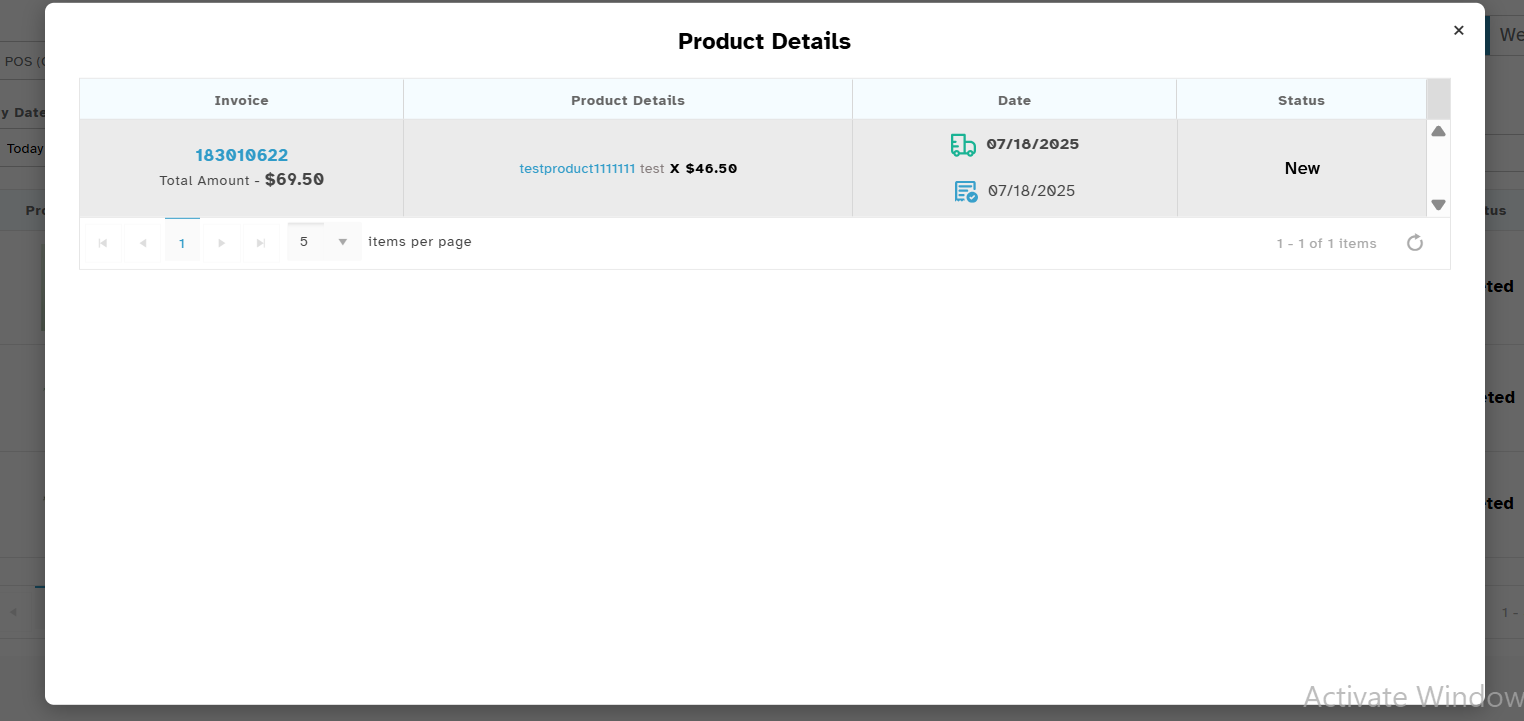
d. Product Details (Pop-up)
Click on the Total Qty to open a detailed pop-up.
Inside the pop-up, click any row detail to open the Order Summary Page.
e. Weekly & Monthly View
- Functionality mirrors the Order View, including navigation and data expansion.
Was this article helpful?
That’s Great!
Thank you for your feedback
Sorry! We couldn't be helpful
Thank you for your feedback
Feedback sent
We appreciate your effort and will try to fix the article