Overview
The Tip Option allows customers to add a tip when making a card-present payment through the Hana Payments device.
When enabled, the payment device displays a tip selection screen and allows the customer to select a tip percentage before completing the payment.
The selected tip is automatically added to the order and recorded as a TotalTip line item.
Who Can Use This?
This feature is available for:
- Hana Payments US
- Hana Payments Canada
- Card-present payments
It does not apply to non-card-present payment methods.
How to Enable Tip on the Device
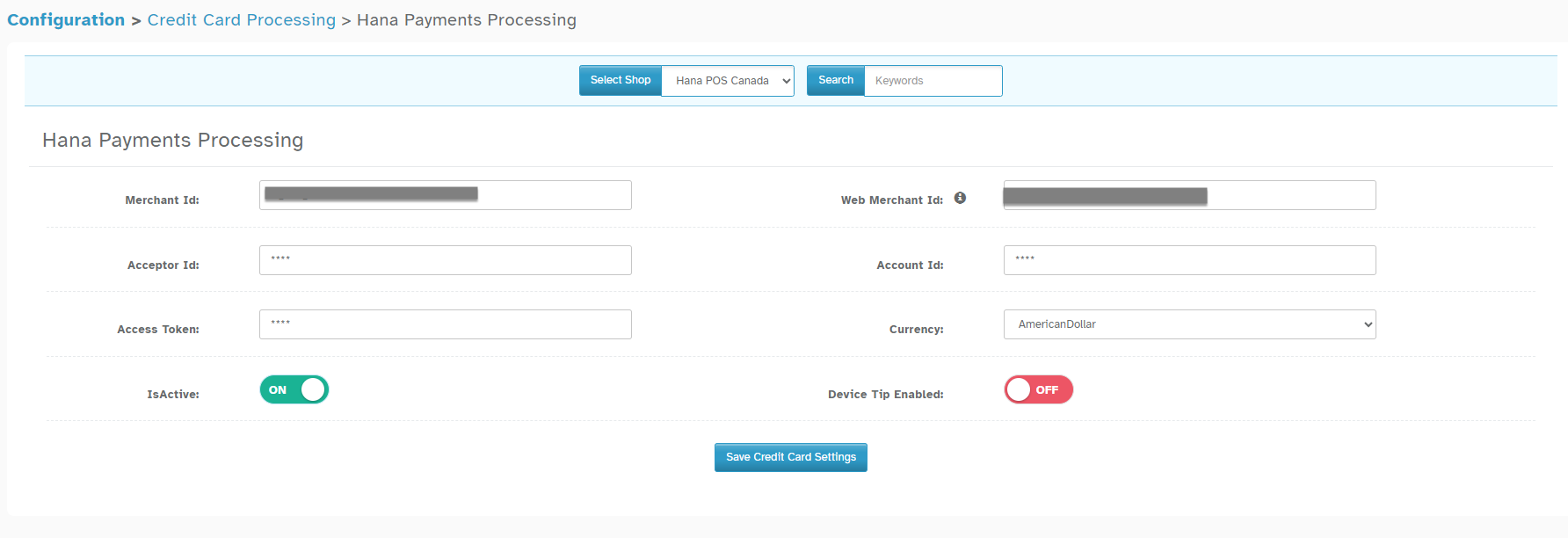
Navigation: Configuration → Credit Card Processing → Hana Payment Processing
Enable the Device Tip option. Once enabled, the payment device will prompt the customer to select a tip percentage during the card payment.
How It Works
- Starts a card payment.
- The payment amount is sent to the Hana Payments device.
- The device displays the available tip percentage options.
- The customer selects a tip.
- The payment is processed with the selected tip amount.
- Hana receives the tip amount and adds it to the order as TotalTip.
How Is the Tip Calculated?
The device calculates the tip as a percentage of the total transaction amount sent to the device.
This means the tip percentage can be calculated on the total amount, including applicable charges such as delivery fee, sales tax etc.,
Example
If the transaction sent to the device is:
- Product: $20
- Sales Tax: $2
- Total Transaction: $22
- Customer selects 10% tip
The tip will be:
$22 × 10% = $2.20
Important Note: The system cannot calculate the device tip based only on the product amount. The percentage is applied to the total transaction value sent to the payment device.
How the Tip Appears in Hana
After the payment is completed, the selected tip amount is added to the order as a TotalTip line item. Because it is recorded as a tip line item:
- It can be seen along with the order items.
Was this article helpful?
That’s Great!
Thank you for your feedback
Sorry! We couldn't be helpful
Thank you for your feedback
Feedback sent
We appreciate your effort and will try to fix the article