What’s New?
You can now track the full history of Customer Notes, including who added or modified a note and when it was done. This ensures all updates are traceable and older notes are no longer overwritten.
Navigation:
Customers → Action Column → Click the Note Icon
How It Works
Click the Note icon next to any customer in the list.
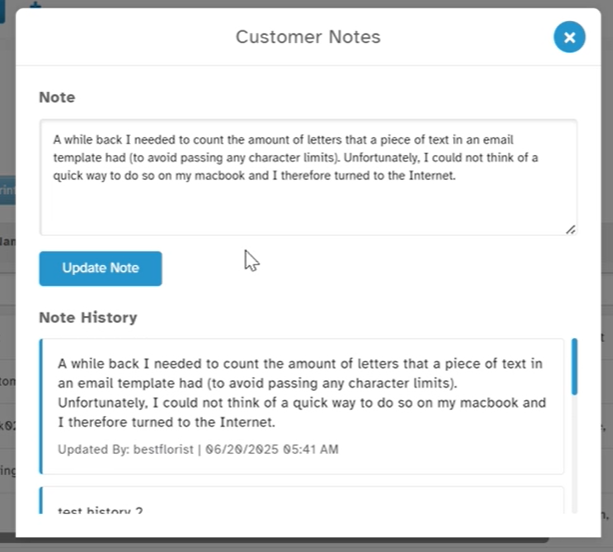
The Customer Notes popup now has two sections:
Note: The editable field where you enter or update your customer note.
Note History: A section that shows all past notes and updates.
When you save a new note, it is:
Saved to the main note area
Also recorded in the Note History section with the user's name and timestamp
History entries are listed in descending order (latest first)
Each entry in Note History shows:
The full note text
Updated by (user name)
Date & time
Why It Helps:
- Track all updates – See what was written and when
- Know who made changes – Each entry is user-stamped
- Resolve issues easily – Useful for audits or customer questions
- Improve teamwork – Everyone sees the full note history
Was this article helpful?
That’s Great!
Thank you for your feedback
Sorry! We couldn't be helpful
Thank you for your feedback
Feedback sent
We appreciate your effort and will try to fix the article