HanaViewers2 allows drivers to quickly confirm deliveries using the mobile app. Once logged in, drivers can view their assigned trips, access delivery details, capture proof of delivery, and instantly mark orders as delivered—ensuring the POS is updated in real time.
Before You Begin
Ensure the driver has been added as an employee (Driver role) in Hana POS and that login credentials have been created for them.
If login credentials are not received, the shop’s owner or manager must create the driver’s profile in Hana POS.
For help with this step, refer to: How to Add a New Employee: Designer, Driver, or Salesperson
Step 1: Log in to the HanaViewers2 App
Open the HanaViewers2 app on your Android or iOS device.
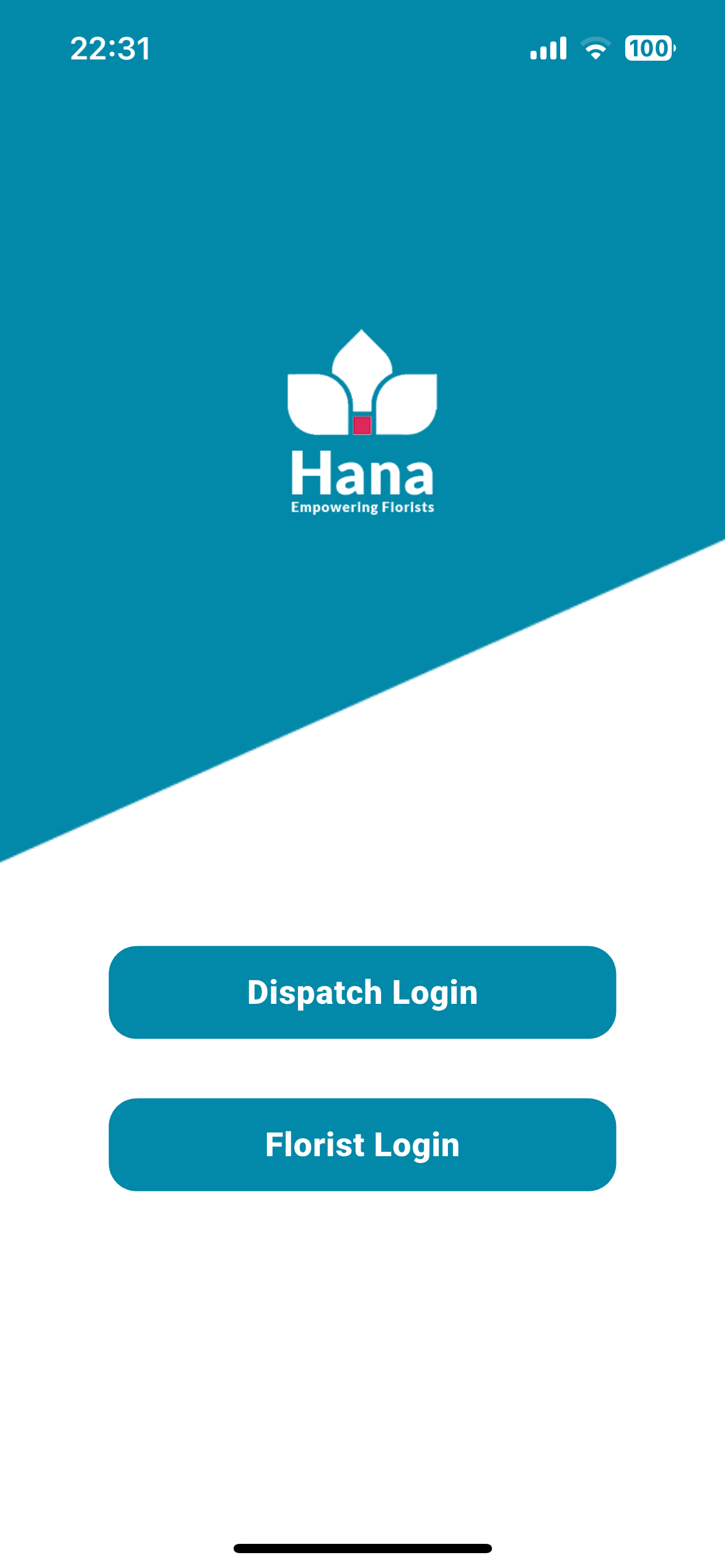
Tap on Dispatch Login on the home screen.
Enter the username and password provided by your flower shop.
Tap Dispatch Login.
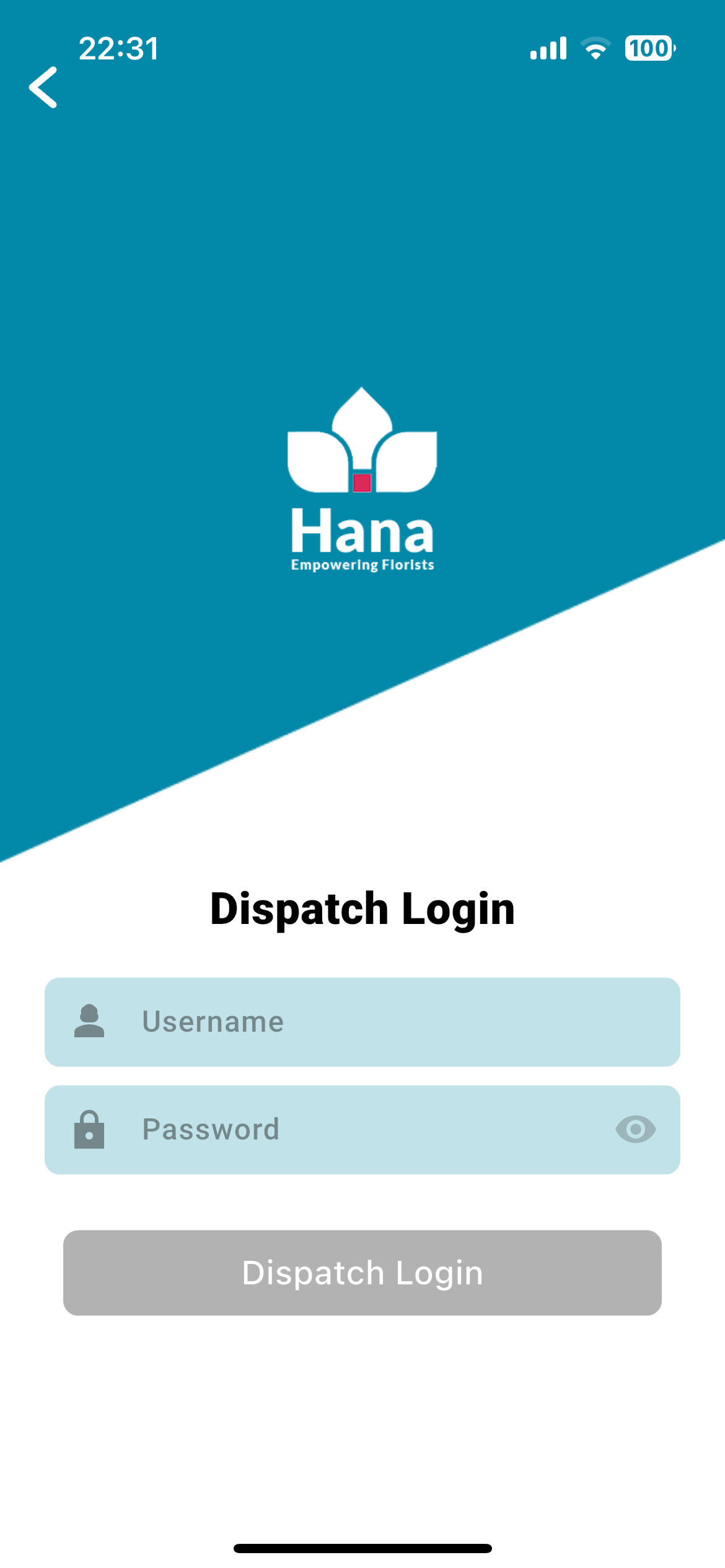
- If login fails, verify that your employee account exists in the POS system and that credentials are correct.
Step 2: View Your Assigned Trips
After logging in, you will be directed to the Trips List page.
Each trip assigned to you will be displayed as a separate card.
If you have more than one trip scheduled, all of them will appear on this screen.
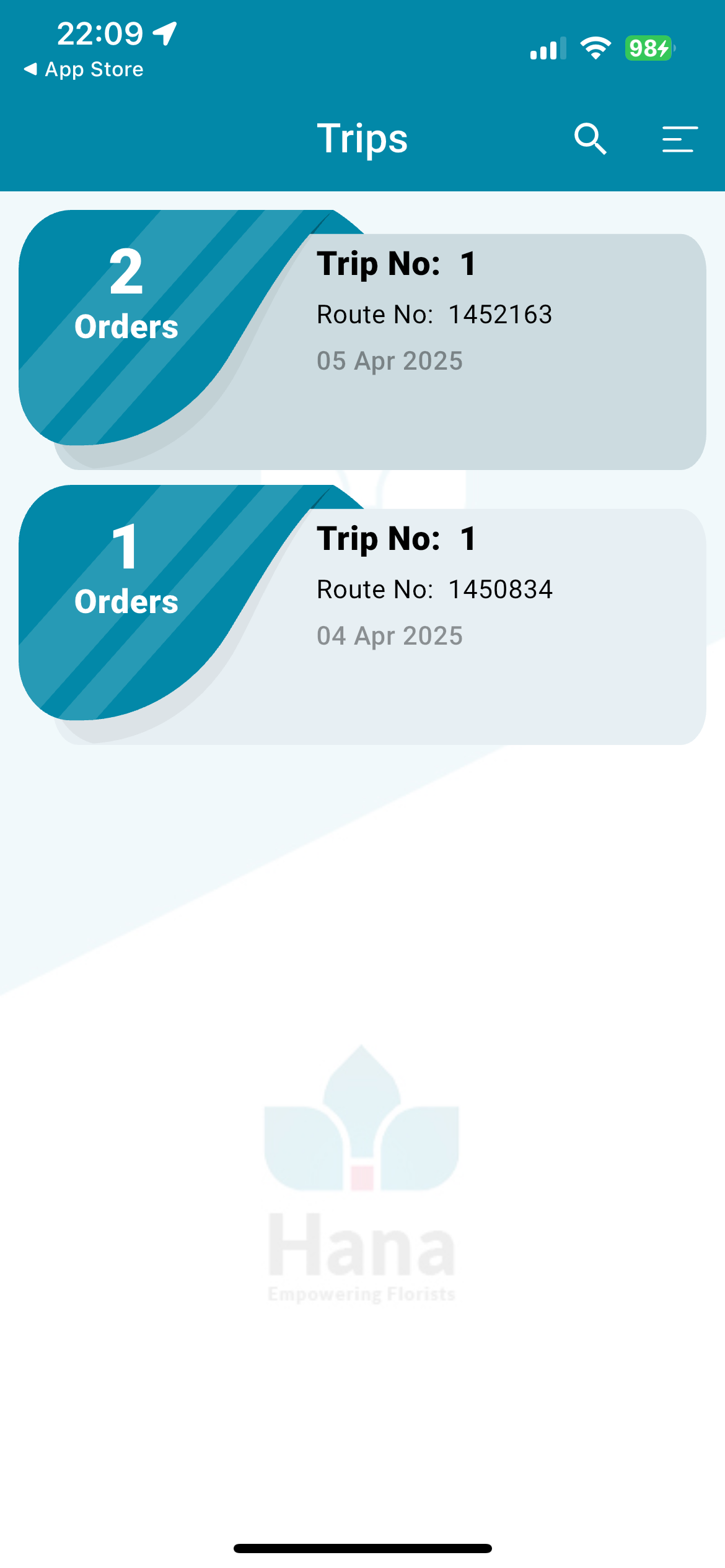
Each trip card displays:
Trip Number (e.g., Trip #4)
Route Number
Total Number of Orders in the trip
Route Creation Date
This information helps you prioritize and organize your deliveries for the day.
Step 3: Select a Trip
Tap on the trip you want to begin working on.
You will now see a list of all orders assigned within that trip.
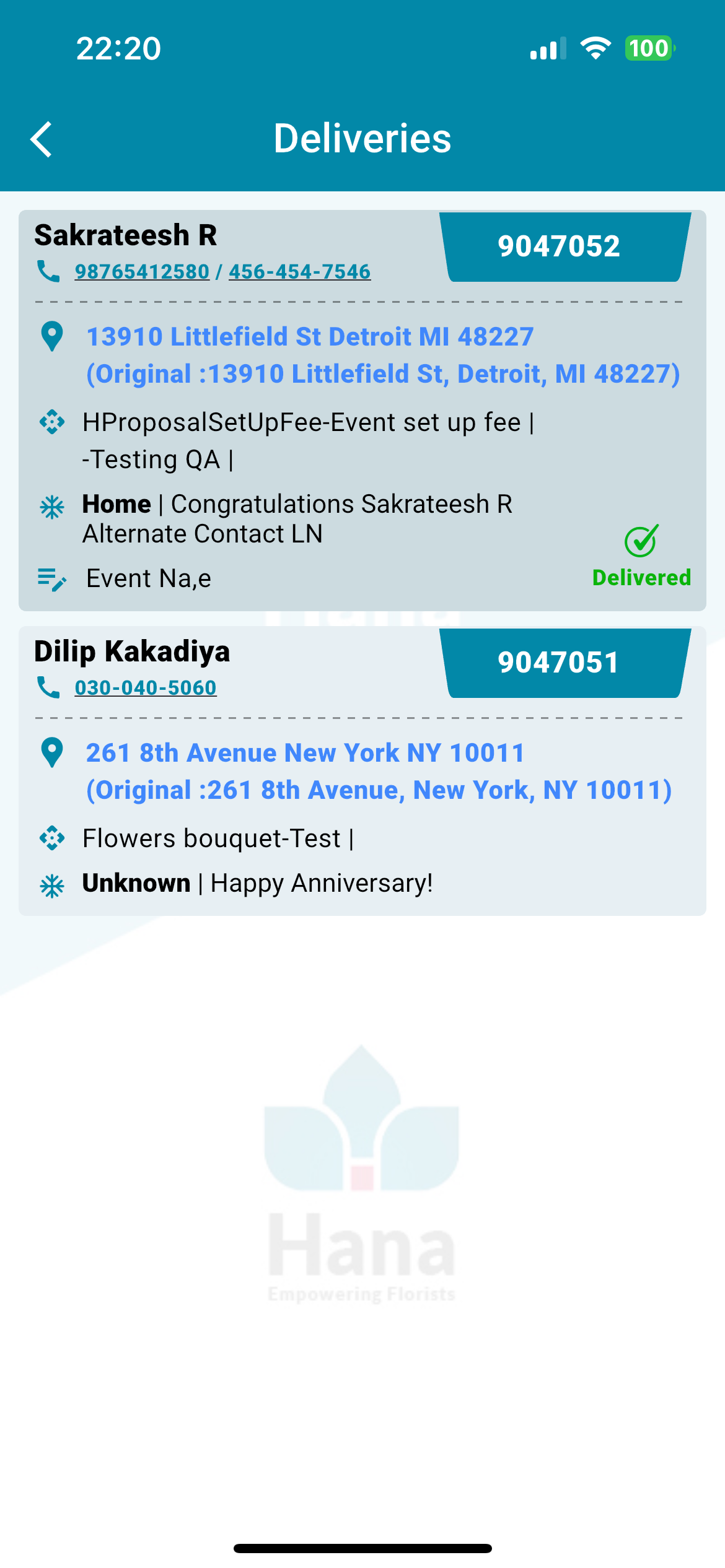
- Each order in the list includes:
Invoice Number
Recipient’s Name
Recipient’s Phone Number
Delivery Address
Scheduled Time of Delivery
- Tap on the delivery address to open it in Google Maps or Apple Maps for navigation assistance.
Step 4: Choose an Order to Confirm
Tap on the order you just delivered.
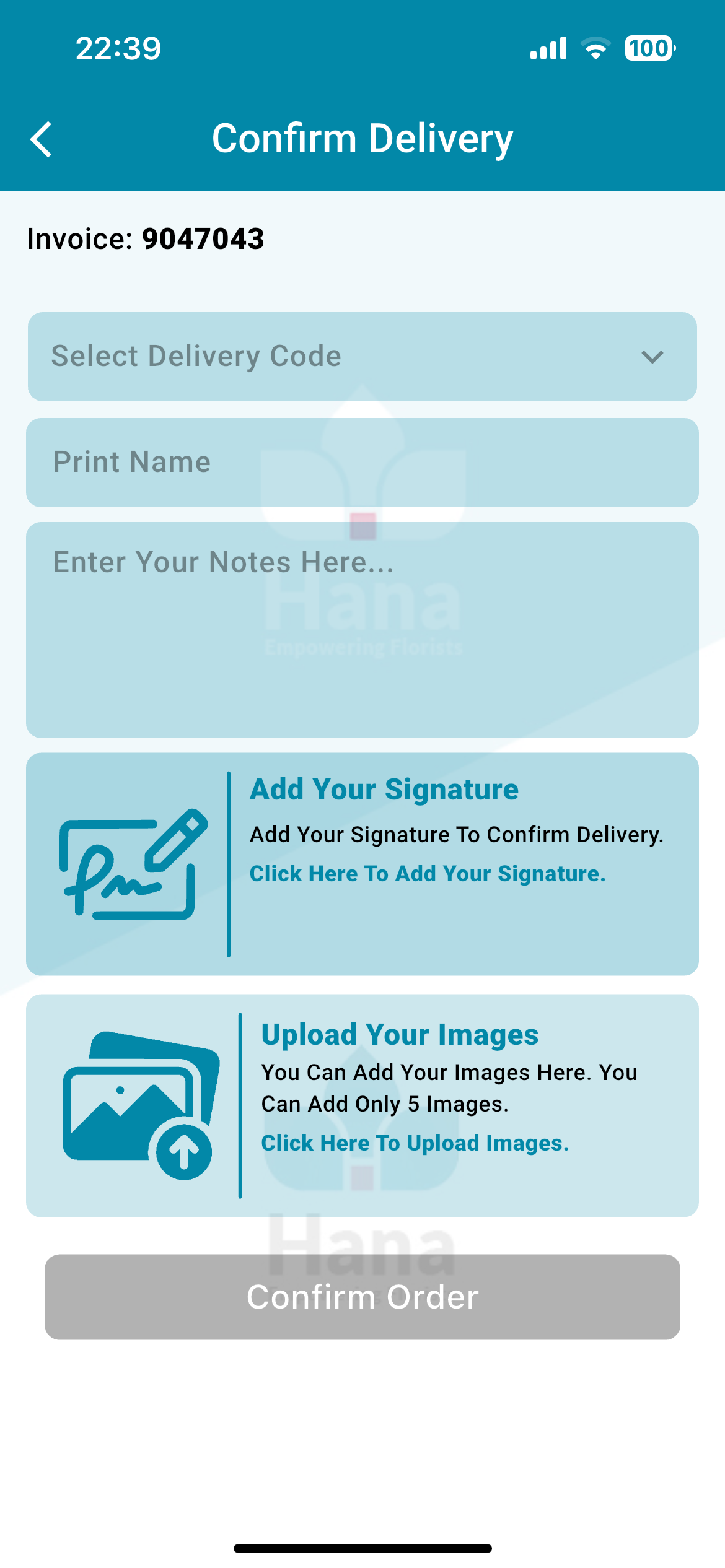
This opens the Confirm Delivery screen where you'll enter delivery details.
Step 5: Fill Out the Delivery Confirmation Form
On the confirmation screen, you’ll find multiple fields and input options. Fill them out as follows:
1. Delivery Code
Select the appropriate delivery code from the dropdown list, for example:
At the Door – Left at the recipient’s doorstep
Delivery by Hand – Handed directly to the recipient
Front Desk – Left with a front desk or receptionist
Other – Any other method (specify in notes)
This helps track how each delivery was completed.
2. Print Name
Enter the full name of the person who received the delivery. This could be the customer, a family member, a receptionist, etc.
3. Notes (Optional)
Add any notes relevant to the delivery, such as:
“Left at the porch with doorman”
“Customer asked to leave it behind the gate”
“Delivered to neighbor (Unit #5) as recipient was not home”
These notes will be saved with the order in Hana POS and are useful for internal tracking.
4. Signature
Have the recipient sign directly on your device screen using their finger or stylus.
If no one is available for signature, you may skip this step and use notes + images to document the delivery.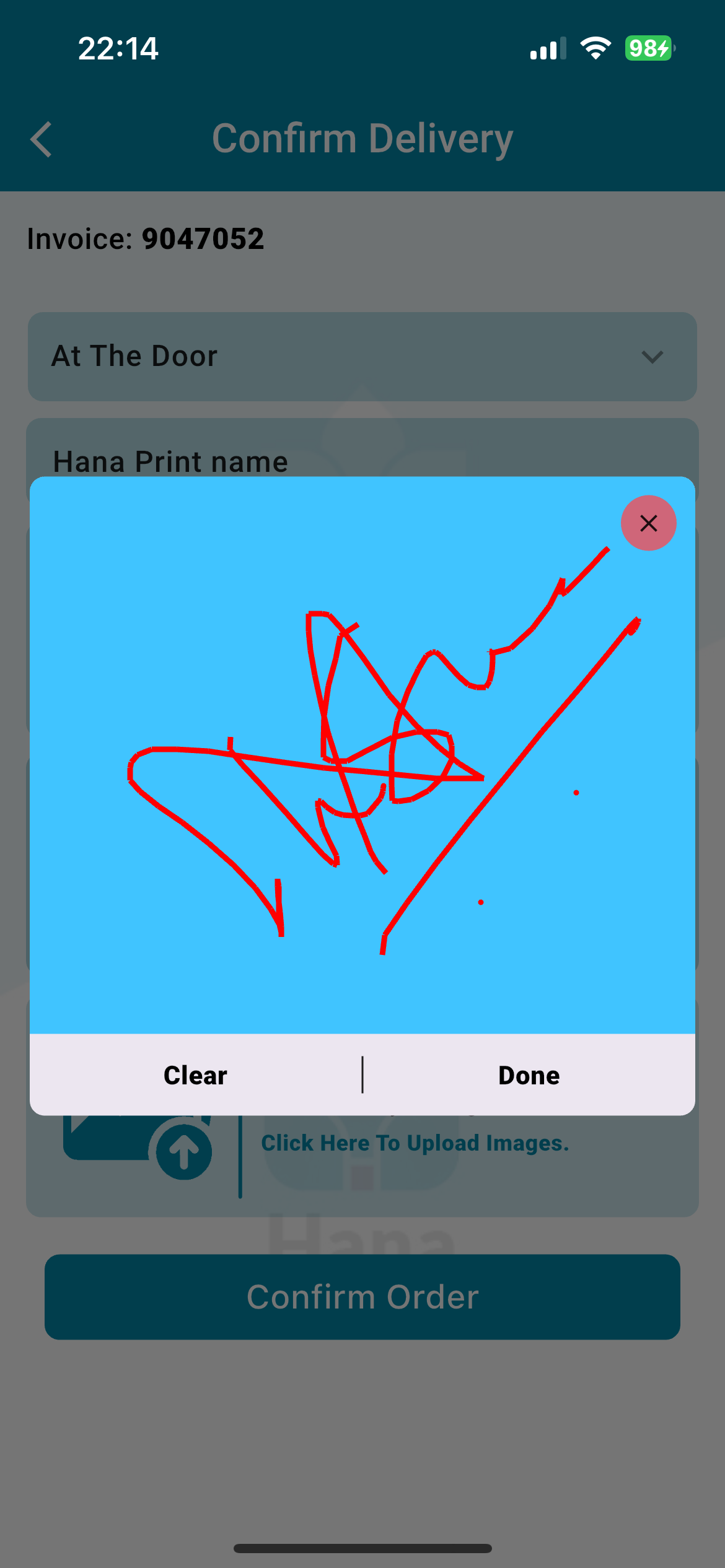
5. Upload Images
Tap the Upload image icon to:
Take a live photo of the delivery
Or select from gallery if you already have photos taken
You can upload up to 5 images per order.
Images serve as visual proof of delivery and will be saved with the order in the POS.
Suggestions for photos:
Arrangement placed at the door or with the recipient
Any surrounding context (e.g., house number, office desk)
Close-up of the product to confirm it arrived in good condition
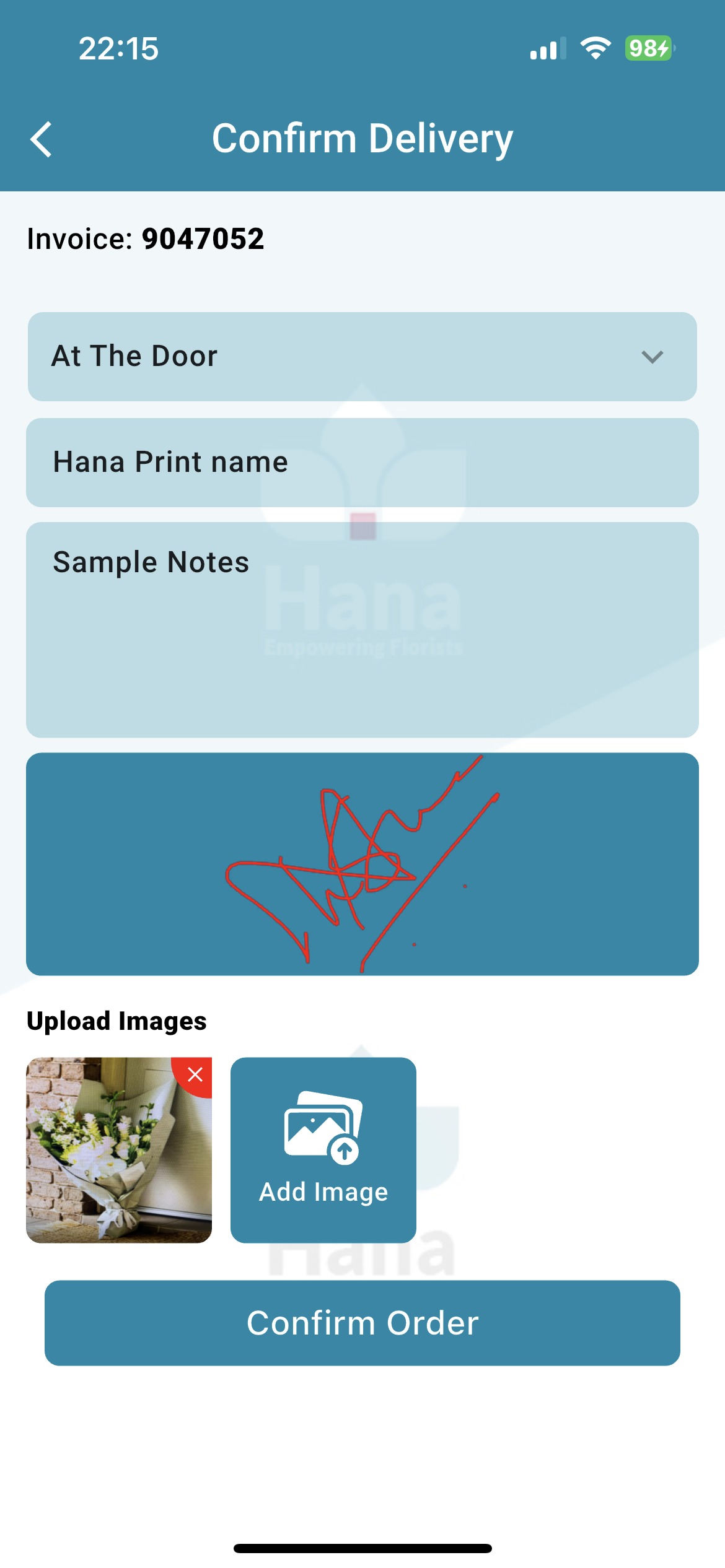
Step 6: Confirm the Order
Once all the necessary information is entered:
Tap the Confirm Order button.
The order will be marked as Delivered in the HanaViewers2 app.
The status will be instantly updated in the Hana POS system, along with:
Delivery time
Photos
Notes
Signature
Delivery method
You can now return to the trip list and proceed with the next order.
Tips for Successful Delivery Confirmation
Always confirm the order immediately after delivery to ensure records stay current.
Take clear and relevant photos of the delivery location and product.
Use notes to explain any issues or unusual delivery circumstances.
Make sure the recipient signs whenever possible.
Double-check the address in Maps before traveling to avoid delays.
Was this article helpful?
That’s Great!
Thank you for your feedback
Sorry! We couldn't be helpful
Thank you for your feedback
Feedback sent
We appreciate your effort and will try to fix the article