In HANA POS, the Payout feature allows florists and retail staff to record one-time cash withdrawals made directly from the cash drawer. These payouts help document small cash expenses such as refunds, driver payments, vendor settlements, and other miscellaneous expenses, ensuring accurate tracking of cash flow and register balances.
This article provides a comprehensive walkthrough of the Cash Draw Payout process and explains each field involved.
When to Use the Payout Option
Payouts should be used whenever cash is physically removed from the register for purposes such as:
Returning due balances or providing customer refunds
Paying delivery drivers
Settling dues with flower or product vendors
Making store-related or payroll-related expenses
By recording each payout, businesses can maintain a transparent and auditable cash flow record.
Steps to Process a Cash Register Payout
Step 1: Access the Cash & Carry Settings
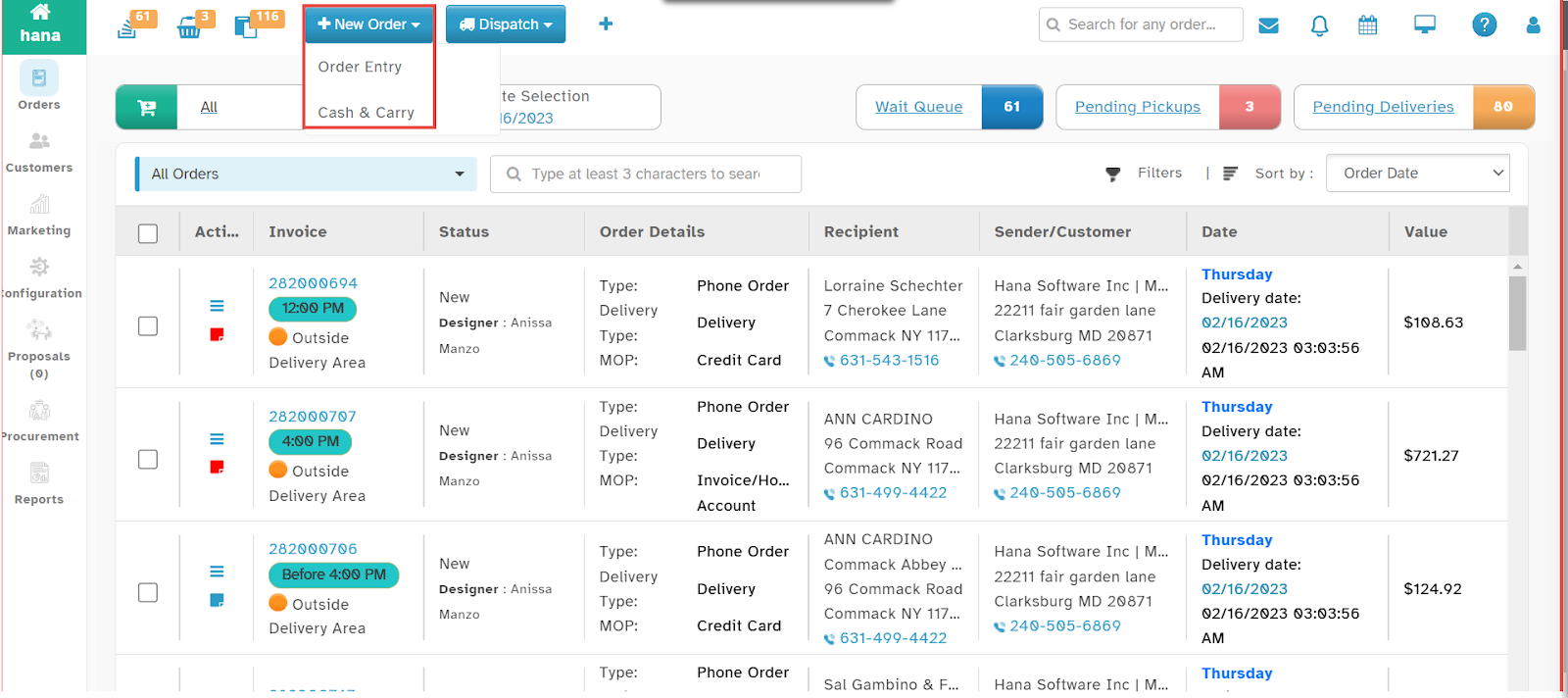
Navigate to New Entry > Cash & Carry from the dropdown list.
Note: This feature is available on all pages of Hana POS, allowing quick order creation from any screen.
The Cash & Carry Page will be displayed.
Step 2: Select Shop and Cash Register
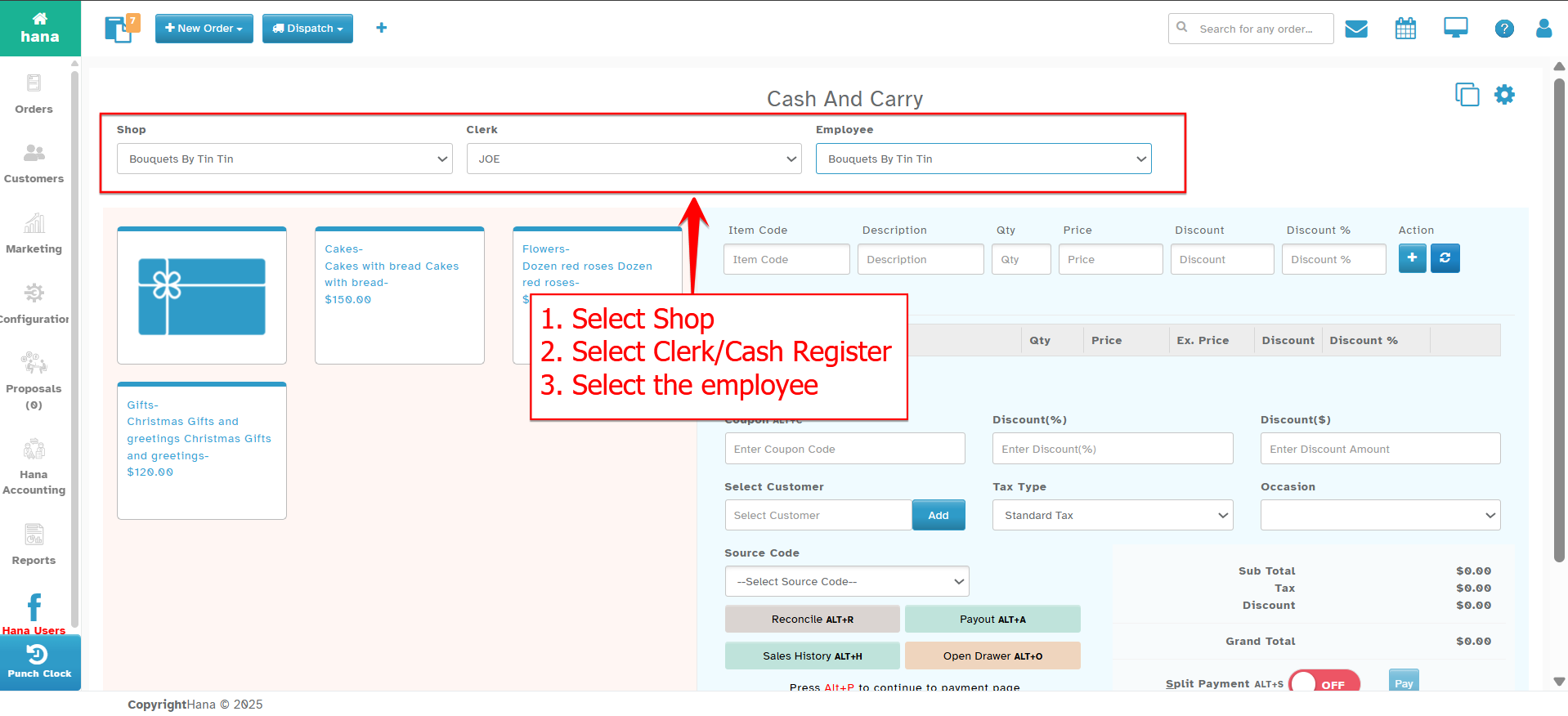
At the top of the Cash & Carry screen:
Select Shop: Choose the shop location where the payout is being recorded.
Cash Register: Select the register from which the payout is being made.
Selecting the correct shop and register ensures that the payout is associated with the proper transaction history and reconciliation log.
Step 3: Access the Payout Option
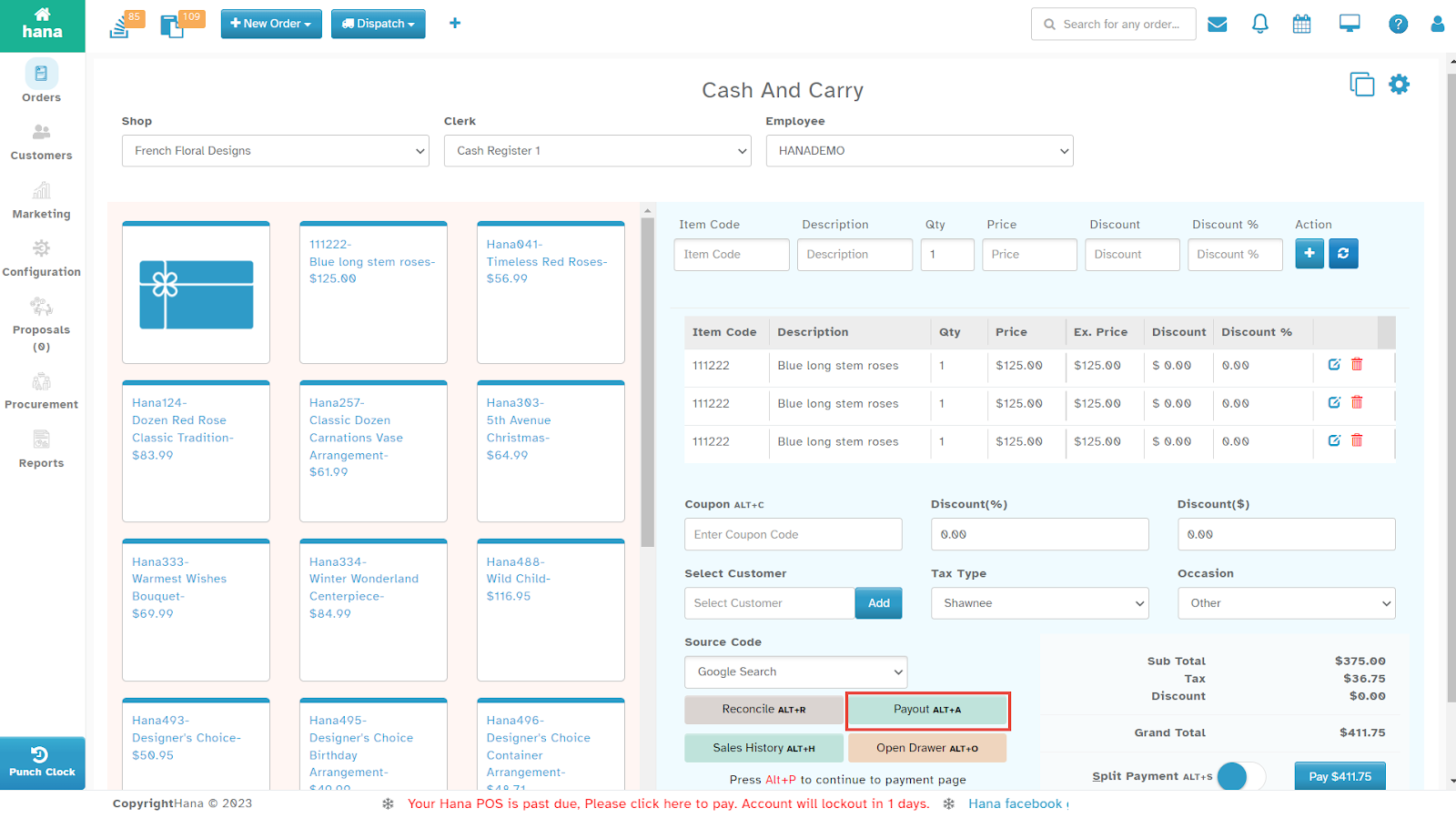
Click the Payout button from the Cash & Carry page.
Shortcut: Press Alt + A to open the Payout window directly.
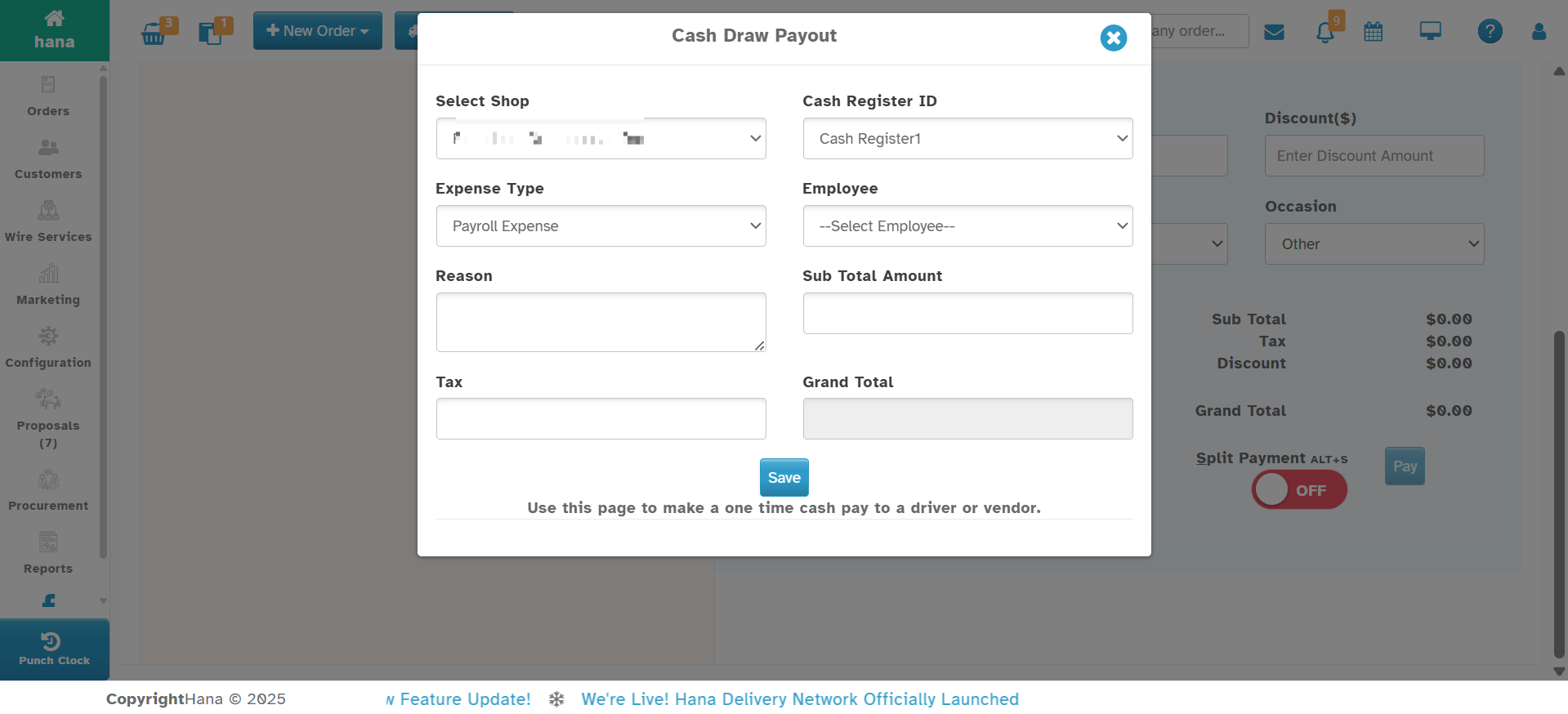
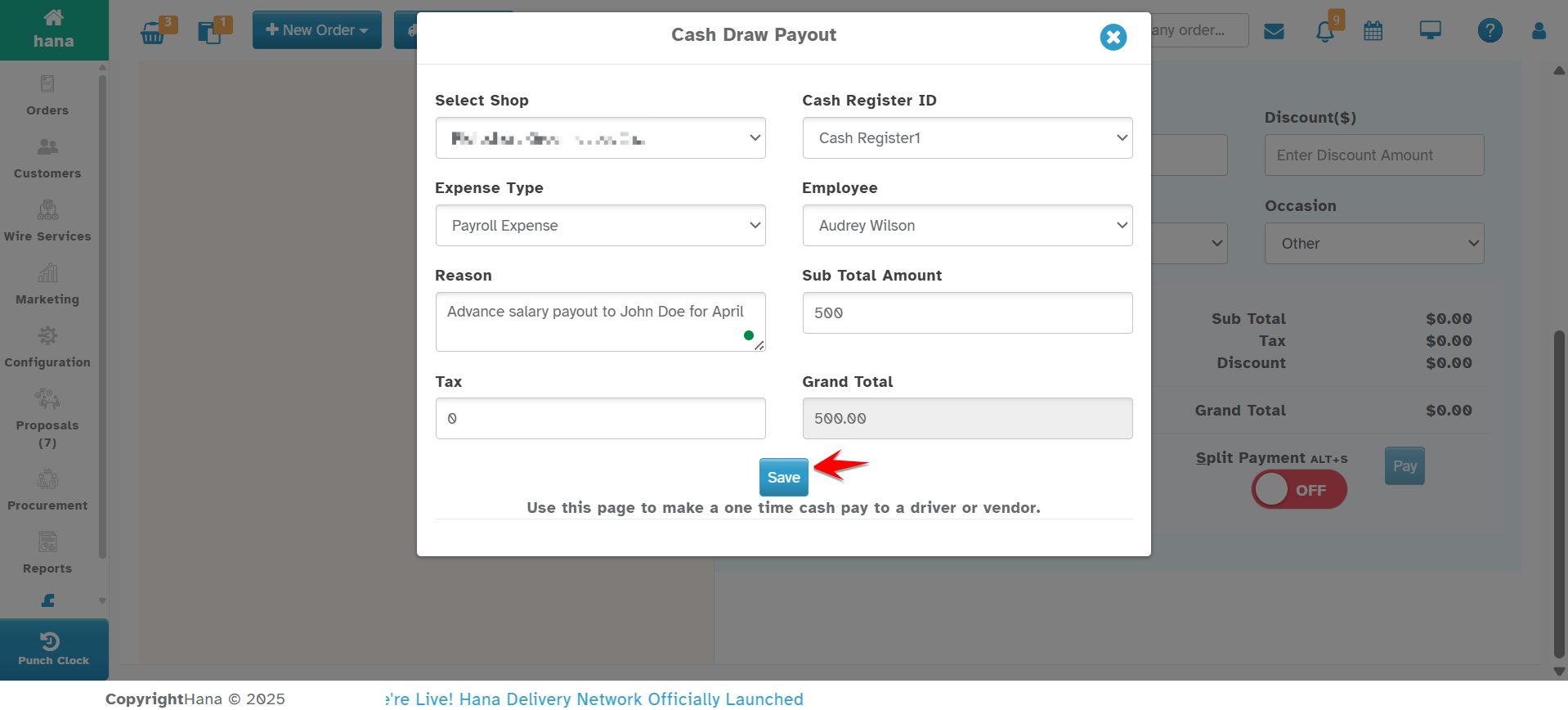
You will now see the Cash Draw Payout dialog box.
You will now see the Cash Draw Payout dialog box.
Understanding the Payout Page Fields
Each field in the payout form captures specific information necessary for financial accuracy and future reporting.
| Field | Description |
|---|---|
| Select Shop | The shop where the payout is occurring. This should already be selected, but you can change it if needed. |
| Cash Register ID | The cash register from which funds will be deducted. |
| Expense Type | Choose the category of payout. Available types: - Store Expense (for supplies, utility payments, etc.) - Payroll Expense (for driver/vendor payments, part-time wages, etc.) |
| Reason | A required free-text field to explain the purpose of the payout (e.g., “Driver payment for 3 deliveries” or “Refund for Order #1543”). |
| Sub Total Amount | Enter the core amount being paid, excluding tax. |
| Tax | If applicable, enter any tax amount included in the payout. If no tax applies, this can be left at zero. |
| Grand Total | This is automatically calculated as Sub Total + Tax. It reflects the final cash amount being withdrawn. |
Note: You must complete all required fields before the Save button becomes active.
Step 4: Save the Payout Record
Once all fields are filled out accurately, click Save.
A confirmation message will appear indicating that the payout has been successfully saved.
The system deducts the Grand Total from the cash register and logs the payout for reconciliation and future reporting.
What Happens After Saving the Payout
The payout is recorded and will be reflected in:
Reconciliation screen (as part of the Expected Balance calculation)
Sales history / reports
During end-of-day reconciliation, this payout is subtracted from the total cash, ensuring the expected cash balance is accurate.
If the payout was not recorded properly, it may cause discrepancies during reconciliation.
Best Practices for Payouts
Always enter a clear and specific reason for the payout.
Categorize the expense correctly using Expense Type for accurate reporting.
Avoid handing out cash without logging the transaction immediately.
Retain receipts or notes when possible for external audits or future reference.
Conclusion
Using the Payout feature in HANA POS helps keep your cash register transparent and accurate. Whether it's paying a driver or handling a quick store expense, logging it properly ensures that your financial records are always in sync and discrepancies are avoided during reconciliation.
Was this article helpful?
That’s Great!
Thank you for your feedback
Sorry! We couldn't be helpful
Thank you for your feedback
Feedback sent
We appreciate your effort and will try to fix the article