Hana POS allows you to issue a partial refund for an order paid with a credit card. This guide walks you through the steps to modify an order and process a partial refund, whether by adjusting product prices, removing items, or applying a discount.
Steps to Partially Refund a Credit Card Payment
Step 1: Access the Orders Page
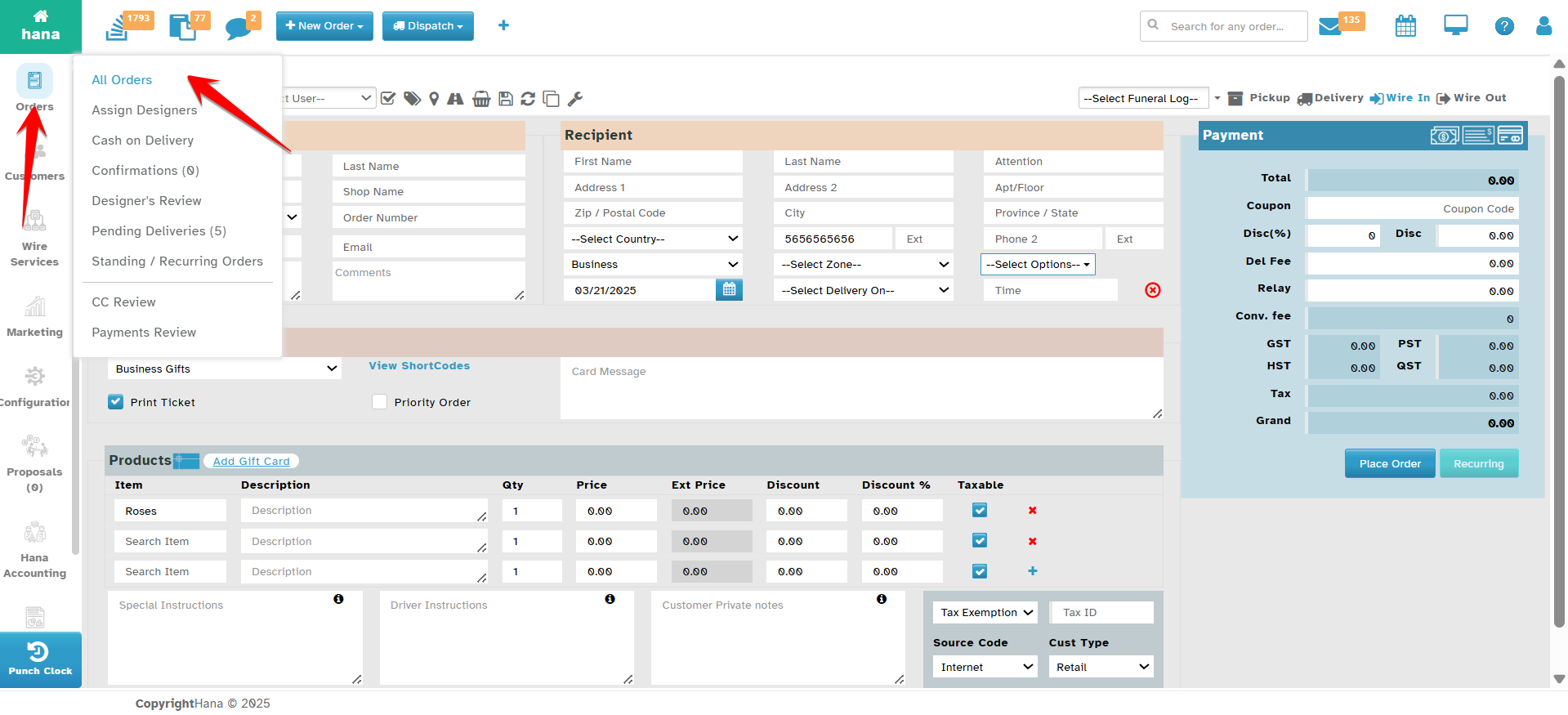
Navigate to Hana > Orders > All Orders.
The Orders Page will be displayed.
Step 2: Open the Update Order Dialog
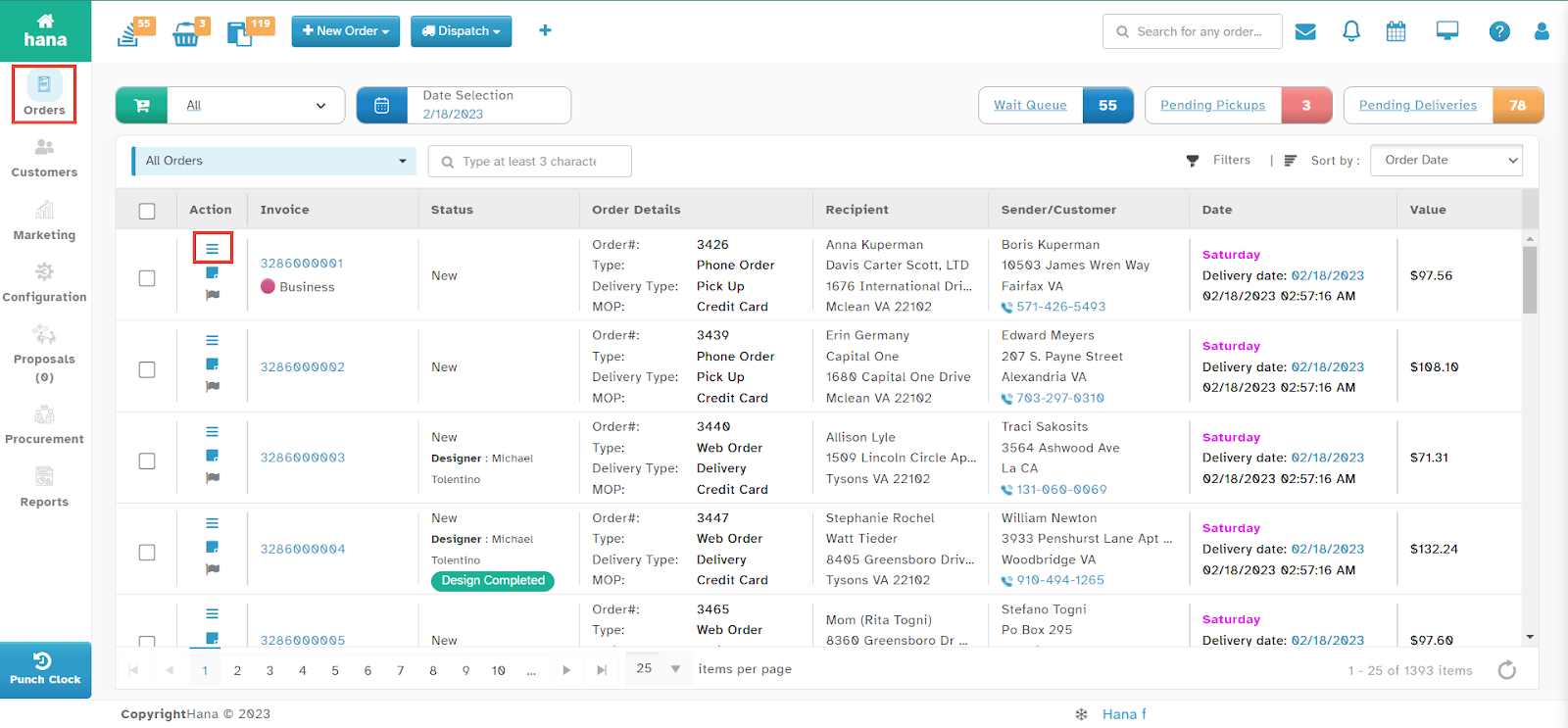
Locate the order for which you need to issue a partial refund.
Click the actions icon in the order row.
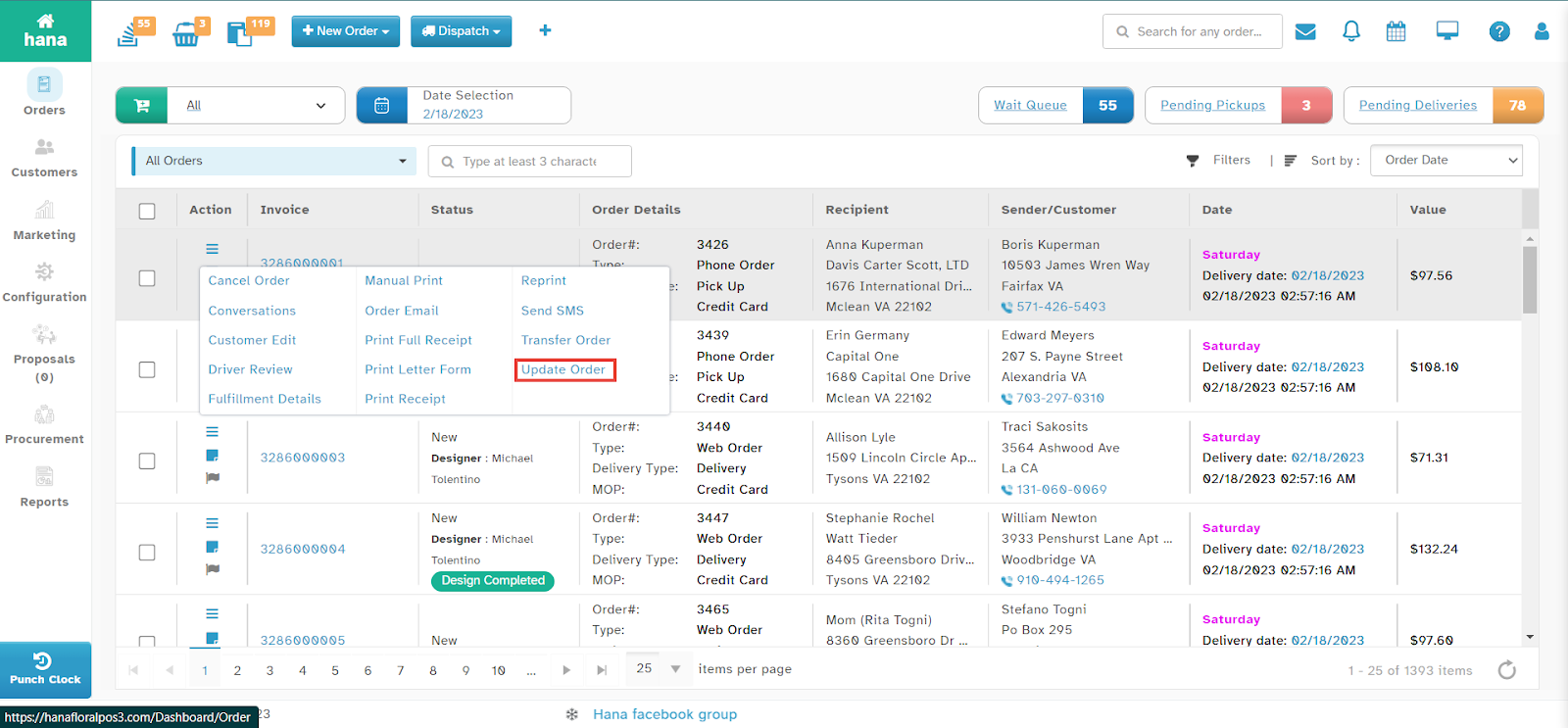
The Actions Menu will be displayed.
Click Update Order.
The Update Order Dialog will appear.
Note: You can also edit an order by clicking anywhere on its row, then clicking the actions icon > Update Order.
Step 3: Make the Adjustments
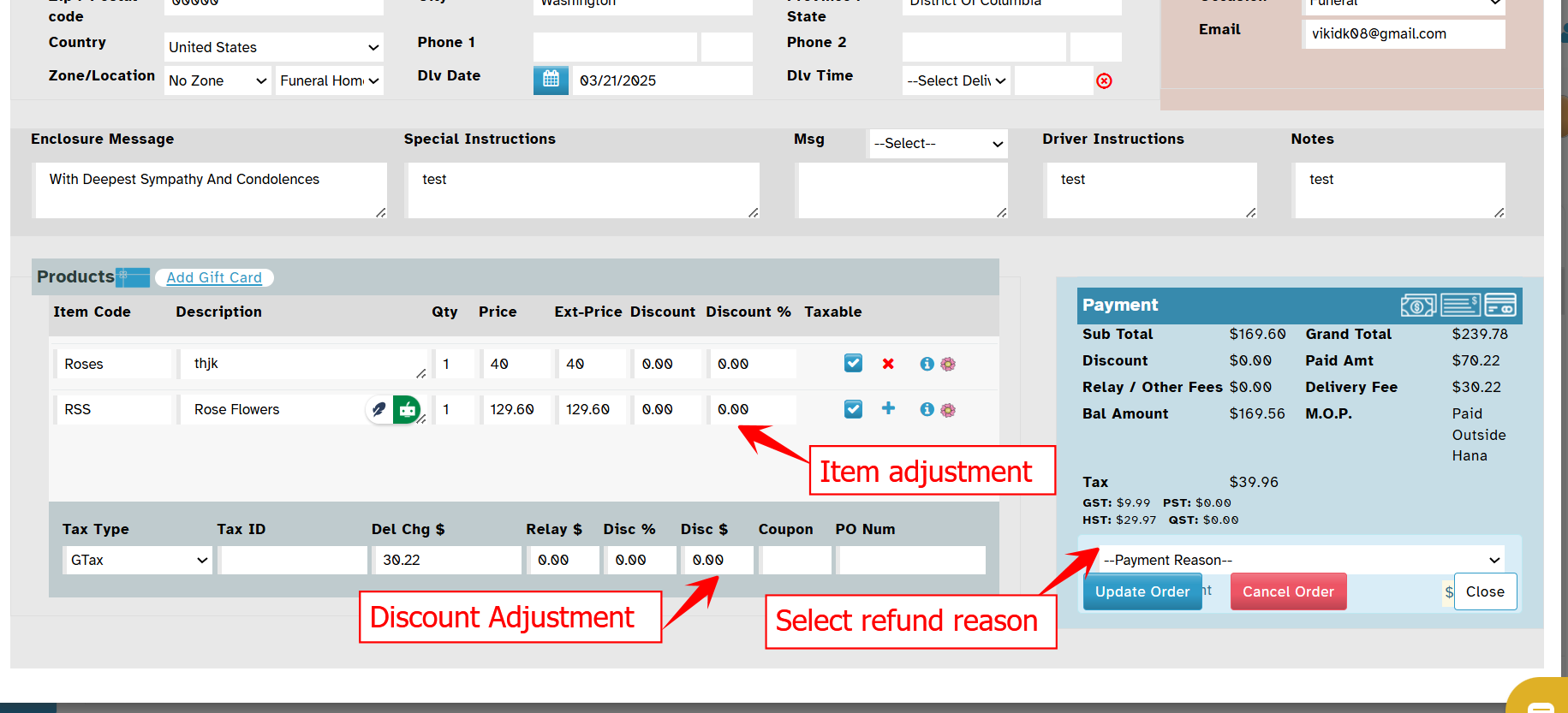
Adjust the order details based on the refund scenario:
Downgrade the product price if a lower-cost alternative is provided.
Remove items if the order contains multiple items and some need to be refunded.
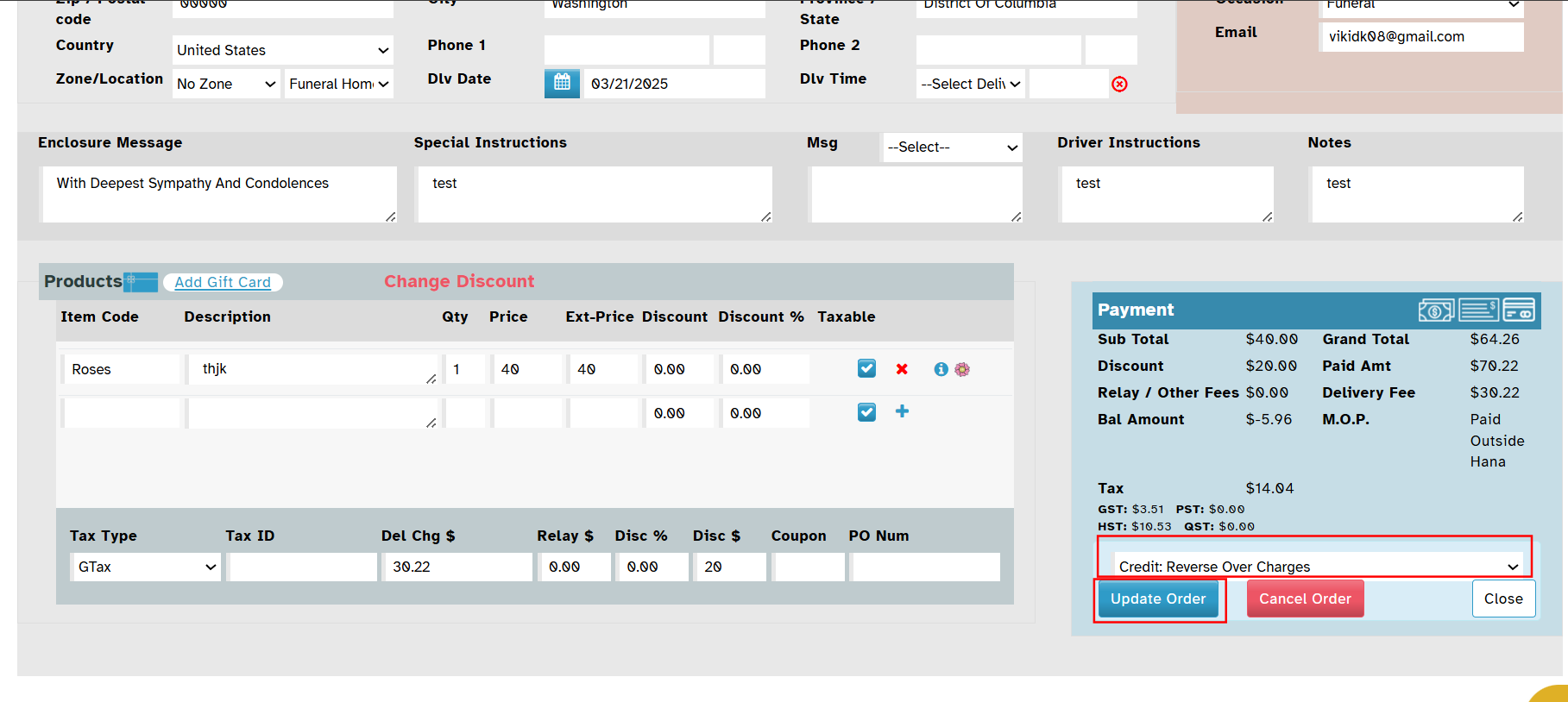
Add the refund amount in the Discount field if applying a direct refund discount.
Once adjustments are made, proceed to the next step.
Step 4: Select Refund Reason and Confirm
After making adjustments, the system will prompt you to select a Refund Reason.
Choose the appropriate refund reason from the available options.
Click Update Order.
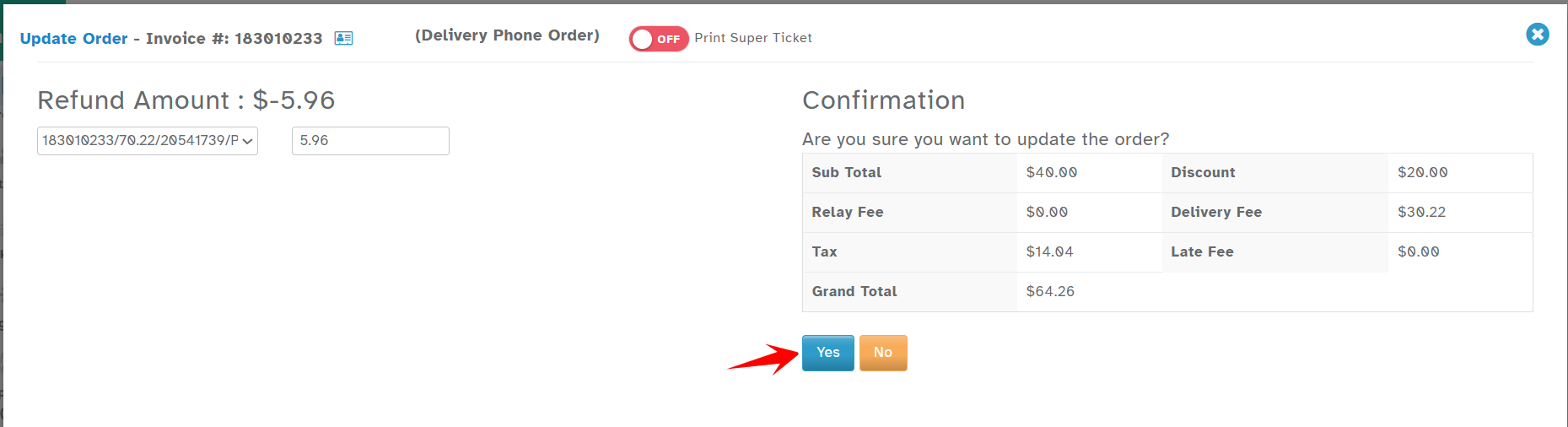
A confirmation dialog will be displayed.
Click Yes to confirm the partial refund.
Step 5: Confirmation
A success notification will confirm that the partial refund has been processed successfully.
By following these steps, you can efficiently issue a partial refund for an order paid with a credit card, ensuring accurate order management in Hana POS.
Was this article helpful?
That’s Great!
Thank you for your feedback
Sorry! We couldn't be helpful
Thank you for your feedback
Feedback sent
We appreciate your effort and will try to fix the article