Hana POS offers multiple payment methods, allowing customers to pay via cash, credit card, e-bank transfer, donation, gift cards, and more. The Payment Section on the Order Entry page enables you to enter and process payments efficiently. This guide walks you through the steps to enter payment details and finalize transactions.
Steps to Add Payment Information
Step 1: Select the Payment Type
Navigate to the Order Entry page.
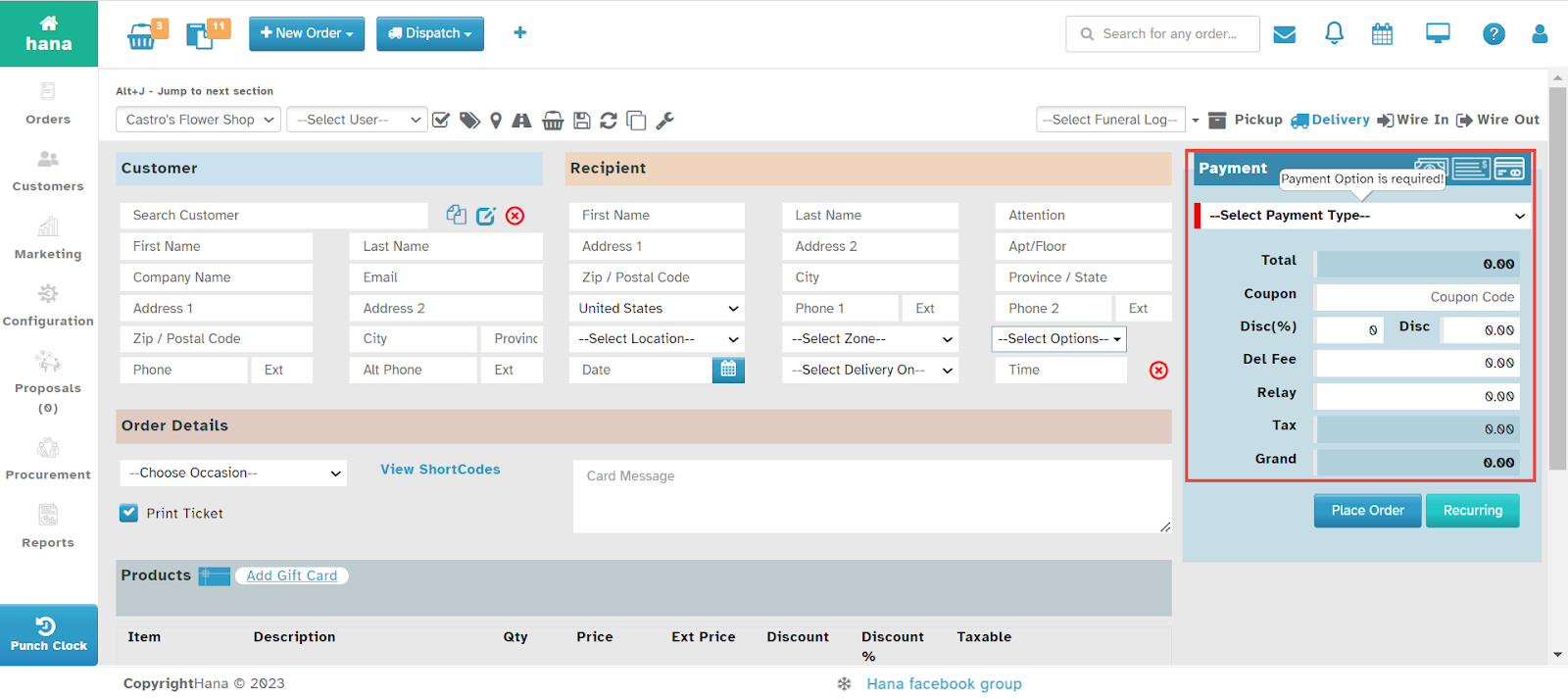
Locate the Payment Section and click Select Payment Type.
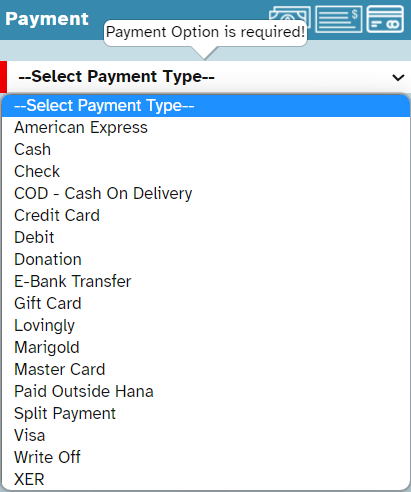
The Payment Type dropdown list will appear.
Choose the appropriate Payment Method from the list.
Note: For details on available payment types, refer to Types of Payment.
Step 2: Review Auto-Populated Payment Fields
The Total, Tax, and Grand Total fields will be auto-populated based on the ordered items.
Step 3: Apply Discounts and Additional Charges
Enter a Coupon Code (if applicable) in the Coupon field.
Enter a Discount Percentage (if applicable) in the Disc(%) field.
Enter a Discount Amount (if applicable) in the Disc field.
Add any Delivery Fee in the Del Fee field.
Include any Relay Charge in the Relay field.
Step 4: Finalize the Payment
Review all entered details.
Click Place Order to process the payment immediately.
To schedule recurring payments, click Recurring.
Was this article helpful?
That’s Great!
Thank you for your feedback
Sorry! We couldn't be helpful
Thank you for your feedback
Feedback sent
We appreciate your effort and will try to fix the article