A Cash & Carry order is created when a customer walks into the shop, places an order, and takes the product with them immediately. This type of order streamlines quick in-store transactions, allowing for seamless product selection and payment processing. The system provides an efficient way to handle frequent purchases using predefined shop settings, cash registry selection, and rapid item entry. Follow the detailed steps below to create a Cash & Carry order in Hana POS.
TABLE OF CONTENTS
Steps to Create a New Cash & Carry Order
Step 1: Access the Cash & Carry Order Page
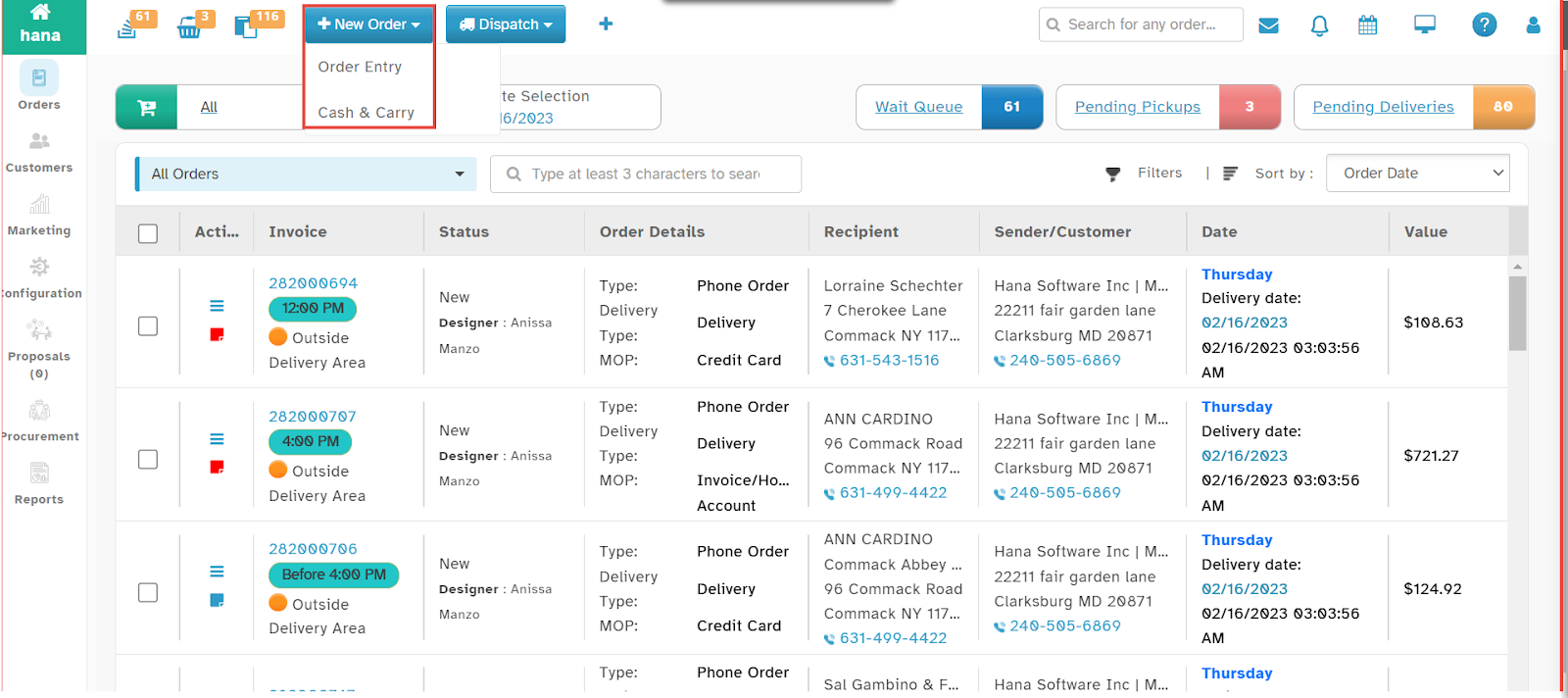
On the Dashboard, click New Order and select Cash & Carry from the dropdown list.
Note: This feature is accessible from all pages within Hana POS, allowing quick order creation.
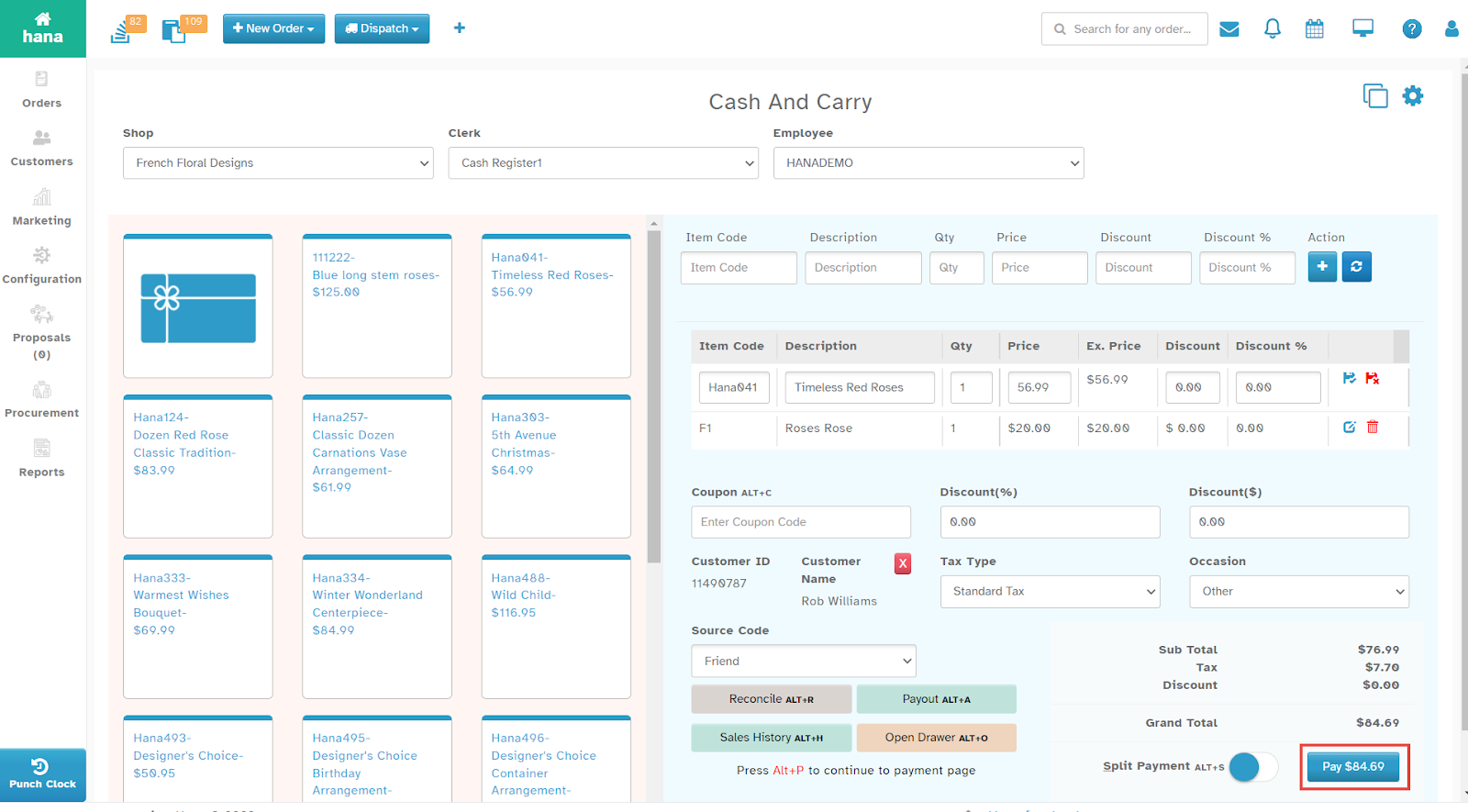
The Cash & Carry page will now be displayed.
Step 2: Select Shop and Employee Details
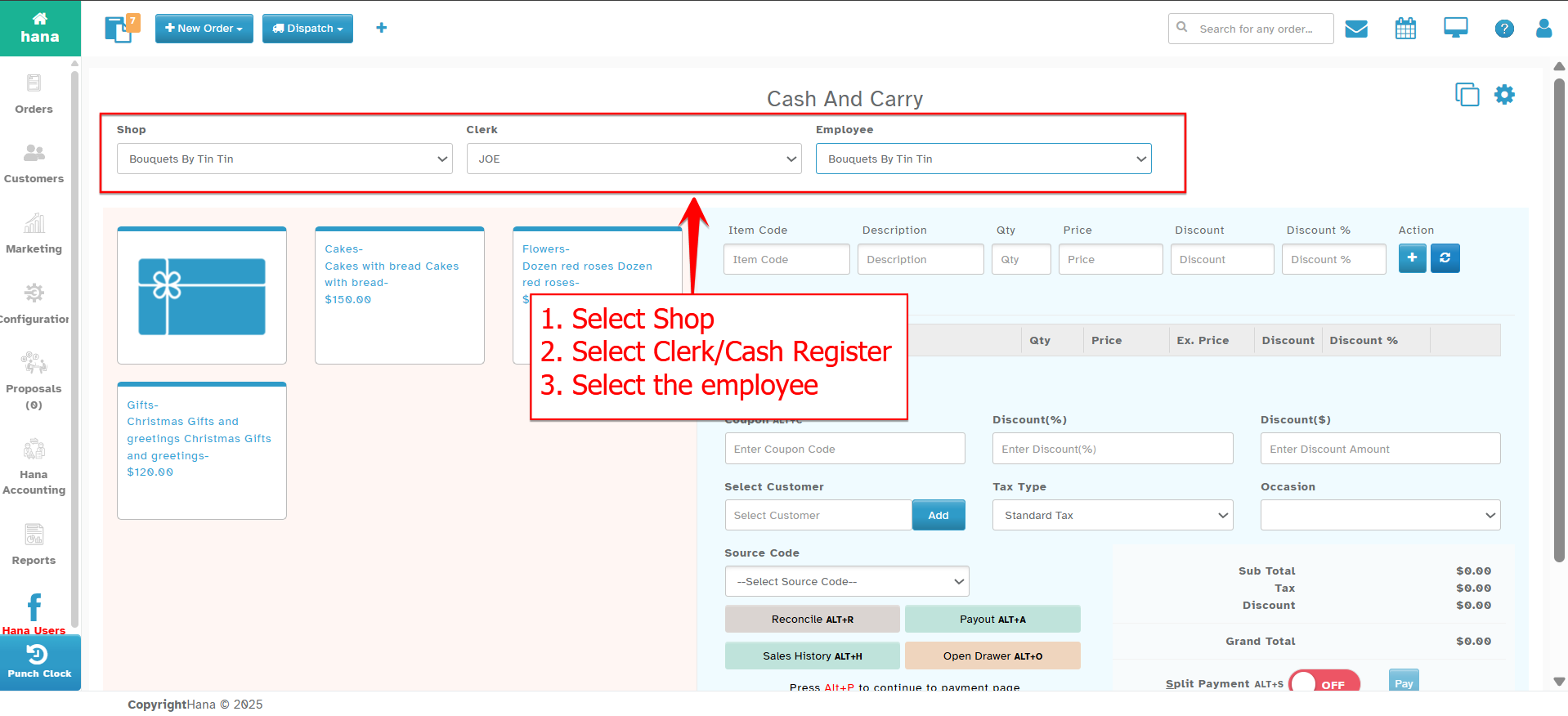
Choose your florist shop from the Shop dropdown list.
Select the cash registry based on the clerk attending the customer from the Select Cash Registry dropdown list.
Choose the employee assisting the customer from the Employee dropdown list.
Note: You can set default values for the shop to save time during walk-in transactions. (For more details, refer to How to Set Default Values for Shop? and How to Configure Walk-In Settings?)
Step 3: Add Items to the Order
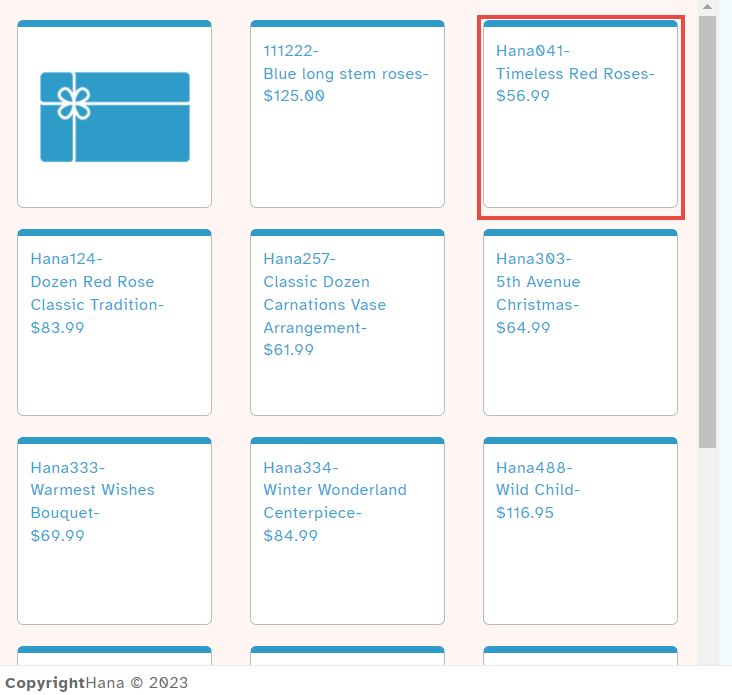
Select the ordered items using one of the following methods:
Frequently Accessed List – Select items from a predefined list of popular products.
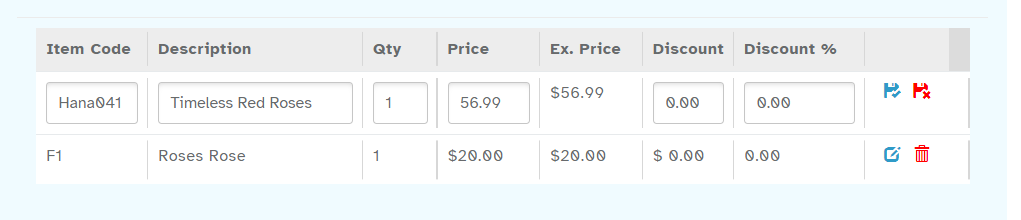
Item Code Entry – Enter the item code in the Item Code field and select it from the dropdown list. Click the add icon to add the item.
The selected items will be added to the item list.
Note:
To add a gift card, click the gift card option in the Frequently Accessed List. (For more details, refer to How to Add a Gift Card?)
You can modify Qty, Price, Discount, and Discount % by clicking the edit icon next to the item.
To remove an item, click the delete icon next to the item.

Step 4: Apply Discounts and Customer Details
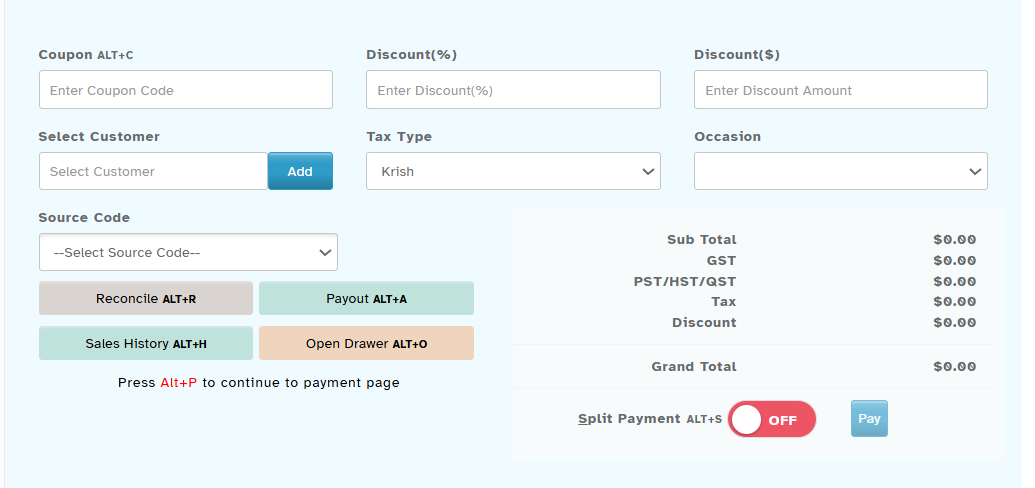
If applicable, enter a Coupon Code in the designated field.
Enter a Discount (%) if applicable.
Enter a Discount Amount in the Discount field.
If the customer is already in the database, select their name from the Select Customer field. To add a new customer, click Add. (For more details, refer to How to Search for/Add a Customer?)
Step 5: Define Tax and Occasion Details
Choose the Tax Type from the dropdown list.
Select the Occasion from the dropdown list.
Choose how the customer learned about the shop from the Source Code dropdown list.
Step 6: Process Payment
If the customer wants to use multiple payment methods, enable the Split Payment toggle.
Click Pay to proceed to the payment page.
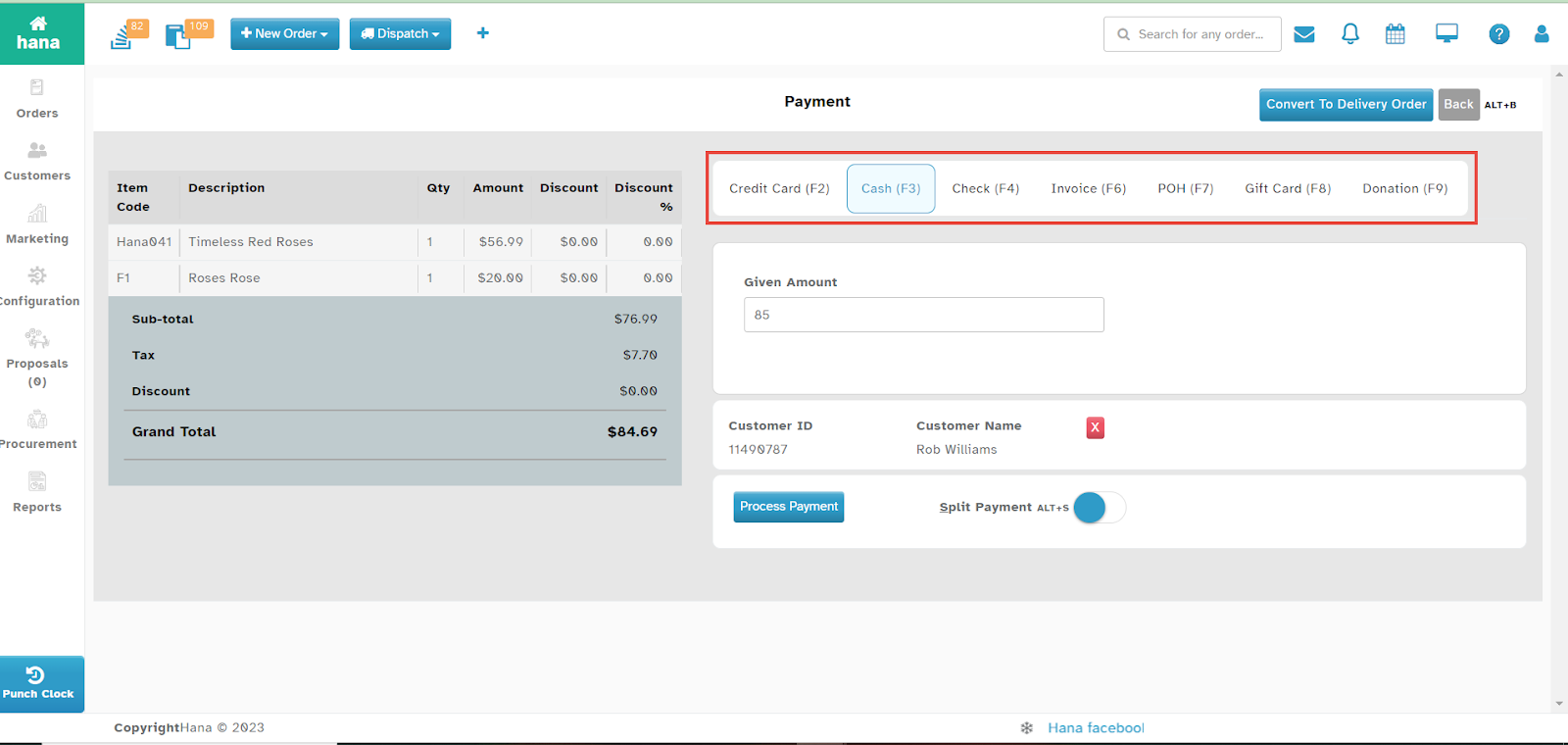
- The Payment page will now be displayed.
Step 7: Complete Payment
Select the Type of Payment. (For more details, refer to Types of Payment and How to Add Payment Information?)
Click Process Payment to finalize the transaction.
The payment is now successfully completed, and the order is finalized.
Was this article helpful?
That’s Great!
Thank you for your feedback
Sorry! We couldn't be helpful
Thank you for your feedback
Feedback sent
We appreciate your effort and will try to fix the article