The "Wire-In" option on the Order Entry page is used when you receive a phone wire-in order from another florist. This occurs when a florist, who is a mutual member of a wire service such as 1800/BMT/Bloomnet, FTD, or FSN-Flower Shop Network, calls you directly to place an order instead of sending it through an online wire transfer.
Wire services DO NOT give us an automated way to report a phone wire-in to the wire services. It is the florist's responsibility to report all phone wire-in orders to the relevant wire services to make sure you are compensated correctly for fulfilling the phone wire-in orders.
TABLE OF CONTENTS
- Steps to Create a New Wire-In Order
- Step 1: Access the Order Entry Page
- Step 2: Select Wire-In Order Type
- Step 3: Select Shop and User
- Step 4: Enter Wire-In and Recipient Details
- Step 5: Enter Order Details
- Step 6: Add Product Information
- In the Products section, enter the product details.
- Step 7: Apply Tax & Source Details
- Final Step: Place the Order
- Step 9: Confirm Order Submission
Steps to Create a New Wire-In Order
Step 1: Access the Order Entry Page
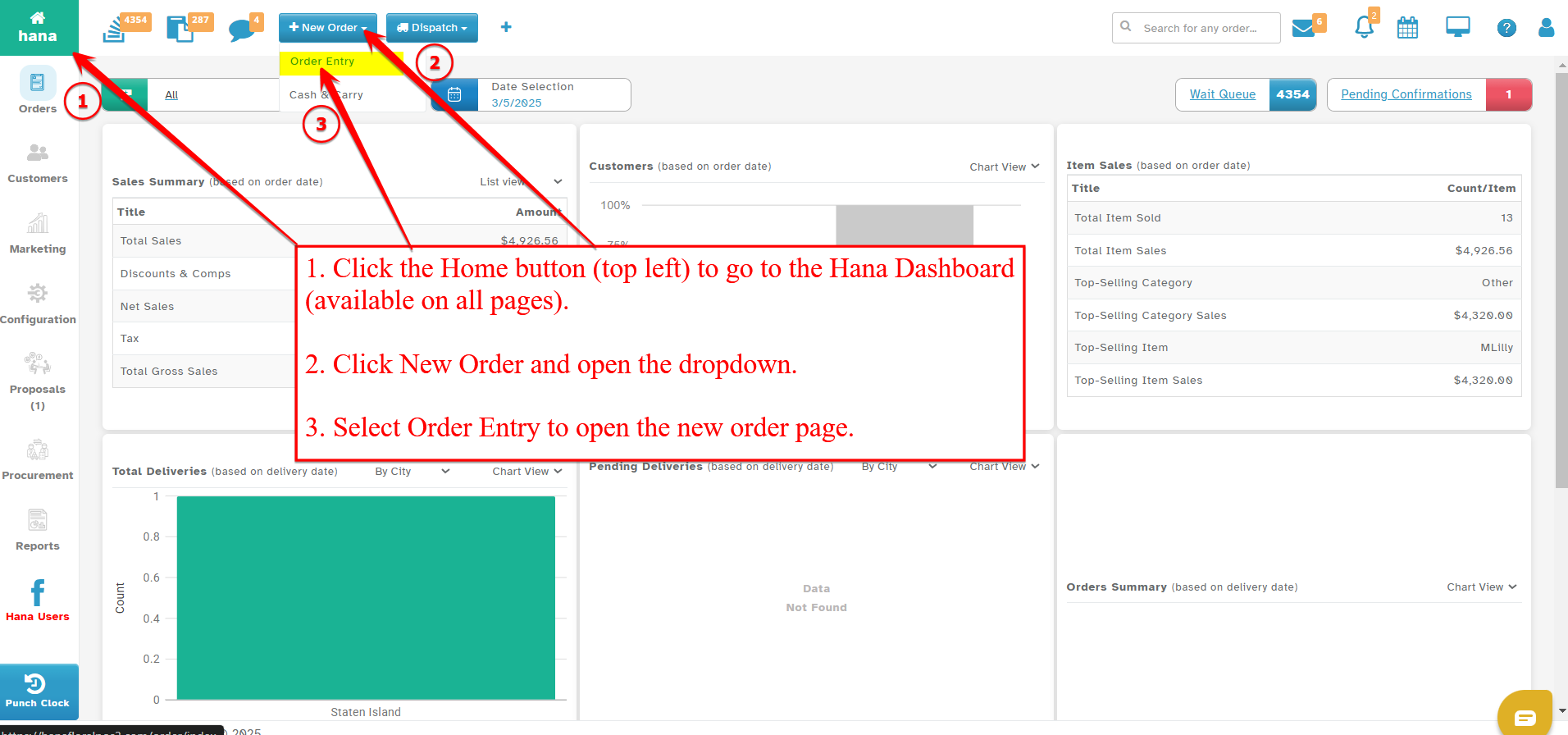
On the Dashboard, click New Order and select Order Entry from the dropdown list.
This feature is accessible from all pages within Hana POS, allowing for quick order creation.
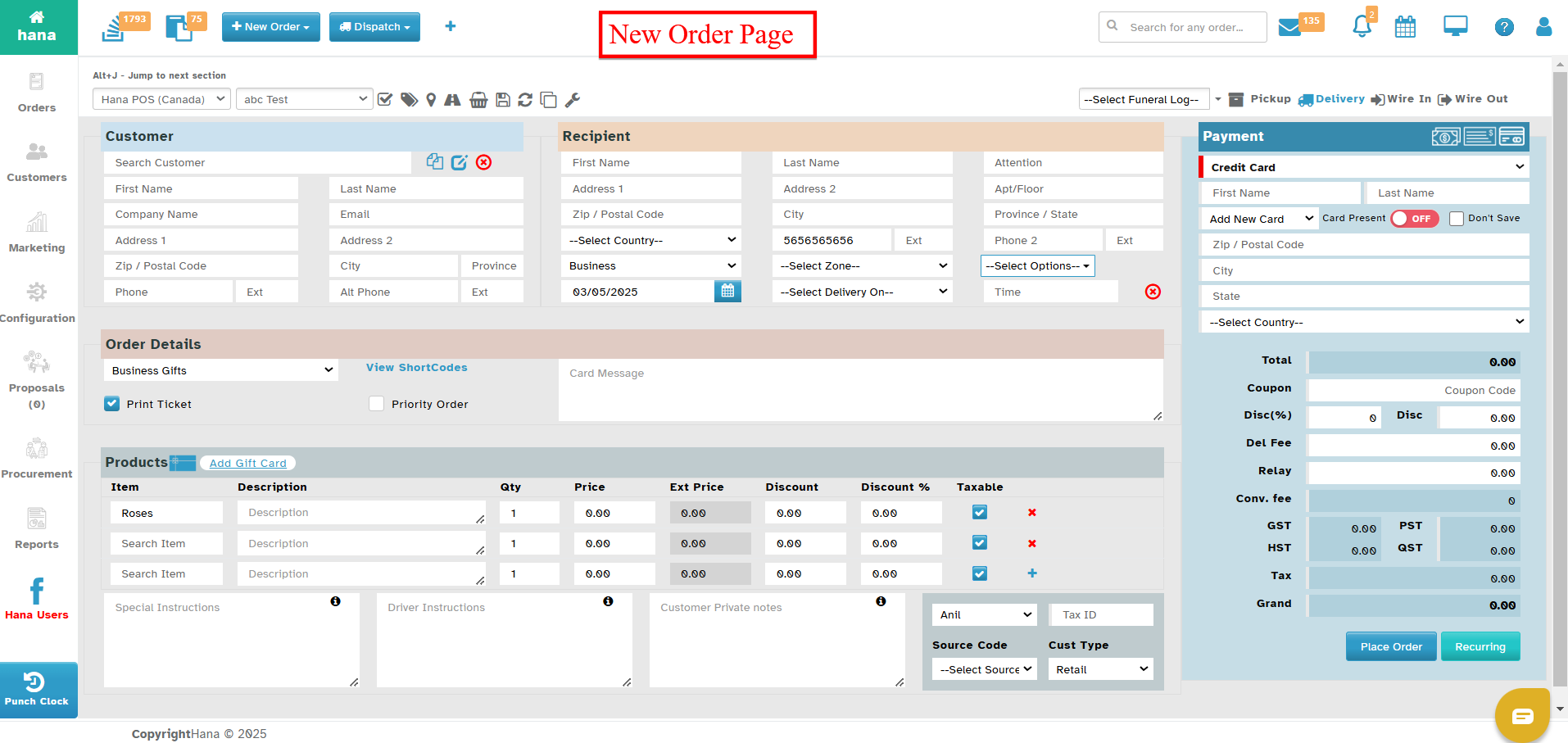
The Create New Order page will now be displayed.
Step 2: Select Wire-In Order Type
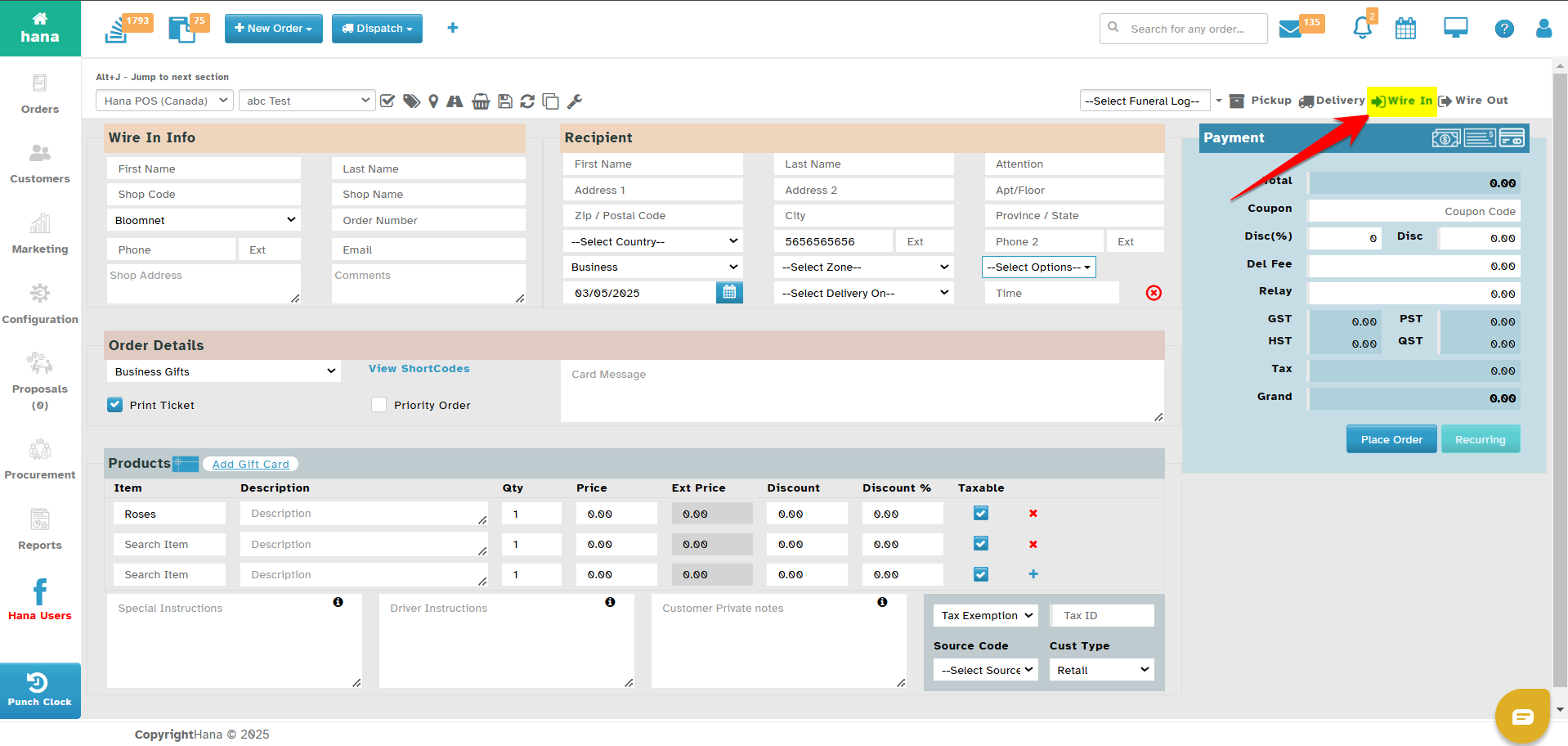
Click Wire In to proceed.
The New Order Entry page will now be displayed.
Step 3: Select Shop and User
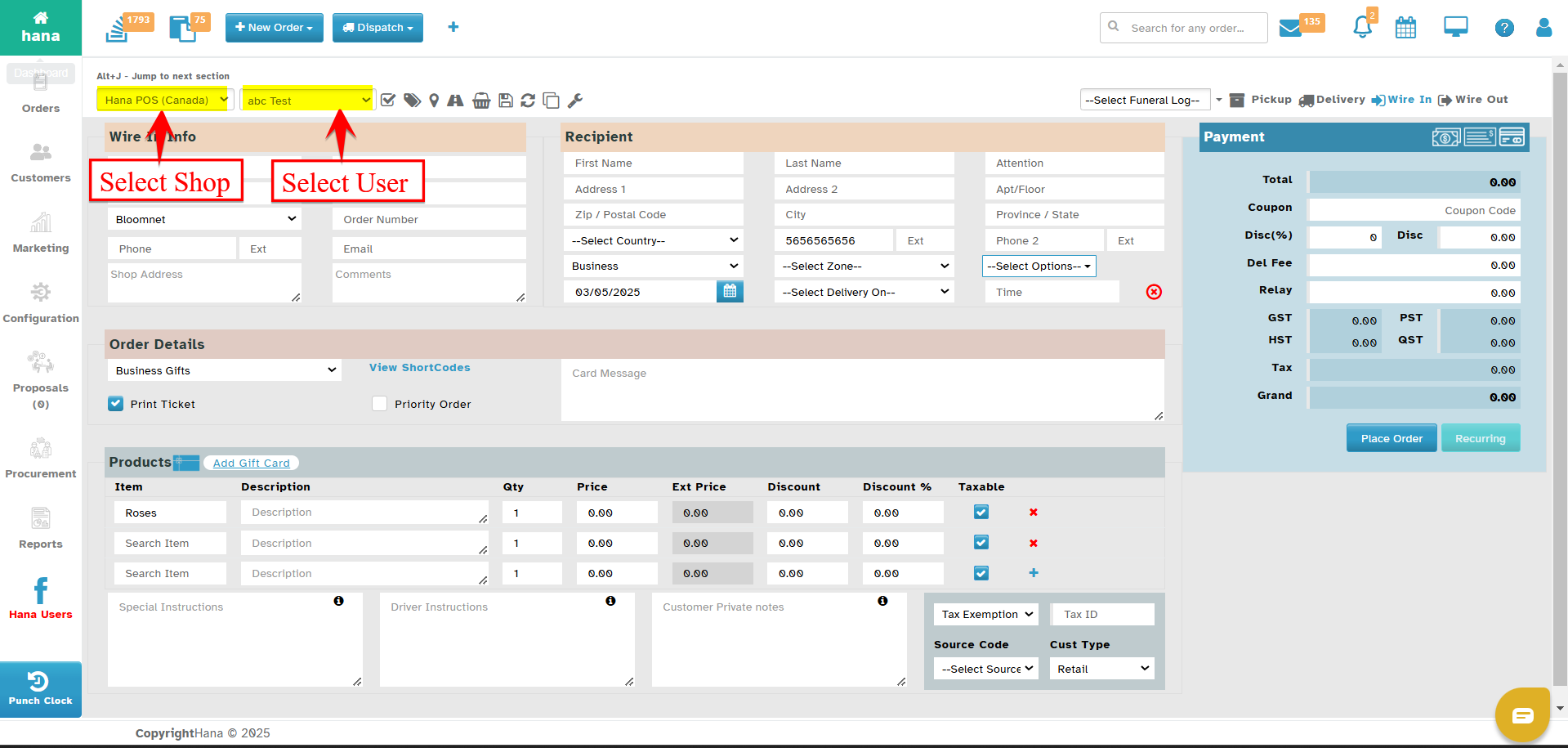
Choose the florist shop from the Select Shop dropdown list.
Select the user handling the order from the Select User dropdown list.
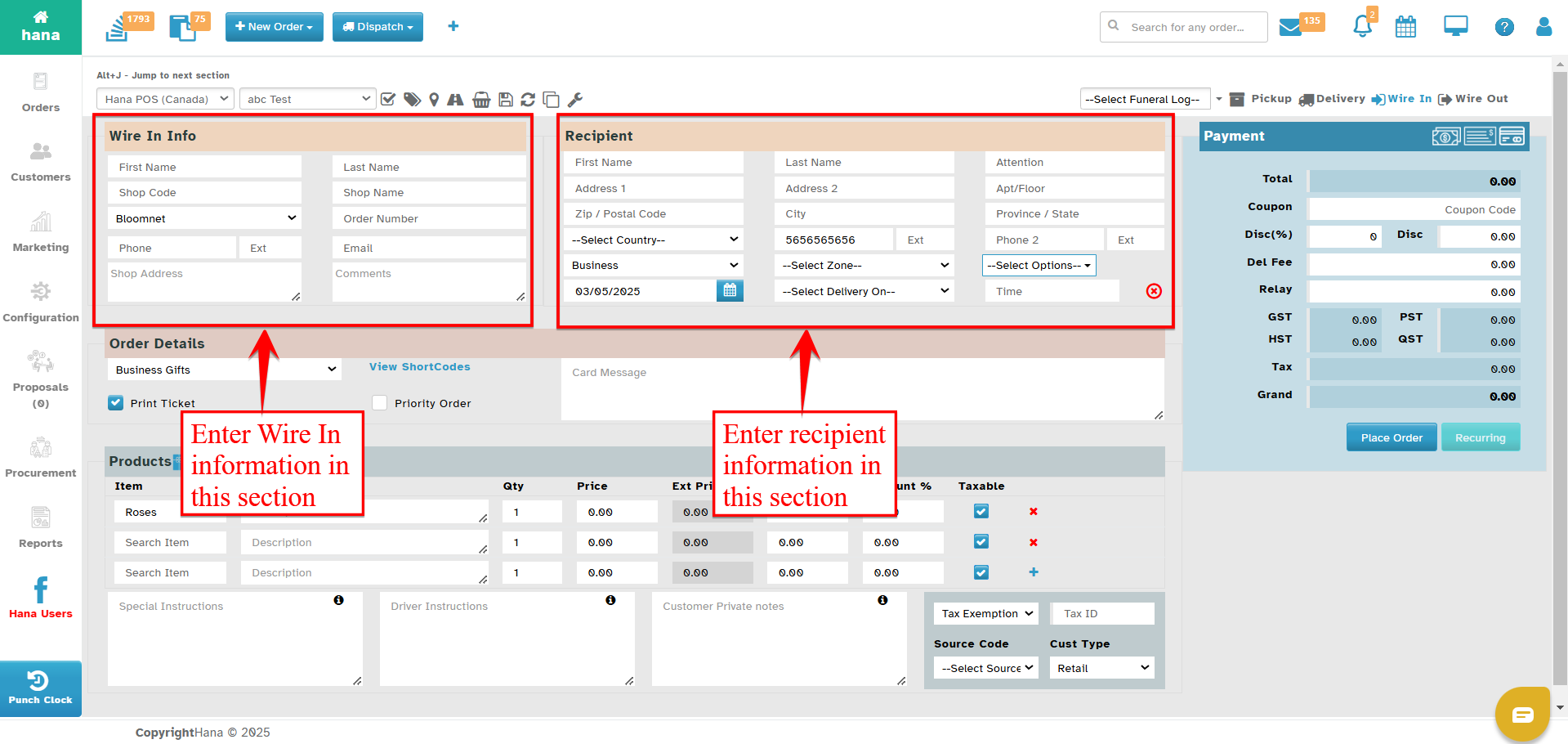
Step 4: Enter Wire-In and Recipient Details
Fill in the required fields in the Wire In Info section. (For more details, refer to How to Add Wire-In Info?)
Enter the recipient's details in the Recipient section. (For more details, refer to How to Search for/Add a Recipient?)
Select the delivery date using the calendar.
Choose the preferred delivery time from the Select Delivery On dropdown list. Available options include: After, Around, Before, Exactly At, AM, PM, and Any.
If the order is recurring, select the appropriate option (Confidential, Save Funeral, Frequent Address).
Select the delivery time using the time clock.
Step 5: Enter Order Details
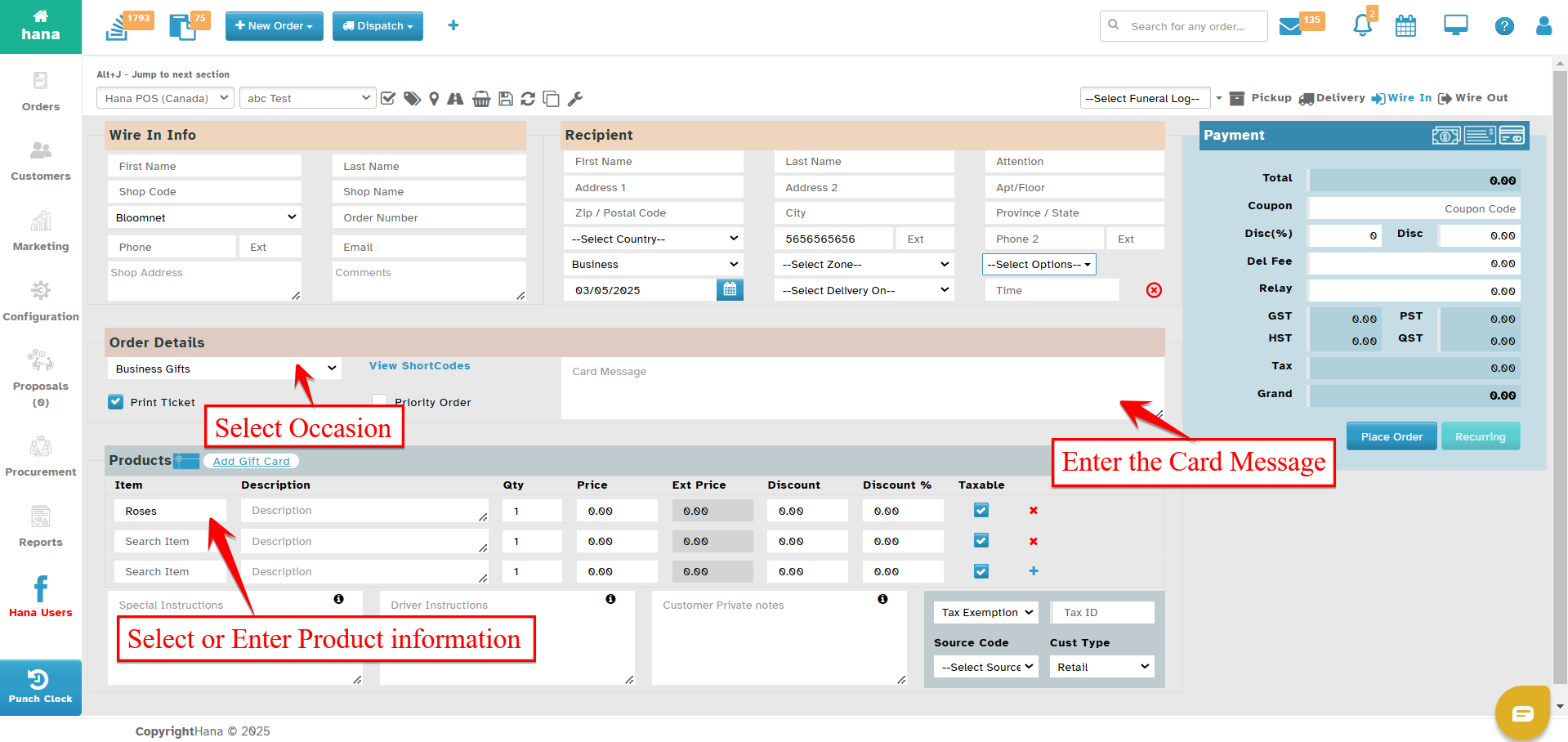
Choose the occasion from the Choose Occasion dropdown list. If the selected occasion is Birthday or Anniversary, the Send Reminder checkbox will be enabled.
Use short codes in the Card Message textbox by clicking View ShortCodes. (For more details, refer to How to Add a Short Code?)
Step 6: Add Product Information
In the Products section, enter the product details.
Search for an item in the database or add a new one if unavailable. (For more details, refer to How to Search for/Add an Item? and How to Create a Recipe?)
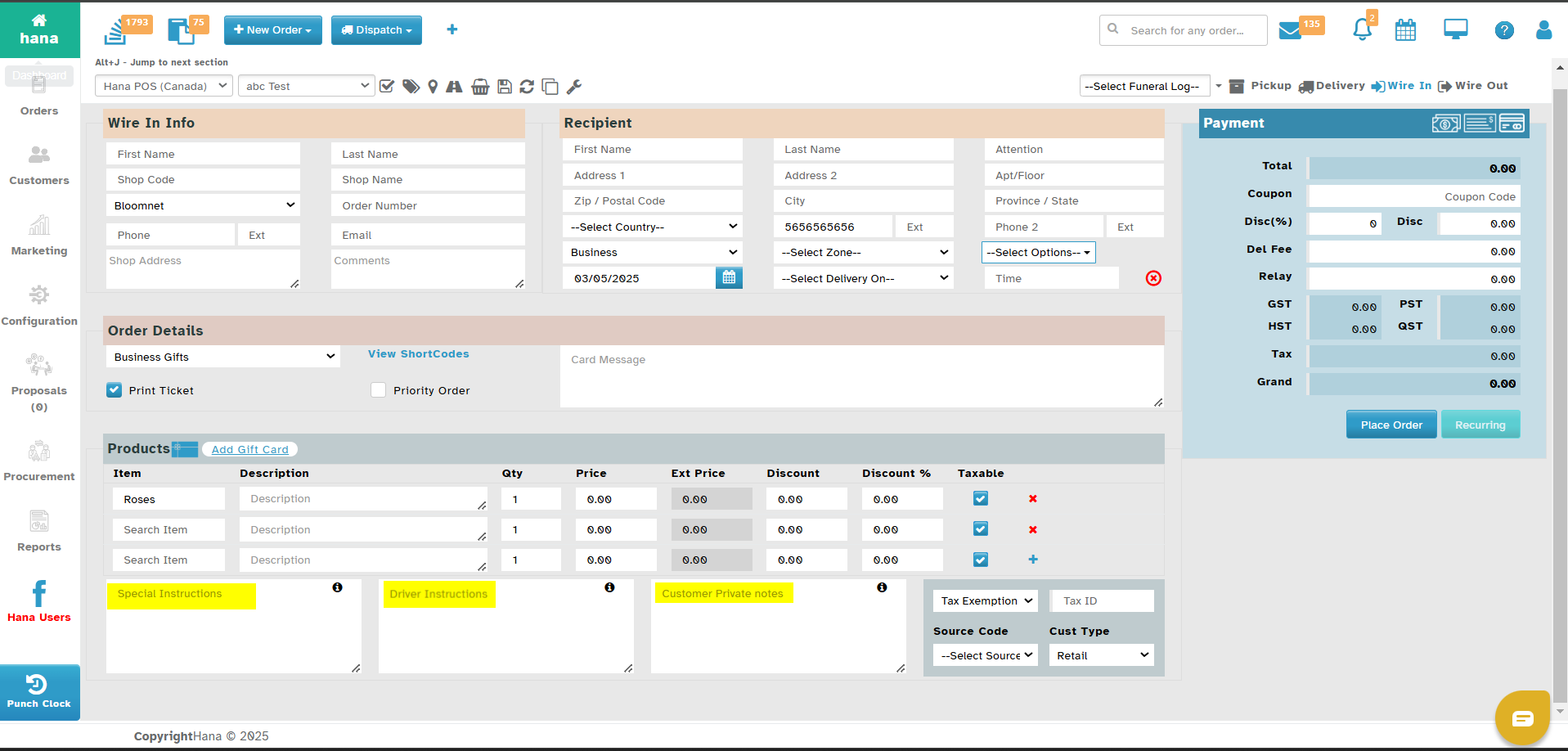
Enter any special instructions in the designated field.
Add driver instructions (this is a mandatory field).
Enter customer private notes, which are visible only to the florist.
Step 7: Apply Tax & Source Details
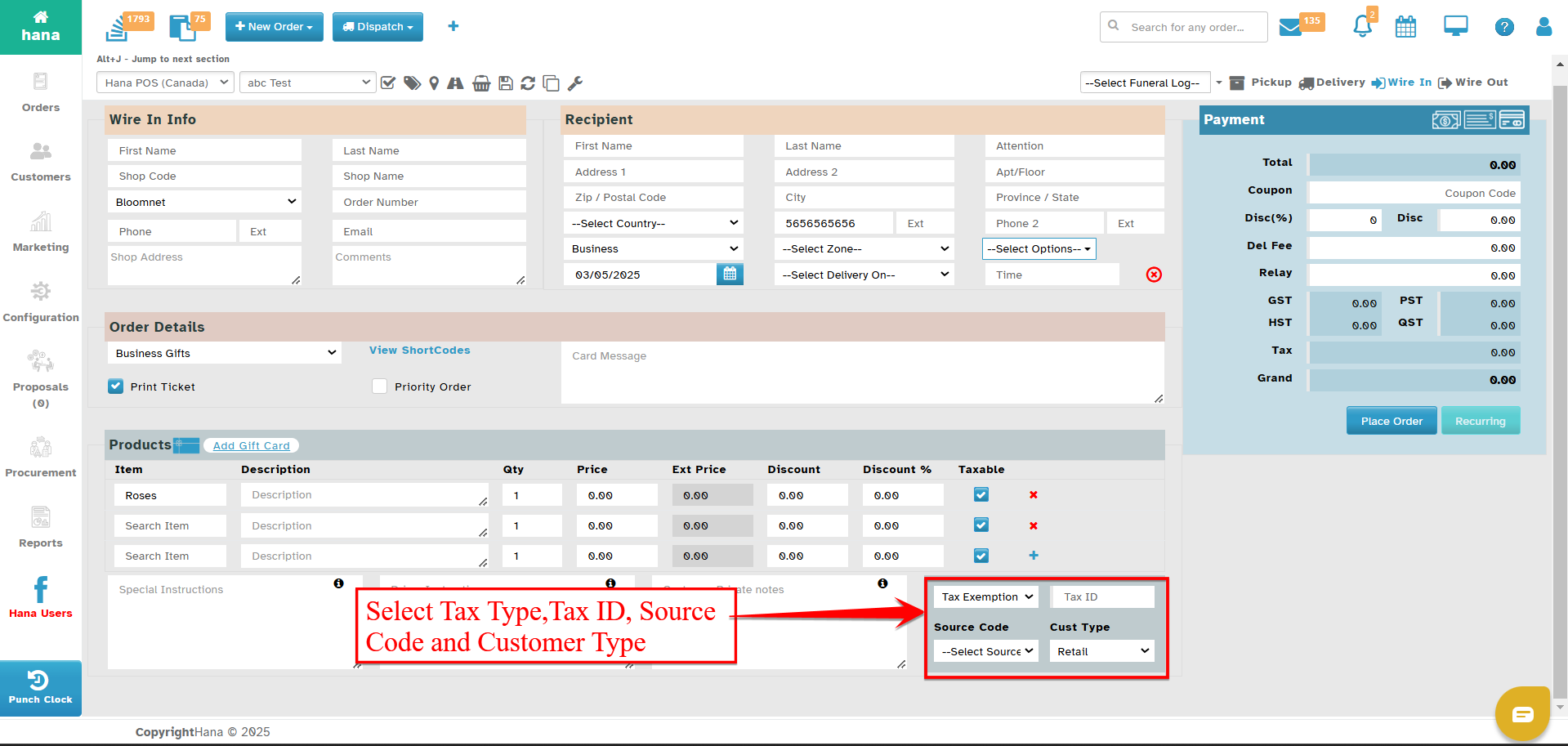
Enter the Tax ID in the field provided.
Select the source from which the customer found Hana using the Source Code dropdown list.
Choose the customer type from the Cust Type dropdown list (Wire Service, Corporate, Florist, Other Location, Staff, Retail).
Final Step: Place the Order
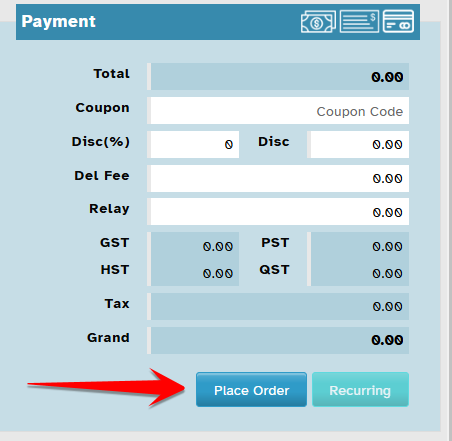
Click Place Order to proceed.
Note: You can schedule this order for recurring events to eliminate manual entry each time. (For more details, refer to How to Set an Order as Recurring?)
Step 9: Confirm Order Submission
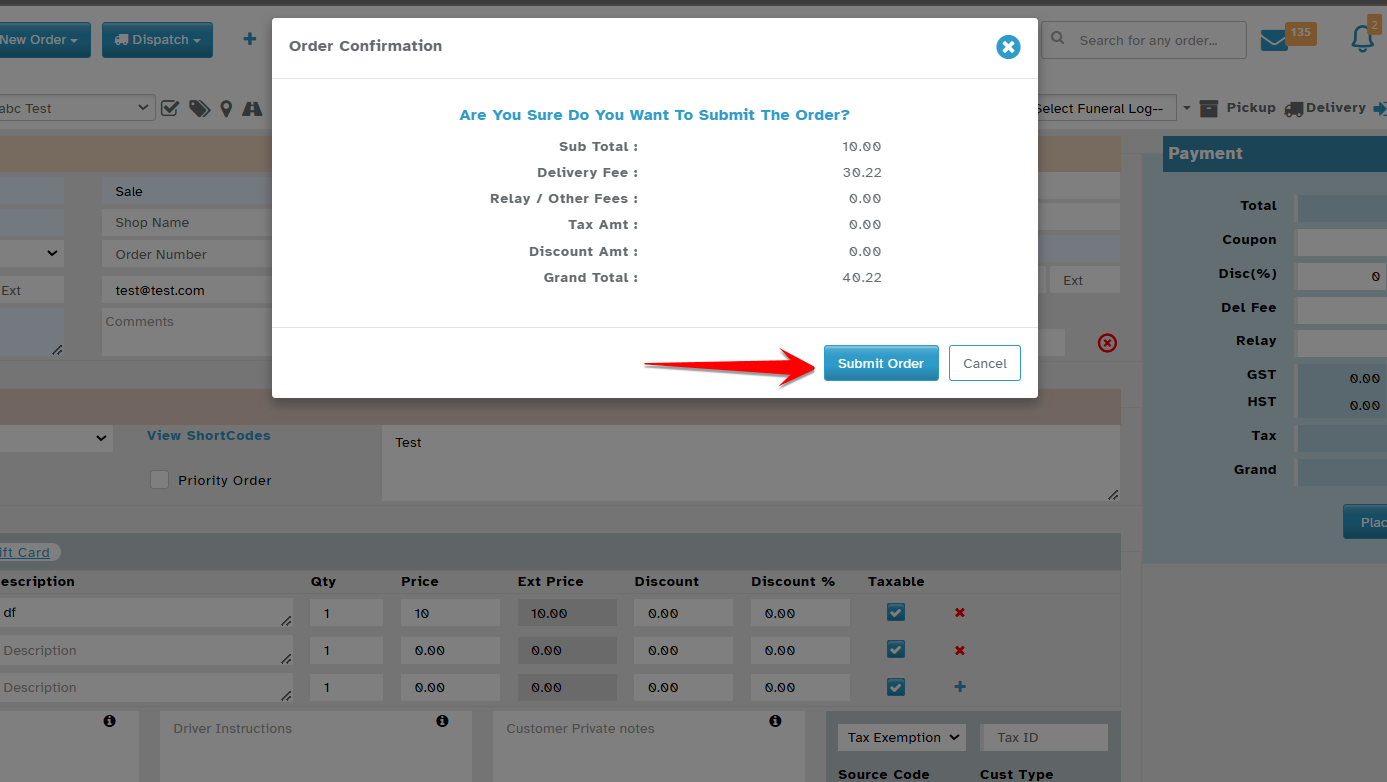
The Order Confirmation dialog will be displayed.
Click Submit to finalize the order.
The order is now successfully placed!
Was this article helpful?
That’s Great!
Thank you for your feedback
Sorry! We couldn't be helpful
Thank you for your feedback
Feedback sent
We appreciate your effort and will try to fix the article