Hana POS allows you to send emails to customers regarding their orders.
This feature enables efficient communication, helping businesses provide updates, resolve issues, or request additional information.
This guide provides step-by-step instructions to compose and send a conversation mail related to an order.
Steps to Send a Conversation Mail
Step 1: Access the Orders Page
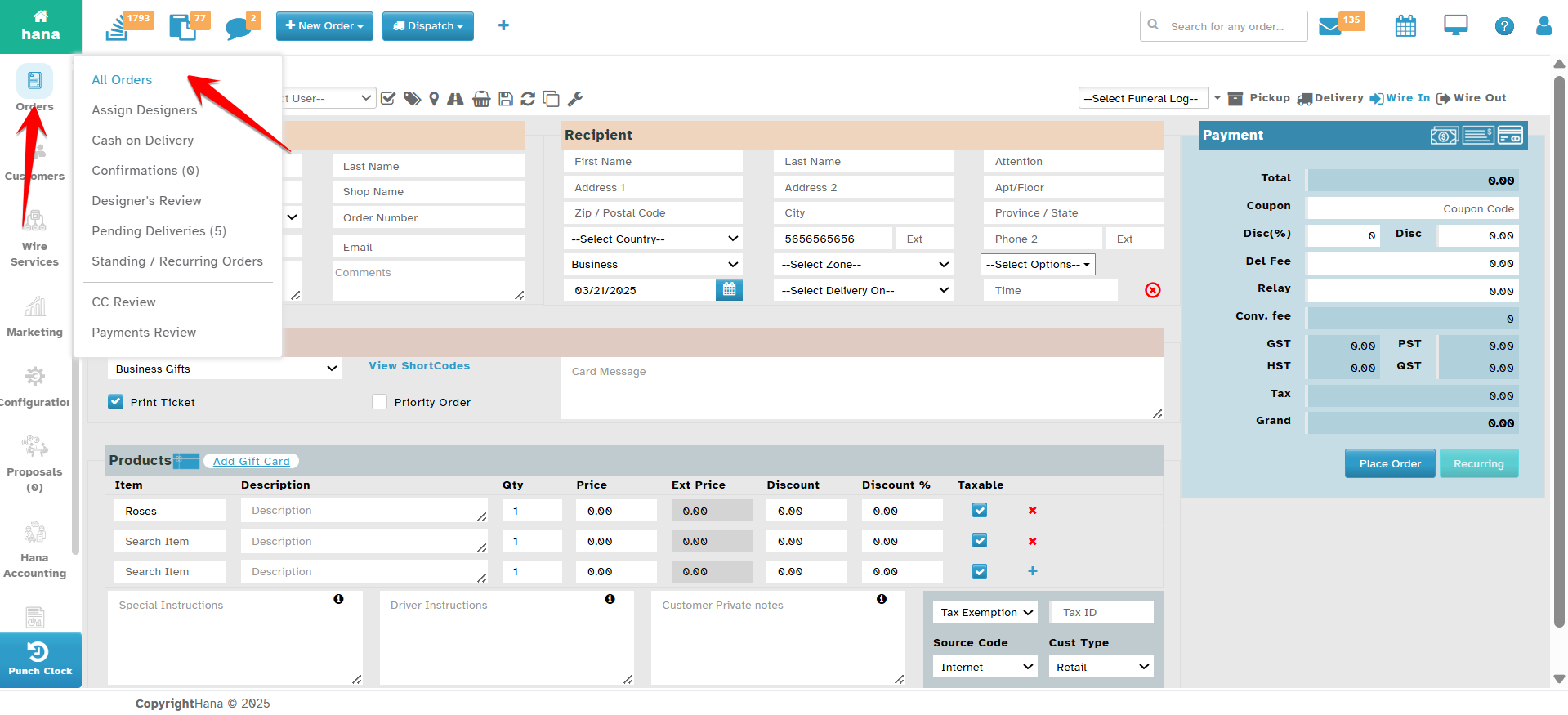
Navigate to Orders.
The Orders Page will be displayed.
Step 2: Open the Conversation Dialog
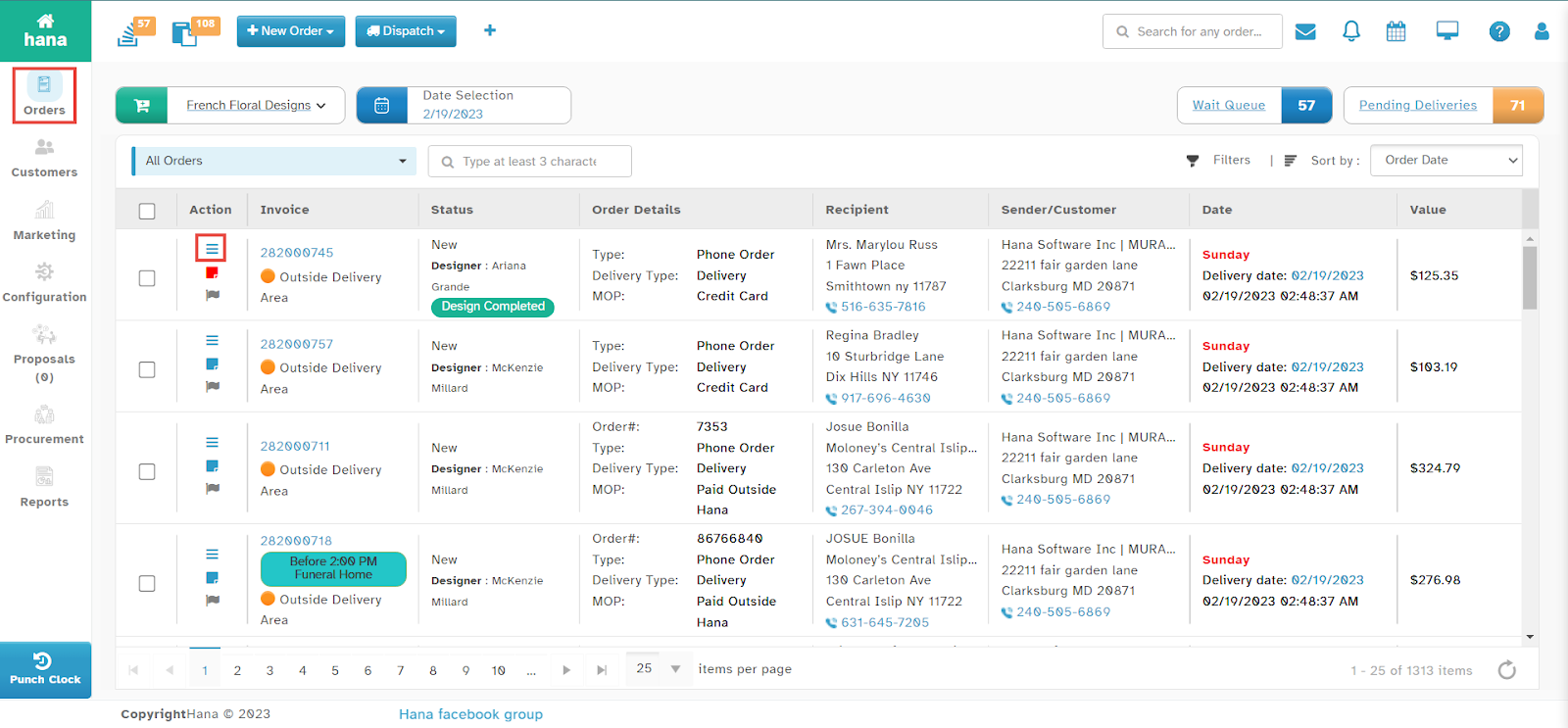
Click the conversation icon in the row of the order you wish to email.
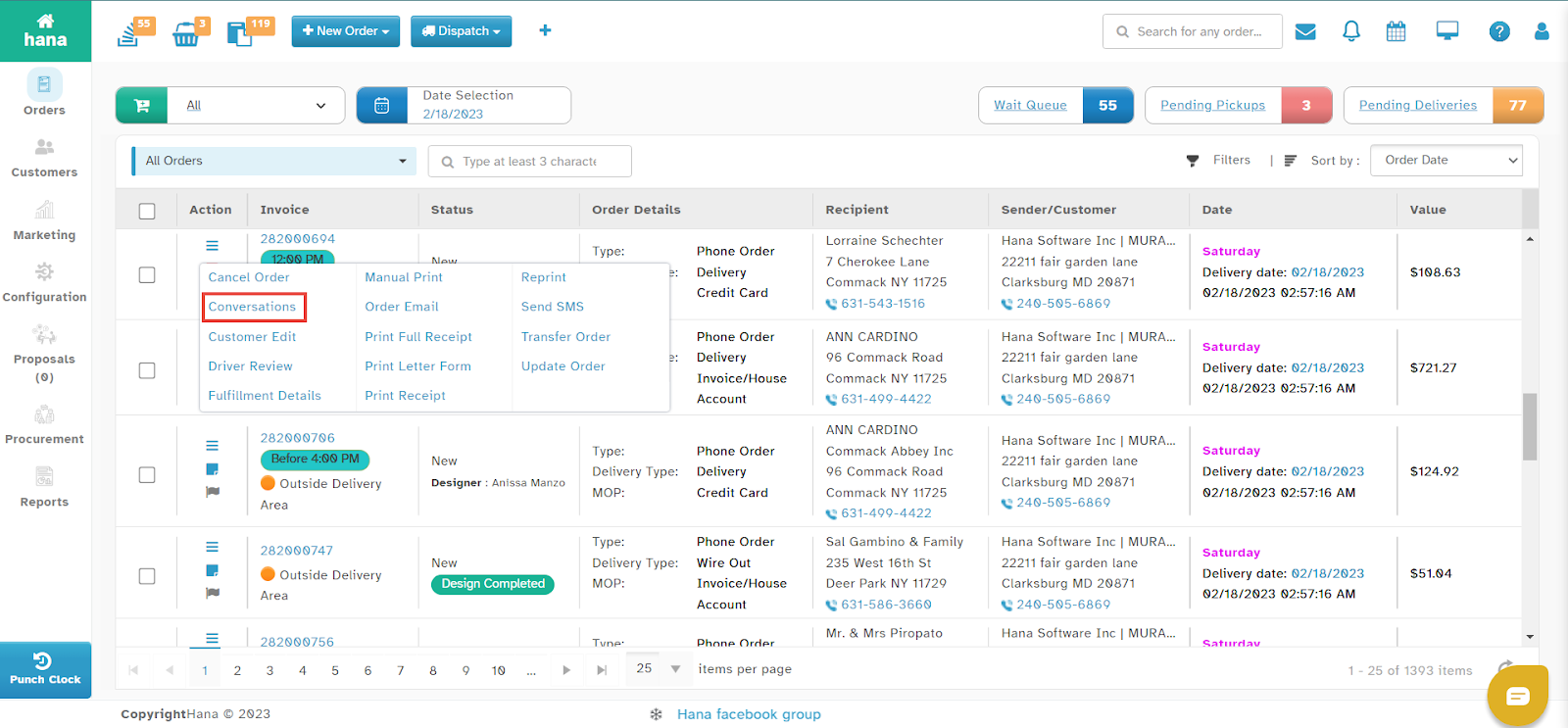
The Actions Menu will be displayed.
Click Conversations.
The Conversation Dialog will appear.
Step 3: Compose a New Email
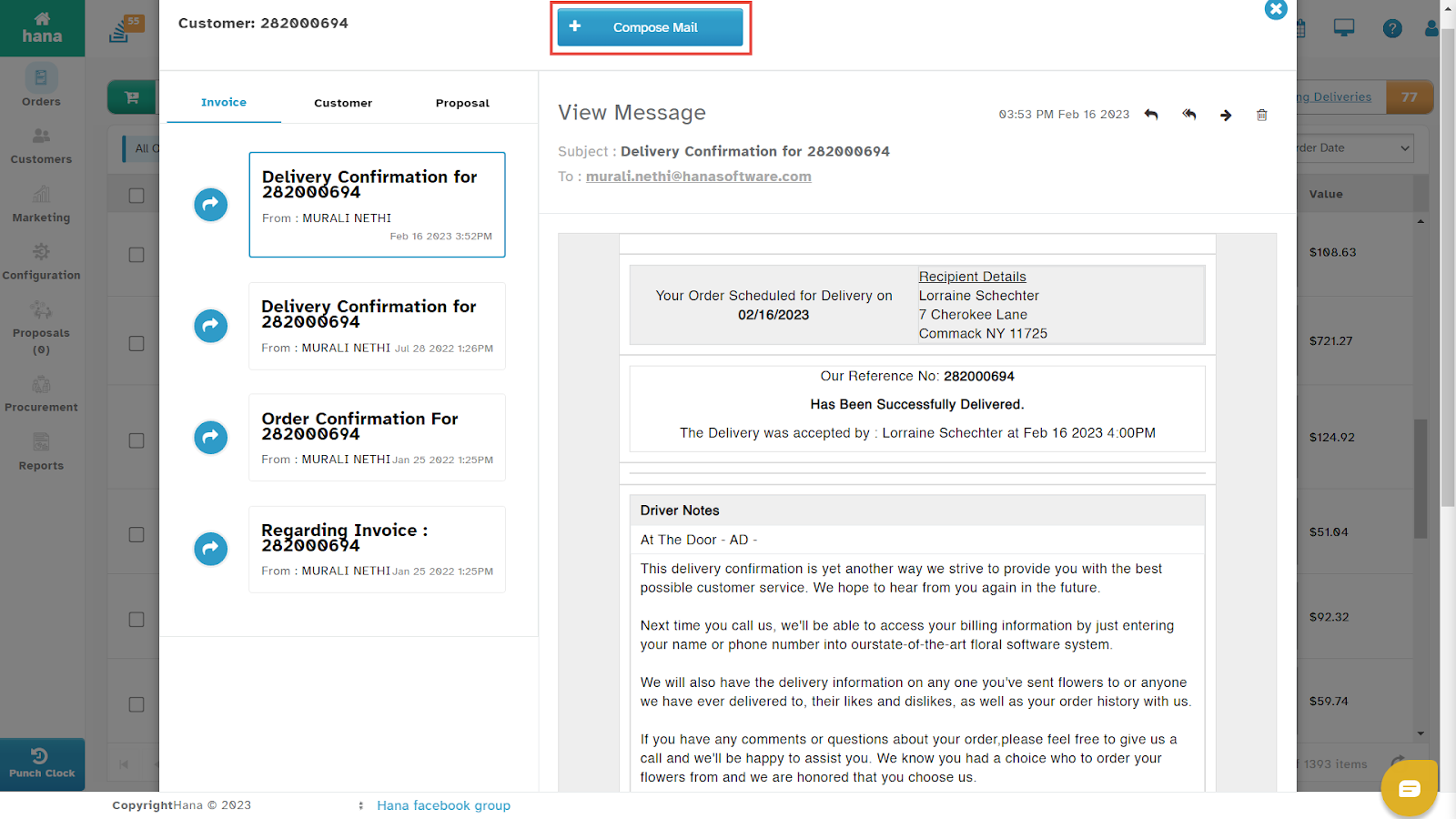
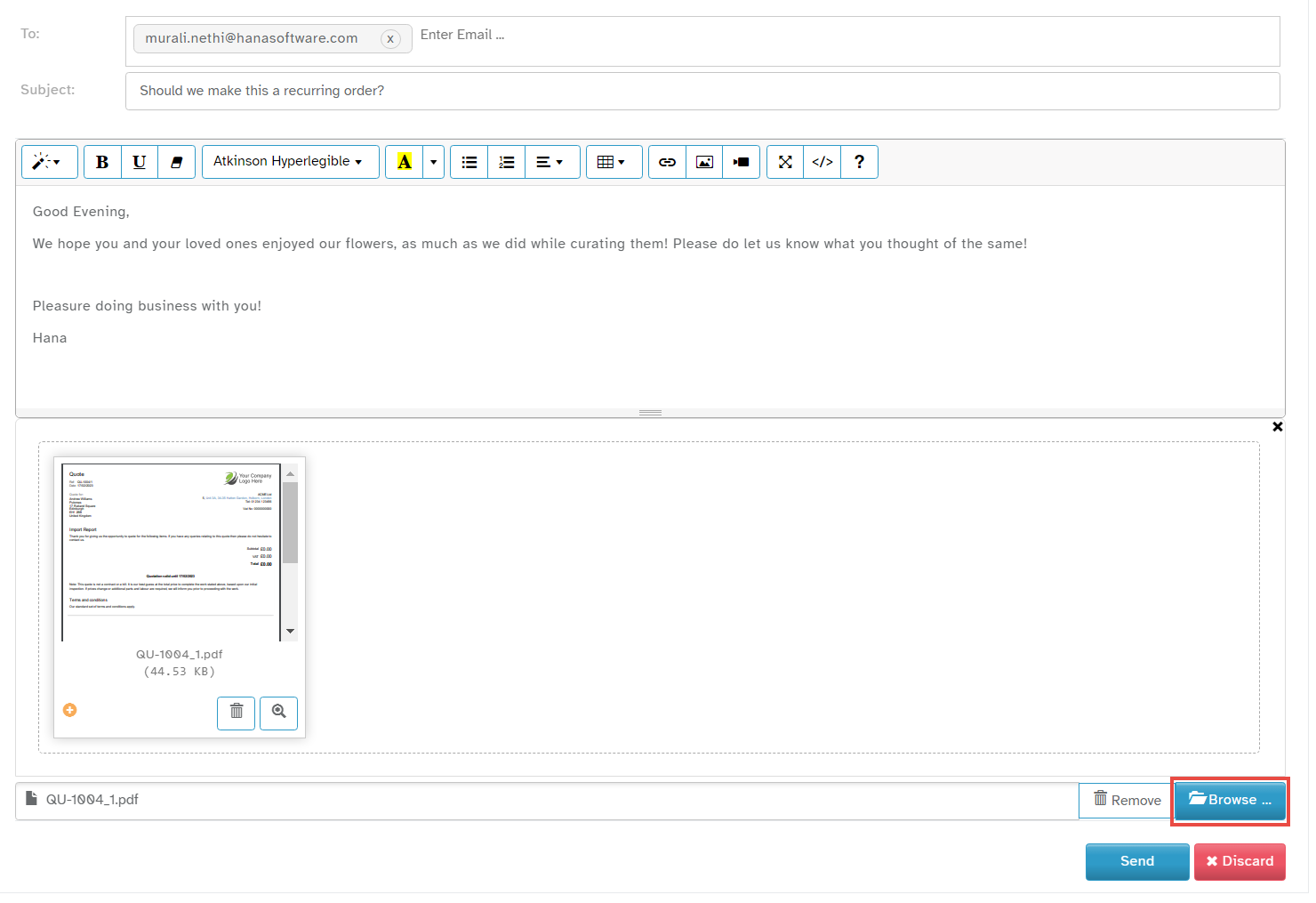
Click Compose Mail.
The Compose Mail Dialog will be displayed.
Enter the recipient's email address in the To field.
Enter the subject of the conversation in the Subject field.
Type the message in the Body field.
Step 4: Attach a File (Optional)
Click Browse to upload a file (if needed).
The Open File Dialog will appear.
Select a file from your system and click Open.
The file will be attached to the email.
Step 5: Send the Email
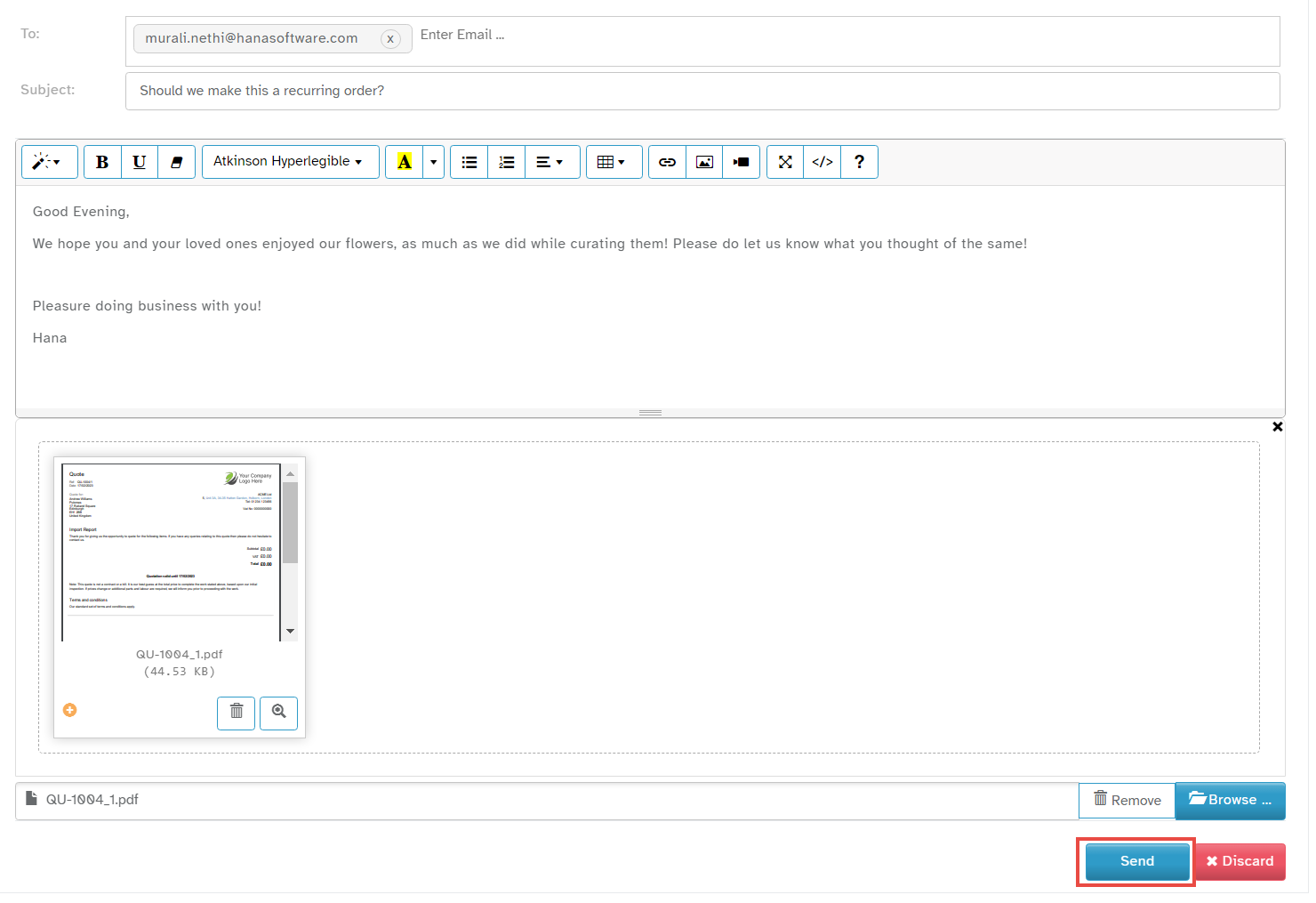
Click Send.
A success notification will confirm that the email has been sent.
By following these steps, you can efficiently communicate with customers about their orders using Hana POS.
Was this article helpful?
That’s Great!
Thank you for your feedback
Sorry! We couldn't be helpful
Thank you for your feedback
Feedback sent
We appreciate your effort and will try to fix the article