HANA POS provides a robust notification system designed to keep you informed about all critical business activities. They provide alerts about new web orders, billing updates, event leads, system messages, and more. These notifications can be sent via In-App messages, Email, or SMS, allowing users and shop owners to stay responsive and proactive.
This guide explains how to enable or disable notifications at two levels:
Shop-Level Notifications – where you set a primary notification contact for your entire store.
User-Level Notifications – where individual staff members can receive personal alerts.
What Are Notifications?
Notifications are real-time alerts that notify shops and users about various events, such as:
New web orders
Wedding/event leads
Delivery reminders
Hana F2F florist-to-florist orders
Billing or invoice-related updates
System releases and feature improvements
Why Are They Important?
Operational Efficiency: Keep your team responsive to time-sensitive tasks.
Improved Customer Experience: Respond faster to customer inquiries and order events.
Better Team Coordination: Send alerts to the right team members based on their roles.
Flexibility: Each user can receive notifications in the way that works best for them.
Shop-Level Notification Setup
These settings define where notifications should go if no specific user is assigned or logged in. It is a fallback contact for the business.
Steps to Set Up Shop-Level Notifications
Log into HANA POS.
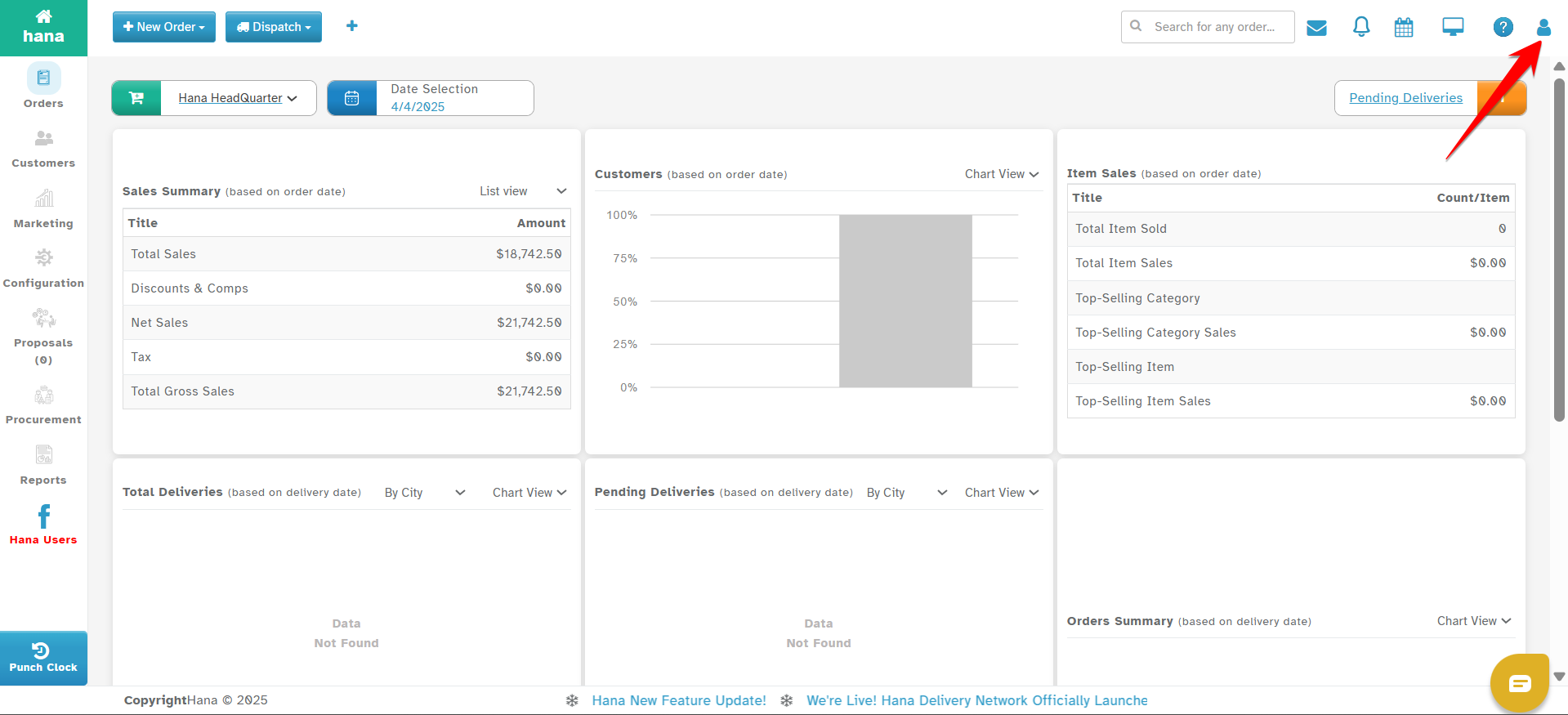
Click on the Profile Icon at the top-right corner of the dashboard.
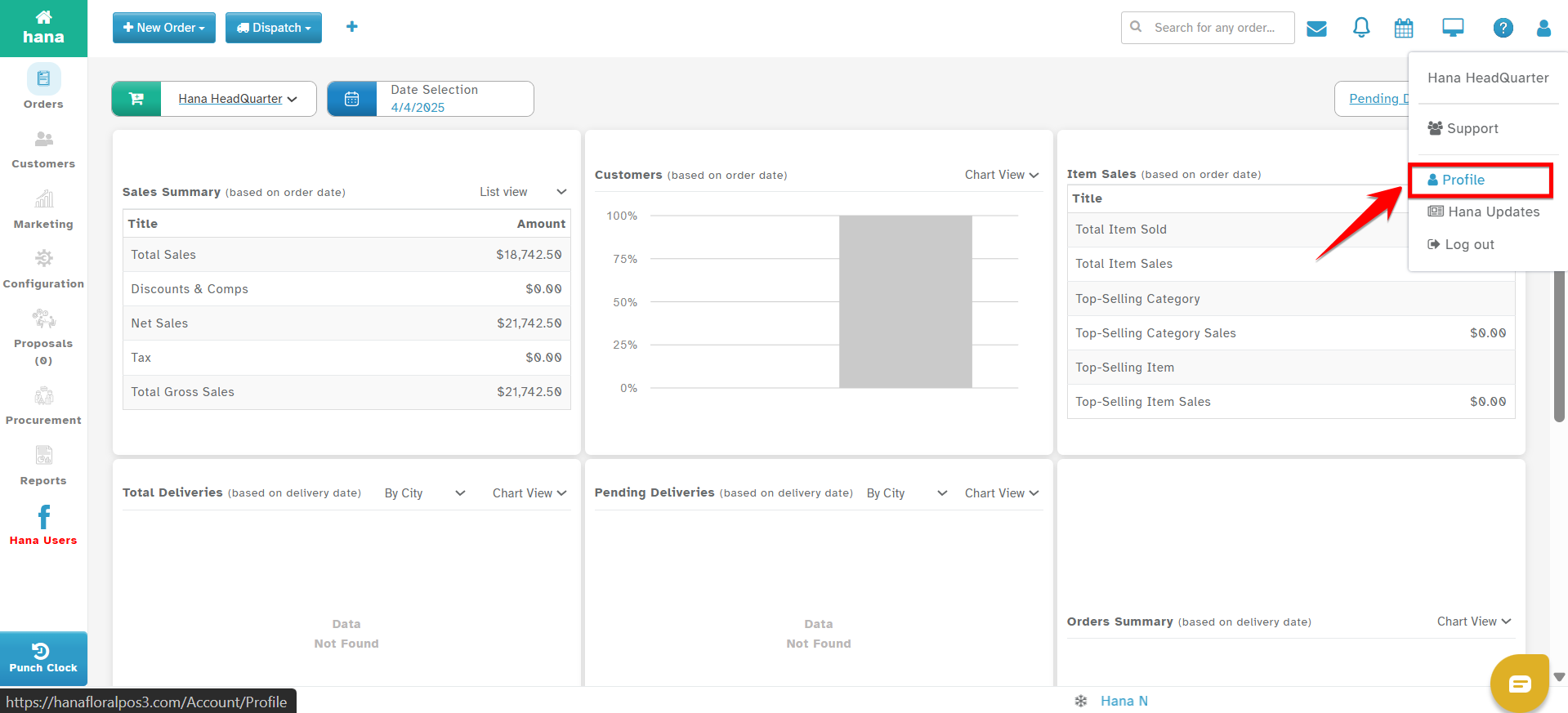
Select Profile from the dropdown menu.
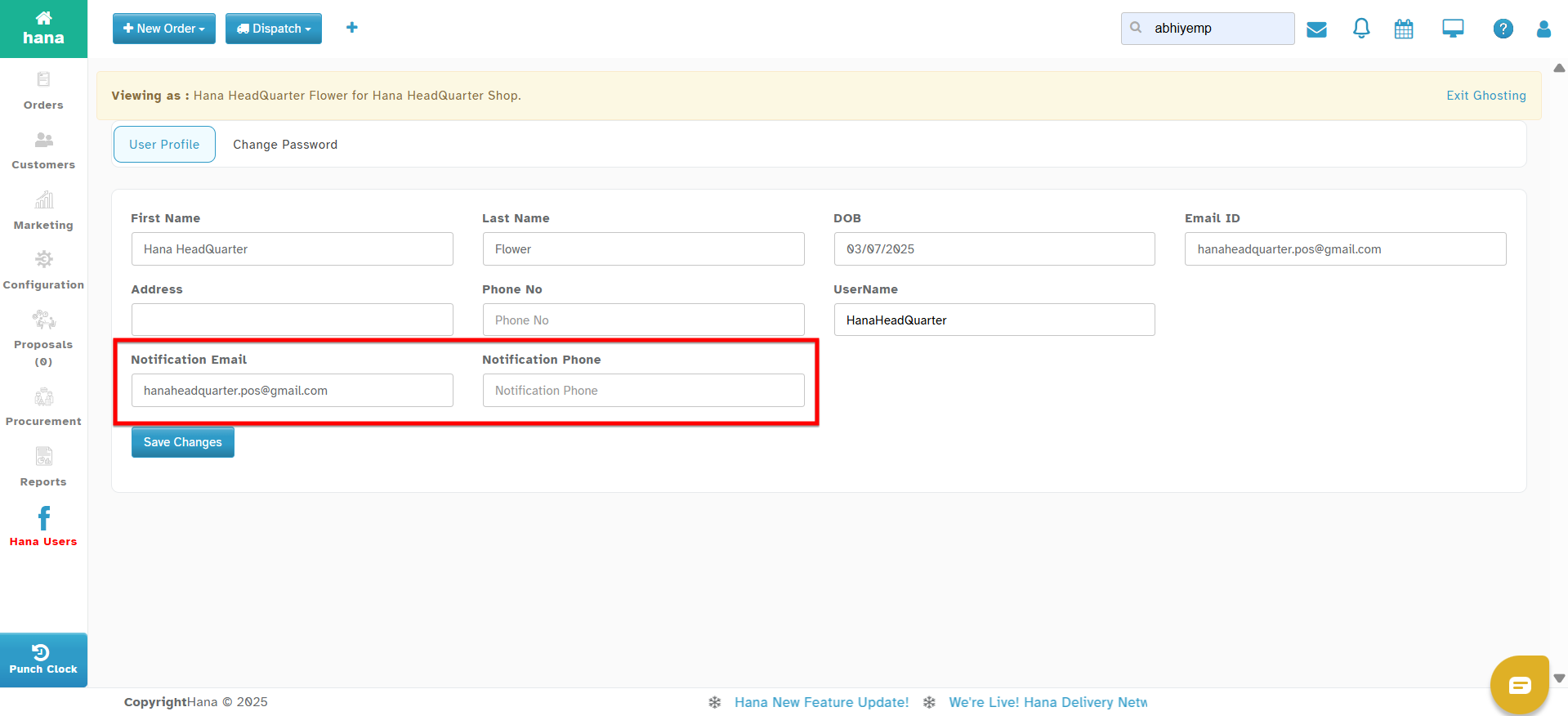
In the User Profile section:
Enter the Notification Email – Email notifications will be sent to this address.
Enter the Notification Phone – SMS alerts will be sent to this phone number.
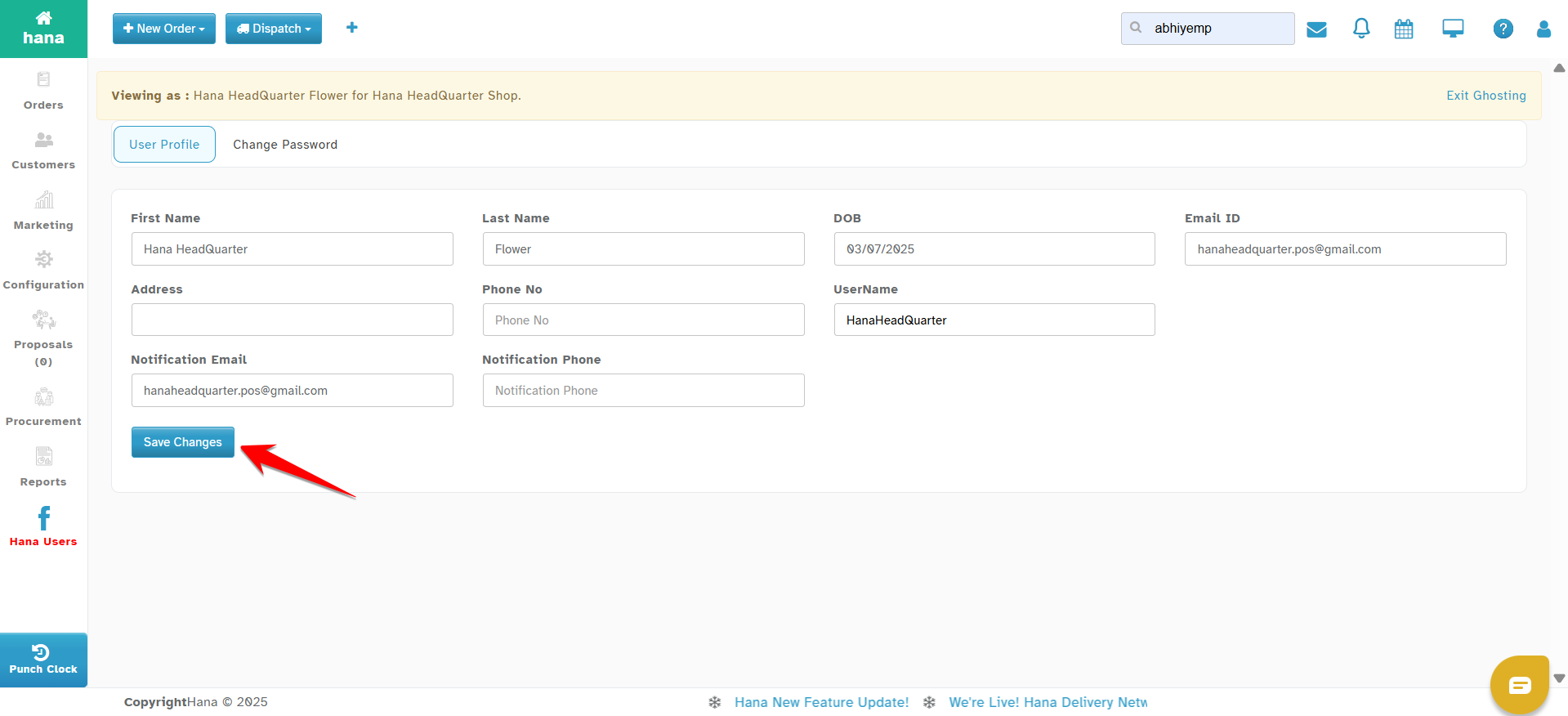
Click Save to apply the changes.
The shop-level notifications apply globally and are used when individual users are not assigned or have not configured their preferences.
User-Level Notification Setup
These settings are for individual employees who use their own login credentials. Each user can have their own email and phone number for notifications.
Steps to Set Up User-Level Notifications
Go to HANA Dashboard.
Navigate to Configuration from the left menu.
Select Users & Access.
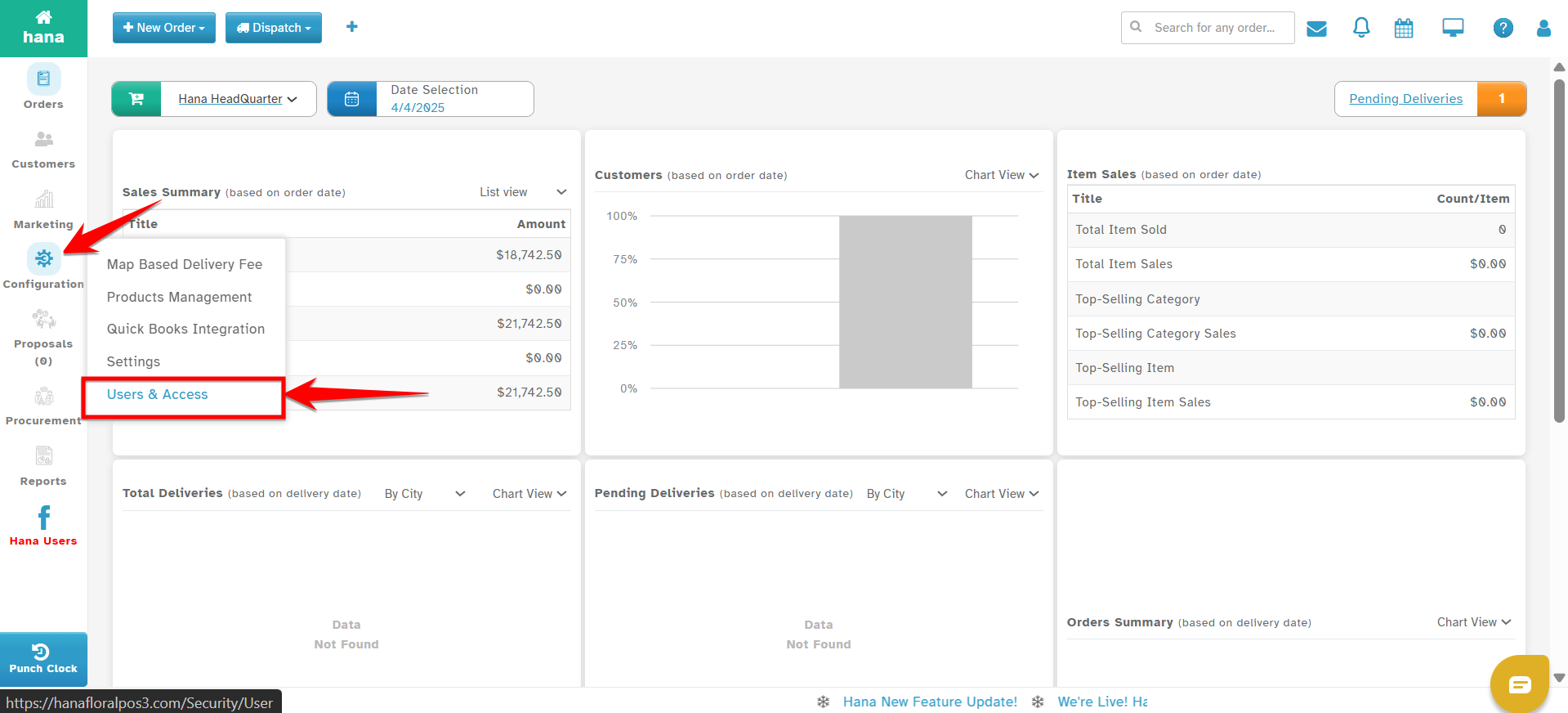
Find the user you want to edit.
Click the three horizontal lines (action menu) next to the user’s name and select Edit
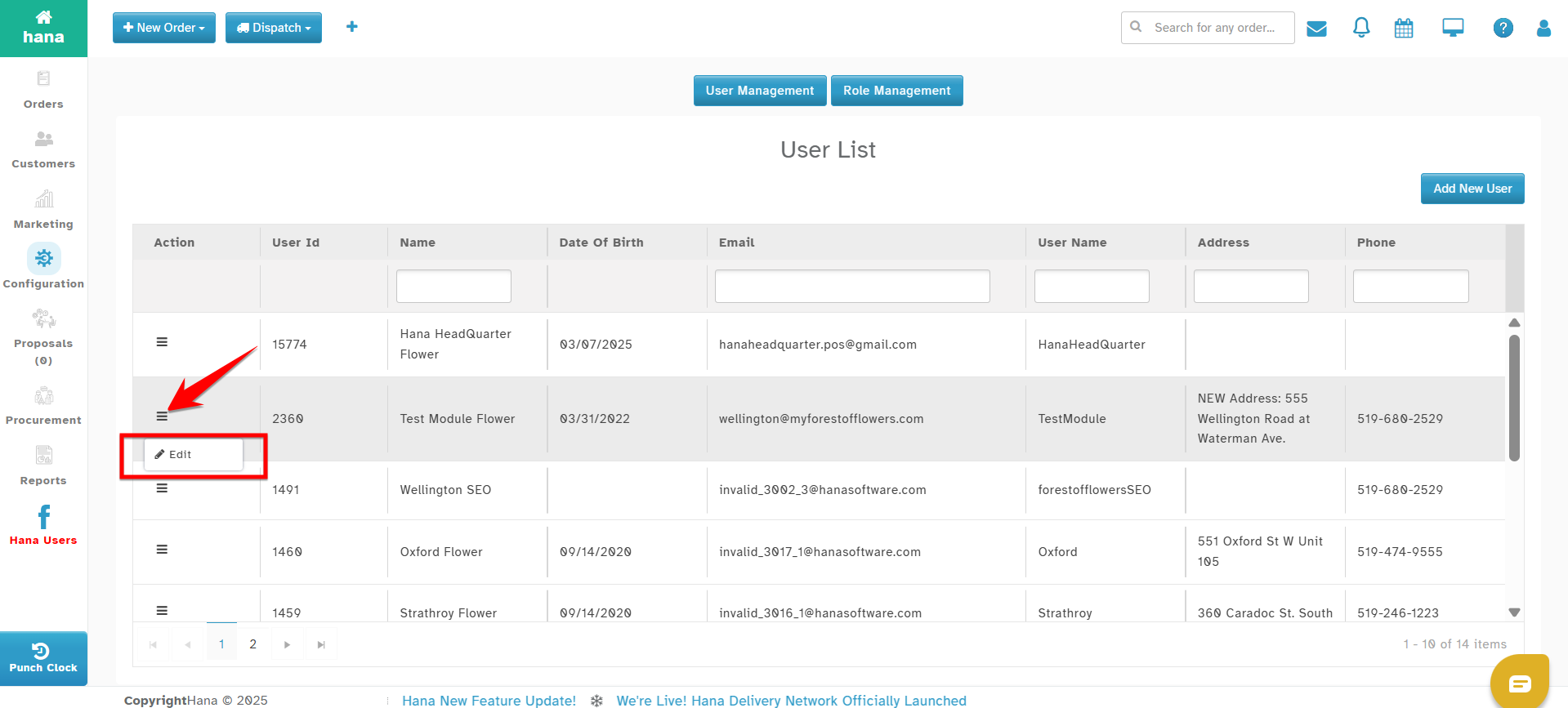
Update the following fields:
Notification Email
Notification Phone

Click Update User to apply.
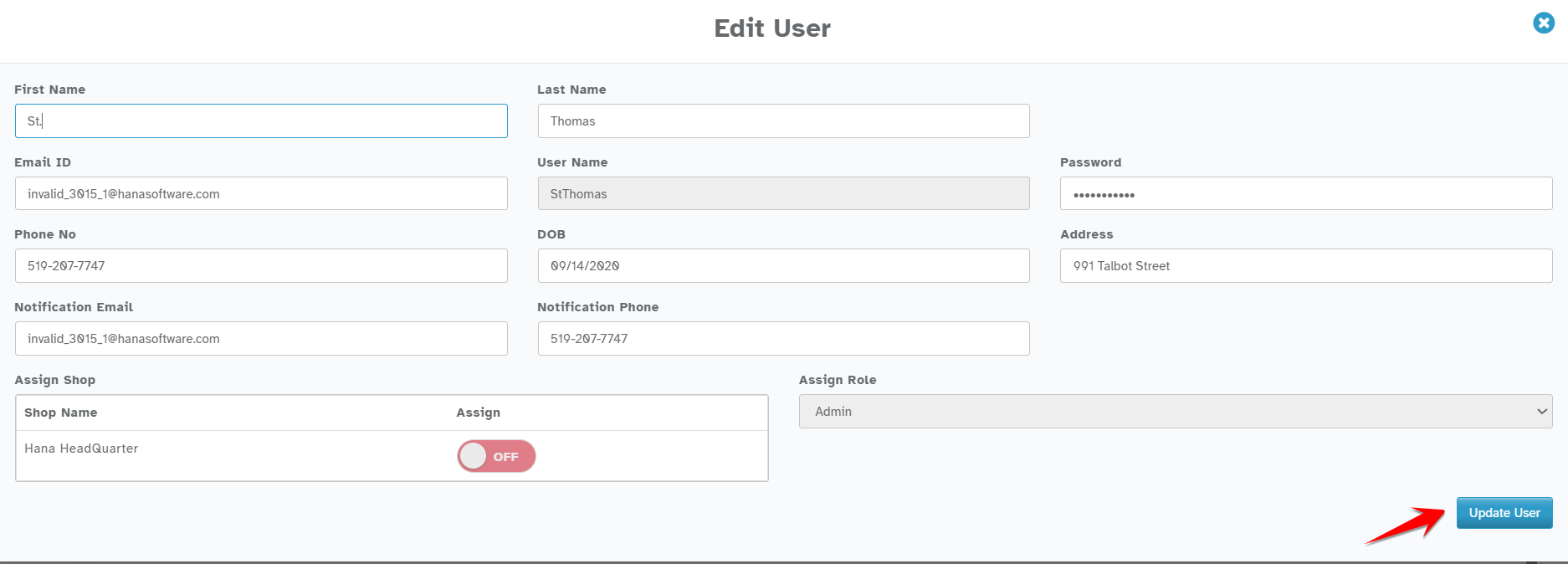
Once set, the user will begin receiving alerts based on their notification preferences.
Next Step: Personalize Preferences
After notifications are enabled for a shop or user, users can customize how they want to be notified:
Go to:
Bell Icon (top right) → Gear Icon (bottom of panel) → Notification Preferences
From there, users can:
Enable or disable specific types of notifications.
Choose preferred channels (In-App, Email, SMS).
For detailed instructions, refer to the article: [How to Set Up My Notification Preferences]
Summary
Shop Notifications ensure at least one central contact receives all alerts.
User Notifications allow personalized alert settings for team members.
Once configured, users can manage their preferences for a more customized experience.
Was this article helpful?
That’s Great!
Thank you for your feedback
Sorry! We couldn't be helpful
Thank you for your feedback
Feedback sent
We appreciate your effort and will try to fix the article