HanaViewers2 provides a quick and efficient way for florists and designers to mark an order as design completed directly from their mobile device. This helps ensure workflow transparency, keeps delivery teams updated, and allows shops to email customers or post finished designs on social media—all from one screen.
This feature is available to florist users only (not drivers or other employees) and is accessible through the Florist Login.
Before You Begin
To access the Design Completion feature in HanaViewers2, you must log in using POS login credentials.
⚠️ Important: You cannot use employee logins (e.g., driver or designer accounts created from the POS).
Instead, use your shop’s POS login or a POS user account login.
Step-by-Step Guide
Step 1: Log in as a Florist
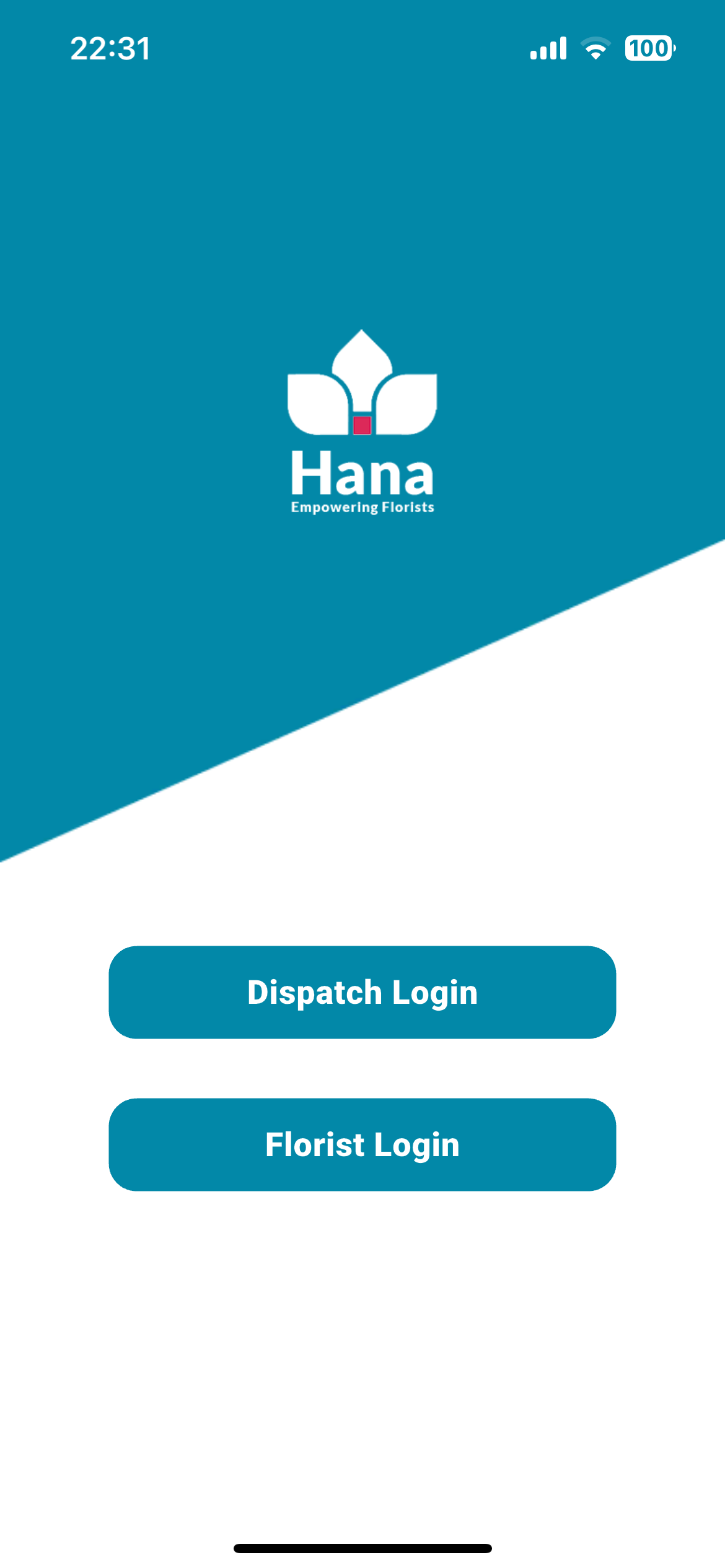
Open the HanaViewers2 app.
Tap on Florist Login.
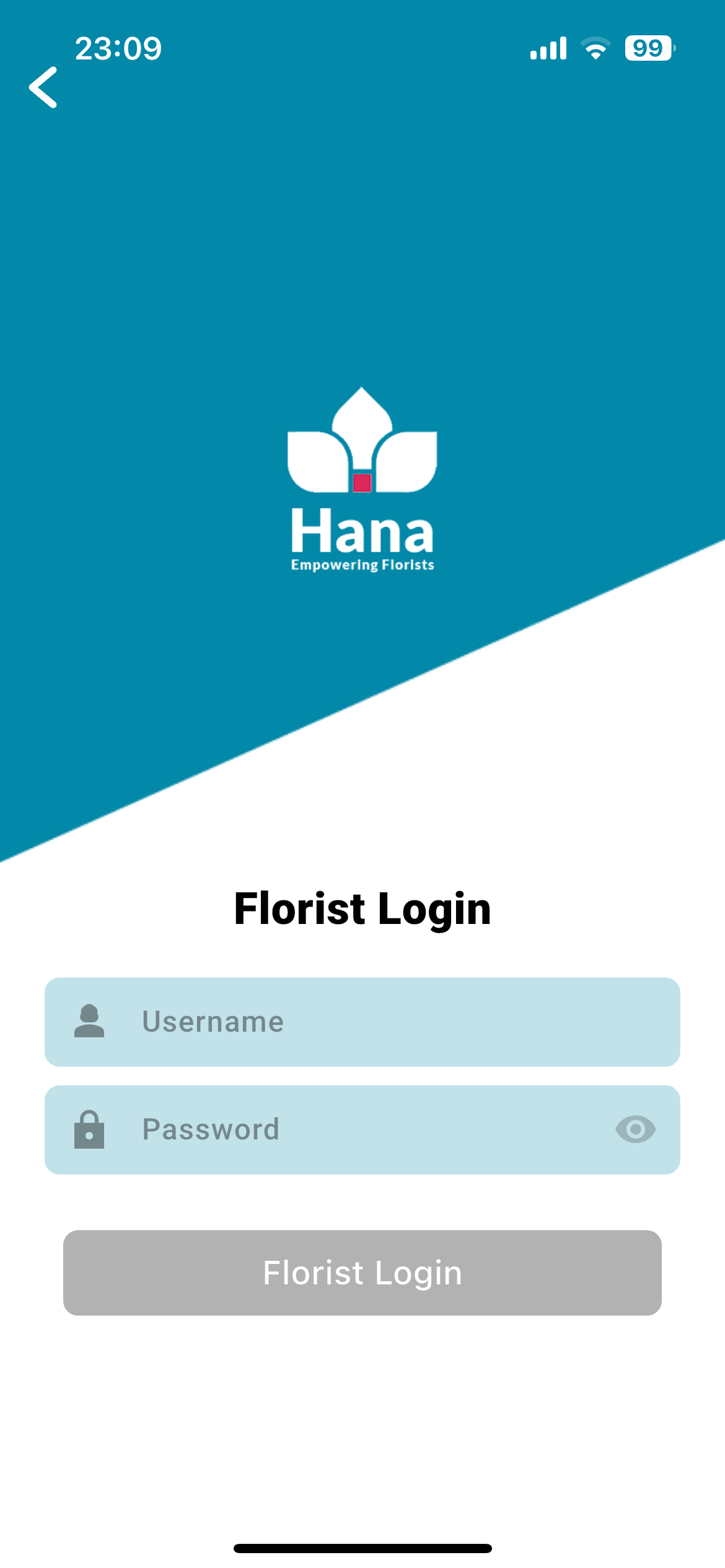
Enter your POS login credentials (same credentials used for the Hana POS dashboard).
Tap Login.
Upon logging in, you will be directed to the Capture Design Image screen.
Capture Design Image Page Overview
Once you're on the Capture Design Image screen, you will see several fields and action options designed to log and manage the design process.
Let’s break down each component: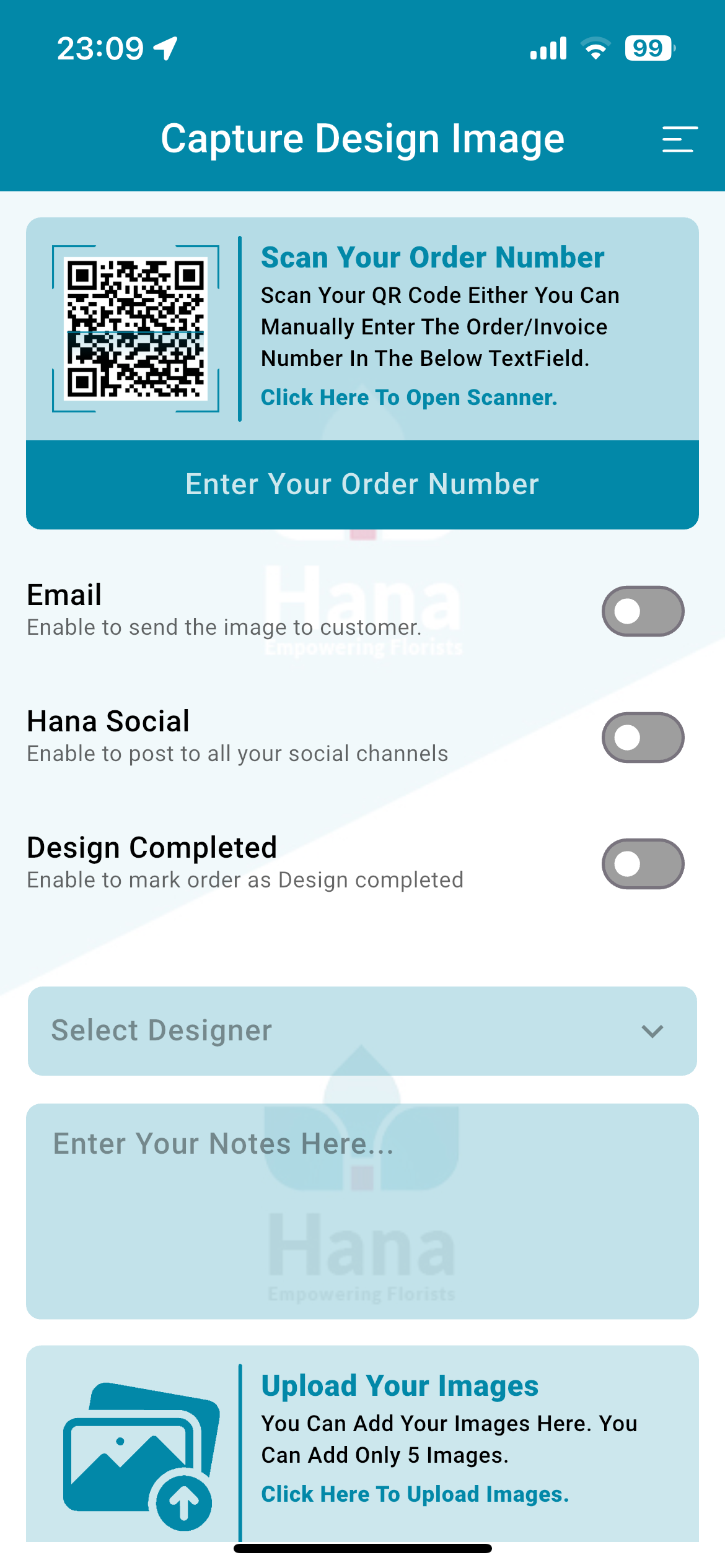
1. Scan Your Order Number
You can input the order (or invoice) number in one of two ways:
Manual Entry:
Type the order number directly into the “Enter Your Order Number” field.QR Code Scanner:
Tap on “Click Here to Open Scanner” to launch the camera and scan the QR code found on the printed invoice or packing slip.
Scanning is quick and reduces the chance of entering incorrect order numbers.
2. Email
This toggle allows you to send the uploaded design image to the customer via email once submitted.
When enabled, Hana will automatically send a confirmation email with the attached image(s).
This can be used to notify customers that their arrangement is ready or for quality assurance.
3. Hana Social
Enable this option to share the uploaded images across your connected social media platforms, such as Facebook or Instagram.
The feature must be pre-configured with your shop’s social media accounts via Hana.
Useful for building brand visibility and showcasing your design quality.
4. Design Completed
Toggle this ON to mark the order as “Design Completed” in the POS system.
Once this is enabled and submitted, the status of the order will be updated immediately.
This is critical for informing dispatch teams that the order is ready for delivery.
Best Practice: Only enable this after you’ve completed the design and uploaded all final photos.
5. Select Designer
Tap this dropdown to select the name of the designer who created the arrangement.
This list is populated based on your shop’s POS employee records.
Selecting the designer helps with internal accountability, productivity tracking, and performance reporting.
6. Enter Notes
There is a free text field labeled “Enter Your Notes Here…” where you can add any comments or special notes about the design.
Examples:
“Customer requested more lilies.”
“Added butterfly pick as per shop instructions.”
These notes are saved in the order and can be viewed later by staff or management.
7. Upload Your Images
This is where you upload photos of the finished floral design.
Tap on “Click Here to Upload Images”.
Choose to:
Take a photo using the device’s camera.
Or upload from your mobile gallery.
You can upload up to 5 images per order.
Tips for great design photos:
Use a clean background.
Ensure good lighting.
Show multiple angles, especially if the arrangement is complex.
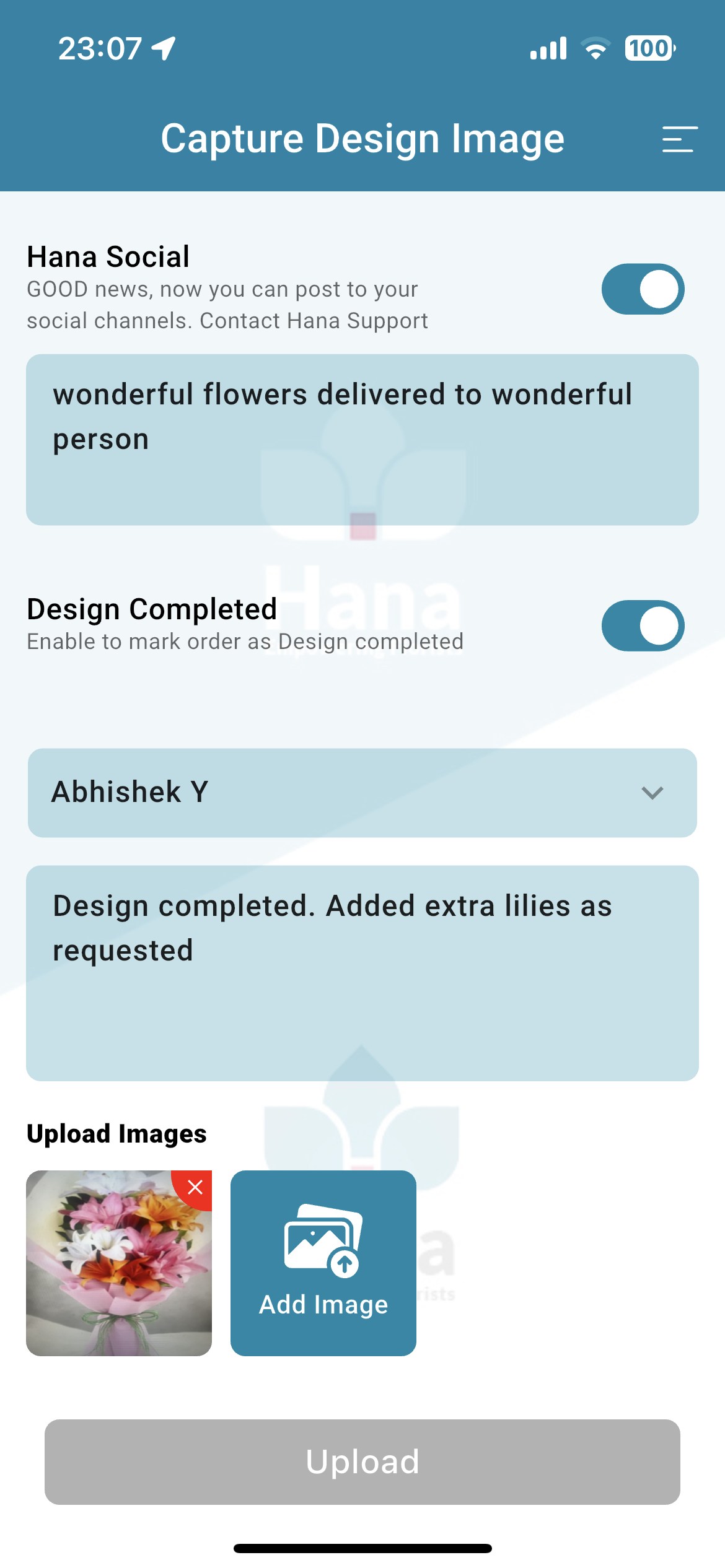
8. Submit / Upload
Once all the required information is filled out and images are uploaded:
Tap the Upload button to submit the information.
The system will:
Mark the order as Design Completed (if enabled),
Send the image via email (if enabled),
Post to social media (if enabled),
Attach designer name and notes,
And save all uploaded images in the order’s record.
Why Use This Feature?
Using the design completion tool offers many benefits:
Improves internal workflow coordination between design and delivery.
Offers proof of work for both customer satisfaction and internal records.
Provides marketing content for social channels.
Keeps your POS system up to date in real time.
Was this article helpful?
That’s Great!
Thank you for your feedback
Sorry! We couldn't be helpful
Thank you for your feedback
Feedback sent
We appreciate your effort and will try to fix the article