A recipe is a predefined set of floral components (such as individual flower stems like roses and lilies, and containers like gathering vases, rose vases, etc.) used to create a product
It helps florists standardize arrangements, manage inventory efficiently, and maintain pricing accuracy.
Recipes help track material costs, calculate labor charges, and ensure consistent product quality.
They can be customized with preset ingredients, labor costs, and markup percentages.
Recipes are handy for weddings/events in calculating costs and retail prices and in printing shopping lists.
This guide explains how to create a recipe, add items, adjust costs, and save it for future use in orders.
TABLE OF CONTENTS
Steps to Create a Recipe
Step 1: Access the Order Entry Page
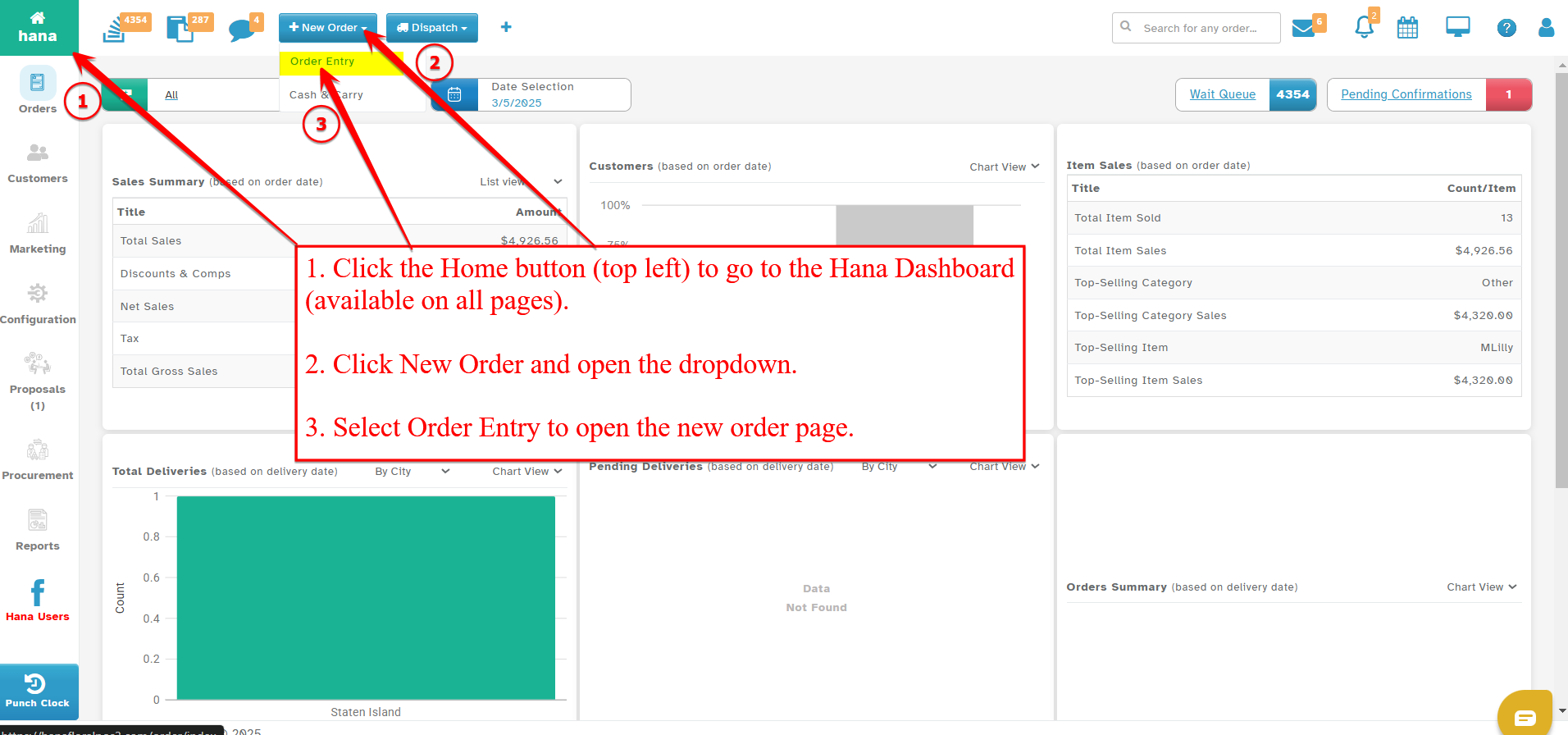
On the Dashboard, click New Order and select Order Entry from the dropdown list.
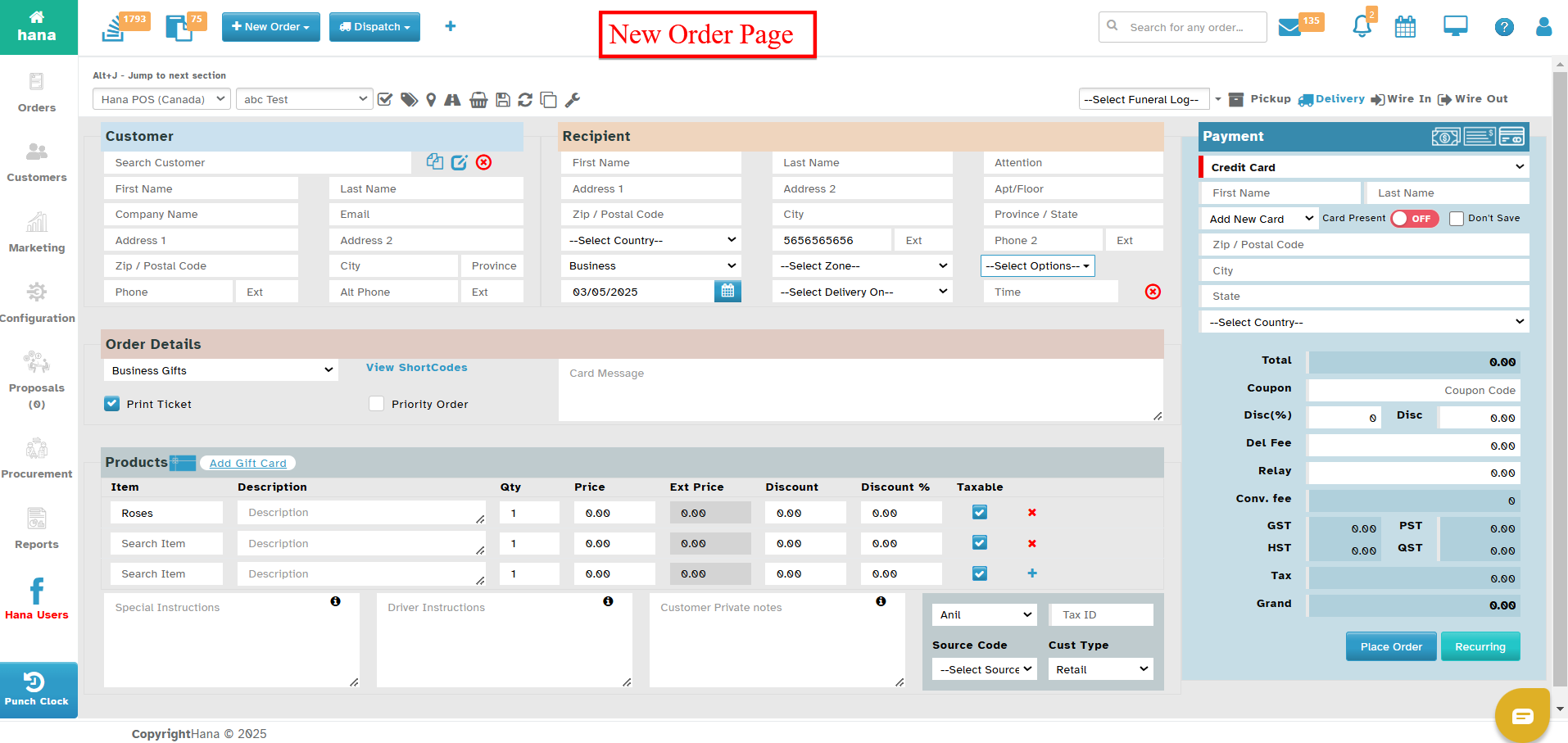
Navigate to the Products section.
Enter the first few letters of the product name in the Search Item field.
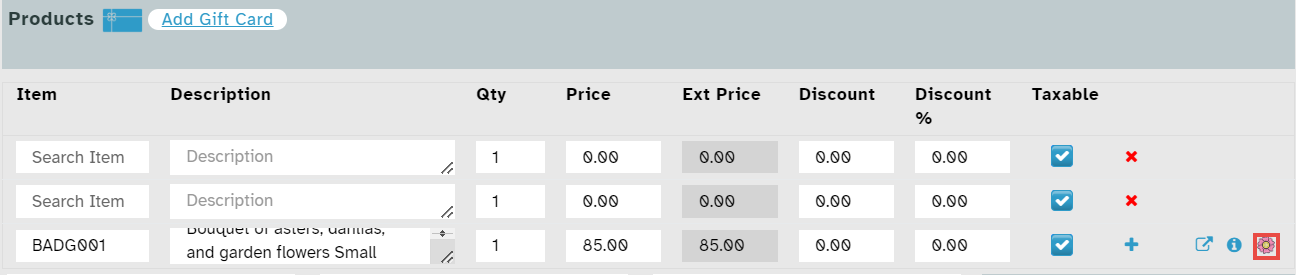
Once you search for an item from the database, the recipe icon will appear.
Step 2: Open Recipe Creation
Click the recipe icon to access recipe details.
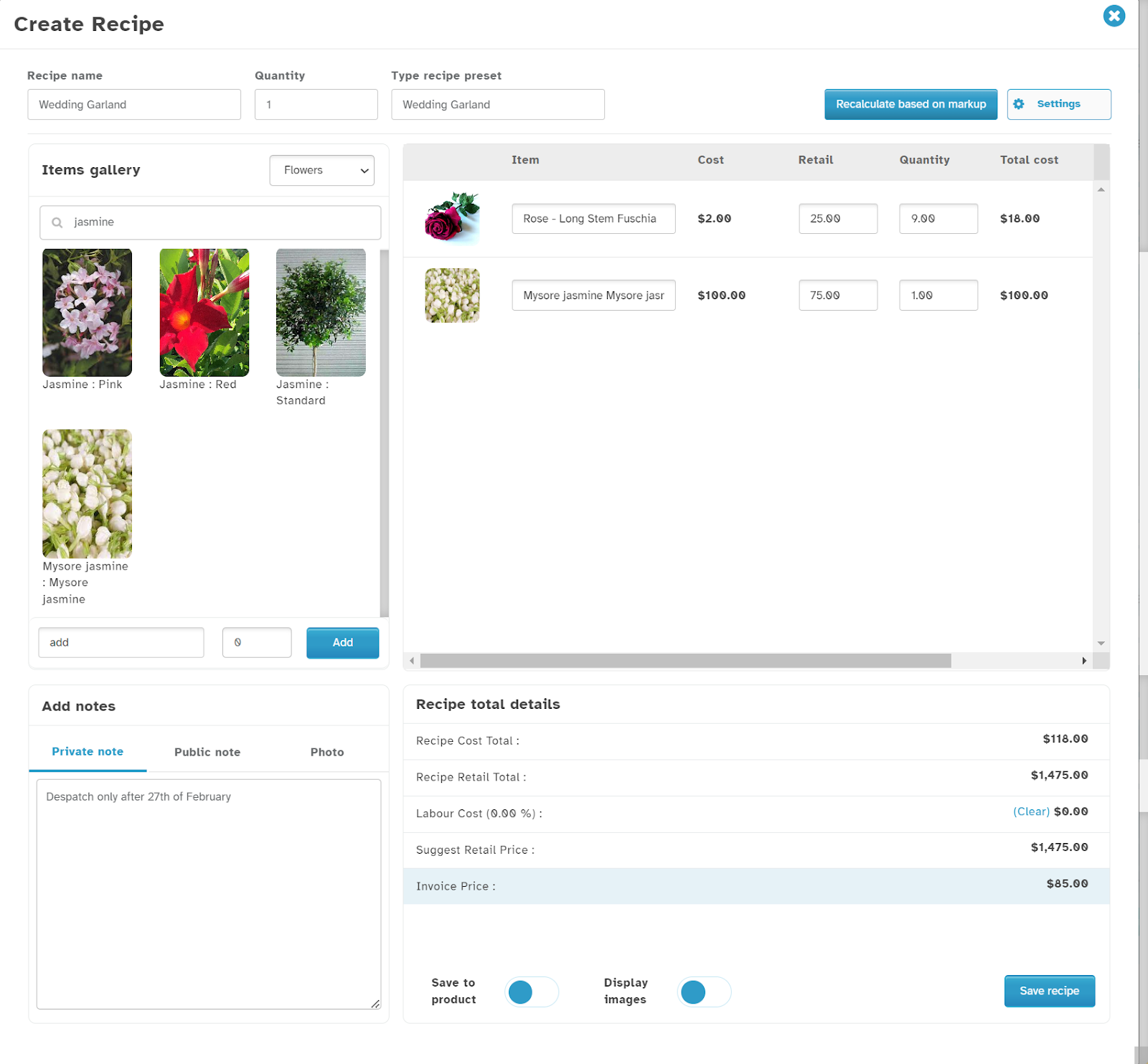
The Create Recipe dialog will be displayed.
Step 3: Define Recipe Details
Enter the Recipe Name in the designated field.
Specify the Quantity of the recipe to be created.
To use a predefined recipe, enter the first three letters in the Type Recipe Preset field and select from the dropdown list.
Step 4: Adjust Pricing and Settings
Click Recalculate Based on Markup to update cost calculations.
Click Settings to modify labor costs and markup percentages. (For more details, refer to Markup Settings)
Step 5: Add Items to the Recipe
Select items for your recipe from the Item Gallery.
Need help Adding Items or managing components?
See:
• How to Add a Component to the Recipe Item List?
• How to Add a Floral Component to a Recipe?Enter additional details if necessary:
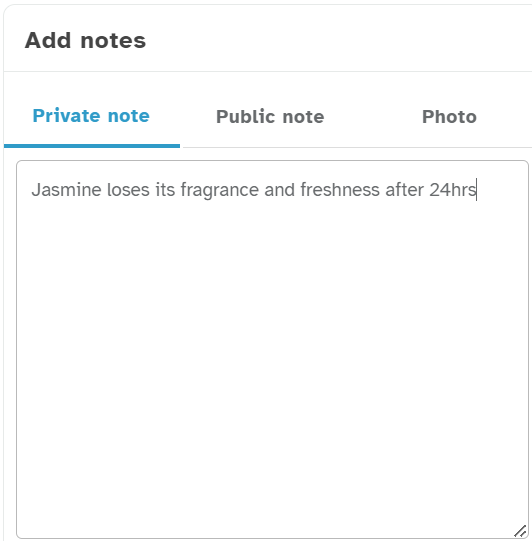
Click Private Note and enter a description. (Visible only to the florist)
Click Public Note and enter a description. (Visible to customers)
Step 6: Add an Image to the Recipe
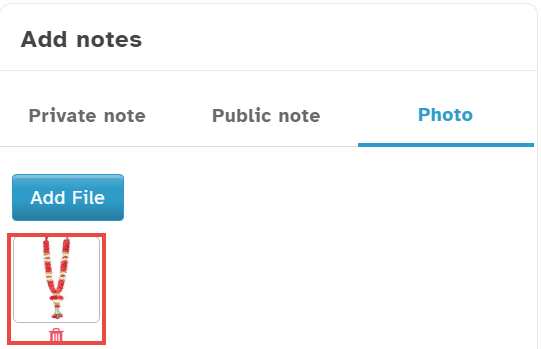
To attach an image, select Photo and click Add File.
In the Open Dialog, choose the desired image from your computer and click Open. The selected image will be added to the recipe.
Step 7: Review and Save
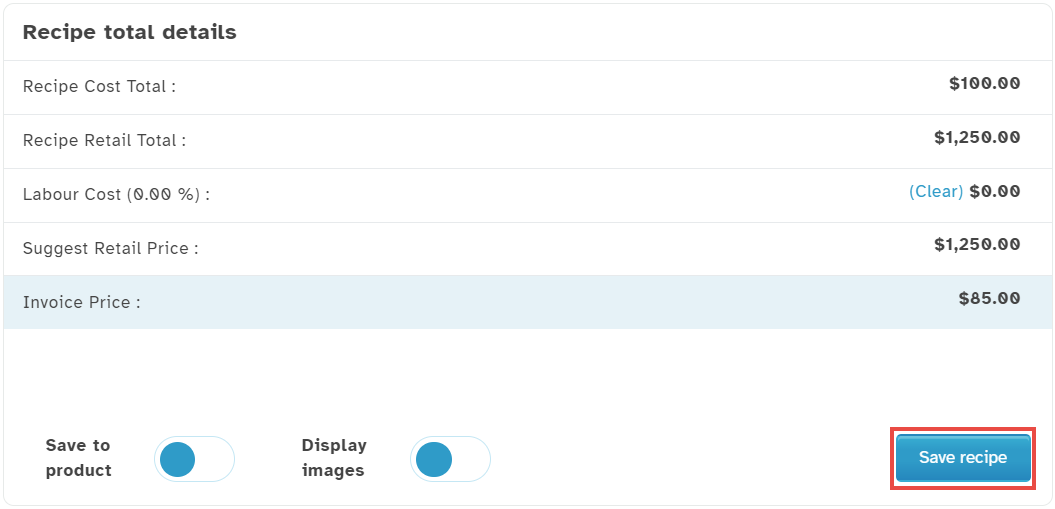
Review the Recipe Total Details, including:
Recipe Cost Total
Recipe Retail Total
Labor Cost
Suggested Retail Price
Invoice Price
Enable Save to Product to store the recipe for future use.
Enable Display Images to show component images in the proposal view.
Click Save Recipe to finalize and store the recipe.
The Recipe Saved notification will appear.
Was this article helpful?
That’s Great!
Thank you for your feedback
Sorry! We couldn't be helpful
Thank you for your feedback
Feedback sent
We appreciate your effort and will try to fix the article