If a floral component, such as a flower or container, is not listed in the recipe item list, you can manually add it as a new component.
This feature allows florists to include custom elements, define pricing, and manage inventory effectively.
This guide outlines the steps to add a new component, assign categories, and configure details such as cost, retail price, and inventory tracking.
Steps to Add a New Component to a Recipe
Step 1: Access the Add Component Option
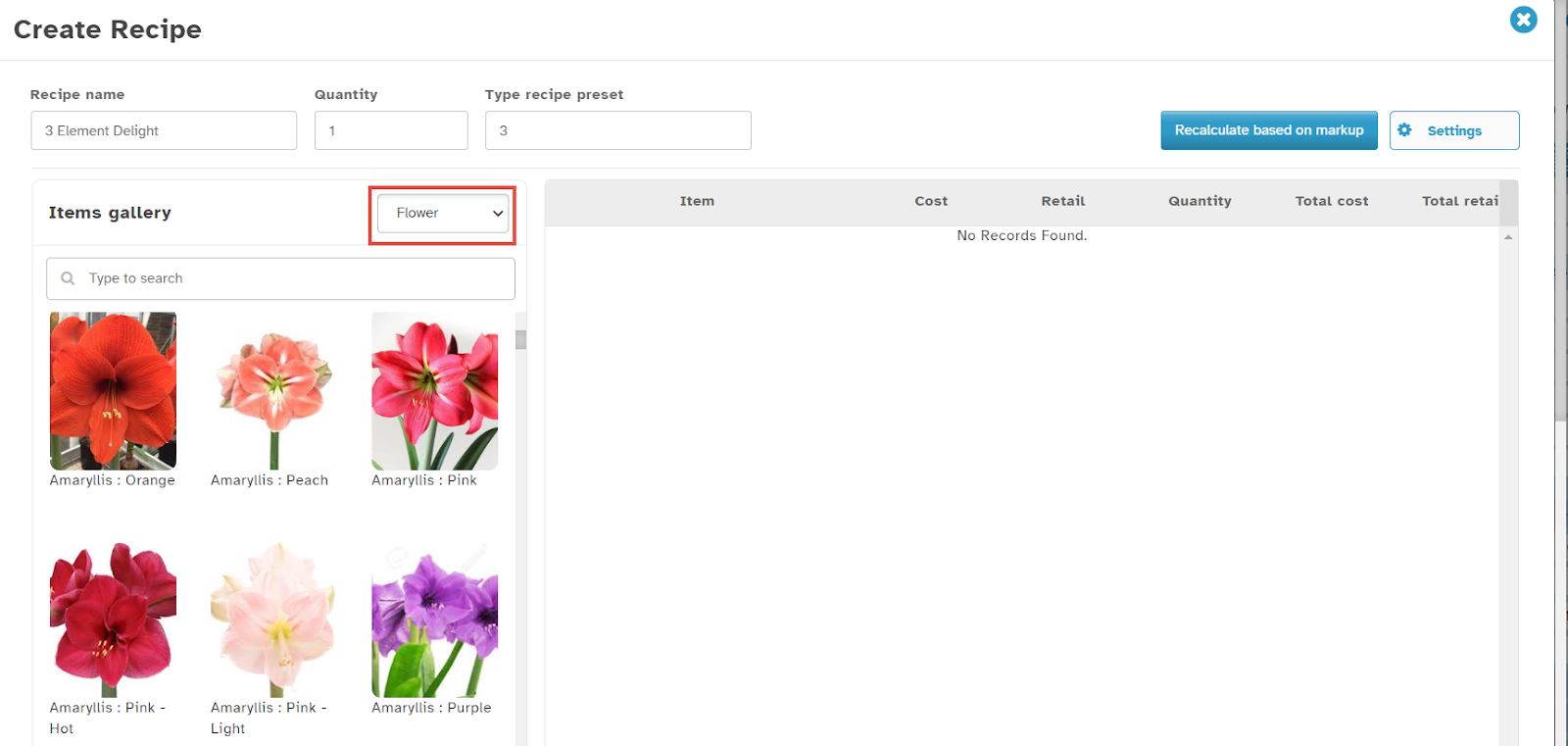
In the Create Recipe dialog, navigate to the Items Gallery.
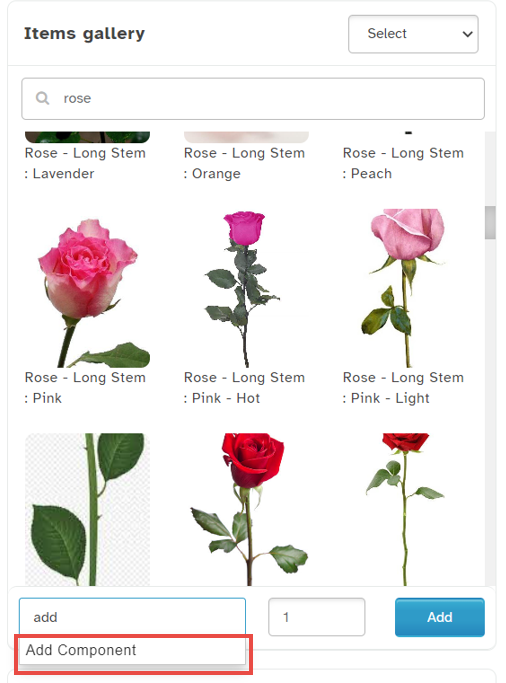
In the Item Name field, type
Add.
The Add Component option will appear in the dropdown list.
Note: If you search for any item in the Item Name field and scroll down, the Add Component option will also be displayed.
Tip!! The Components management page can also be accessed directly using the navigation below.
Configuration --> Inventory Management --> Components Management
Step 2: Open the Add Component Dialog
Click Add Component.
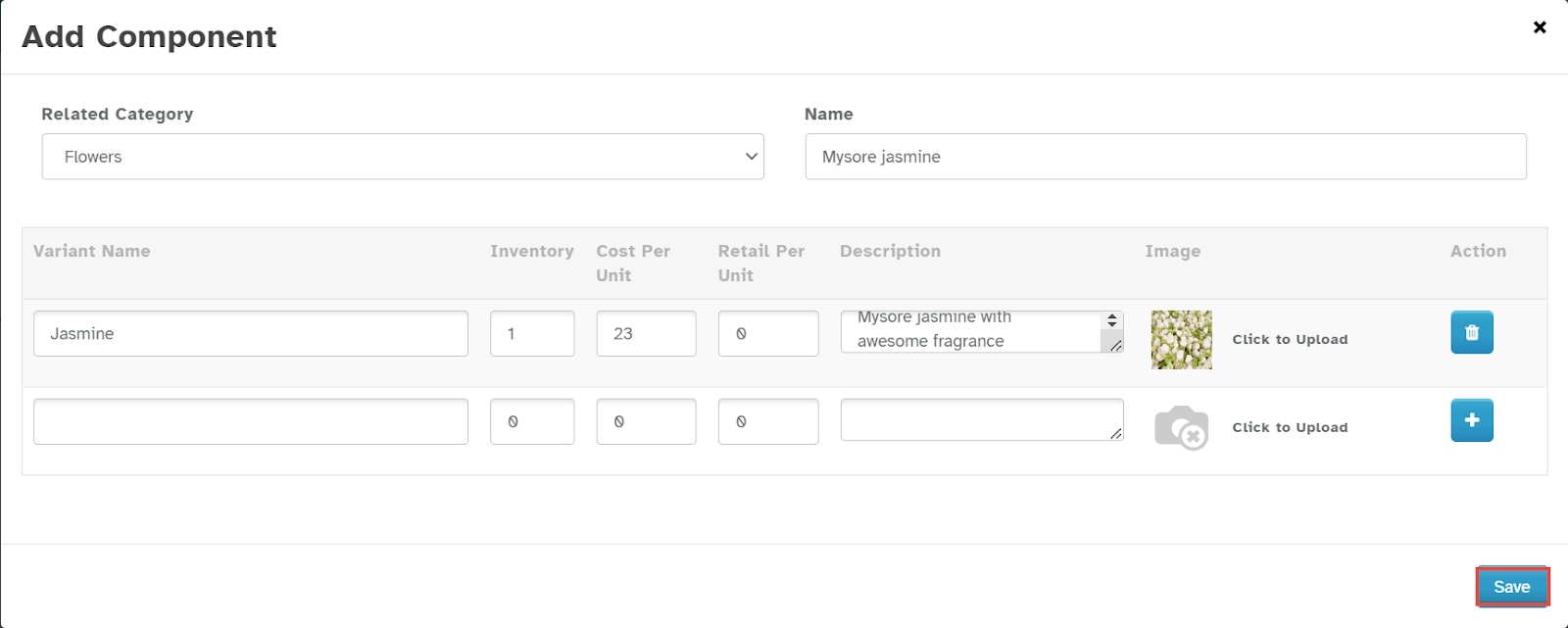
The Add Component dialog will appear.
Step 3: Enter Component Details
Select the Related Category from the dropdown list.
Enter the Component Name in the Name field.
Enter the Variant Name in the Variant Name field.
Enter the Inventory Number in the Inventory field.
Specify the Cost per Unit.
Enter the Retail per Unit Price.
Provide additional details in the Description field.
Step 4: Upload an Image (Optional)
Click the Upload Icon or the Click to Upload link in the Image field.
The Open File dialog will be displayed.
Select the desired image from your system and click Open.
Step 5: Save the Component
Click Save to finalize the component.
The component will now be added to your item list.
Managing Variants
Note:
To add more variants, click the add icon in the Action field.
To remove a variant, click the delete icon in the Action field.
Following these steps, you can customize your recipe components, ensuring precise inventory and pricing management.
Was this article helpful?
That’s Great!
Thank you for your feedback
Sorry! We couldn't be helpful
Thank you for your feedback
Feedback sent
We appreciate your effort and will try to fix the article