Adding floral components to a recipe allows florists to create customized arrangements and standardized product offerings.
By selecting the necessary components, adjusting quantities, and refining item details, you can ensure accurate cost calculations and efficient inventory management.
This guide explains how to search for, select, and add items to a recipe within Hana POS.
TABLE OF CONTENTS
Steps to Add a Floral Component to a Recipe
Step 1: Select an Item Category
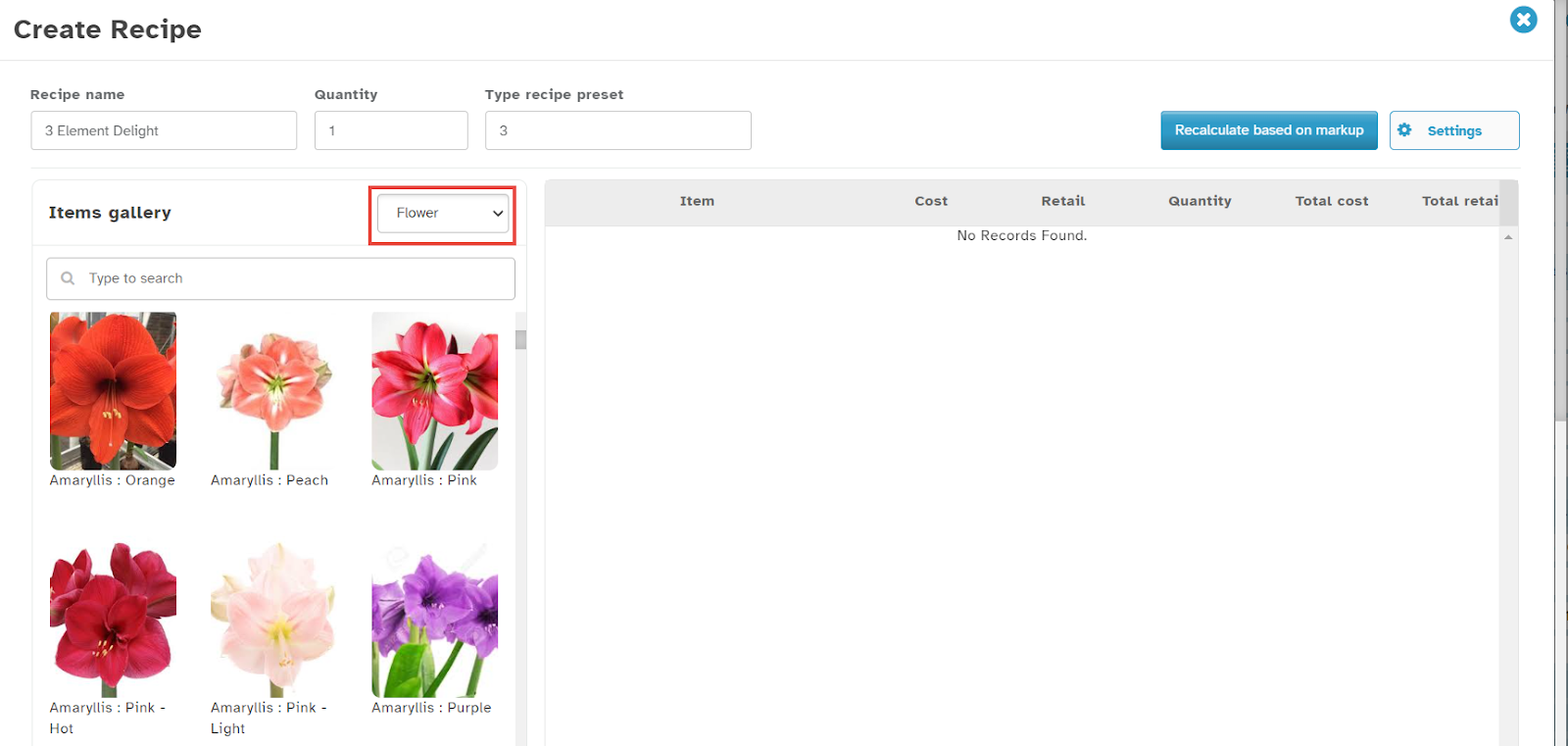
On the Create Recipe page, navigate to the Items Gallery.
Select the item category from the dropdown list.
The system will display all items related to the selected category along with their images.
Step 2: Search for an Item
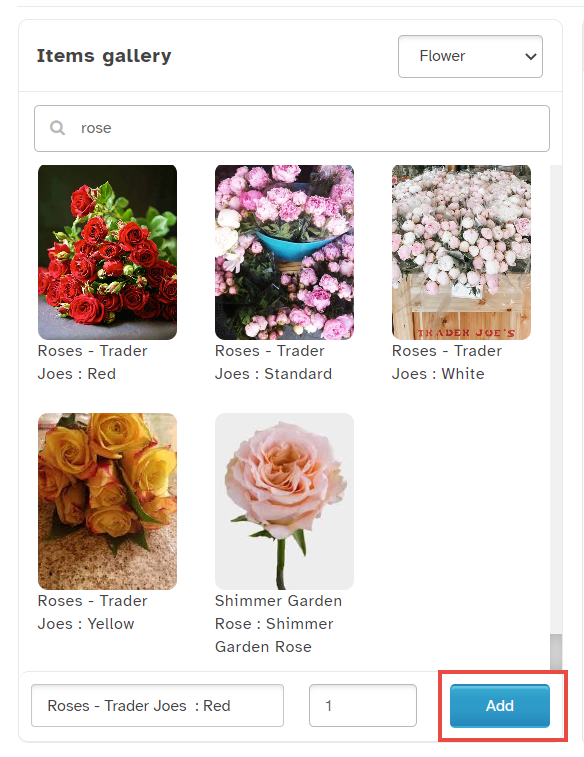
Enter the item name in the Type to Search field.
A list of items matching the search criteria will be displayed.
Select the desired item from the list.
Alternative Method: You can also find an item by typing the first three letters in the Item Name field. A dropdown list of matching items will appear, allowing you to select the correct one.
Step 3: Add the Item to the Recipe
Specify the quantity of the selected item.
Click Add to include the item in the recipe.
Step 4: Edit or Remove an Added Item
Note:
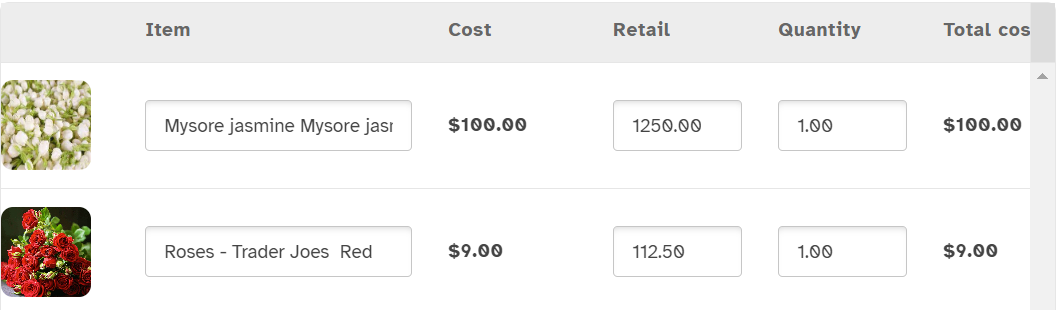
To edit an item, update the values in the Item, Retail, and Quantity columns.
To remove an item, click the delete icon in the row of the item you wish to delete.
By following these steps, you can efficiently add and manage items within a recipe, ensuring accurate ingredient tracking and pricing calculations.
Was this article helpful?
That’s Great!
Thank you for your feedback
Sorry! We couldn't be helpful
Thank you for your feedback
Feedback sent
We appreciate your effort and will try to fix the article