In Hana POS, a multi-order scenario occurs when customers want to place multiple orders for different recipients with different products, card messages, and occasions. This feature allows efficient processing of multiple orders under a single transaction.
Steps to Create a Multi-Order
Step 1: Create the First Order
Follow the steps outlined in How to Create a New Order (Delivery Order)
Once the order is successfully placed, you will be redirected to the final order confirmation page.
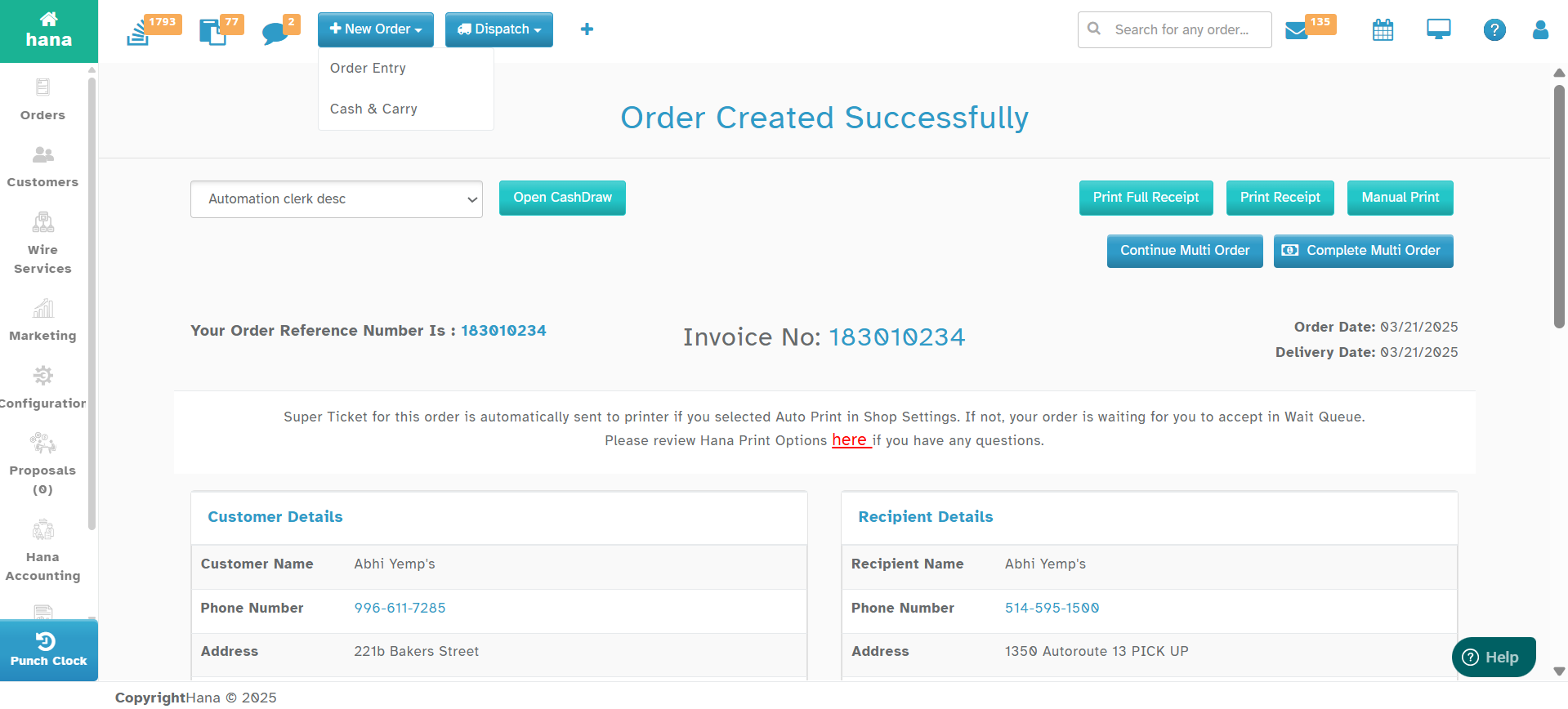
Step 2: Continue with Multi-Order
On the right-hand side of the final order confirmation page, click Continue Multi Order.
This will take you back to the Order Entry page.
The customer information will be auto-filled from the previous order.
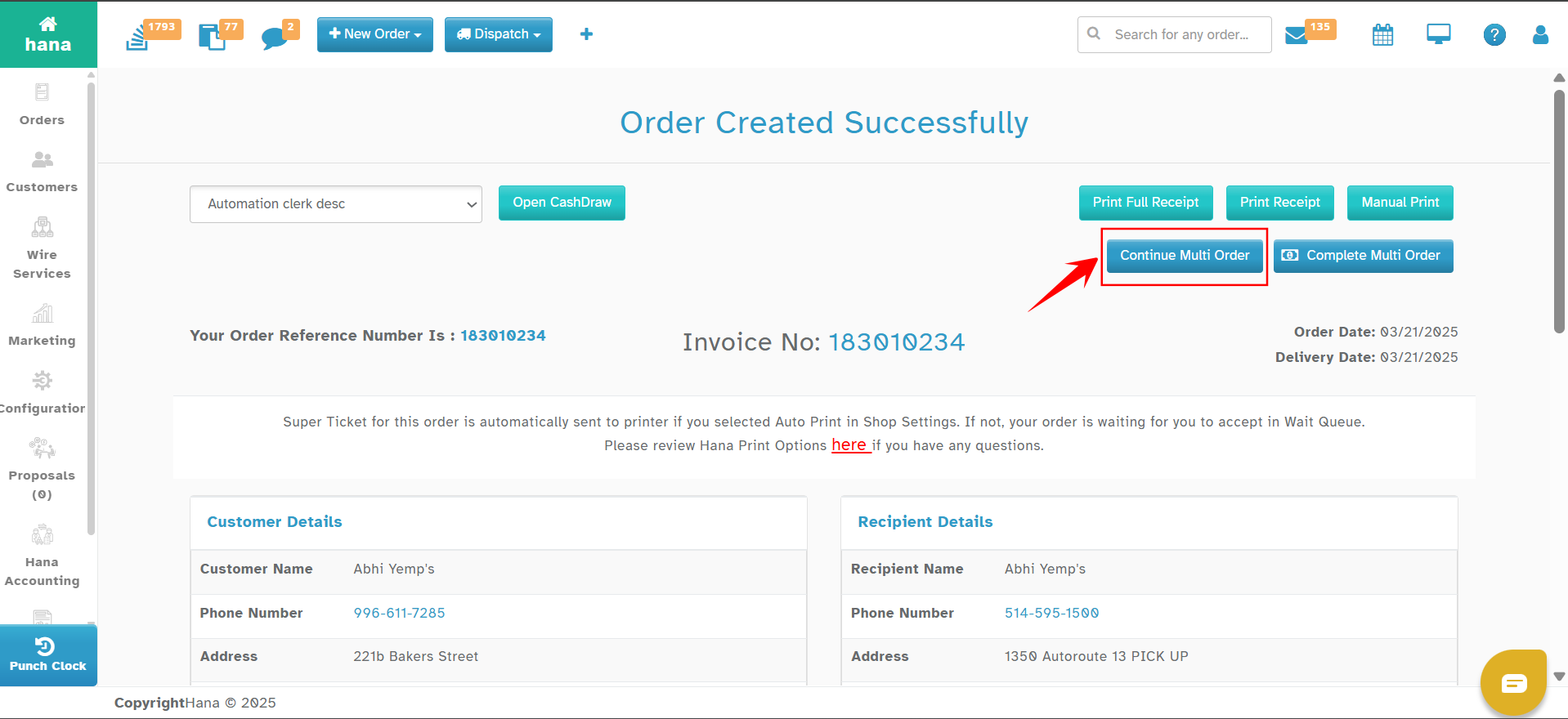
Step 3: Enter Additional Order Details
Add new recipient information.
Enter the card message.
Select the occasion.
Add product information.
Choose the delivery date.
Click Place Order.
Step 4: Add More Orders (If Needed)
After placing the second order, the final confirmation page will again display the options:
Continue Multi-Order: Select this if additional orders need to be placed.
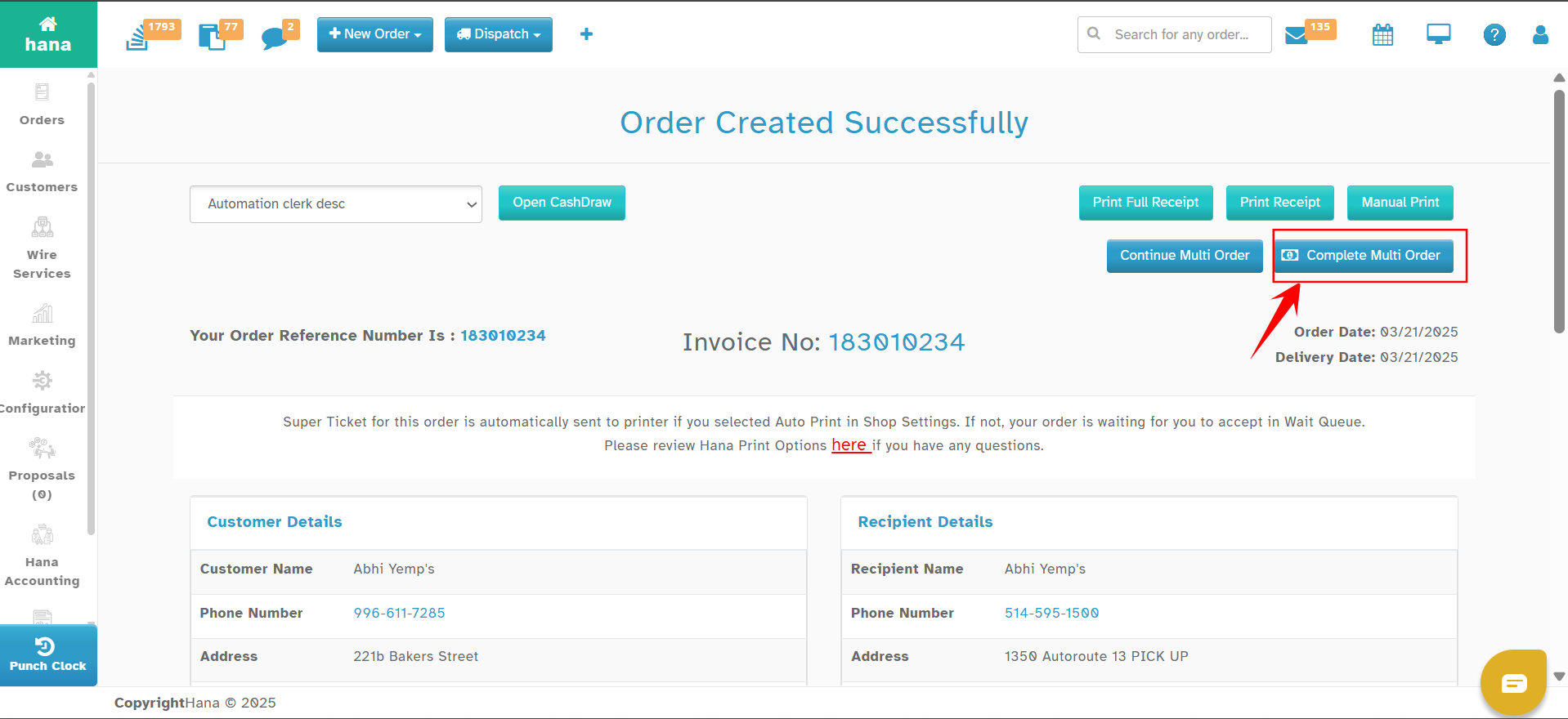
Complete Multi-Order: Select this if no more orders need to be added.
Repeat the above process for each additional order.
Step 5: Complete the Multi-Order Process
Once all required orders have been placed, click Complete Multi-Order.
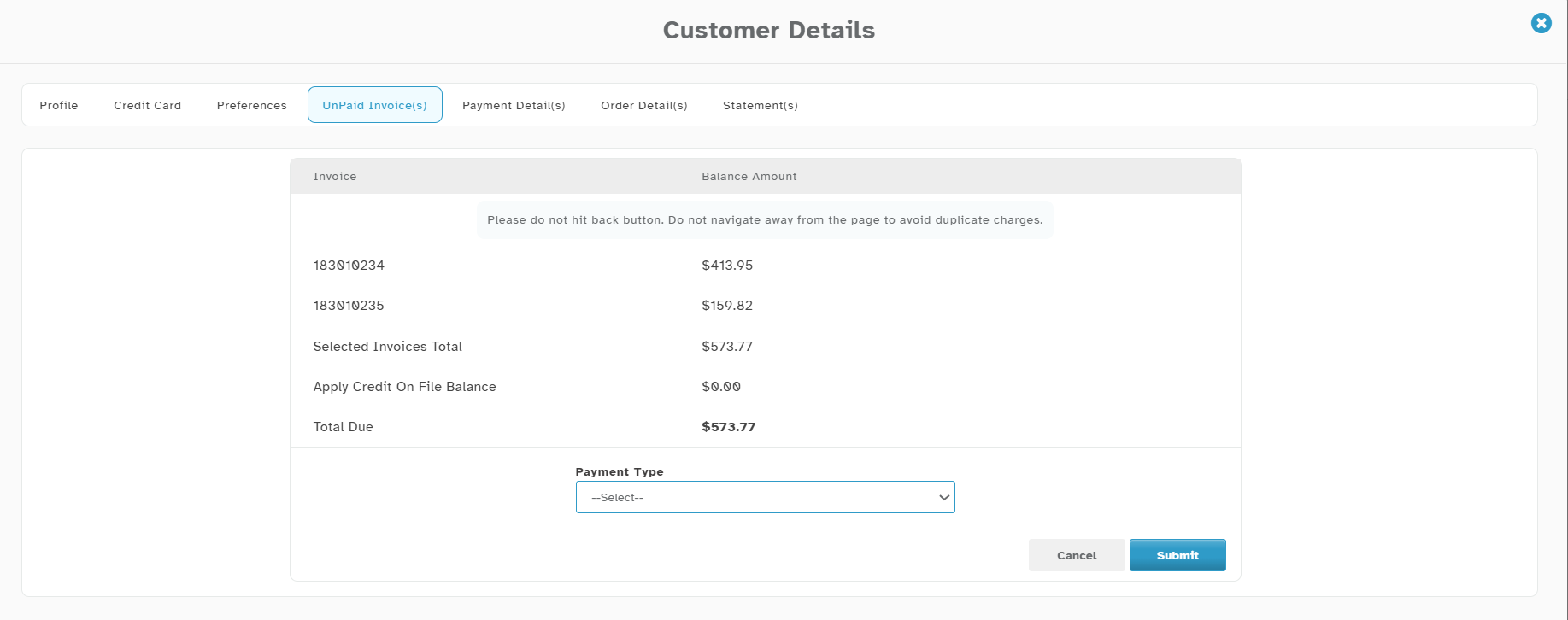
The system will redirect to the Customer Details page, displaying all unpaid invoices.
Select the invoices and proceed with the payment process.
Important Notes
Multi-Order Usage: Multi-order is used when a customer needs to place multiple orders for different recipients, each with unique order details.
Payment Processing:
Initially, all orders in a multi-order scenario are marked under the Invoice House Account payment method.
When Complete Multi-Order is clicked, the system redirects to the Customer Details page, showing all unpaid invoices.
The payment needs to be processed at this stage.
For more details, refer to How to Receive Payments from House Accounts?
By following these steps, you can efficiently handle multi-order scenarios in Hana POS, ensuring seamless order processing and payment management.
FAQs
How do I pay multiple orders at once?
After you take all the multiple orders, click pay and complete the payment for all the transactions at once.
Was this article helpful?
That’s Great!
Thank you for your feedback
Sorry! We couldn't be helpful
Thank you for your feedback
Feedback sent
We appreciate your effort and will try to fix the article