Hana POS allows you to set default values for various fields on the New Order Page, enabling faster and more efficient order entries.
For example, you can set Occasion to always default to "Other." You can set the default delivery date to the current date. You can also set the item quantity to 1 to avoid entering it on each order.
Once set, these values will automatically populate whenever a new order is created.
This guide outlines the steps to set and manage default values on the order page.
Steps to Manage Default Values on Order Page
Step 1: Access the Default Values Dialog
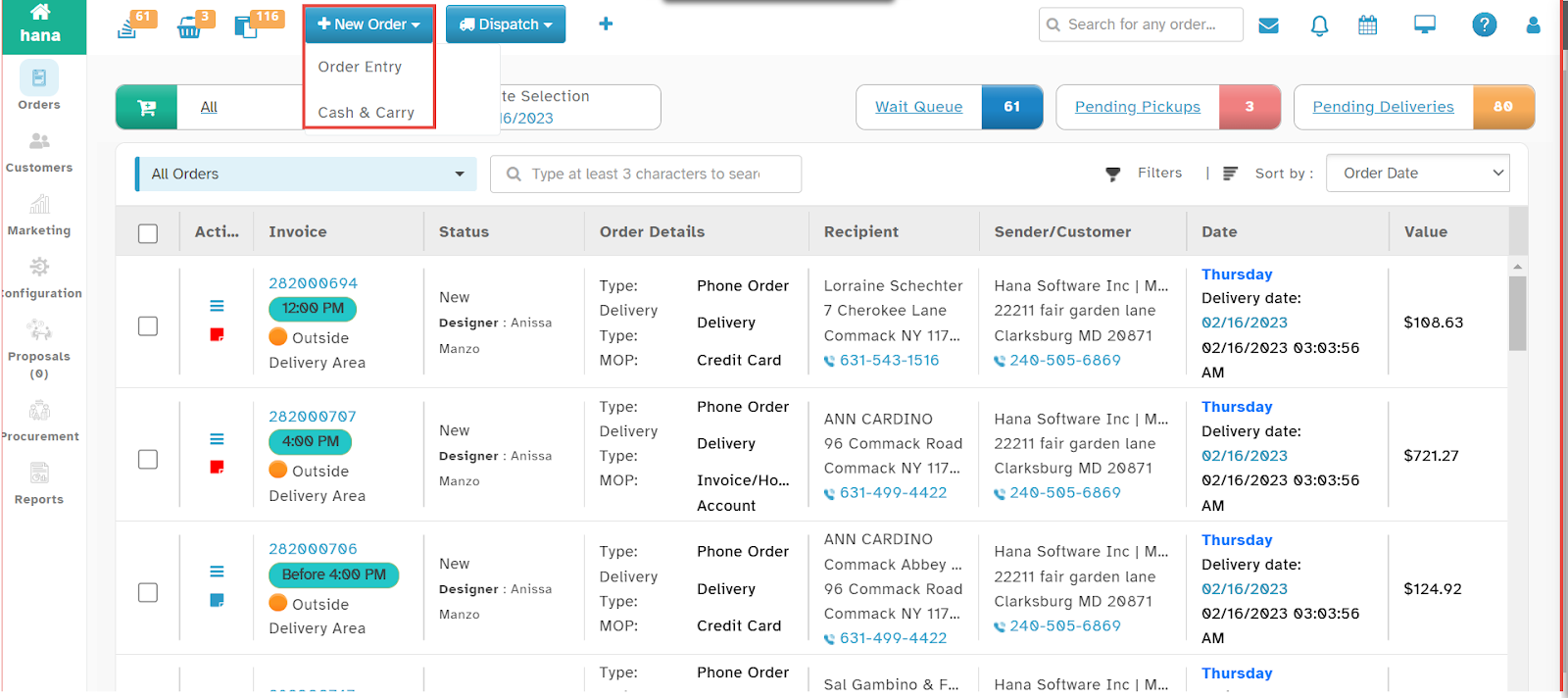
Navigate to New Order > Order Entry.
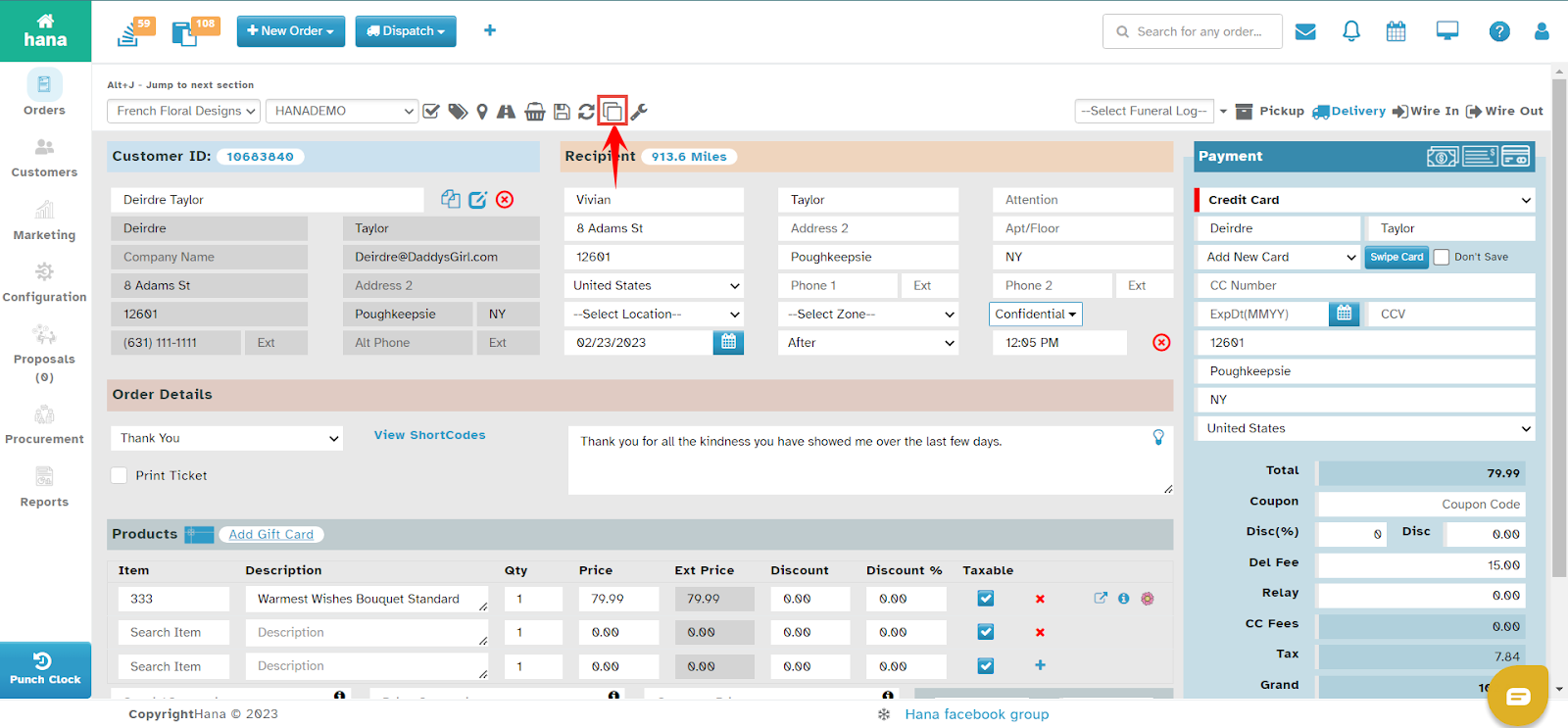
Click the Default Values icon.
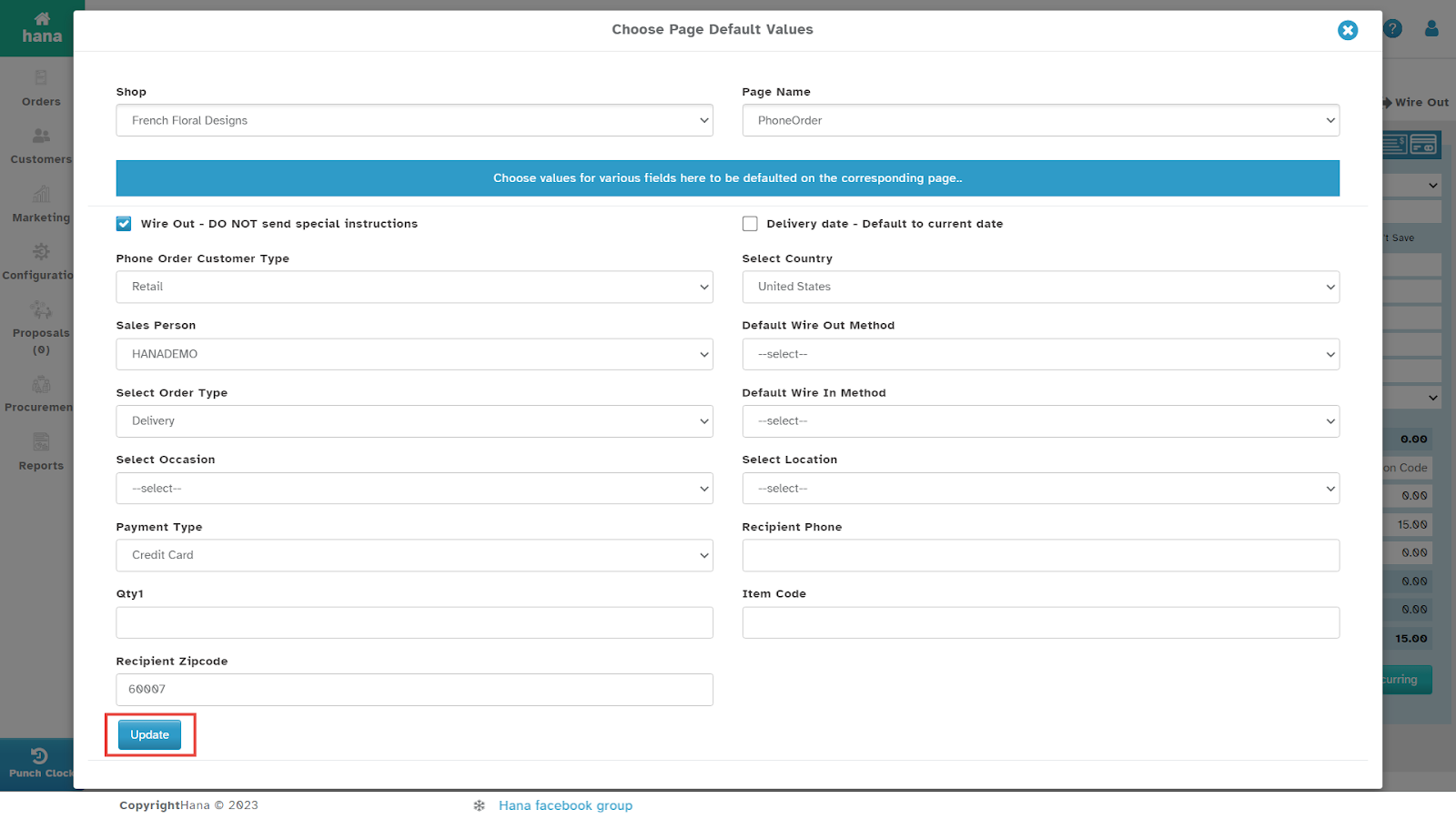
The Choose Page Default Values Dialog will appear.
Note: You can also set default values on the Cash and Carry Page.
Step 2: Set Default Values
Select the Shop from the Shop Dropdown List.
Select the Page Name : Phone Order from the Page Name Dropdown List.
Check Wire Out - DO NOT send special instructions, if applicable.
Check Delivery Date - Default to Current Date, if required.
Select the Customer Type from the Phone Order Customer Type Dropdown List.
Select the Default Country from the Country Dropdown List.
Select the Default Sales Person from the Sales Person Dropdown List.
Select the Default Wire Out Method from the Default Wire Out Method Dropdown List.
Select the Default Order Type from the Order Type Dropdown List.
Select the Default Wire In Method from the Default Wire In Method Dropdown List.
Select the Default Occasion from the Occasion Dropdown List.
Select the Default Location from the Location Dropdown List.
Select the Default Payment Method from the Payment Type Dropdown List.
Enter the Default Recipient Phone Number in the Recipient Phone Field.
Enter the Default Quantity in the Qty1 Field.
Enter the Default Item Code in the Item Code Field.
Enter the Default Recipient Zip Code in the Recipient Zipcode Field.
Step 3: Save Default Values
Click Update to apply the default values.
The default values are now set, and they will automatically populate when you create a new order.
By following these steps, you can streamline order processing and reduce manual data entry within Hana POS.
Was this article helpful?
That’s Great!
Thank you for your feedback
Sorry! We couldn't be helpful
Thank you for your feedback
Feedback sent
We appreciate your effort and will try to fix the article