What's New
Once you set a Low Stock Threshold, Hana automatically monitors your inventory and notifies you when the stock reaches that quantity.
You can receive notifications through:
- In App
- SMS
This helps you restock your products before they go out of stock.
Navigation
What you want to set | Where to go |
|---|---|
Notification Preferences | Dashboard → Notification Icon → Settings → Preferences → Inventory |
| Shop Level - Low Stock Threshold | Dashboard → Configuration → Inventory Management → Inventory Settings → Low Stock Threshold |
Products - Low Stock Threshold | Dashboard → Configuration → Product Management → Product Edit → Inventory → Low Stock Threshold
|
Add-On - Level Threshold | Dashboard → Configuration → Web Admin → Add-Ons → Edit → Inventory → Low Stock Threshold |
How It Works
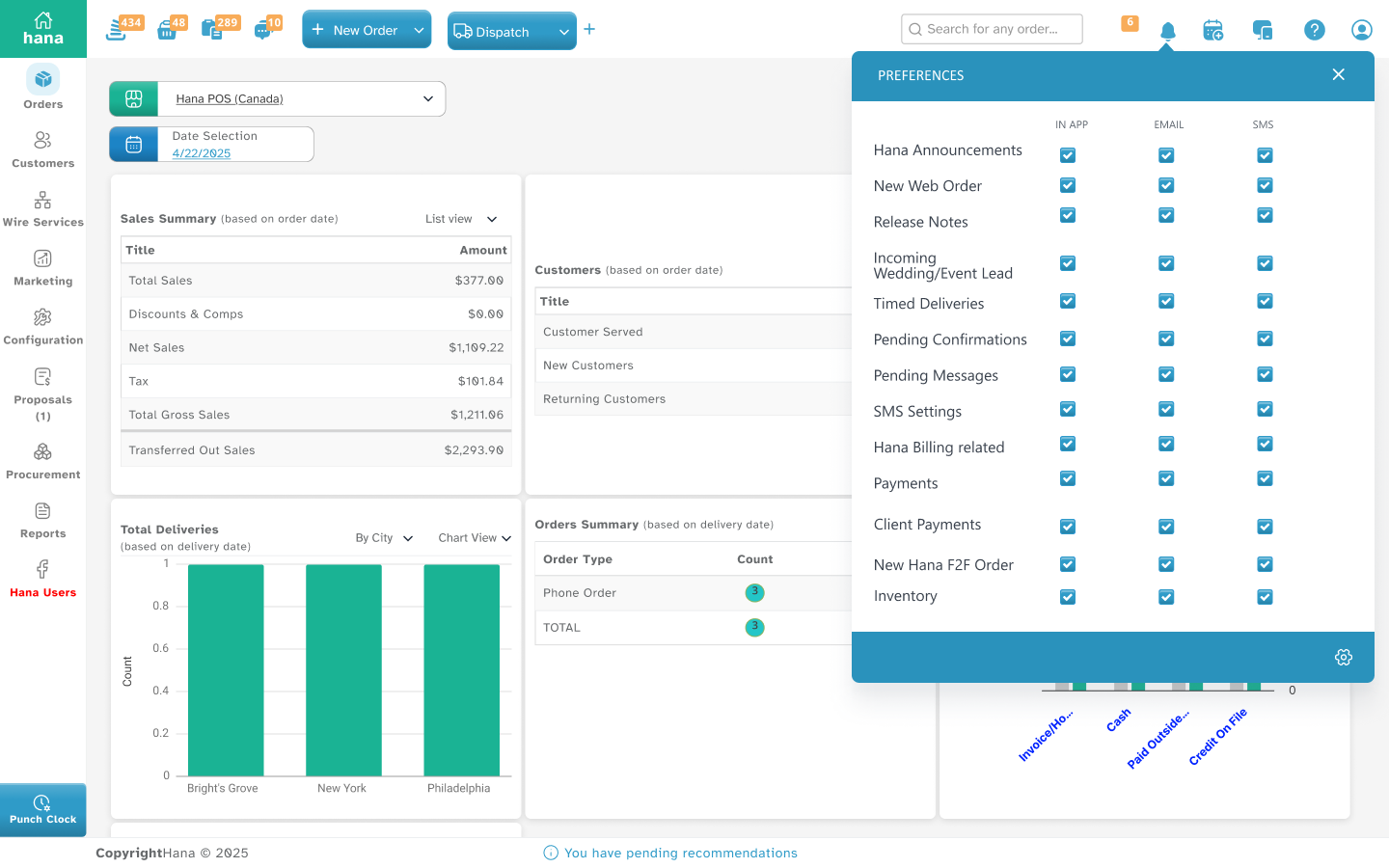
Step 1: Enable Inventory Notifications
Before Hana can notify you, choose how you want to receive alerts.
Steps:
- Click the Notification icon.
- Go to Settings → Preferences.
- Find Inventory
- Select one or more notification methods:
- In App
- SMS
Step 2: Set the Shop Low Stock Threshold
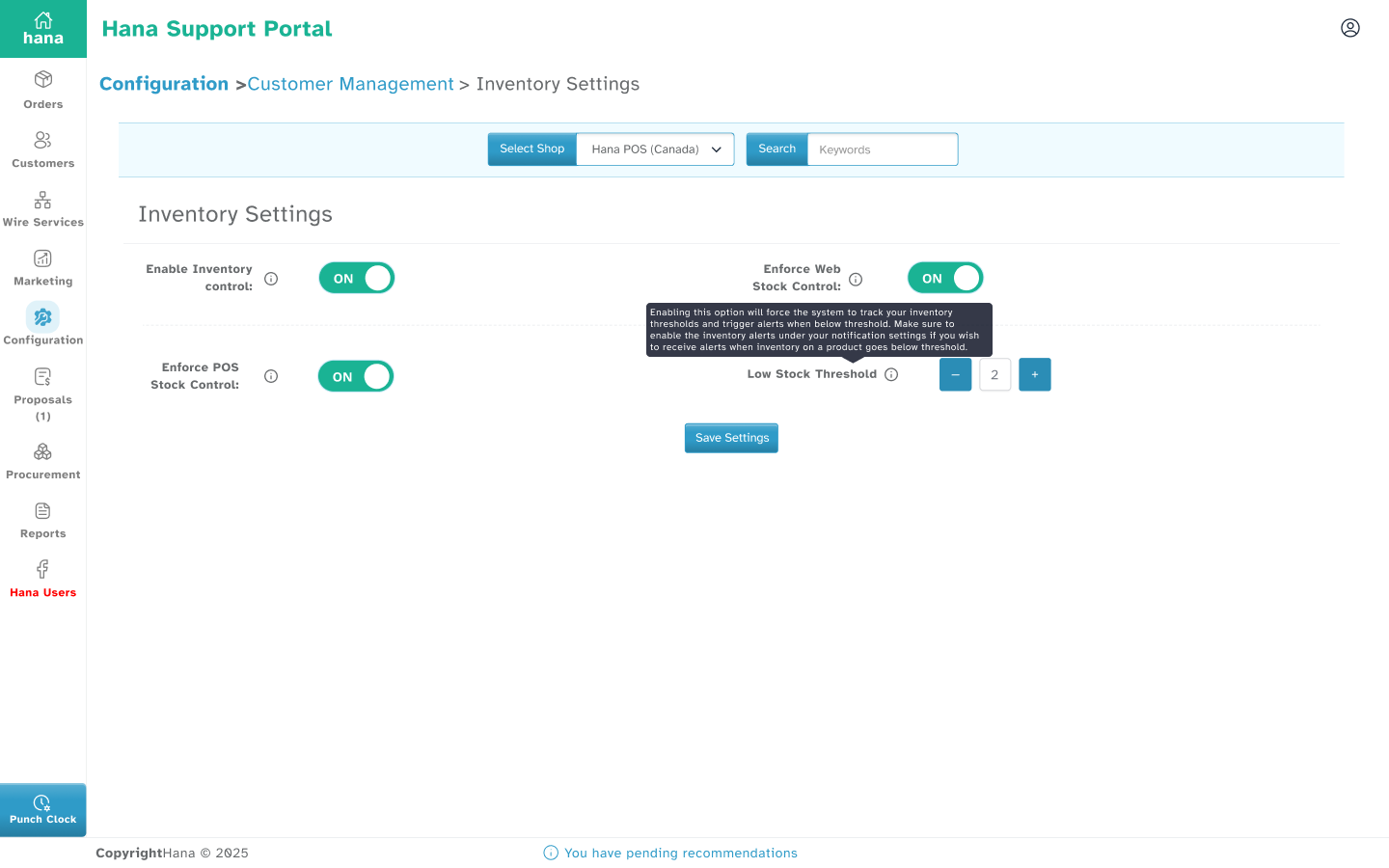
Default Low Stock Threshold
Every shop starts with a Default Low Stock Threshold of 10.
This means Hana will notify you when a product / variant or add-on reaches 10 units remaining.
You can:
- Keep the default value.
- If required, can Change it for the entire shop at shop level.
- Set a different threshold for individual products at product level.
- Set a different threshold for individual add-ons at add-on level.
Steps
- Go to Configuration → Inventory Management → Inventory Settings.
- Enable Inventory Control.
- If the default Qty need to be changed, Enter the respective quantity in Low Stock Threshold.
- Click Save.
Example
If you enter 20, Hana will notify you whenever any product / variant or add-on reaches 20 units.
Step 3: Set a Different Threshold for a Product (Including Variants)
Some products / variants sell faster than others.
For example:
- Roses may need a threshold of 50
- Gift cards may only need 5
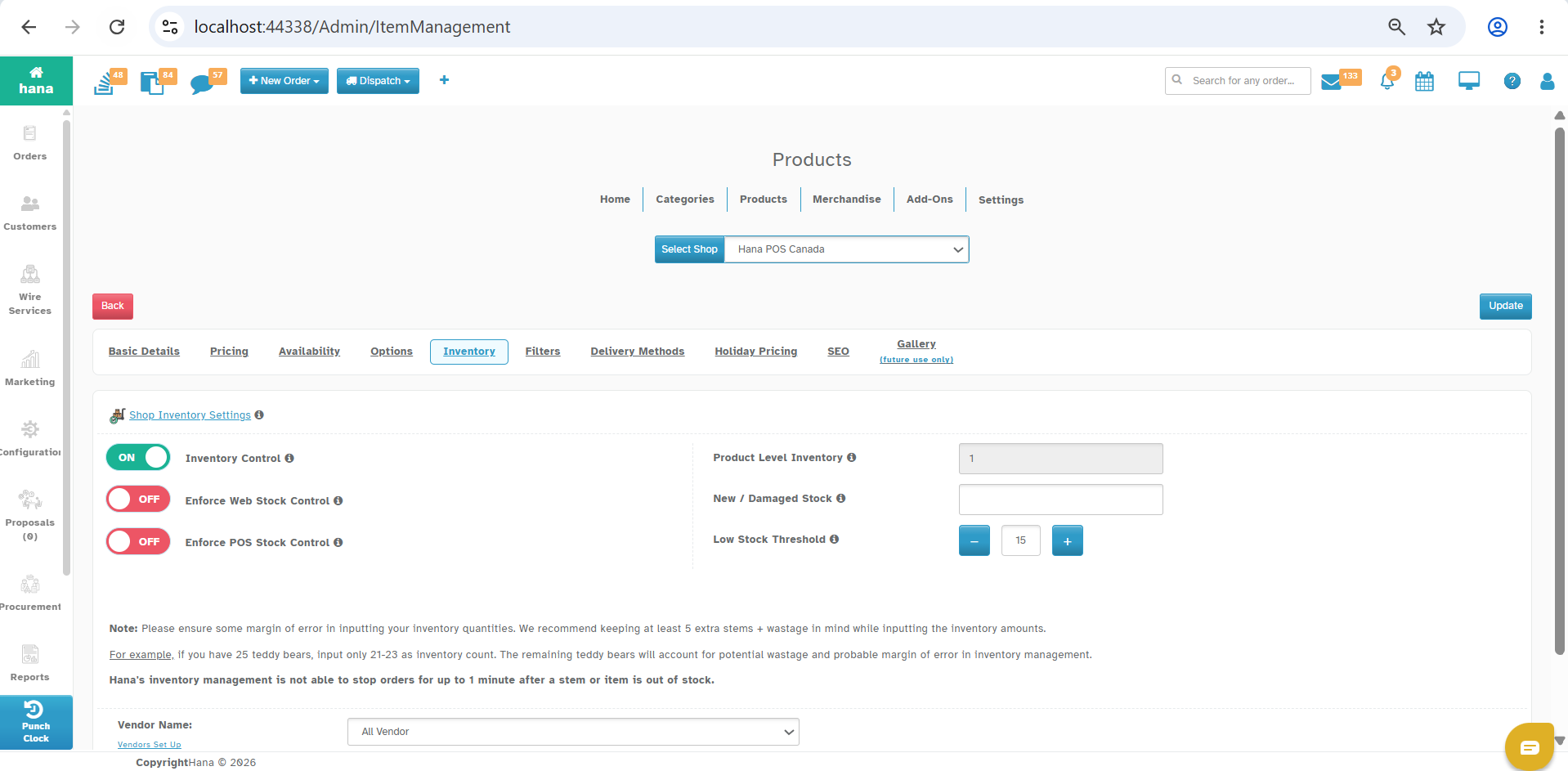
You can set a different threshold for individual products.
Steps
- Open the product.
- Go to the Inventory tab.
- Enable Inventory Control.
- Change the Low Stock Threshold if required.
- Click Update.
Step 4: Set a Different Threshold for an Add-On
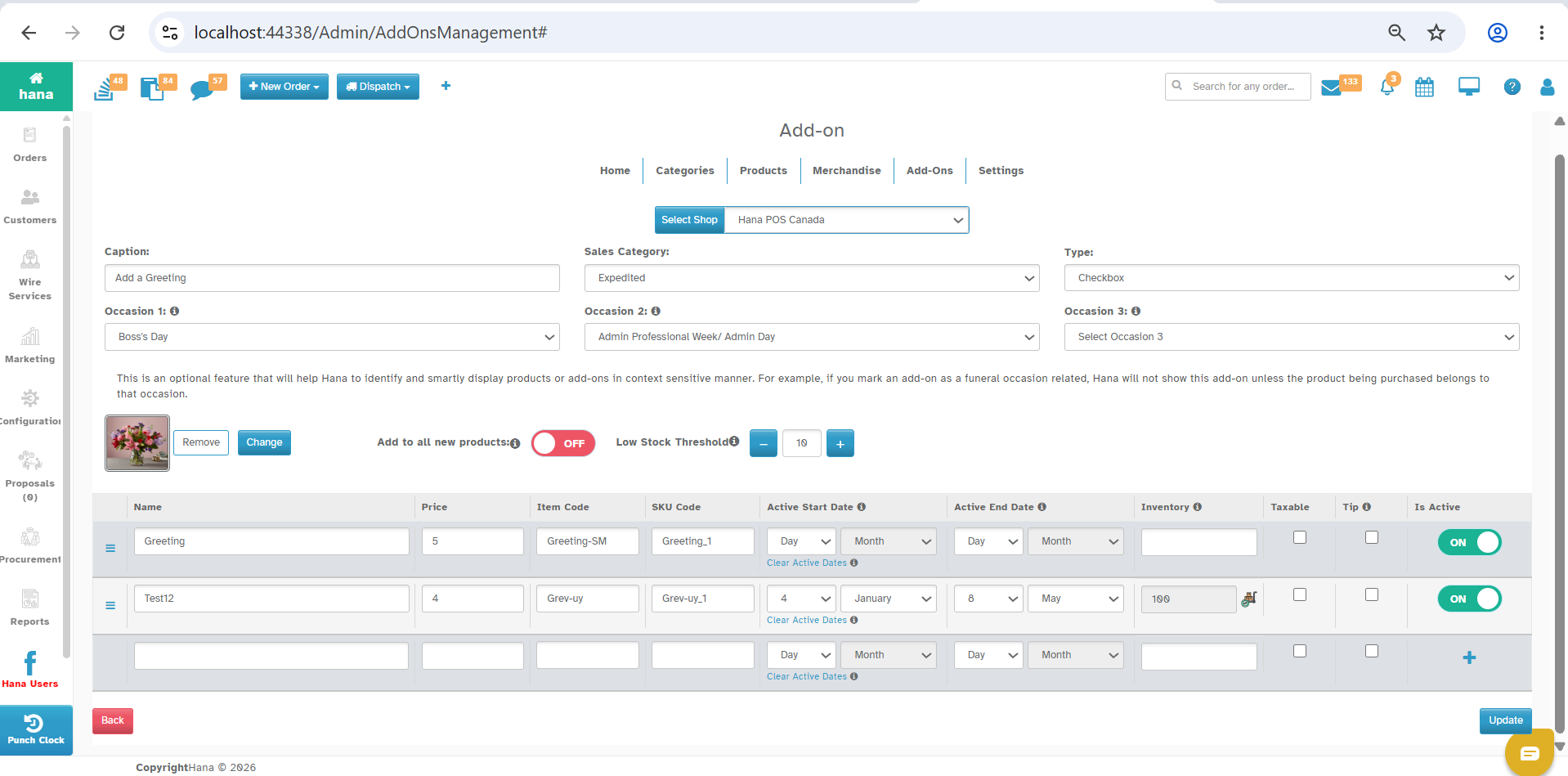
Add-ons work exactly like products.
Steps
- Open the add-on.
- Enable Inventory Control.
- Enter the required Low Stock Threshold.
- Click Update.
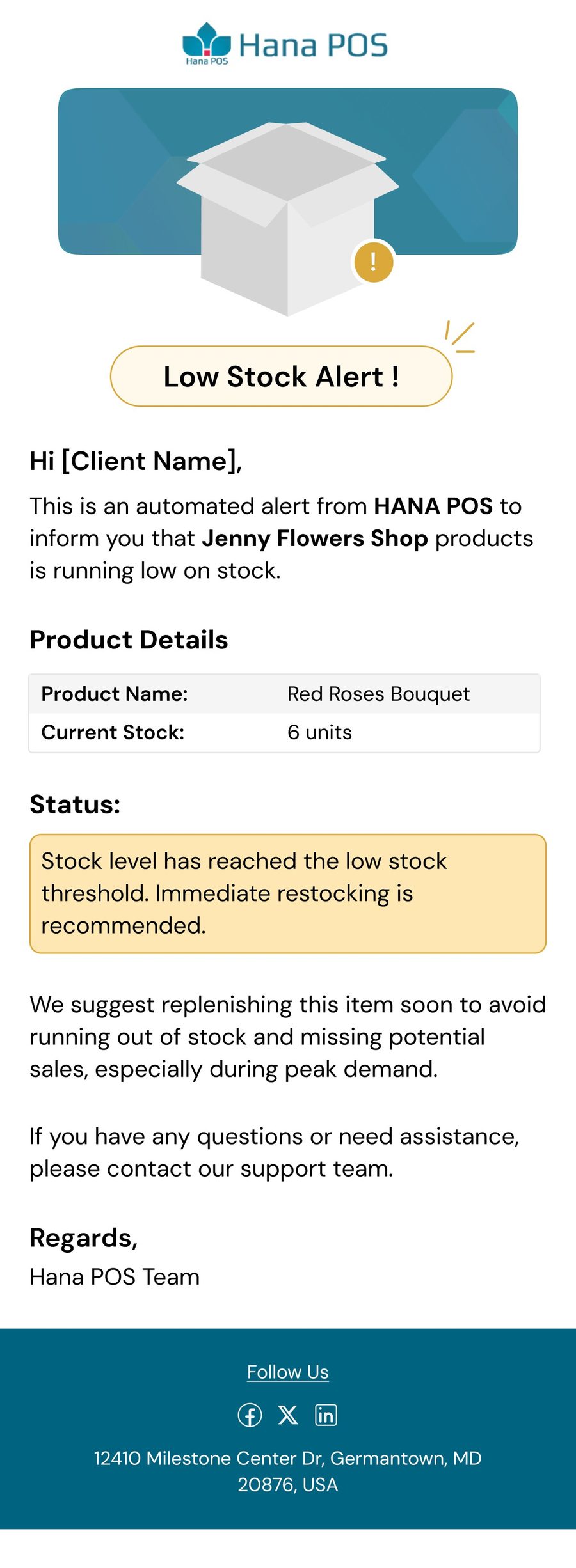
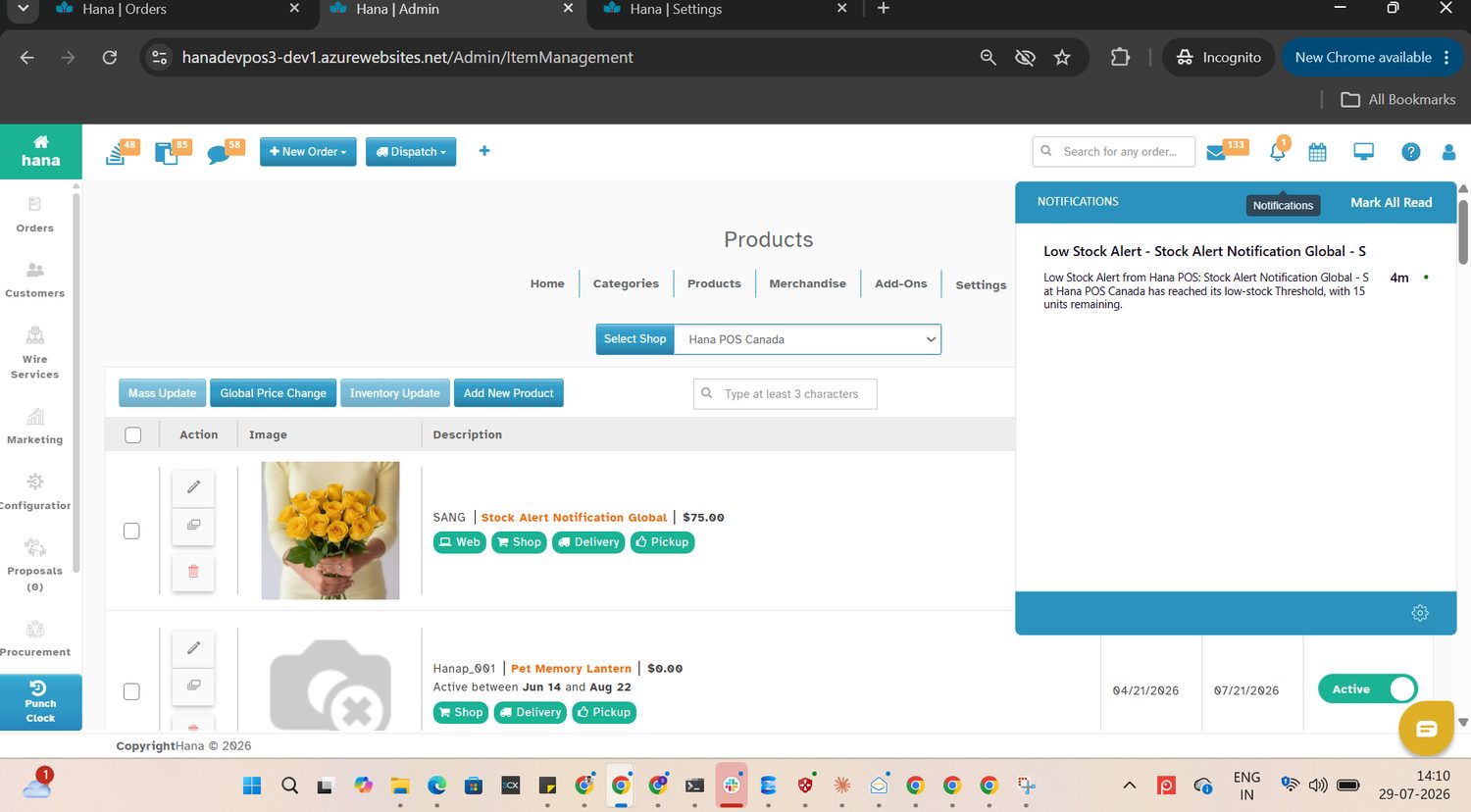
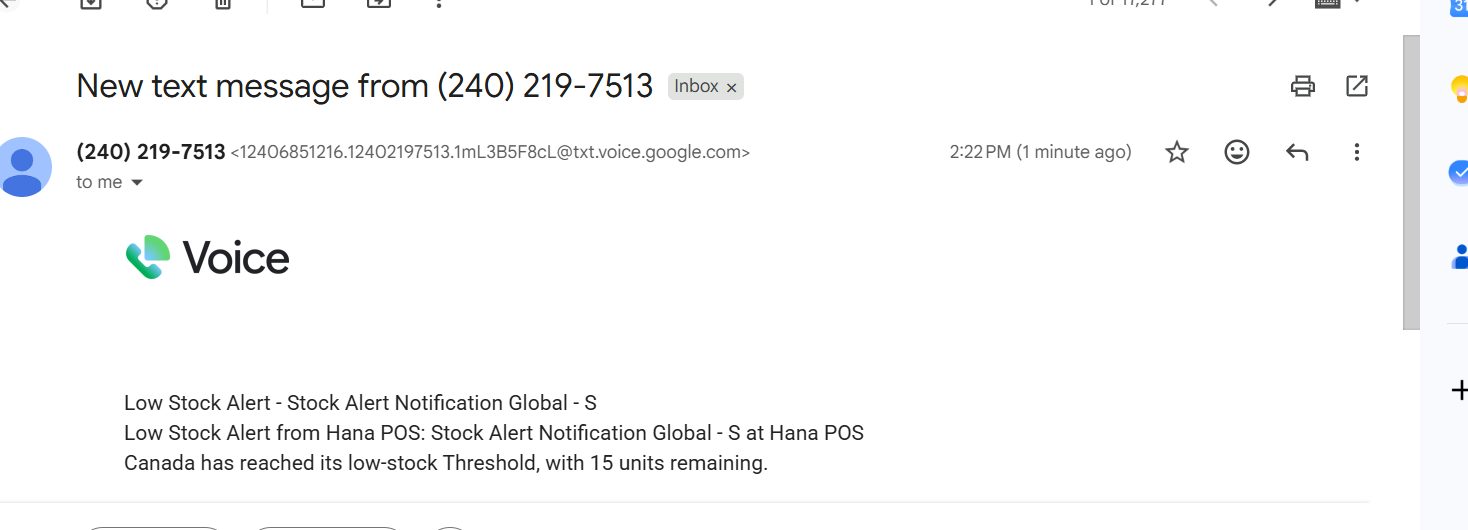
Notification Example:
For Email:
In App
The alert also appears under your Notification Icon along with your other notifications.
SMS
Was this article helpful?
That’s Great!
Thank you for your feedback
Sorry! We couldn't be helpful
Thank you for your feedback
Feedback sent
We appreciate your effort and will try to fix the article