Overview
Florists can now view, and cancel Cash Draw Payouts directly from the system. This ensures financial accuracy by allowing corrections for incorrect payouts, returned cash, or partial reversals.
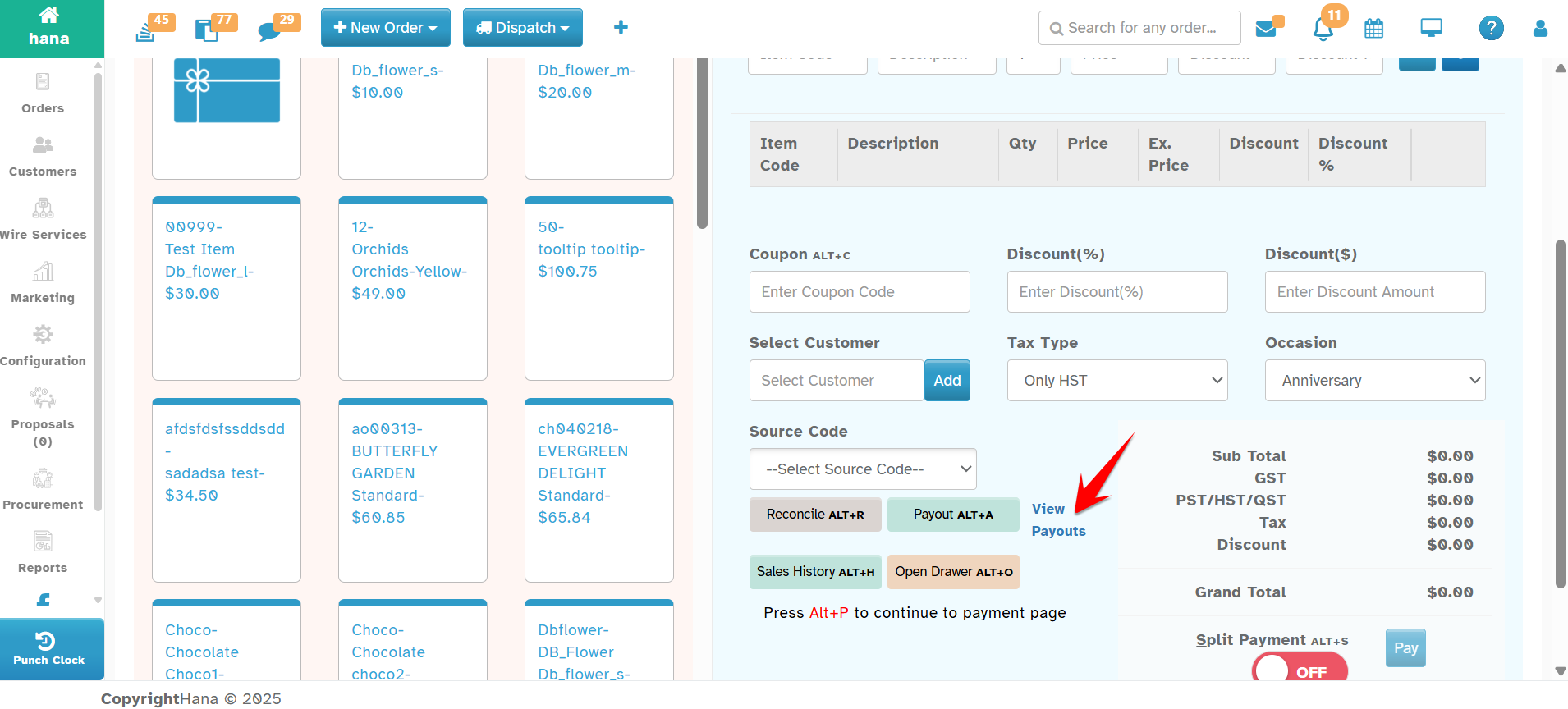
Navigation: Cash & Carry > Near Payout > View Payouts Link
How It Works
1. View Payouts
A new “View Payouts” link is available under Cash & Carry → Payout.
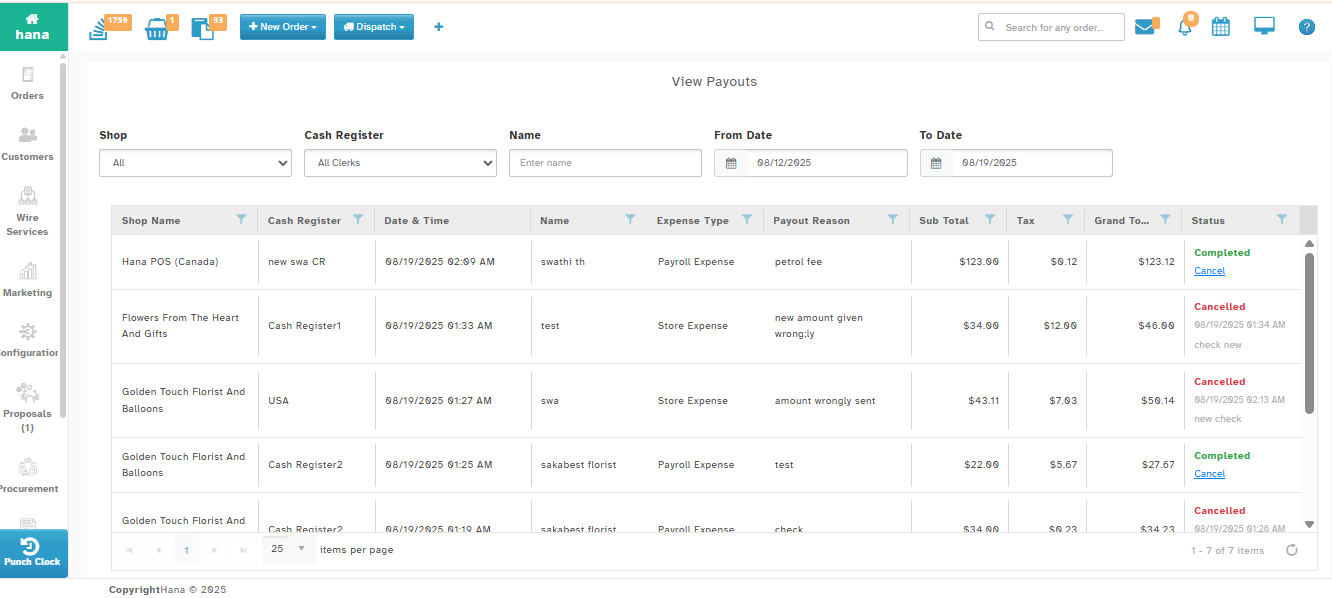
This opens a grid showing past payouts (default: last 7 days).
Florists can filter by Shop, Cash Register,Name / Employee, and Date Range.
2. Cancel a Payout
Against each Completed Payout, a Cancel option is available.
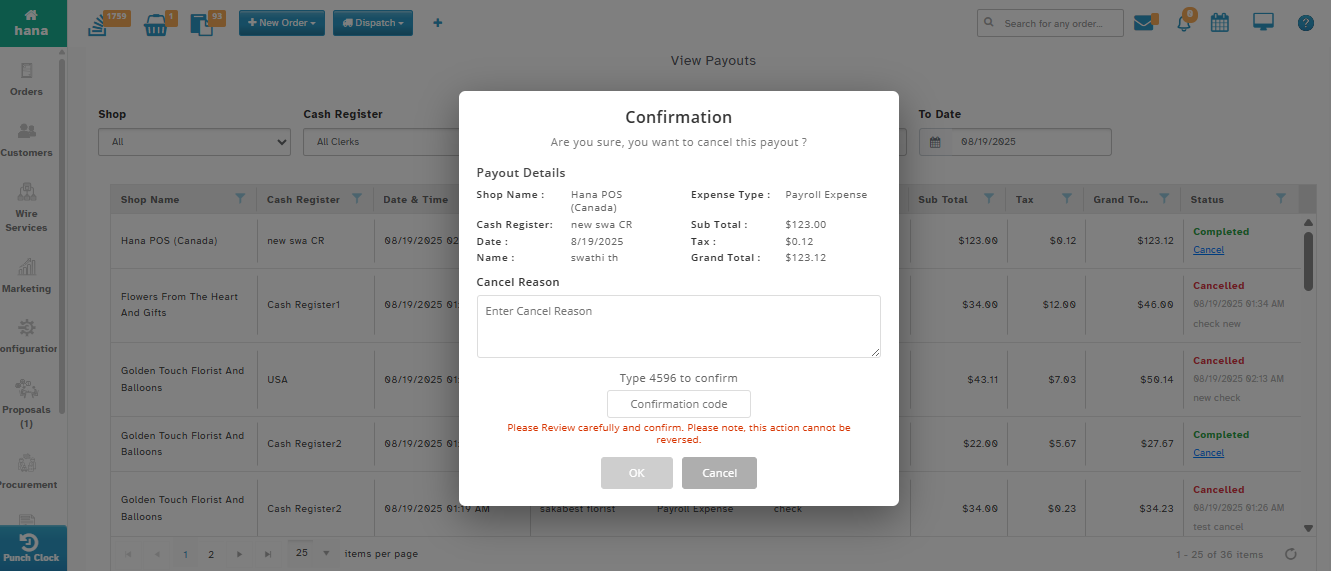
Clicking Cancel:
Opens a confirmation pop-up with payout details (read-only).
Florist must enter a Reason and Manager Password (mandatory).
Once confirmed, payout status changes to Cancelled.
Important Note:
“Please review carefully and confirm. This action cannot be reversed.”
Why It Helps
Ensures accurate cash tracking by correcting mistakes.
Allows reversals when vendors/drivers return unused cash.
Saves time by providing a direct cancel option without manual adjustments.
Maintains financial integrity and audit compliance.
Was this article helpful?
That’s Great!
Thank you for your feedback
Sorry! We couldn't be helpful
Thank you for your feedback
Feedback sent
We appreciate your effort and will try to fix the article