When needed, you can manually print a super ticket for a delivery at any time.
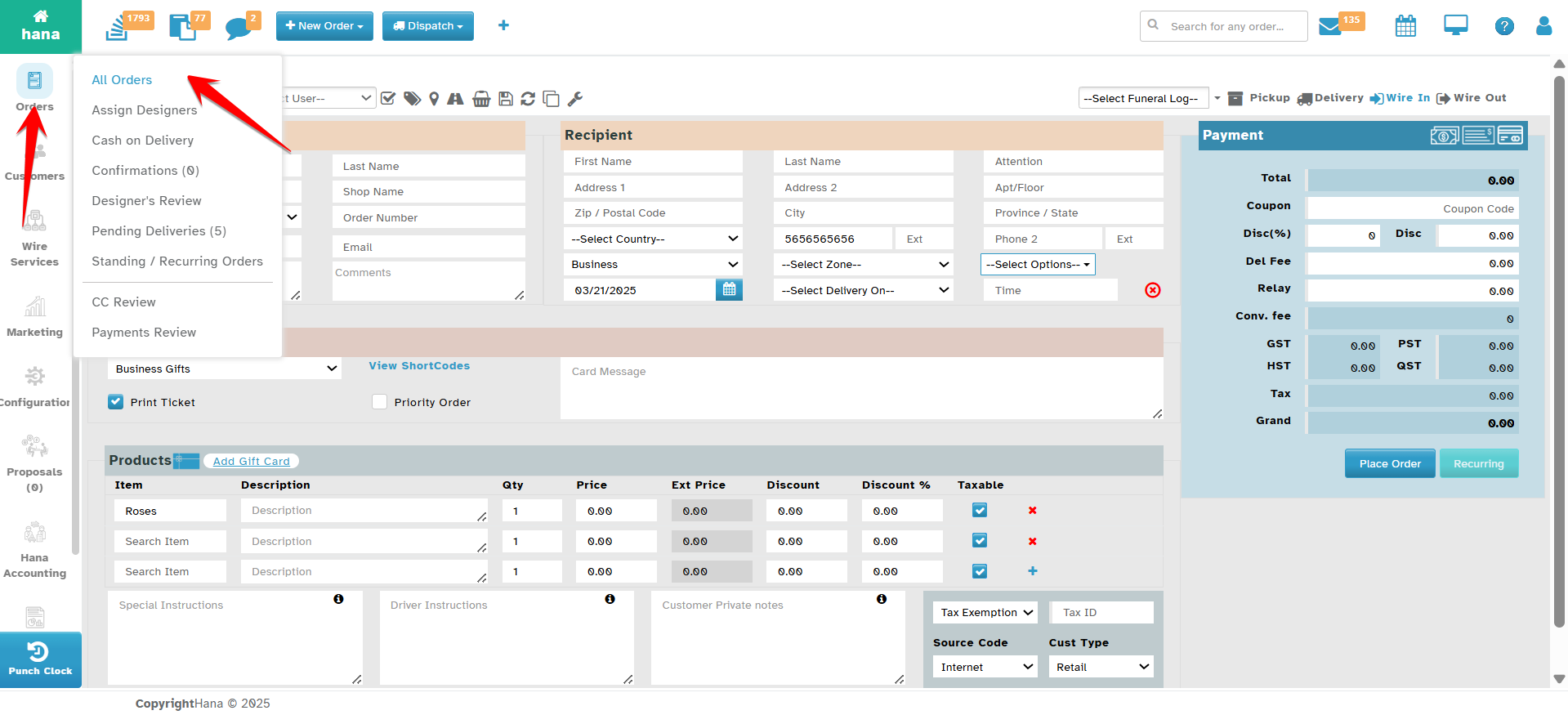
Step 1: Access the Orders Page
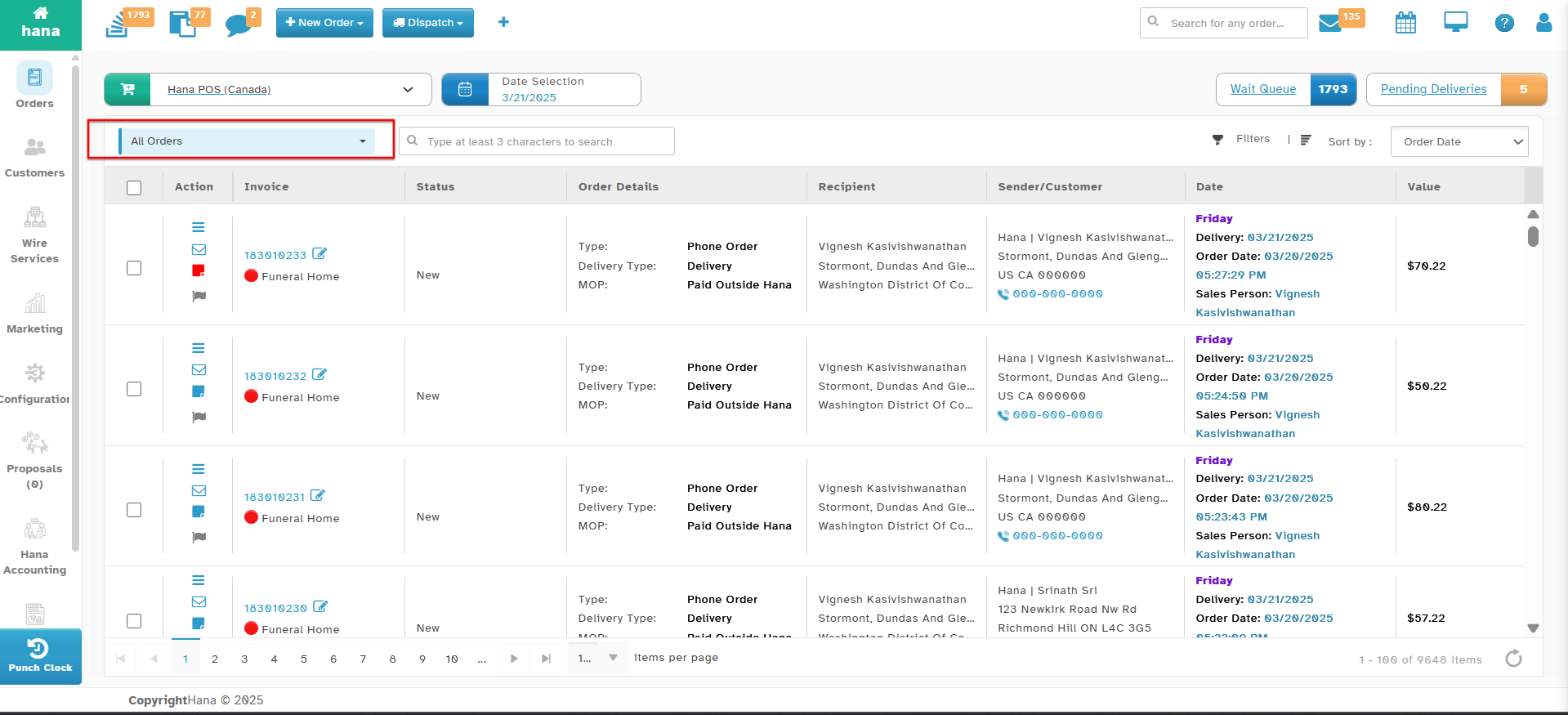
Navigate to Orders.
The Orders Page will be displayed.
Step 2: Open the Manual Print Option
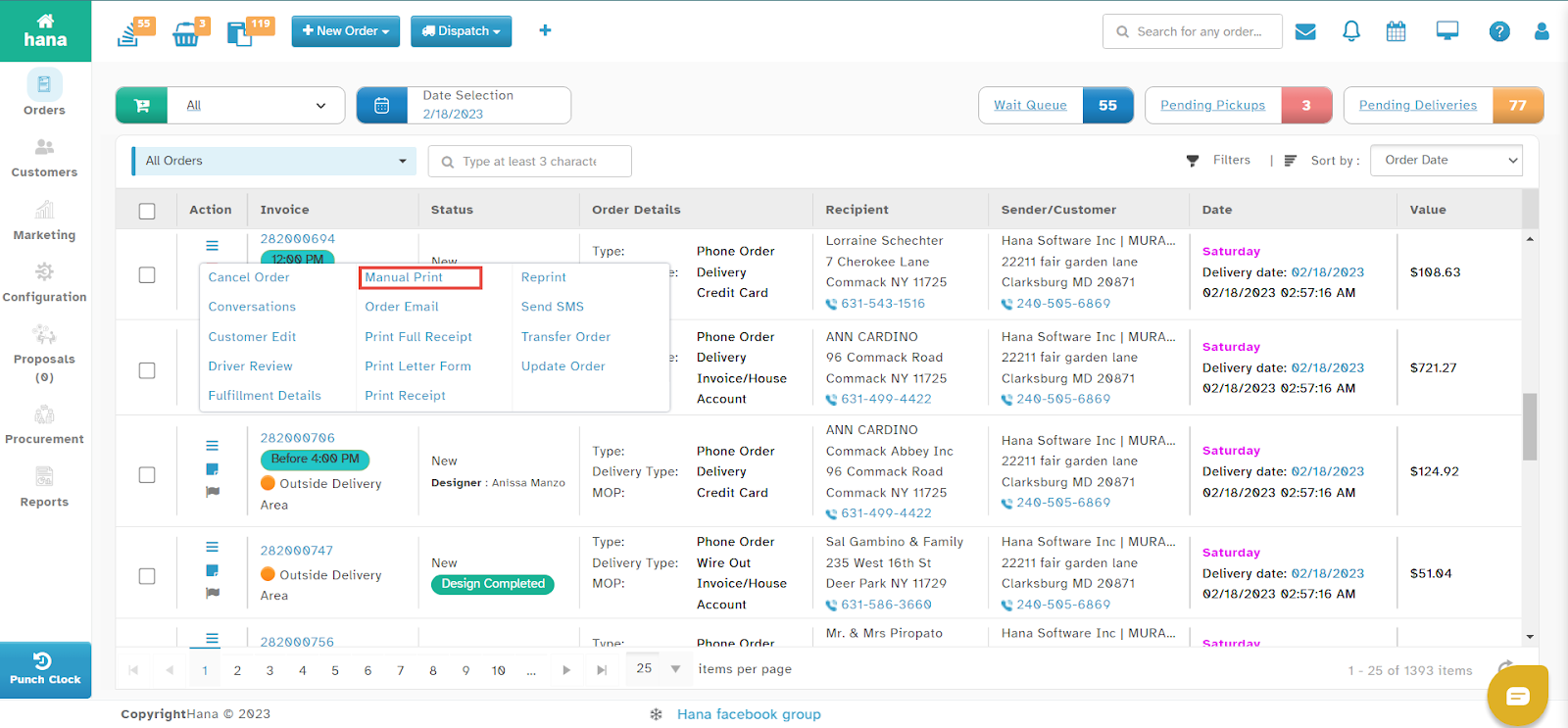
Click the print icon in the row of the order you want to print.
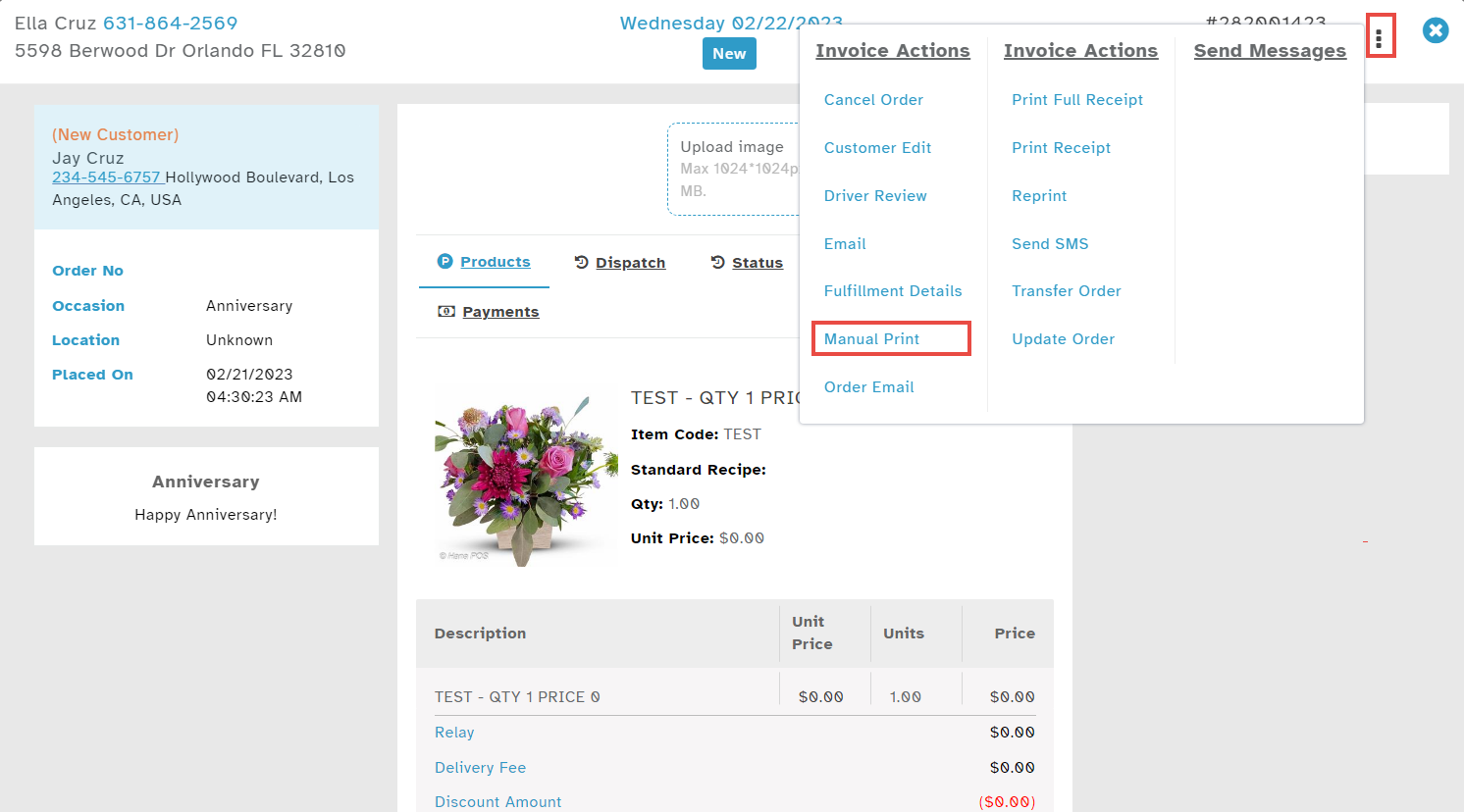
The Actions Menu will be displayed.
Click Manual Print.
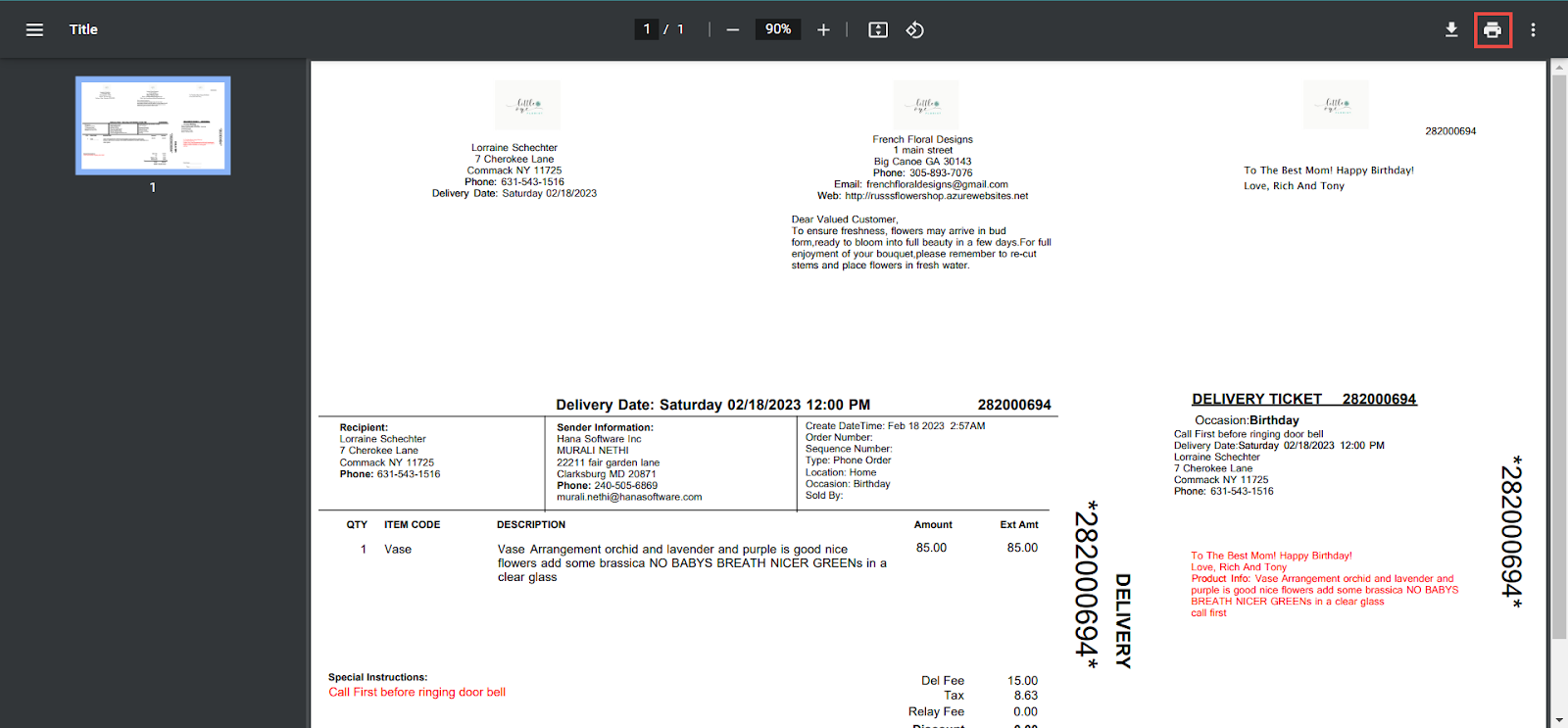
The invoice will open in a new tab.
Step 3: Print the Invoice
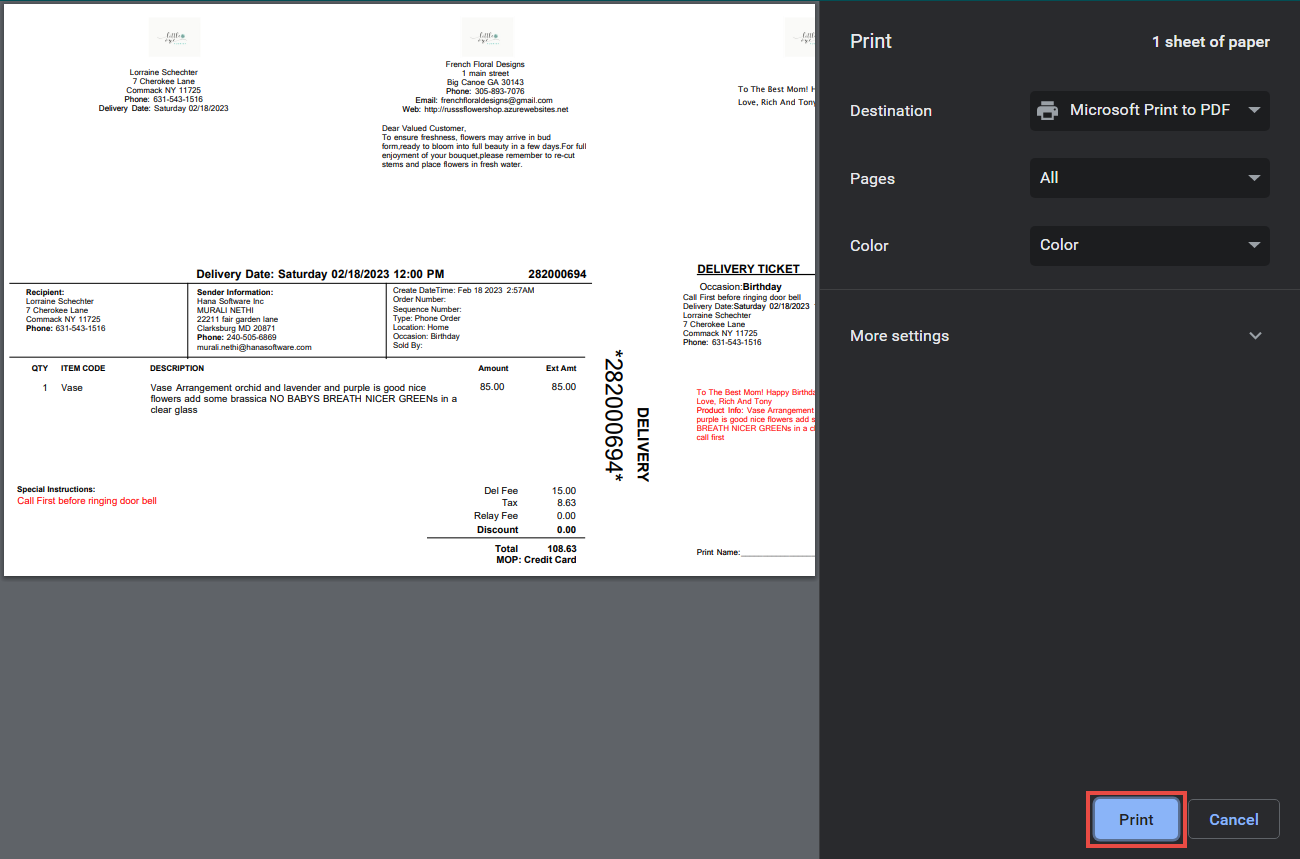
Click the print icon within the new tab.
The Print Dialog will be displayed.
Click Print to generate a physical copy of the invoice.
Alternative Method
You can also manually print an invoice by clicking anywhere on the order row to open the Order Details Dialog, then selecting the print icon > Manual Print.
By following these steps, you can efficiently generate printed invoices for customer or business use within Hana POS.
Was this article helpful?
That’s Great!
Thank you for your feedback
Sorry! We couldn't be helpful
Thank you for your feedback
Feedback sent
We appreciate your effort and will try to fix the article