Filtering orders in Hana POS allows you to refine search results and quickly locate specific orders.
You can apply filters based on various criteria such as invoice, customer details, recipient details, order status, delivery information, and more.
You can apply filters and save as a predefined orders view, such as "Tomorrow Deliveries" or "BMT Orders." You can use these saved views every day without having to manually filter orders. All your saved filters appear under the Views drop-down as shown below
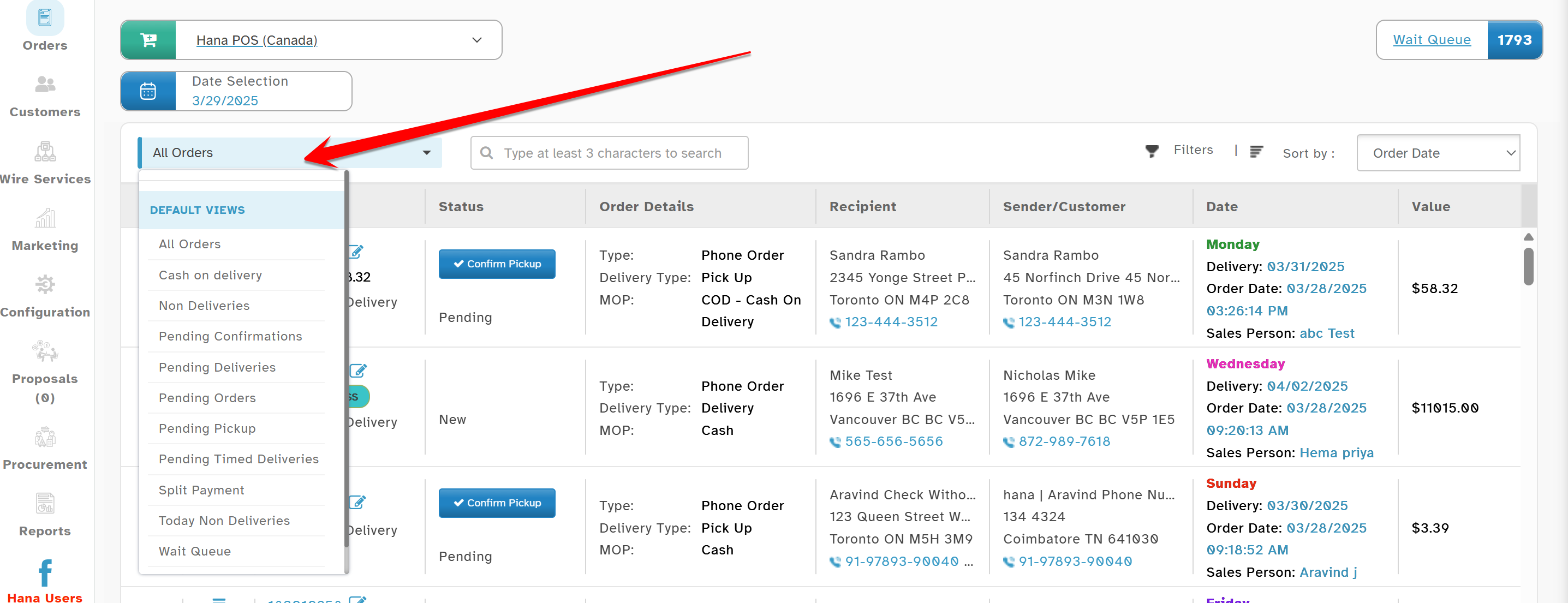
This guide walks you through the process of applying and managing order filters.
Steps to Filter Orders
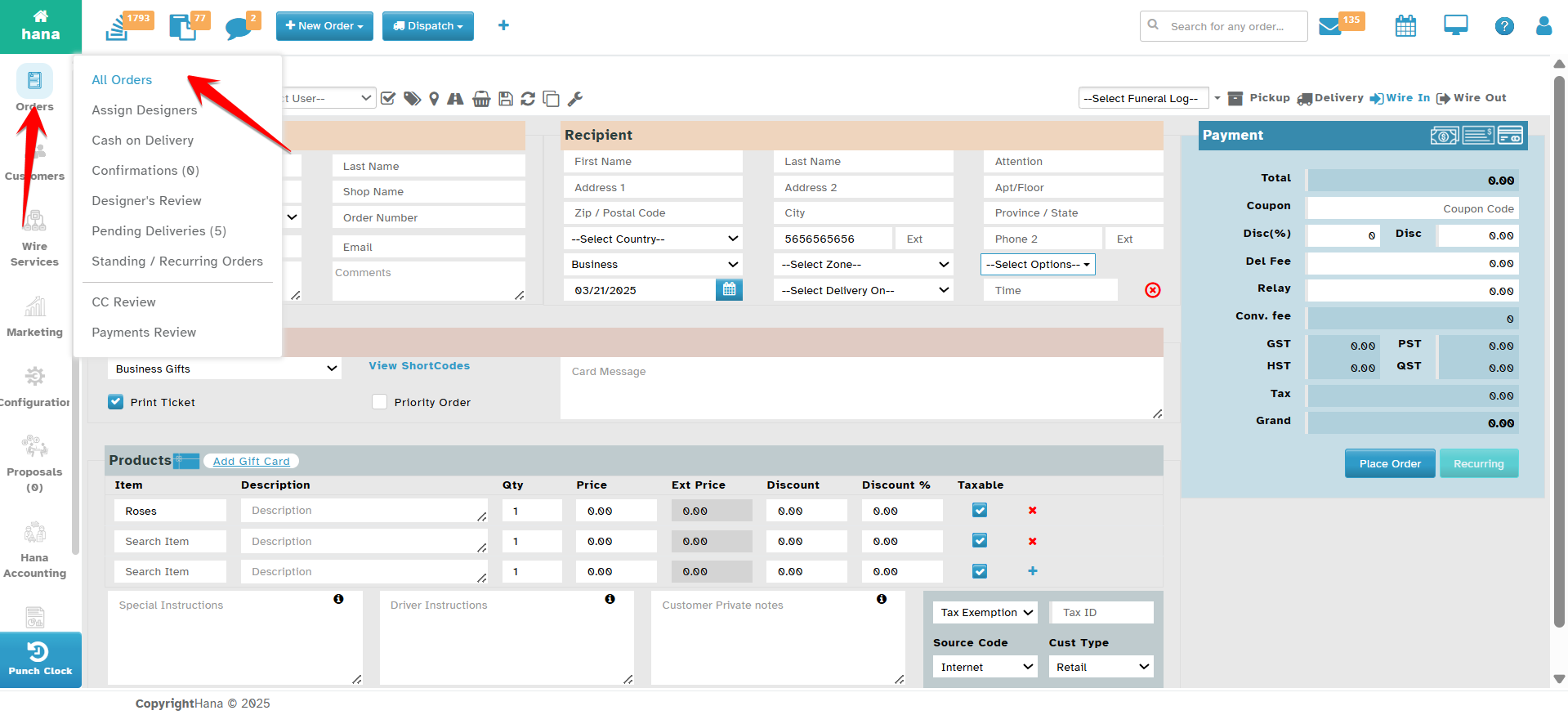
Step 1: Access the Orders Page
Navigate to Orders.
The Orders Page will be displayed.
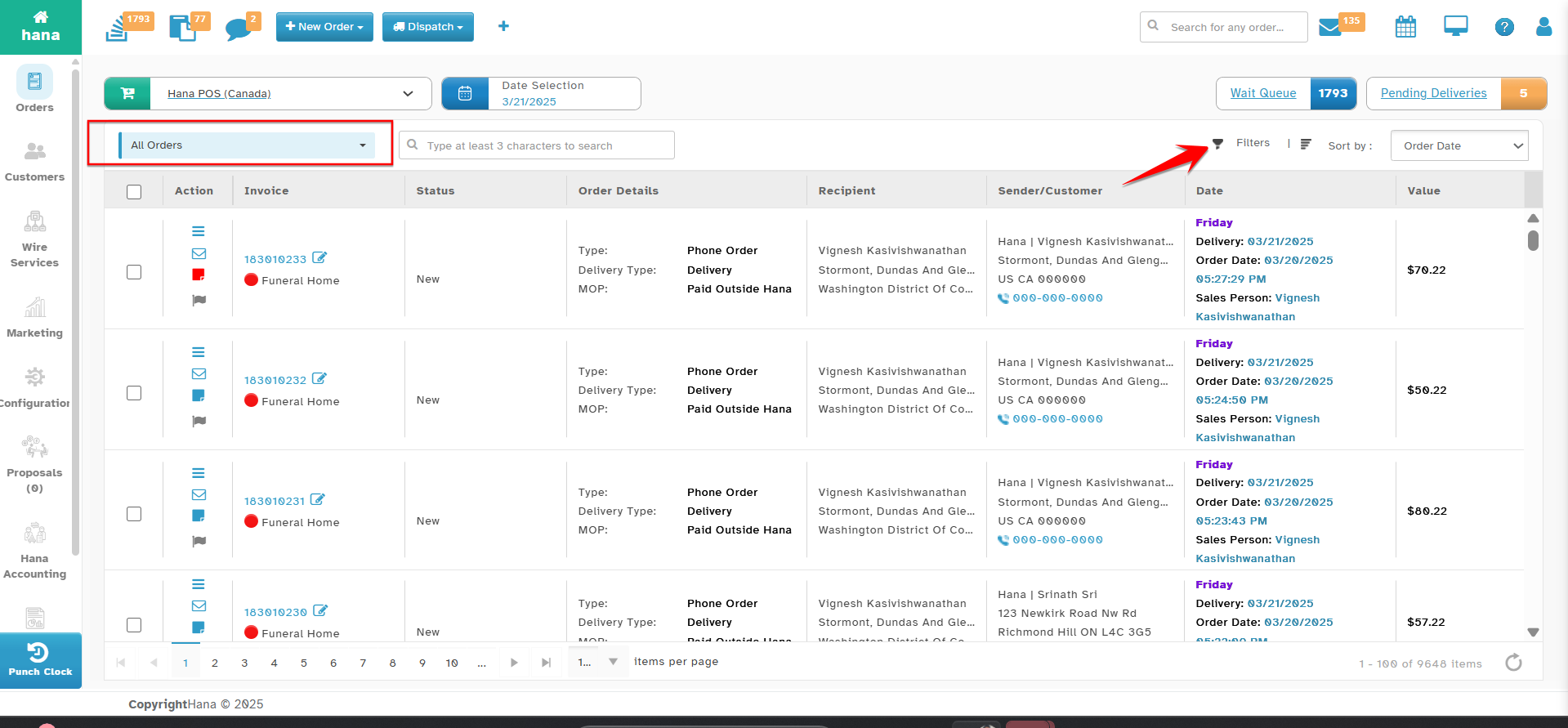
Step 2: Open the Filters Pane
Click Filters.
The Filters Pane will be displayed.
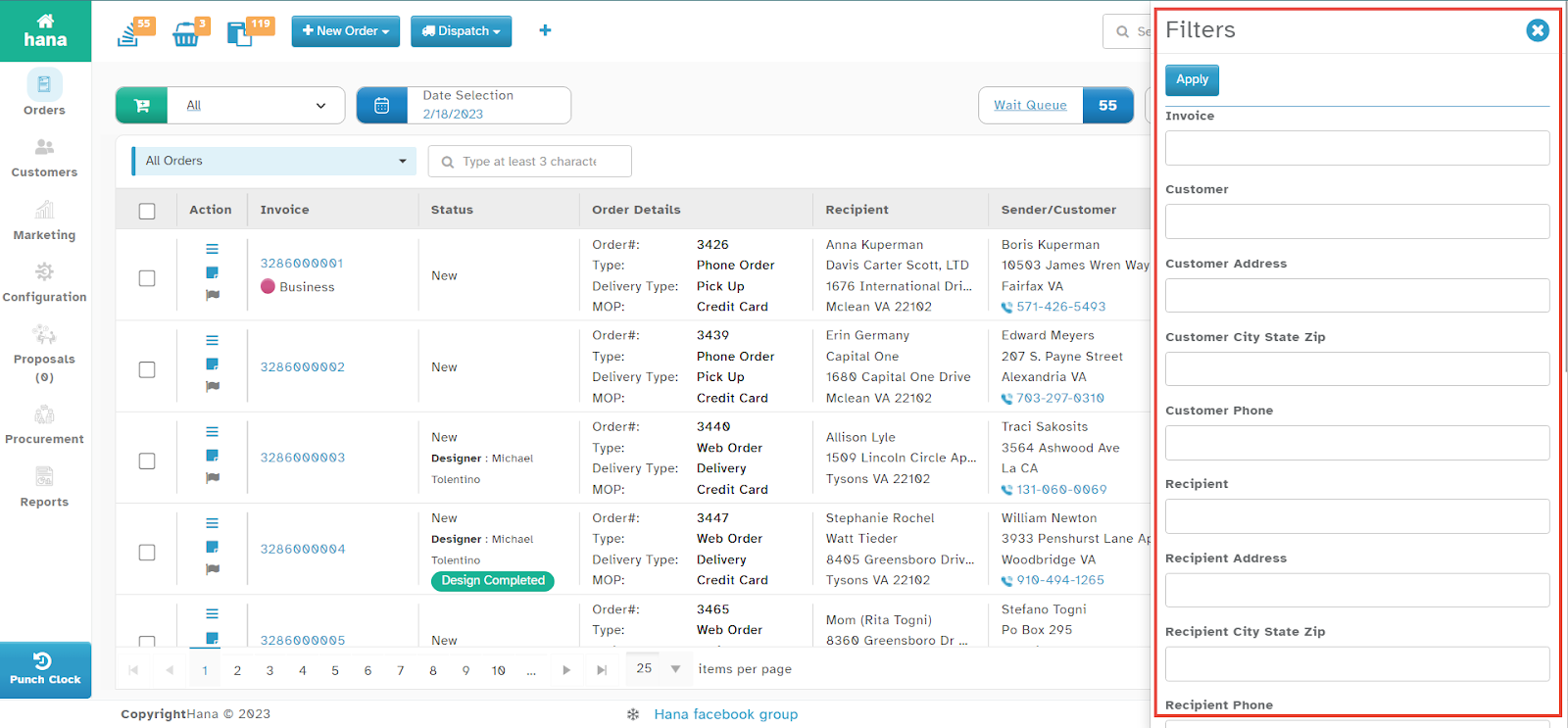
Step 3: Apply Filters
You can filter orders based on the following criteria:
Invoice
Customer Name
Customer Address
Customer City, State, Zip
Customer Phone
Recipient Name
Recipient Address
Recipient City, State, Zip
Recipient Phone
Delivery Date
Timed Delivery
Zone
Order Date
Status
Order Type
Method of Payment (MOP)
Design Completed
Example: Filtering by Customer Name
Enter the customer’s first and/or last name in the Customer field.
Click Apply.
The list of orders matching the filter criteria will be displayed.
Managing Filters
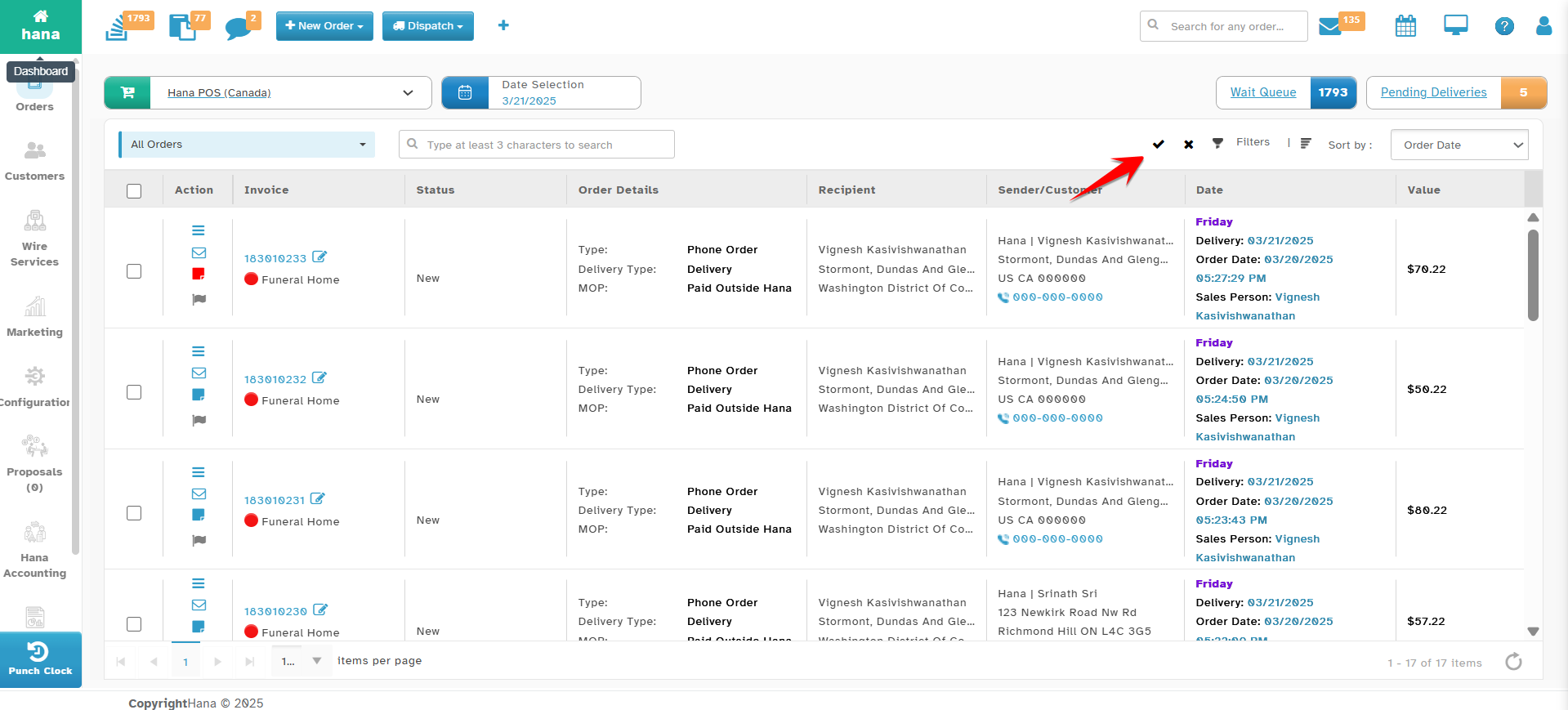
Reset Filters – Click the reset icon(X) to clear all applied filters.
Save Filtered View – Click the save icon(✔) to save the filtered search for future use.
Was this article helpful?
That’s Great!
Thank you for your feedback
Sorry! We couldn't be helpful
Thank you for your feedback
Feedback sent
We appreciate your effort and will try to fix the article