Adding fulfillment details in Hana POS helps track order progress as each stage is completed.
You can update the design completion status, design recipe, assign a designer, and notify the customer about the order status.
This guide outlines the steps to add fulfillment details for an order.
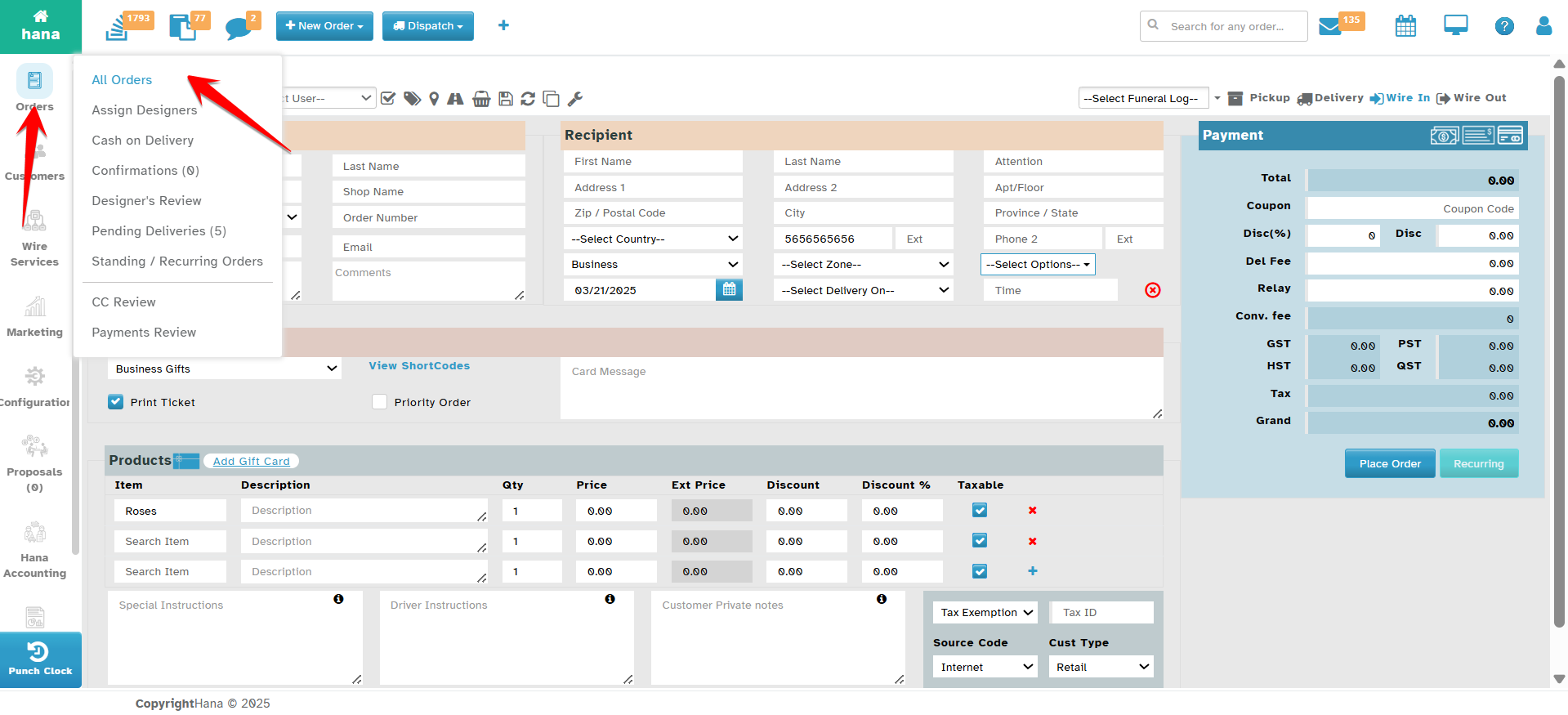
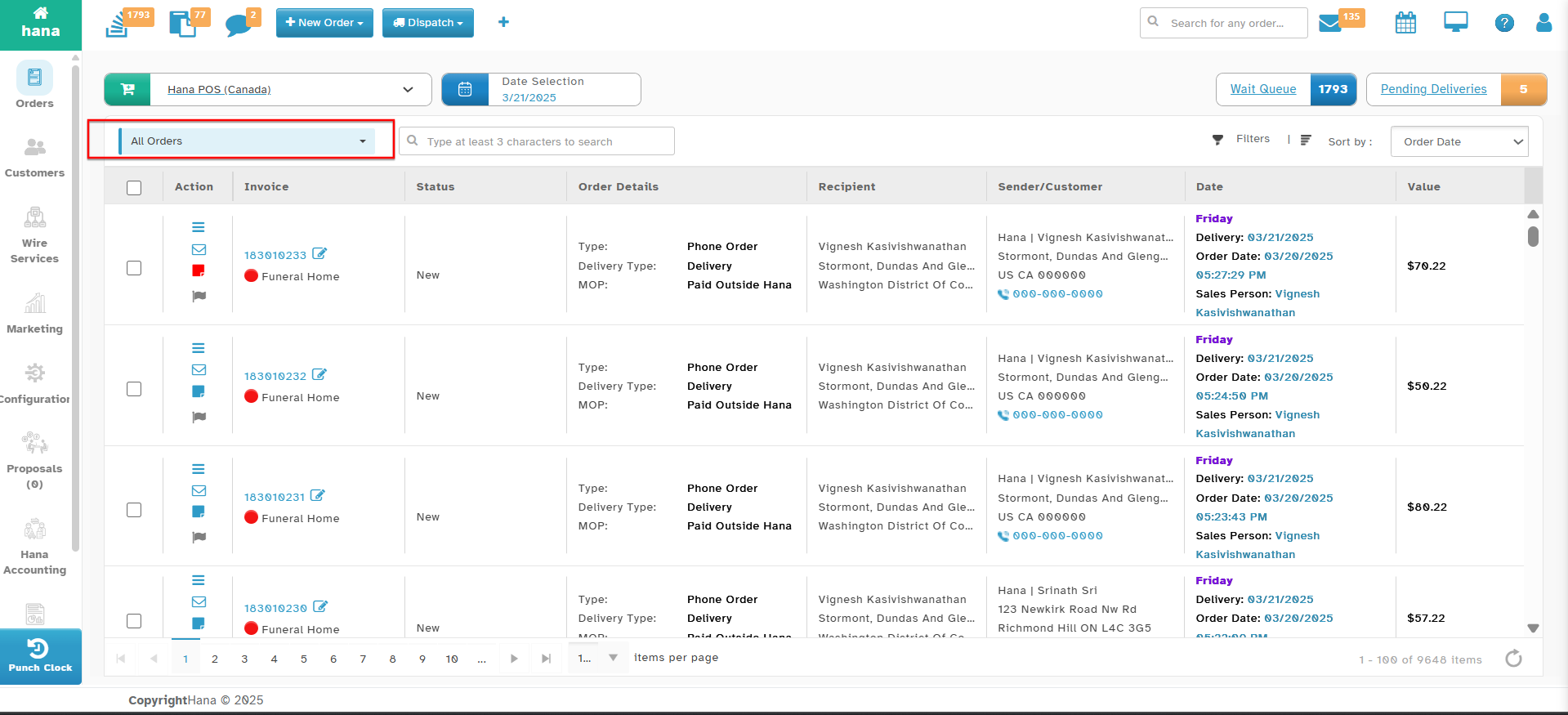
Step 1: Access the Orders Page
Navigate to Orders.
The Orders Page will be displayed.
Step 2: Open the Fulfillment Details Dialog
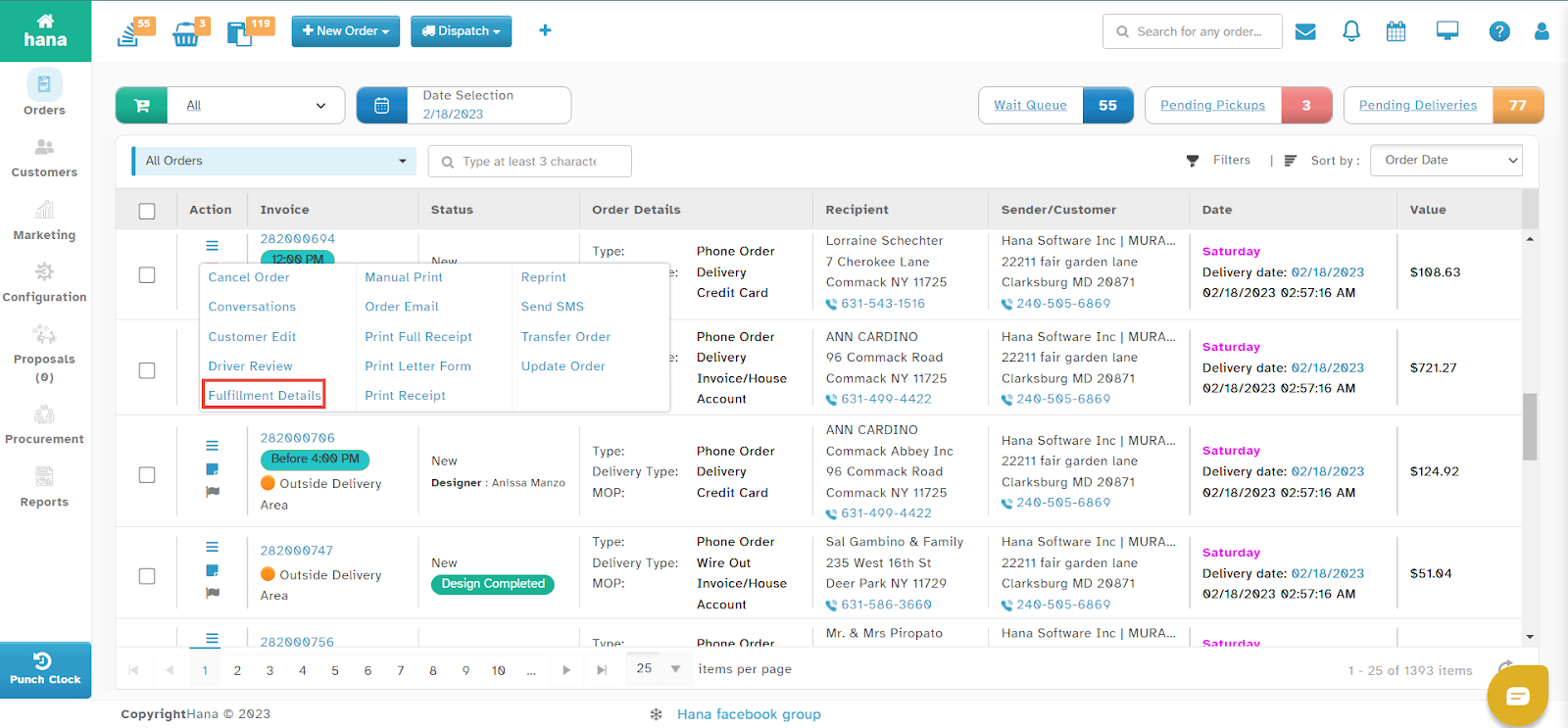
Click the fulfillment icon in the row of the order you want to update.
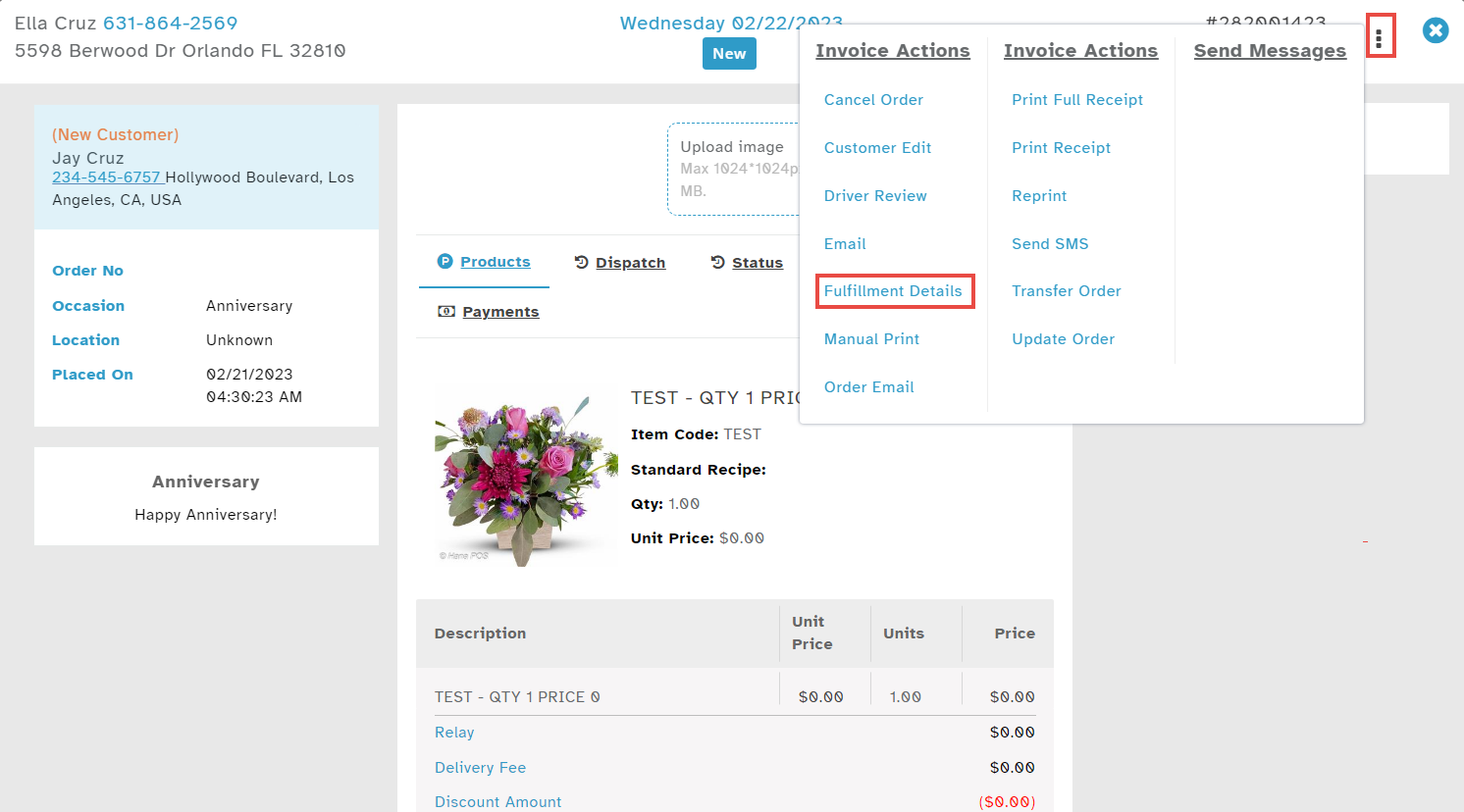
The Actions Menu will be displayed.
Click Fulfillment Details.
The Fulfillment Details Dialog will appear.
Step 3: Enter Fulfillment Information
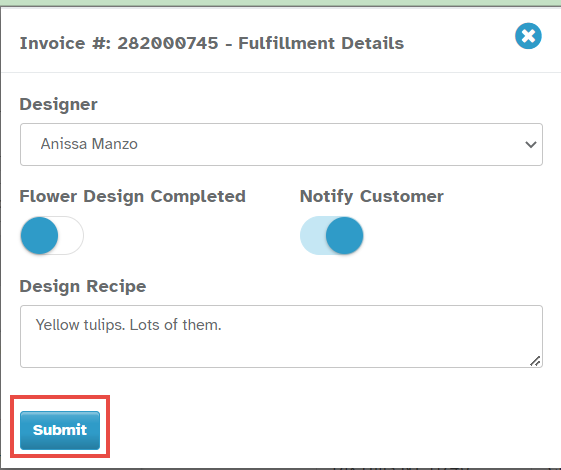
Select the Designer from the Designer dropdown list.
Enable or disable the Flower Design Completed button based on the status.
Enable Notify Customer if you wish to inform the customer about the fulfillment update.
Step 4: Save the Fulfillment Details
Click Submit.
A success notification will confirm that the fulfillment details have been updated.
Alternative Method
You can also add fulfillment details by clicking anywhere on the order row to open the Order Details Dialog, then selecting the fulfillment icon > Fulfillment Details.
By following these steps, you can efficiently update order fulfillment stages in Hana POS, ensuring smooth order tracking and customer communication.
Was this article helpful?
That’s Great!
Thank you for your feedback
Sorry! We couldn't be helpful
Thank you for your feedback
Feedback sent
We appreciate your effort and will try to fix the article