Delivery Fee Surcharges allow you to temporarily increase delivery fees during specific periods—like holidays, peak seasons, or high-demand timeframes. This surcharge is applied on top of the regular delivery fee (default, ZIP, city, distance, or map-based), and helps offset increased operational costs.
When to Use Delivery Fee Surcharges
Use this feature when:
You experience increased demand during holidays like Valentine’s Day or Mother’s Day.
Your staff or driver costs are higher during specific periods.
You want to boost revenue during time-sensitive peak windows.
You want to apply a fee on top of free deliveries during critical periods (optional).
How to Set Up Delivery Fee Surcharges
Step 1: From your Hana dashboard, click on Configuration from the left-hand menu.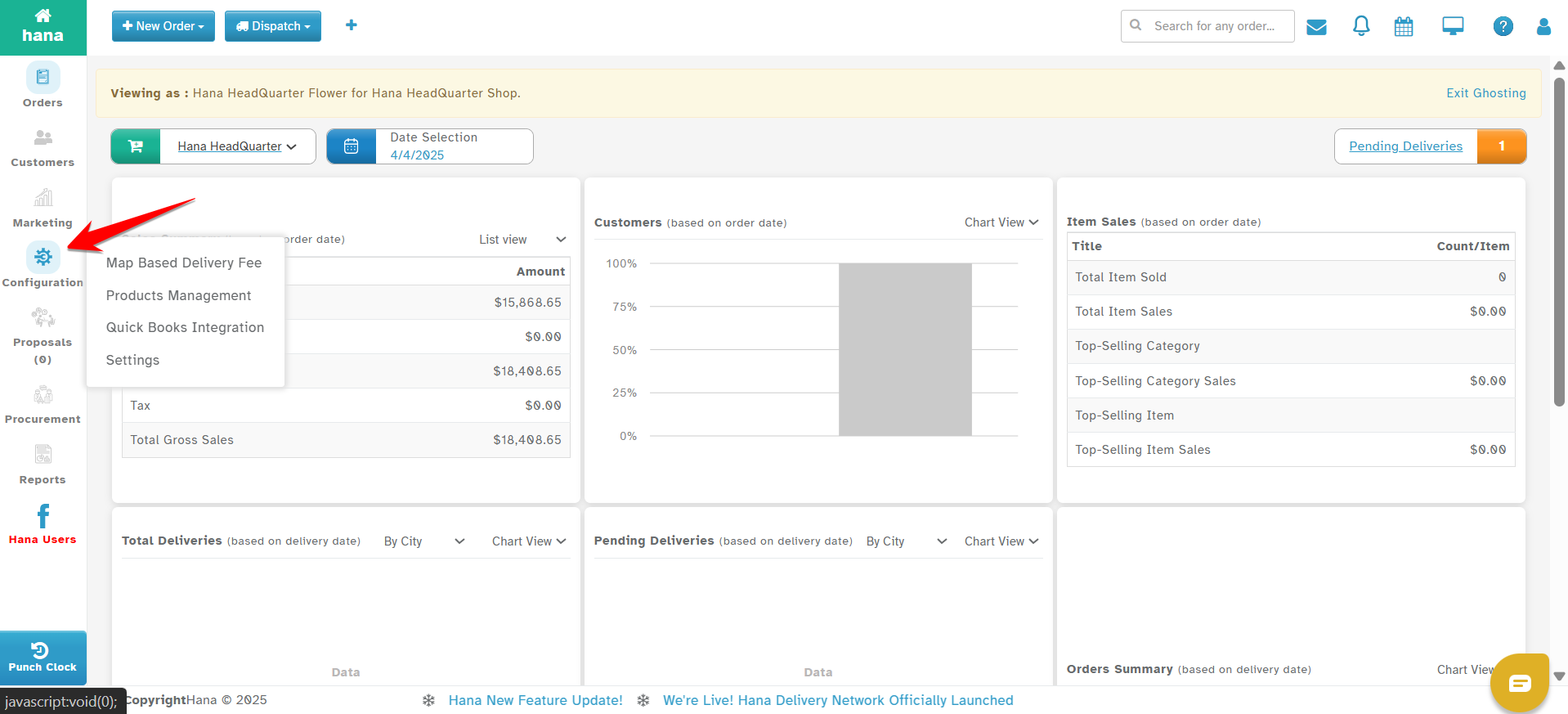
Step 2: Under Configuration, click on Settings.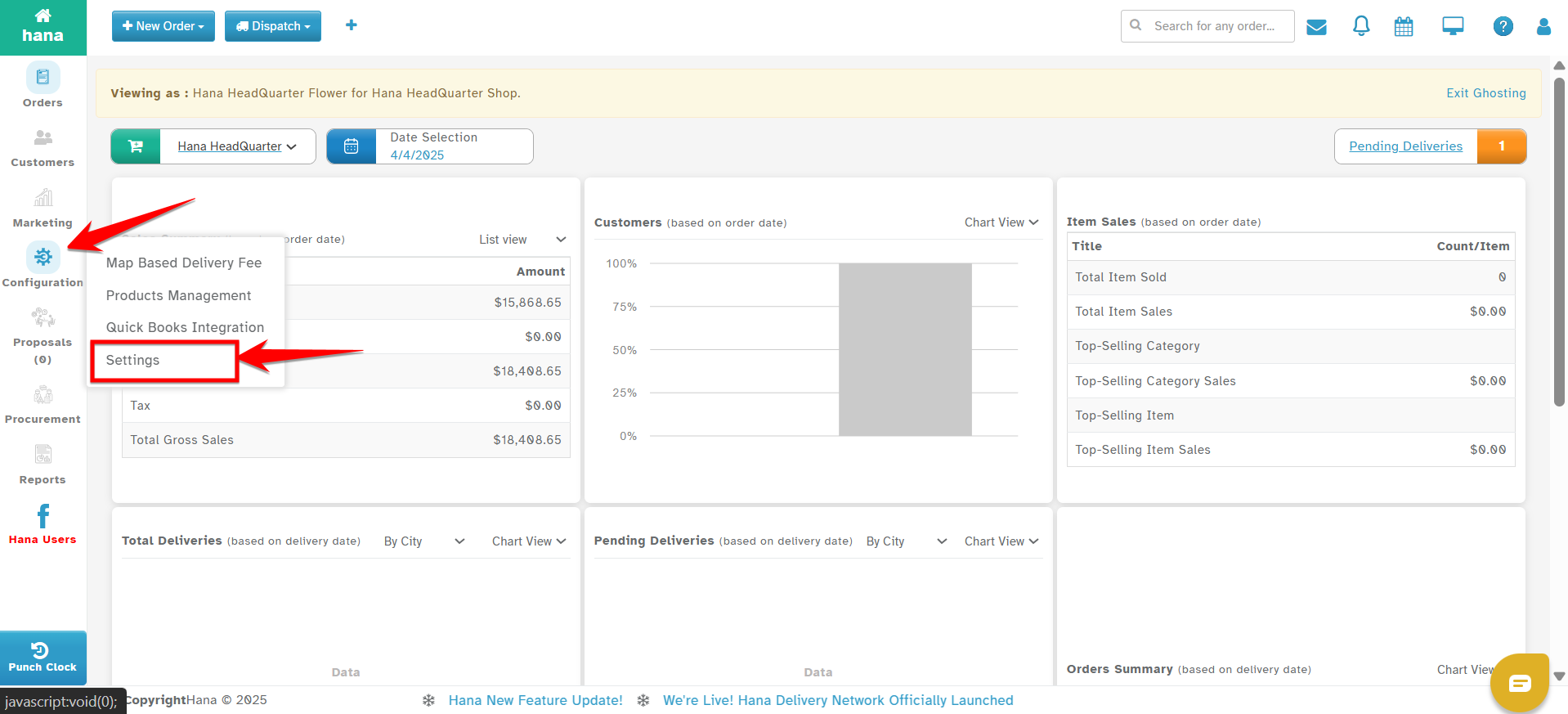
Step 3: In the Settings menu, go to Dispatch.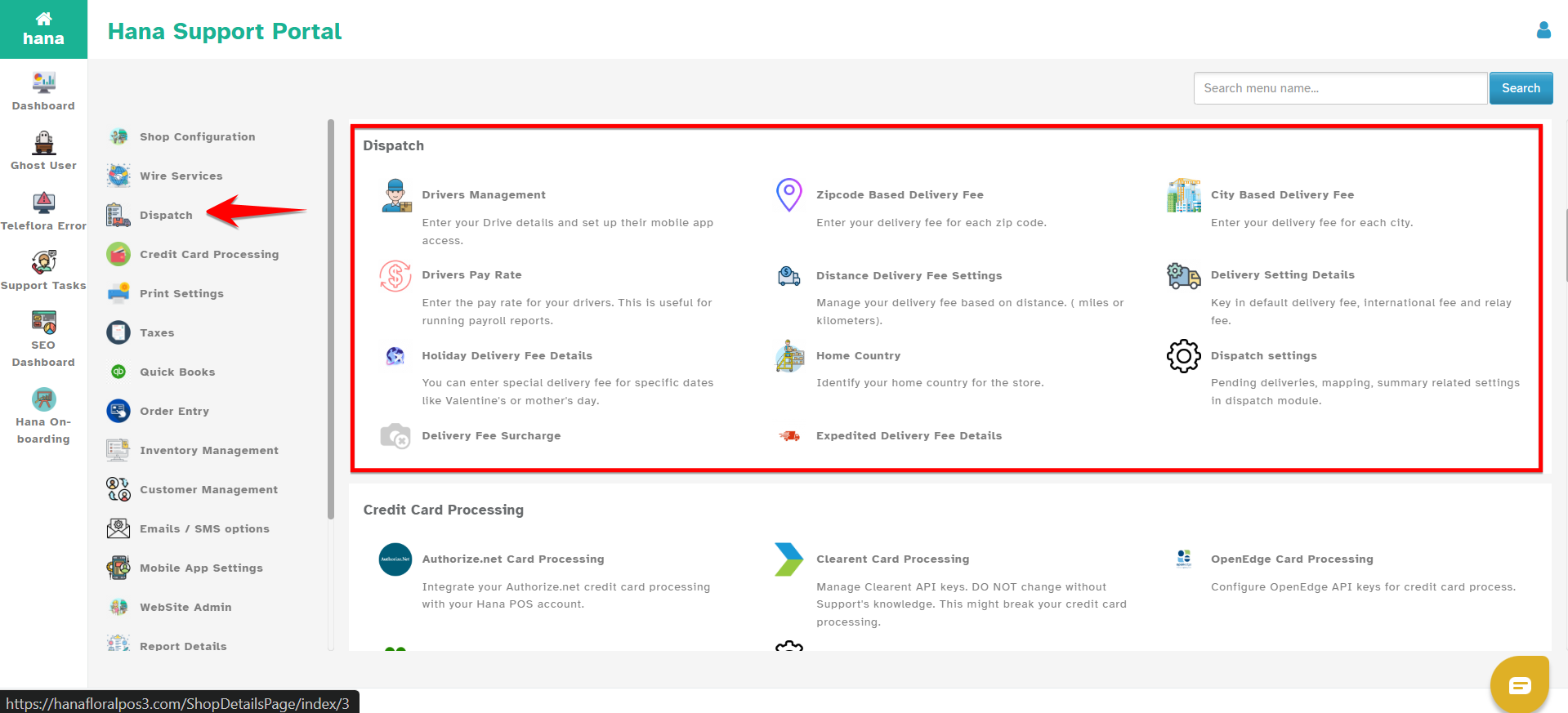
Step 4: Select Delivery Fee Surcharge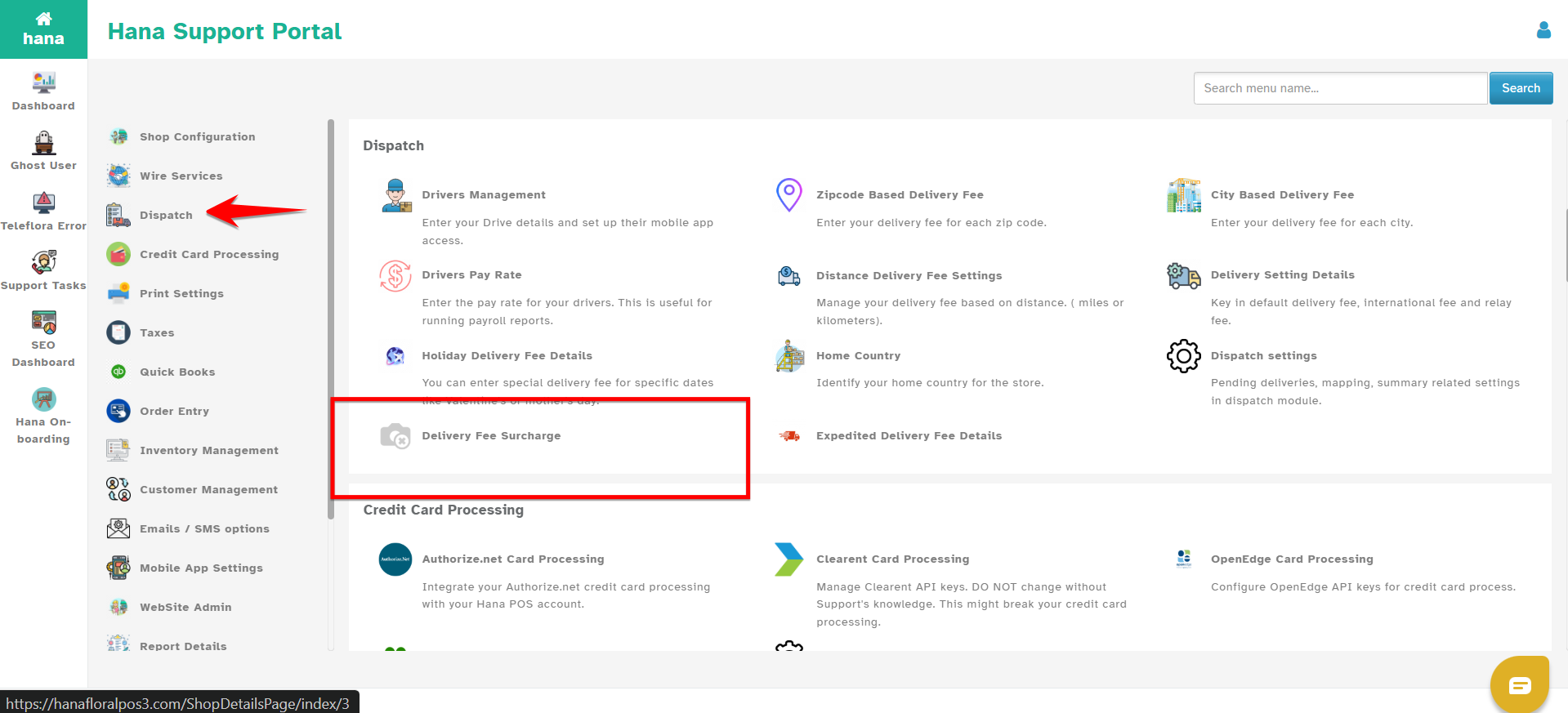
Step 5: Click on Add New to create a new surcharge rule.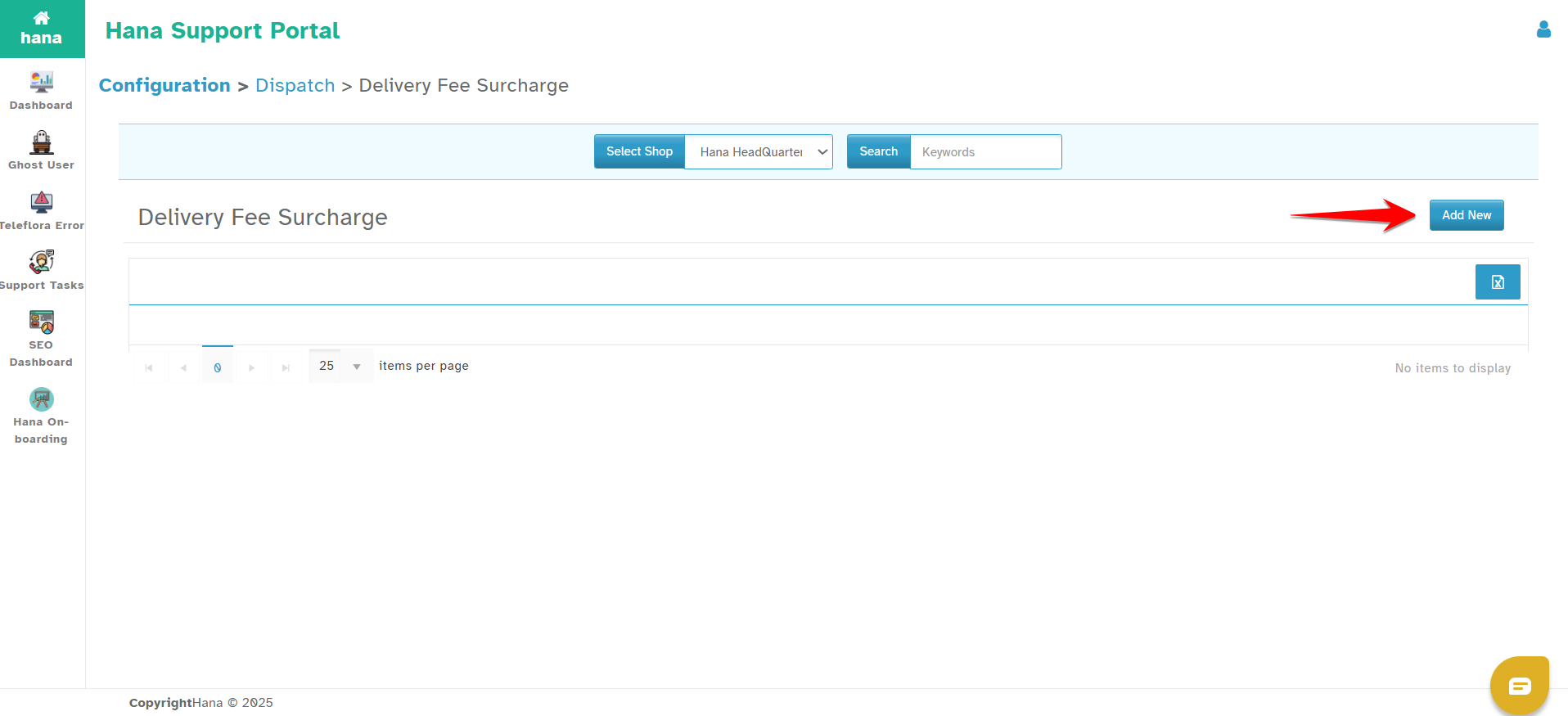
You’ll now see the following fields:
1. From Date
Select the starting date for the surcharge to be active.
2. To Date
Choose the end date for the surcharge to stop being applied.
3. Fees Type
Choose the type of surcharge:
Percentage – The system will calculate the surcharge as a percentage of the existing delivery fee.
Example: If the normal delivery fee is $10 and you enter 20%, the total becomes $12.Amount – A flat surcharge amount is added on top of the base fee.
Example: If the base fee is $10 and you enter $5 as surcharge, the total becomes $15.
4. Amount
Enter the value depending on the fee type selected:
If Percentage is selected, entering "10" means a 10% increase.
If Amount is selected, entering "10" means $10 will be added.
5. On Free Delivery?
This toggle switch determines whether the surcharge should apply to orders that already qualify for free delivery (e.g., via website free delivery settings).
Turn ON if you want the surcharge to apply even on free deliveries.
Turn OFF to exclude free deliveries from surcharges.
6. Enable Toggle
Use this switch to activate or deactivate the surcharge without deleting it.
Step 5: After completing all fields, click Submit to save the surcharge rule.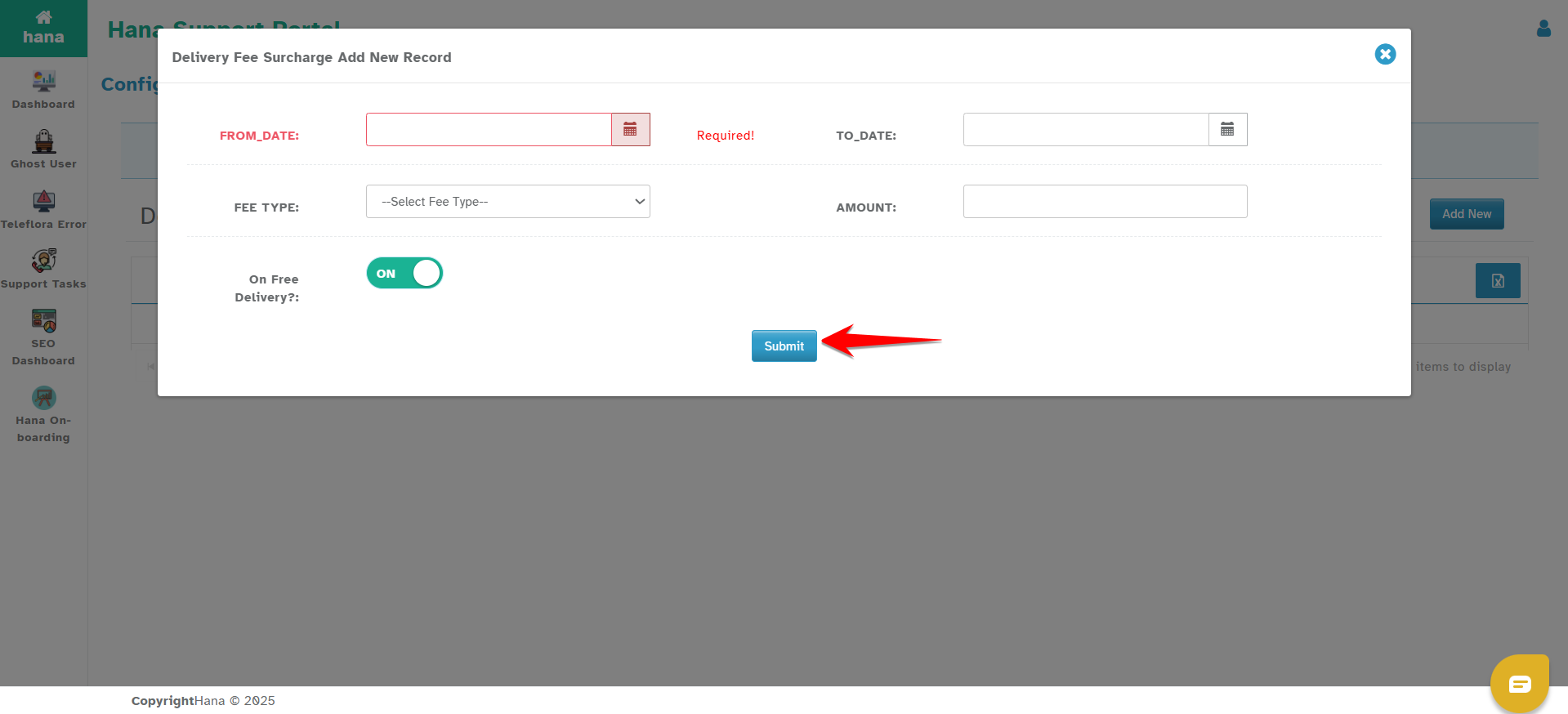
How It Works
The surcharge is calculated after the system determines the base delivery fee.
It can be stacked on top of any delivery fee type (default, distance, ZIP, city, or map-based).
Multiple surcharges cannot overlap on the same dates—only one surcharge can apply per order.
If free delivery is enabled and surcharge is active with “On Free Delivery?” ON, the order will show only the surcharge as the delivery cost.
Was this article helpful?
That’s Great!
Thank you for your feedback
Sorry! We couldn't be helpful
Thank you for your feedback
Feedback sent
We appreciate your effort and will try to fix the article