Quick Dispatch is a simple and fast way to assign orders to a driver without advanced route optimization. Unlike Advanced Dispatch, Quick Dispatch does not include a map view for selecting orders. Instead, it focuses on manually selecting and assigning orders. Quick Dispatch is a simplified version of dispatching where users can quickly assign orders to drivers without advanced routing or mapping tools.
Key Features of Quick Dispatch:
Straightforward Order Assignment:
Simply select the orders and assign them to a driver.
No Google Maps view or route optimization.
Basic Trip Creation:
Allows users to create trips without route optimization.
Faster Dispatch Process:
No need to adjust trip sequences or verify addresses.
Ideal for Small Order Volumes:
Works best for florists who do not require complex route planning.
Best For:
Florists with a low number of deliveries per day.
Shops that manually plan routes or do not require optimization.
Users who just need a quick way to assign deliveries without detailed trip planning.
Accessing Quick Dispatch
To access dispatch in Hana POS:
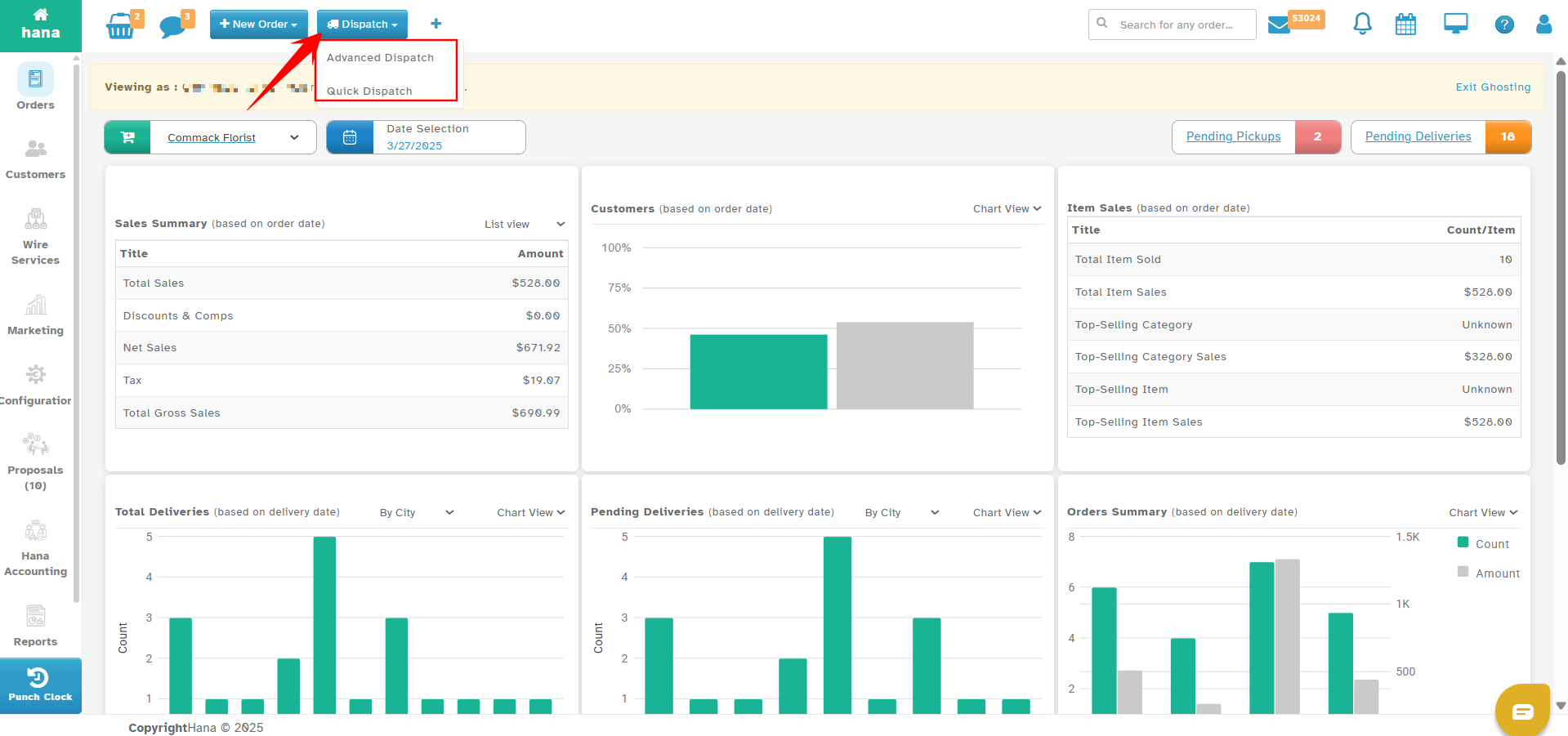
Open the Hana Dashboard.
Click the Dispatch tab at the top.
Select Quick Dispatch
Ways to Add Orders to a Trip
1. Selecting Orders from the Pending Deliveries List
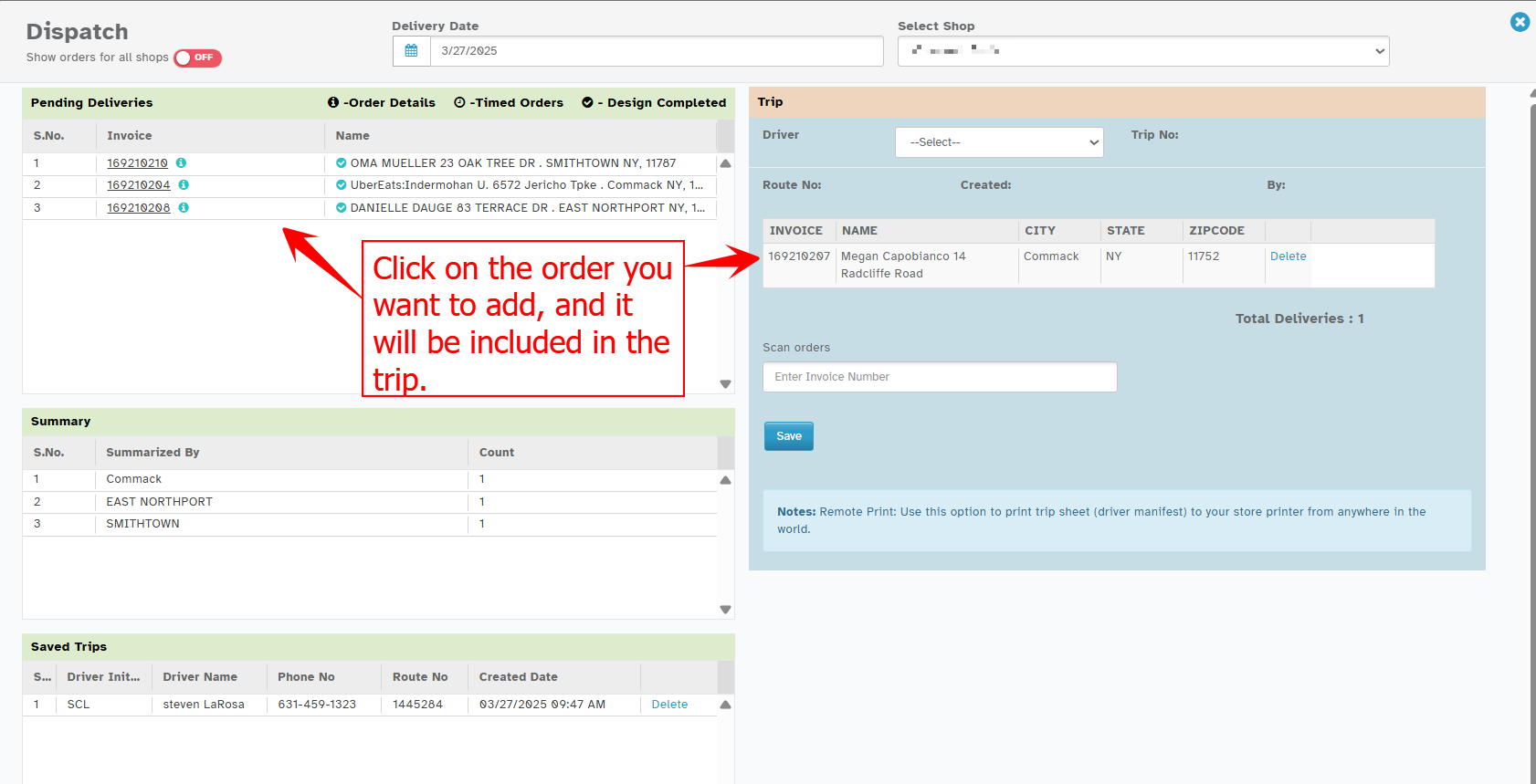
Go to the Pending Deliveries window (left panel).
Click on an order to select it.
Selected orders will be added to the trip.
Repeat the process to add multiple orders.
2. Adding Orders Using Summary Grouping
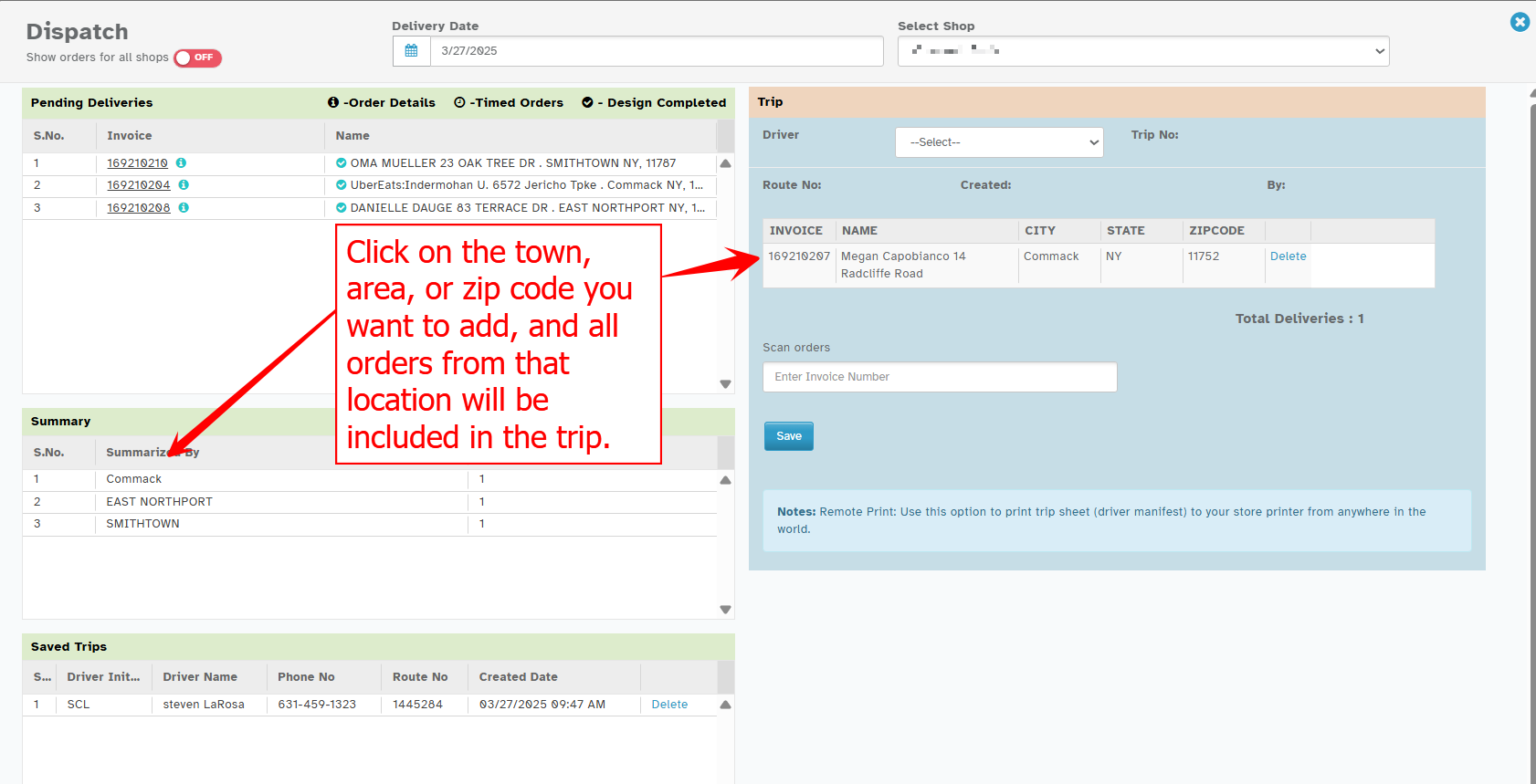
In the Summary Window (below Pending Deliveries), orders are grouped by town/area/zip code.
Click on a group to add all orders under that location to the trip automatically.
3. Entering Invoice Numbers Manually or Using a Barcode Scanner
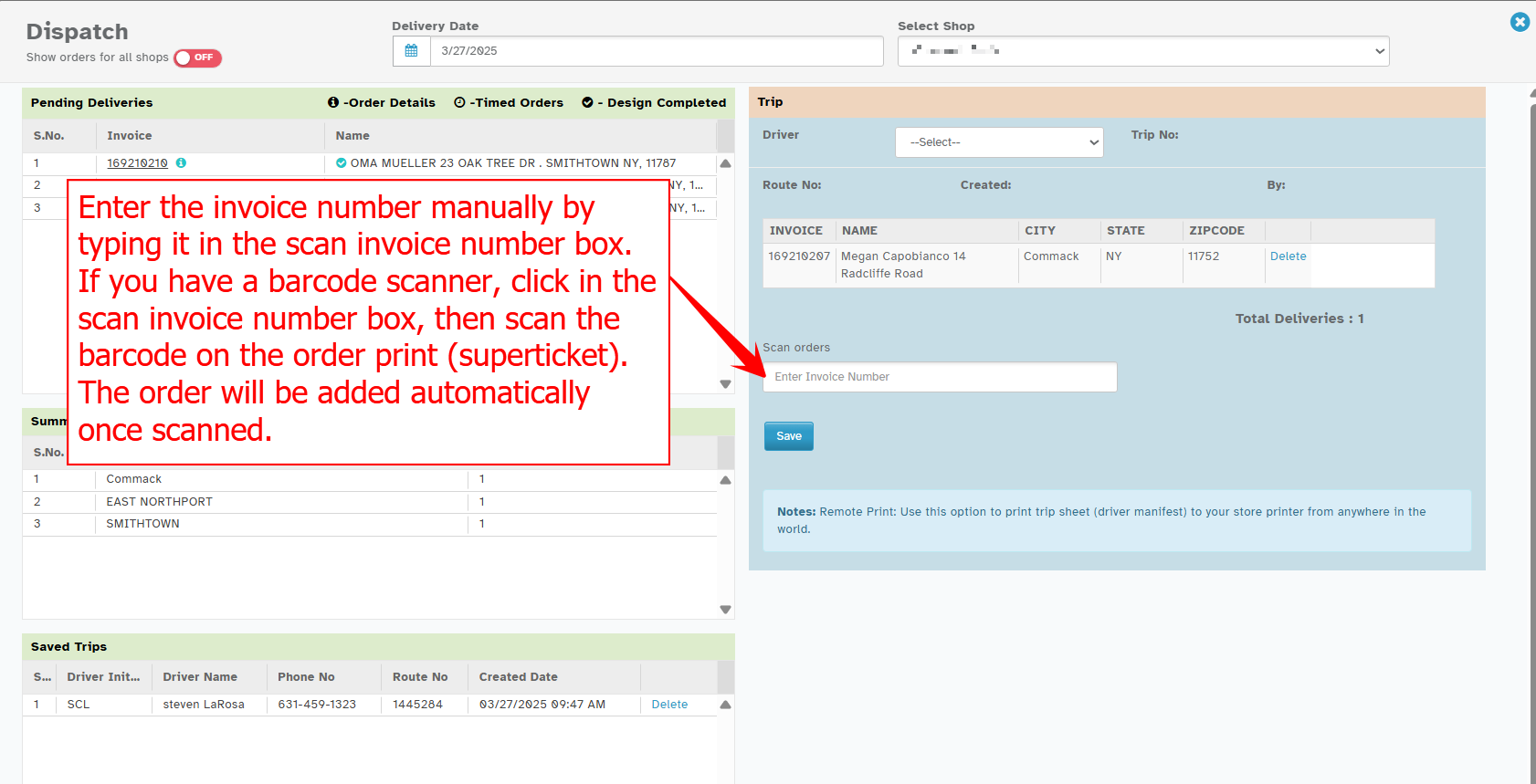
Type the invoice number in the Scan Invoice Number field.
If using a barcode scanner:
Click inside the Scan Invoice Number box.
Scan the barcode from the order print (superticket).
The order will be automatically added to the trip.
Assigning a Driver & Dispatching the Trip
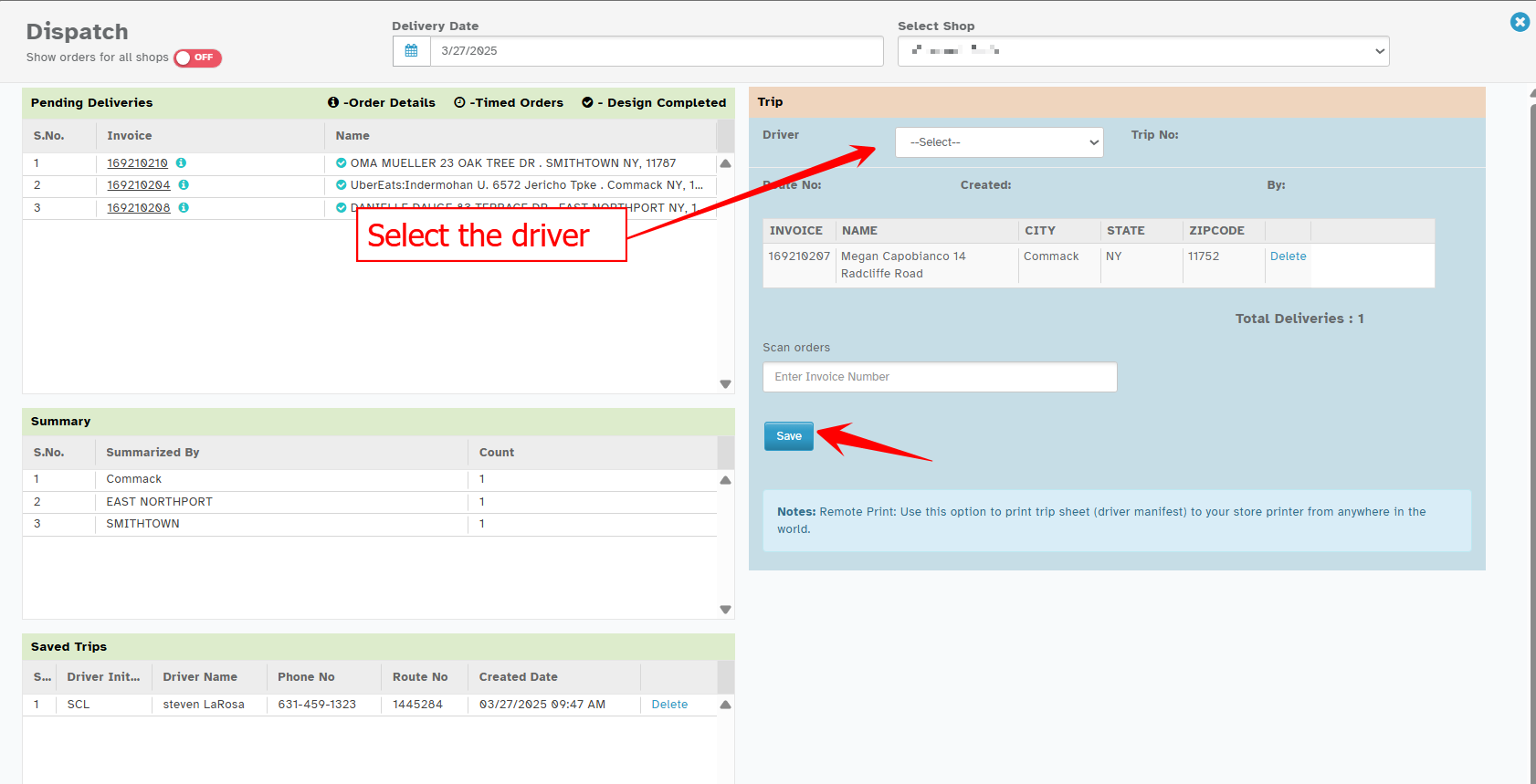
Select a driver from the Driver Dropdown.
Click Save → The trip will be created and assigned to the driver.
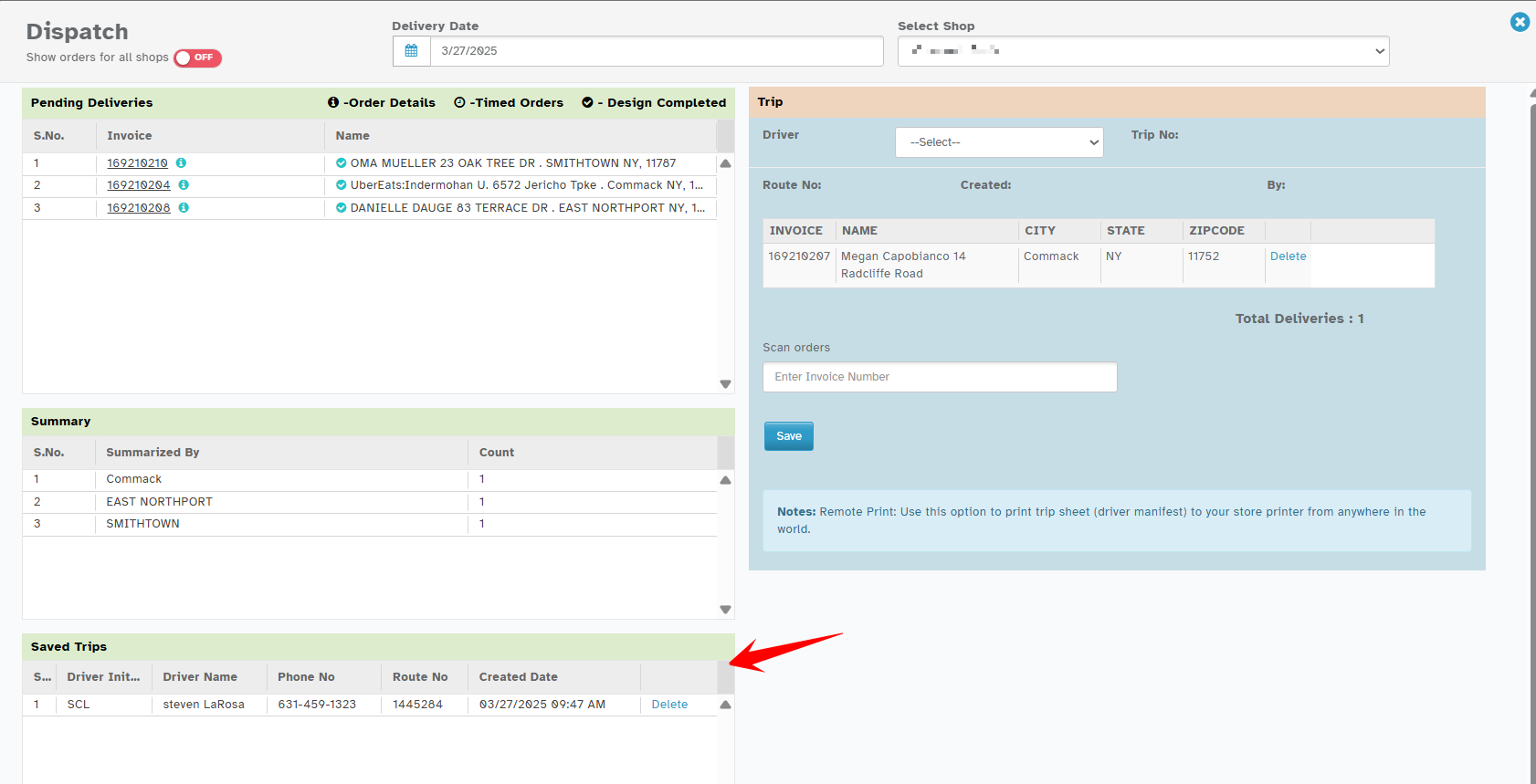
Saved & Created Trips Section
At the bottom left, you can see all previously created trips for that date.
You can select any saved trip to review or modify.
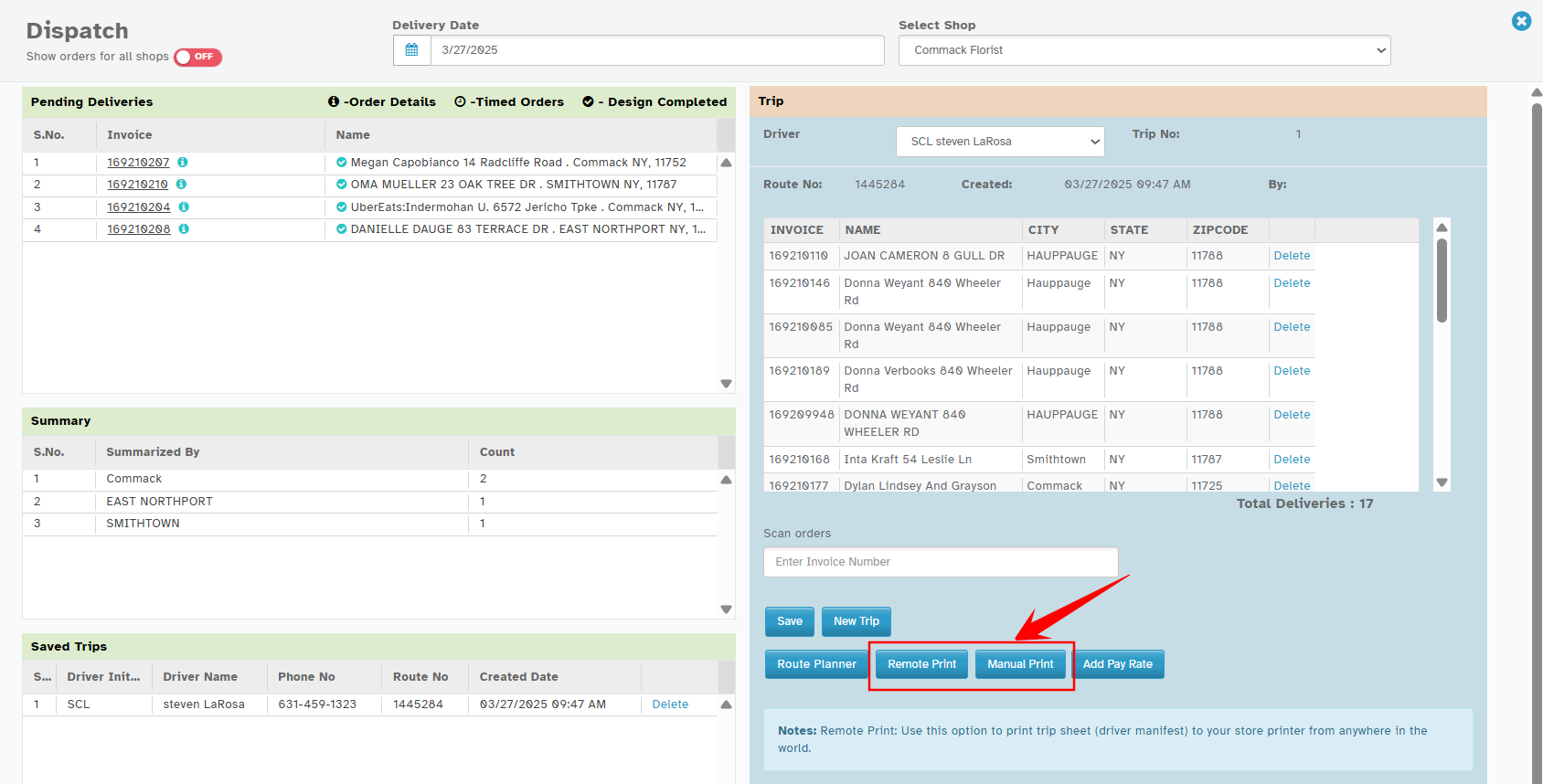
Printing Options for the Driver
1. Remote Print (Auto Printing)
Click Remote Print to generate and print the Driver Manifesto automatically.
2. Manual Print (PDF Generation)
Click Manual Print → A PDF of the trip sheet will be generated.
Click the Printer Icon to print the driver sheet manually.
 Quick Dispatch is ideal when assigning orders quickly without waiting for optimized routing.
Was this article helpful?
That’s Great!
Thank you for your feedback
Sorry! We couldn't be helpful
Thank you for your feedback
Feedback sent
We appreciate your effort and will try to fix the article