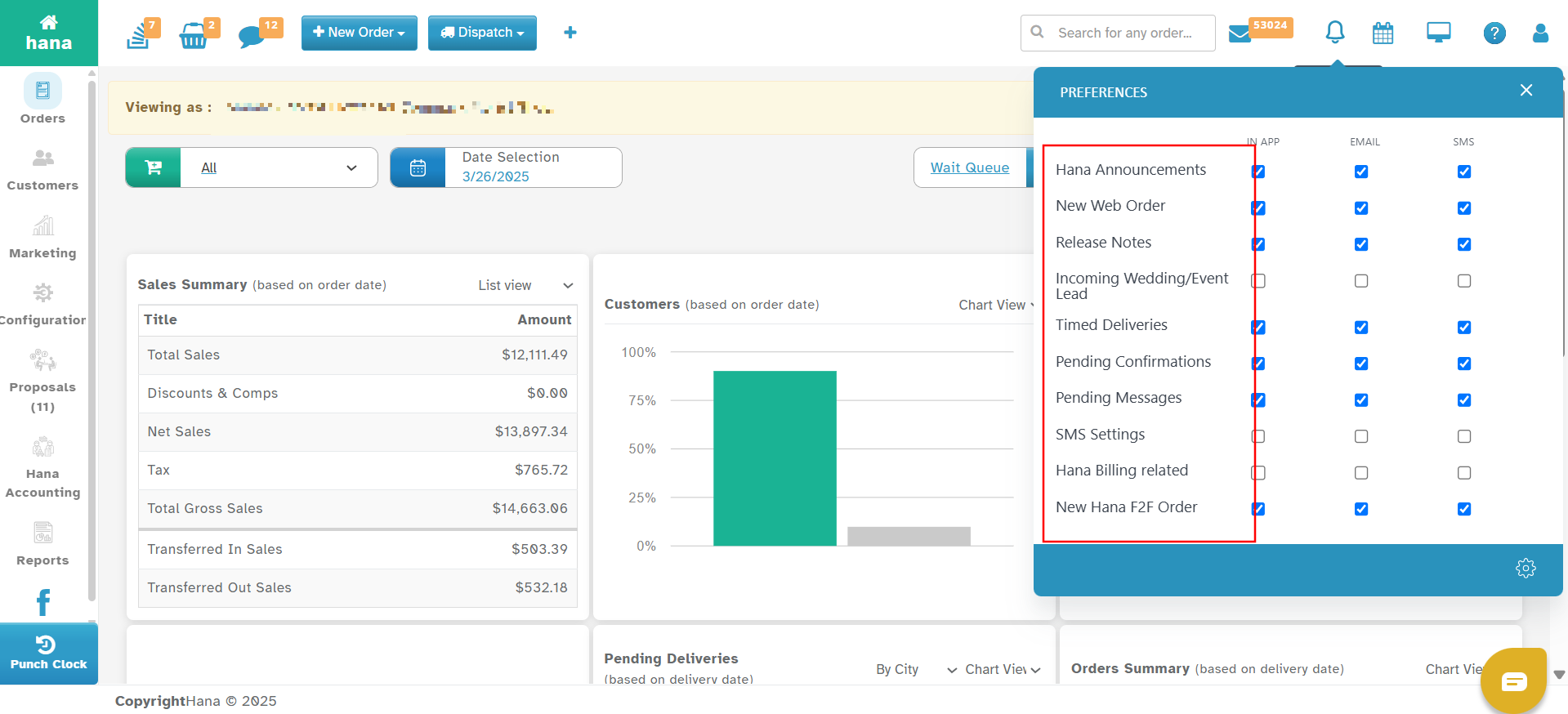
Hana POS provides flexible notification preferences that allow you to customize how you receive alerts and updates. You can choose between In-App, Email, SMS, and Hana Announcements for different types of notifications.
Setting up the right notification preferences ensures you stay informed about critical updates, new orders, billing, and customer communications.
Accessing Notification Preferences
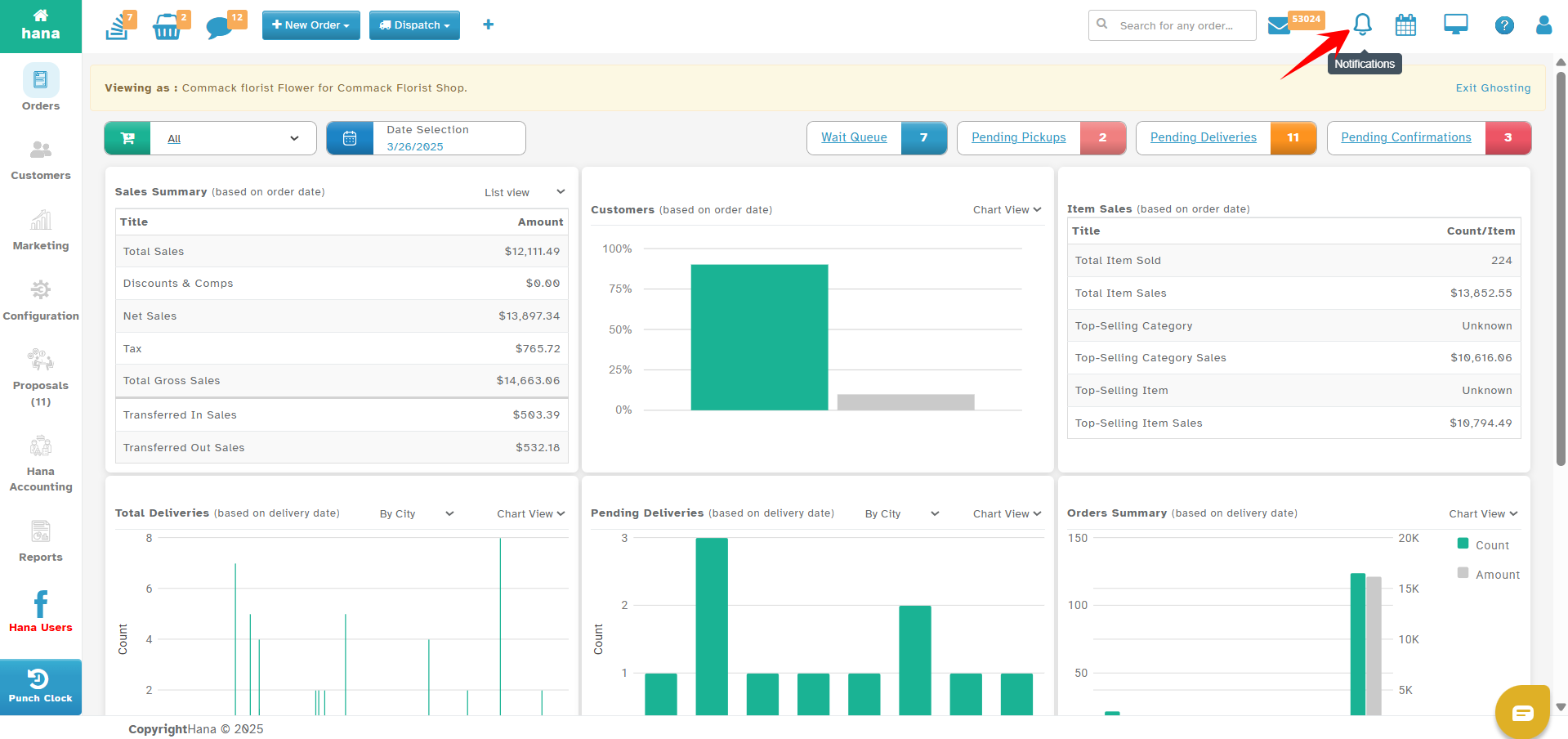
Navigate to the Bell Icon
On the top right corner of the Hana POS dashboard, click on the bell icon.
This will display all recent notifications.
Manage Preferences
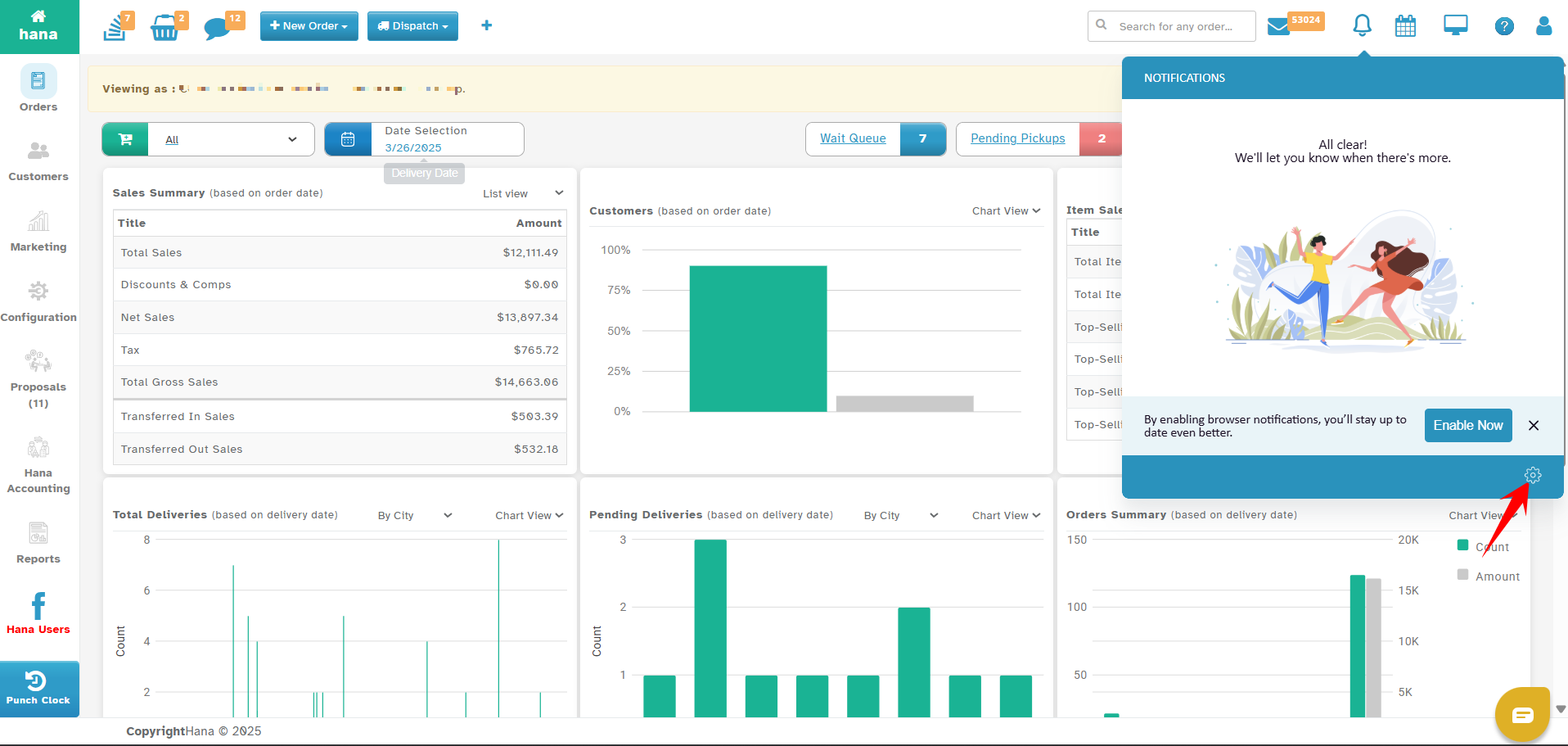
Click on the gear icon in the bottom right corner of the notification panel.
This will open the Notification Preferences section.
Choose Your Preferred Notification Type
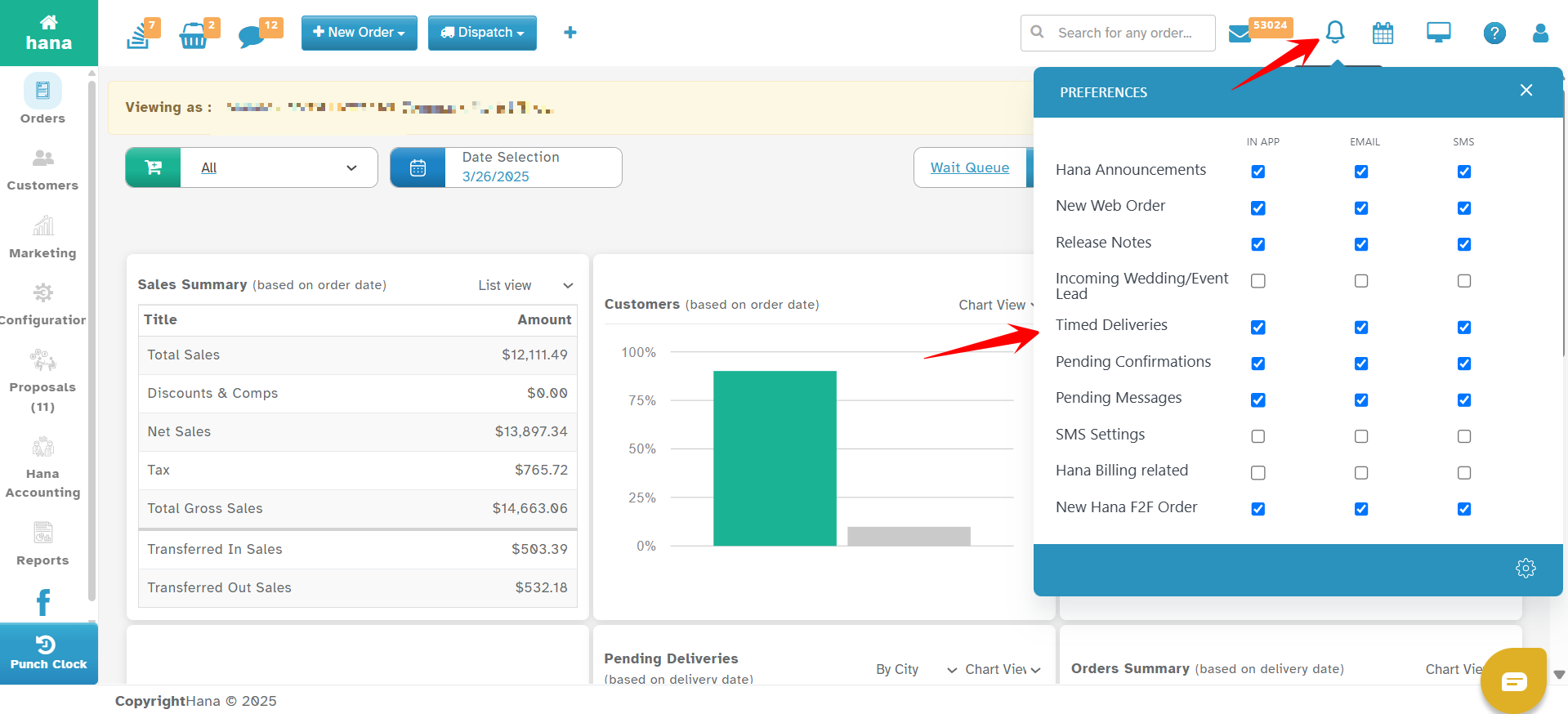
Notifications can be received via In-App, Email, SMS, or Hana Announcements.
Each category has multiple options that you can enable or disable based on your business needs.
Understanding Notification Options
Hana POS allows you to control notifications for various business activities. Below is a detailed breakdown of each setting:
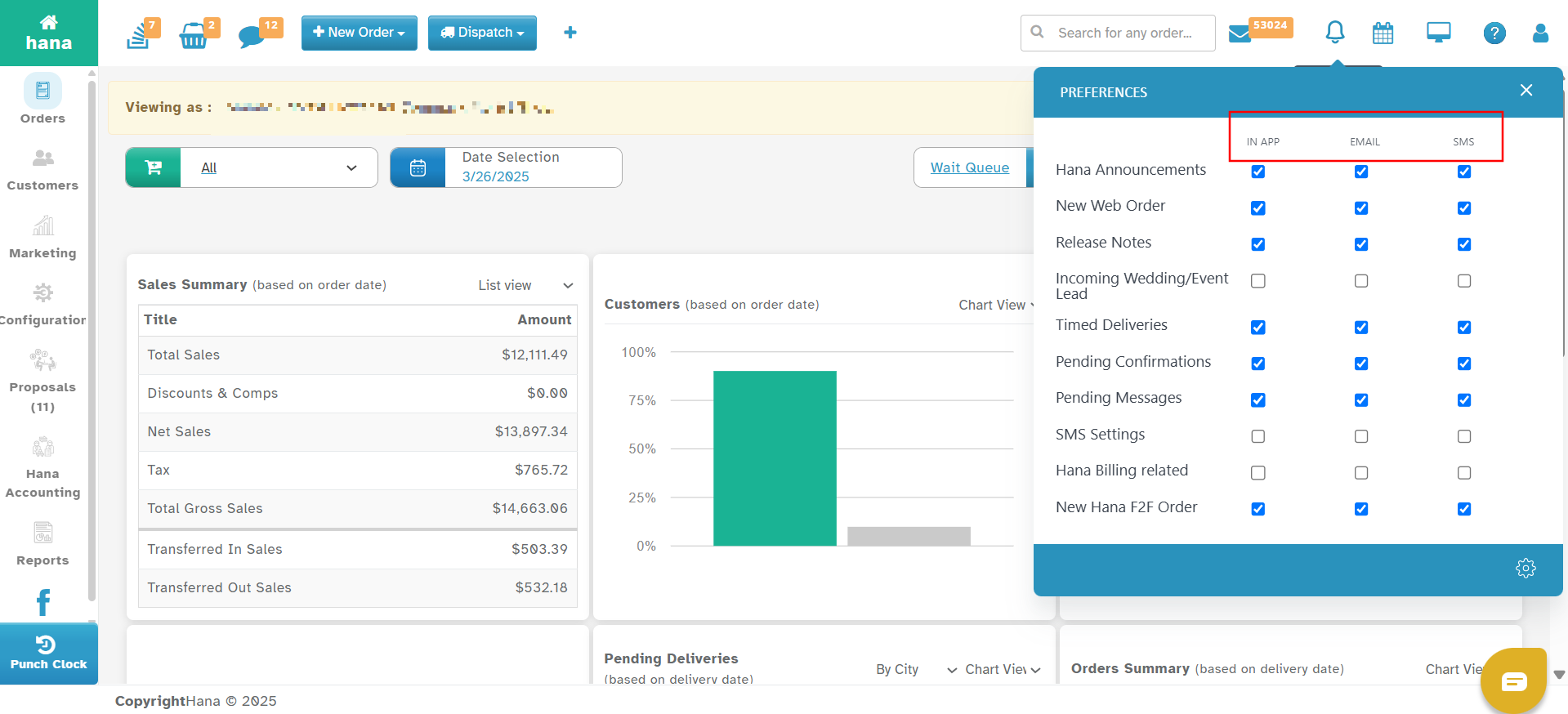
In-App: Notifications appear directly in Hana POS with a bell sound alert.
Email: Notifications are sent to the email associated with your Hana account.
SMS: Notifications are sent via text message to your registered phone number.
Notification Categories and Their Functionality
Hana Announcements: Updates from Hana, including feature releases and service-related alerts.
New Web Order
Alerts you whenever a new order is placed via your website.
Helps you respond quickly to online orders.
Release Notes
Notifies you about new feature releases, bug fixes, and software improvements.
Important for staying updated on system changes.
Incoming Wedding/Event Lead
Notifies you about a new wedding or event inquiry.
Helps you respond to potential clients faster.
Timed Deliveries
Alerts you when an order with a specific delivery time is approaching.
Ensures you meet customer expectations for scheduled deliveries.
Pending Confirmations
Reminds you of orders that require confirmation before processing.
Useful for verifying details before fulfillment.
Pending Messages
Alerts you about unread messages from customers or other florists.
Ensures timely responses to customer inquiries and business communications.
SMS Settings
Enables or disables SMS notifications for different events.
Helps control text message alerts for important updates.
Hana Billing Related
Notifies you about billing, invoices, and payment-related updates.
Ensures you are aware of pending payments or subscription renewals.
New Hana F2F Order
Notifies you when a Hana florist-to-florist (F2F) order is sent or received.
Allows florists to wire out orders to another Hana florist near the delivery location.
Ensures timely processing of florist-to-florist transactions.
How to Customize Your Preferences
Enable or Disable Notifications
Each notification category has toggles for In-App, Email, and SMS.
Enable notifications based on your preference.
Choose the Right Channel
Select In-App for real-time notifications inside Hana POS.
Select Email for order confirmations and important updates.
Select SMS for urgent alerts that require immediate action.
Save Your Preferences
Once you configure your settings, ensure you save changes for them to take effect.
Best Practices for Notification Management
Use In-App Notifications for Order Management
Keep track of new orders, confirmations, and timed deliveries inside Hana POS.
Enable Email for Business-Critical Alerts
Get updates on billing, F2F orders, and important announcements in your inbox.
Use SMS for Urgent Updates
Ensure timed deliveries and pending confirmations are not missed.
Review Your Notification Preferences Regularly
Update settings based on your business needs and workflow.
Was this article helpful?
That’s Great!
Thank you for your feedback
Sorry! We couldn't be helpful
Thank you for your feedback
Feedback sent
We appreciate your effort and will try to fix the article