Hana POS allows you to cancel orders whenever necessary. This feature ensures that orders that are no longer needed can be removed efficiently. You can cancel an order directly from the Orders Page or through the Order Details Dialog.
This guide outlines the steps to cancel an order and select a cancellation reason.
Steps to Cancel an Order
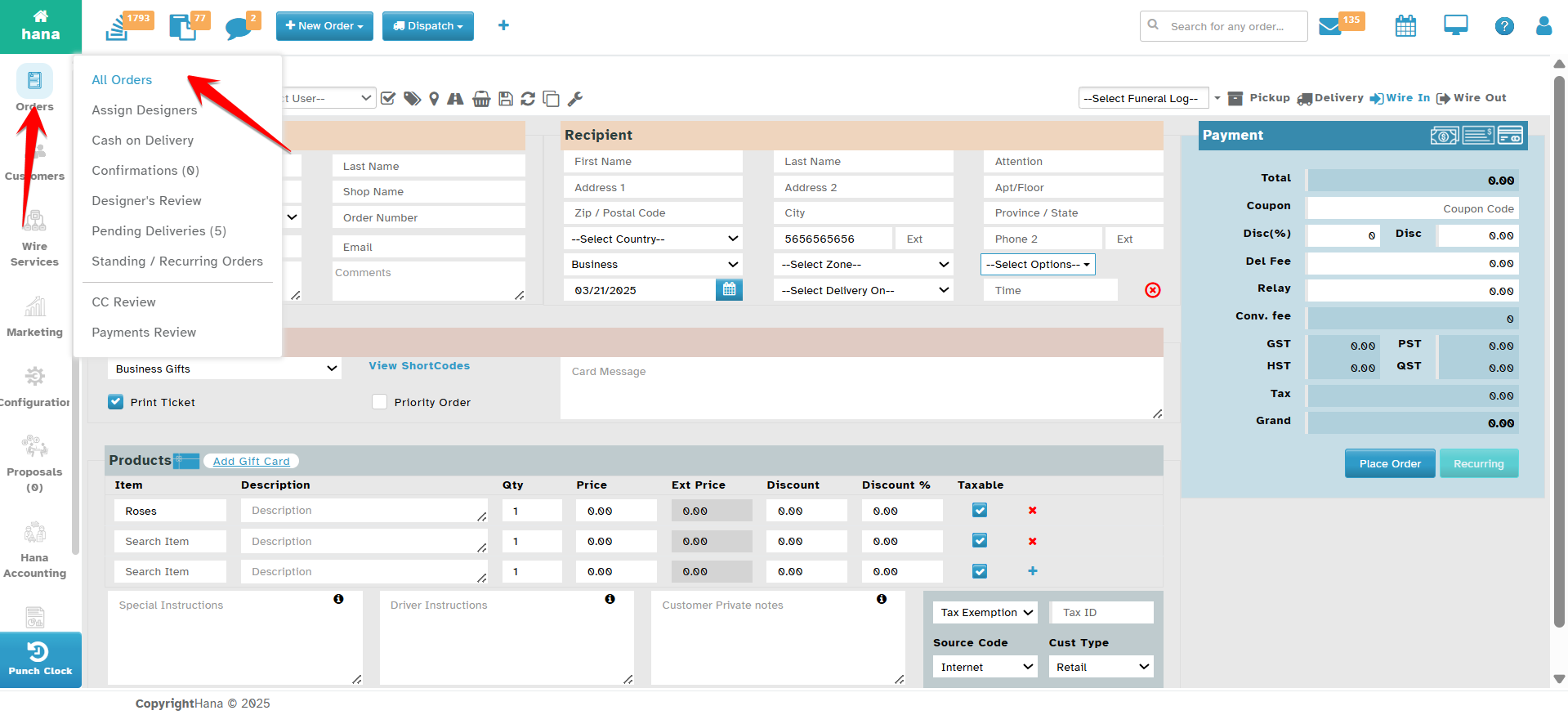
Step 1: Access the Orders Page
Navigate to Orders.
The Orders Page will be displayed.
Step 2: Open the Cancel Order Dialog
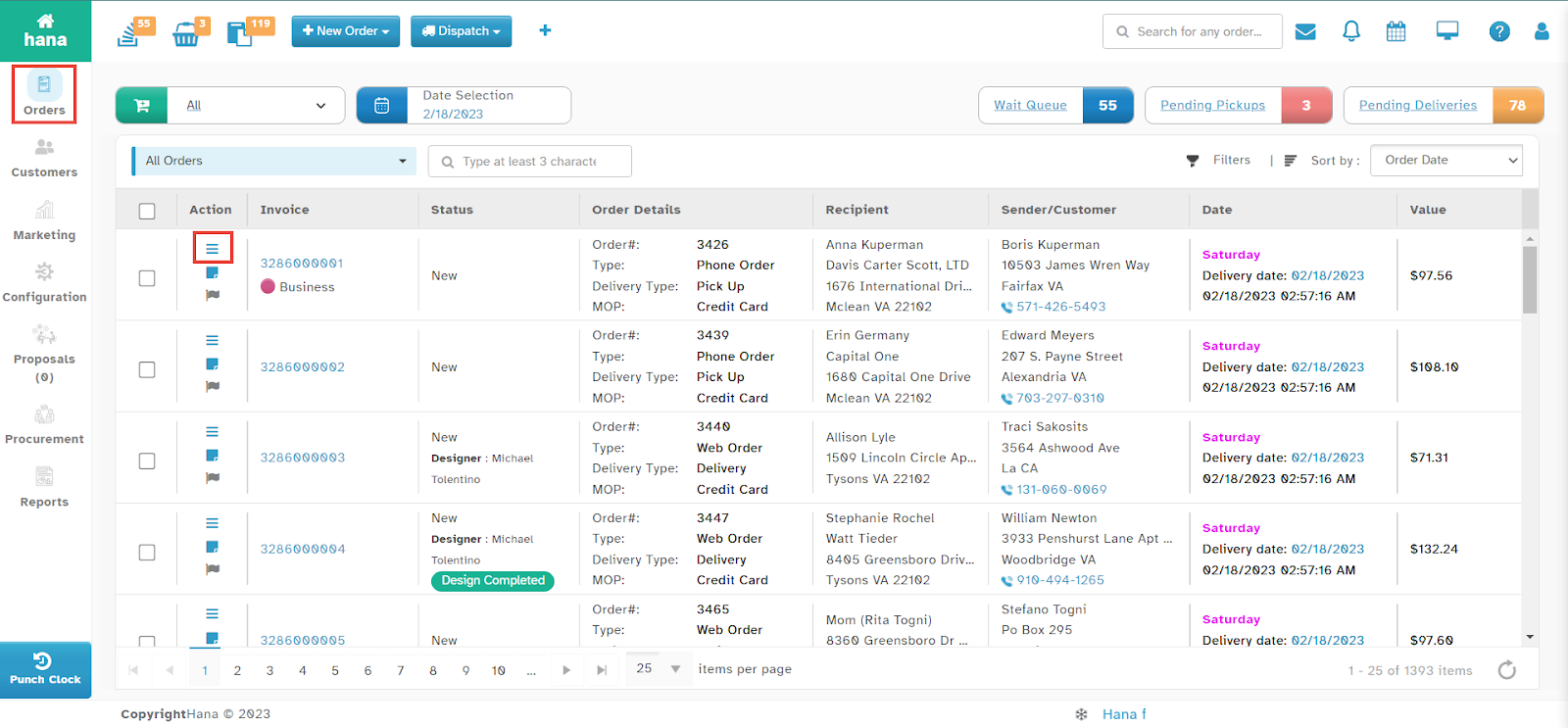
Click the actions icon in the row of the order you want to cancel.
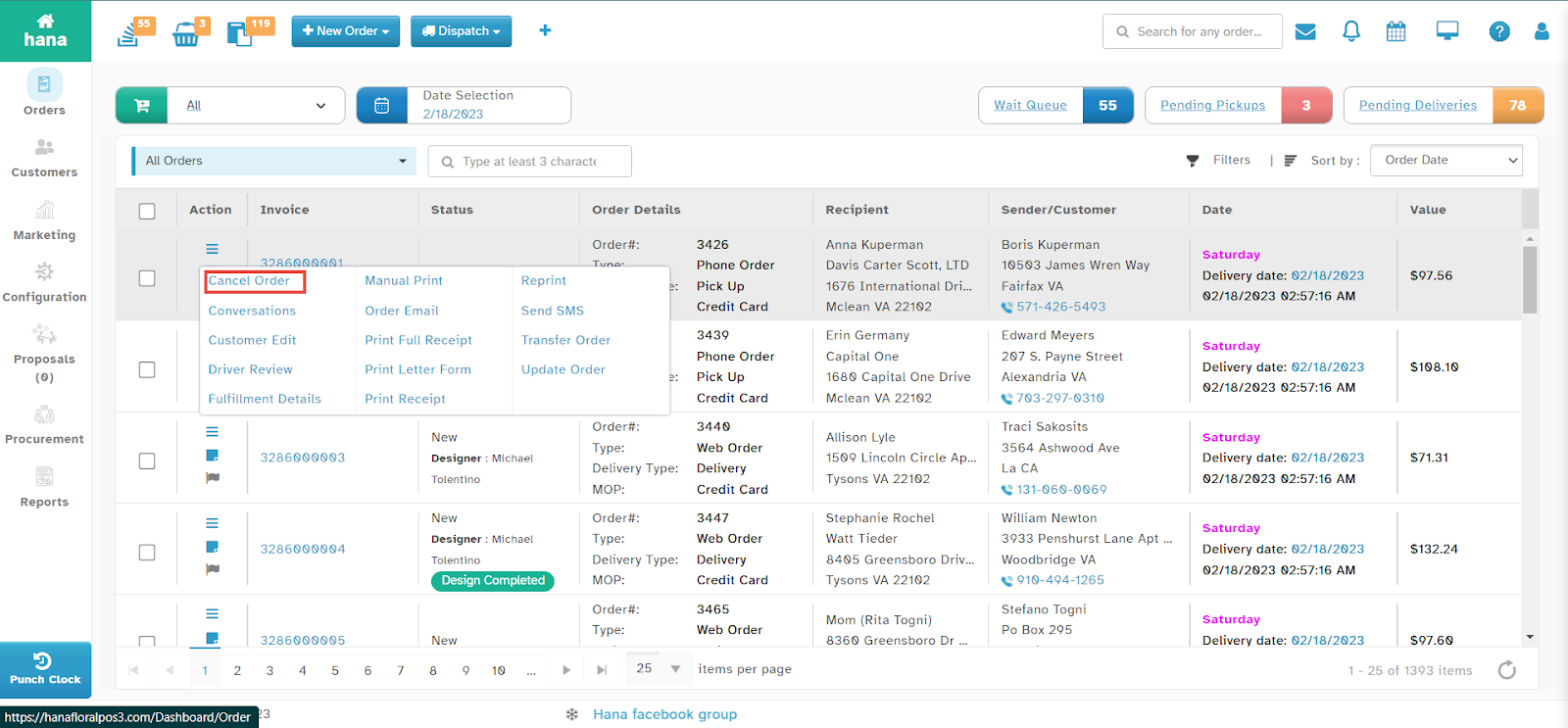
The Actions Menu will be displayed.
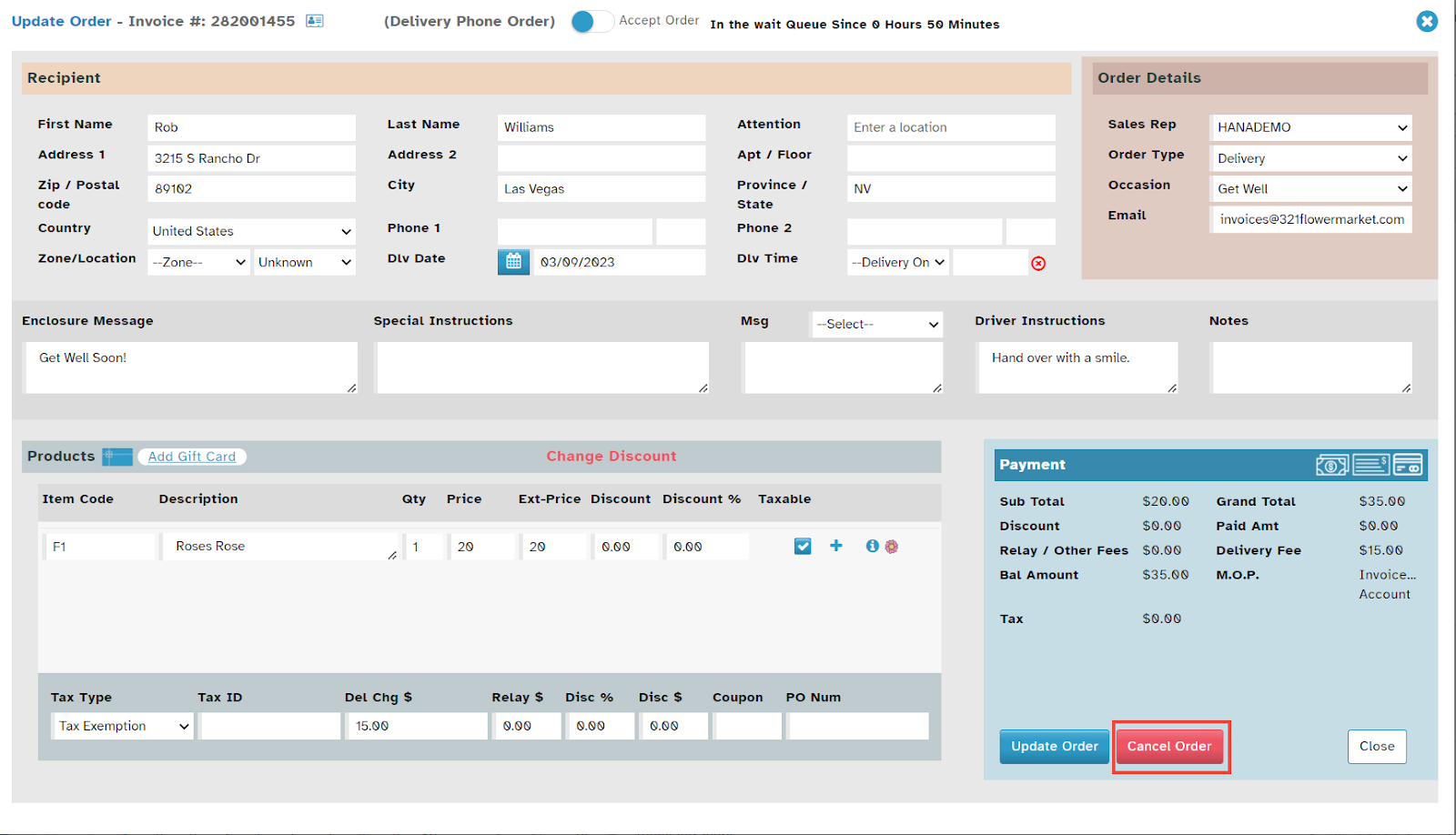
Alternative Method: You can also cancel an order by clicking anywhere in the order row to access the Order Details Dialog, then selecting the actions icon > Cancel Order.
Step 3: Select Cancellation Reason
Click Cancel Order.
The Cancel Order Dialog will appear.
Choose the Reason for Cancellation from the dropdown list.
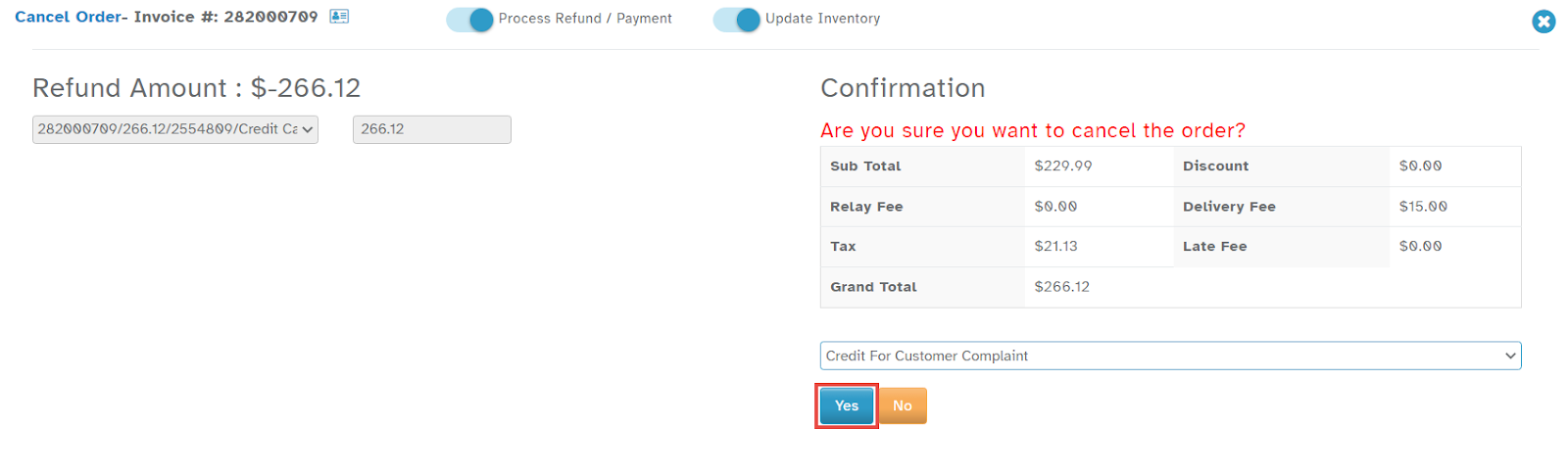
Step 4: Confirm the Cancellation
Click Yes to confirm.
A confirmation notification will be displayed.
By following these steps, you can efficiently cancel an order while maintaining proper records within Hana POS.
Was this article helpful?
That’s Great!
Thank you for your feedback
Sorry! We couldn't be helpful
Thank you for your feedback
Feedback sent
We appreciate your effort and will try to fix the article