A gift card is a prepaid card that customers can purchase and use as payment for future purchases. It serves as an excellent gifting option and a convenient payment method for customers who wish to buy products later or give them as presents. Gift cards can be added to any order during the checkout process.
Hana supports both digital gift cards and also physical gift cards. Digital gift cards work exactly like Amazon's digital gift cards and can be redeemed on both website and in POS. digital gift cards are delivered through email.
This guide provides step-by-step instructions on how to add a gift card, configure denominations, and process a gift card sale within the Hana POS system.
TABLE OF CONTENTS
Steps to Add a Gift Card
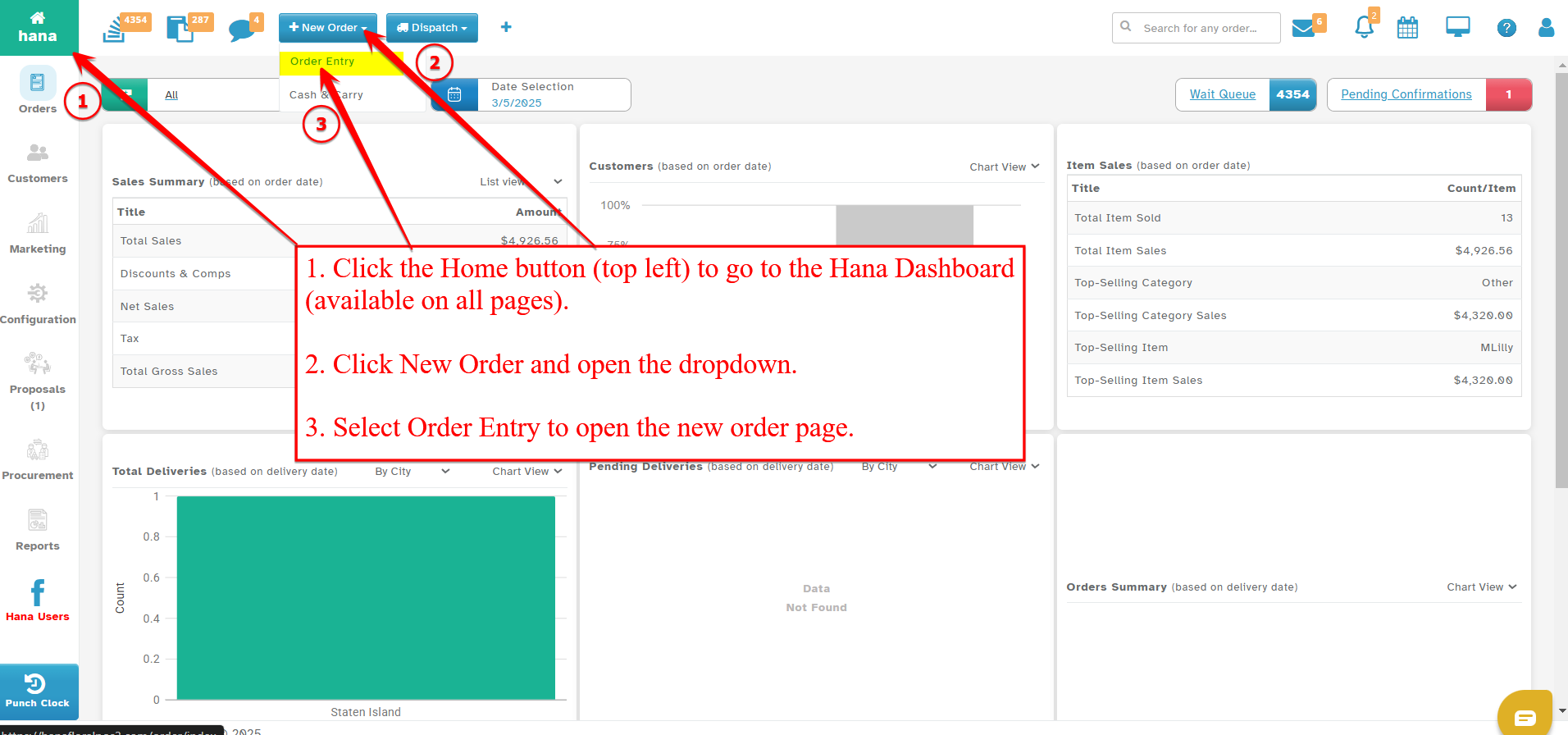
Step 1: Access the Order Entry Page
On the Dashboard, click New Order and select Order Entry from the dropdown list.
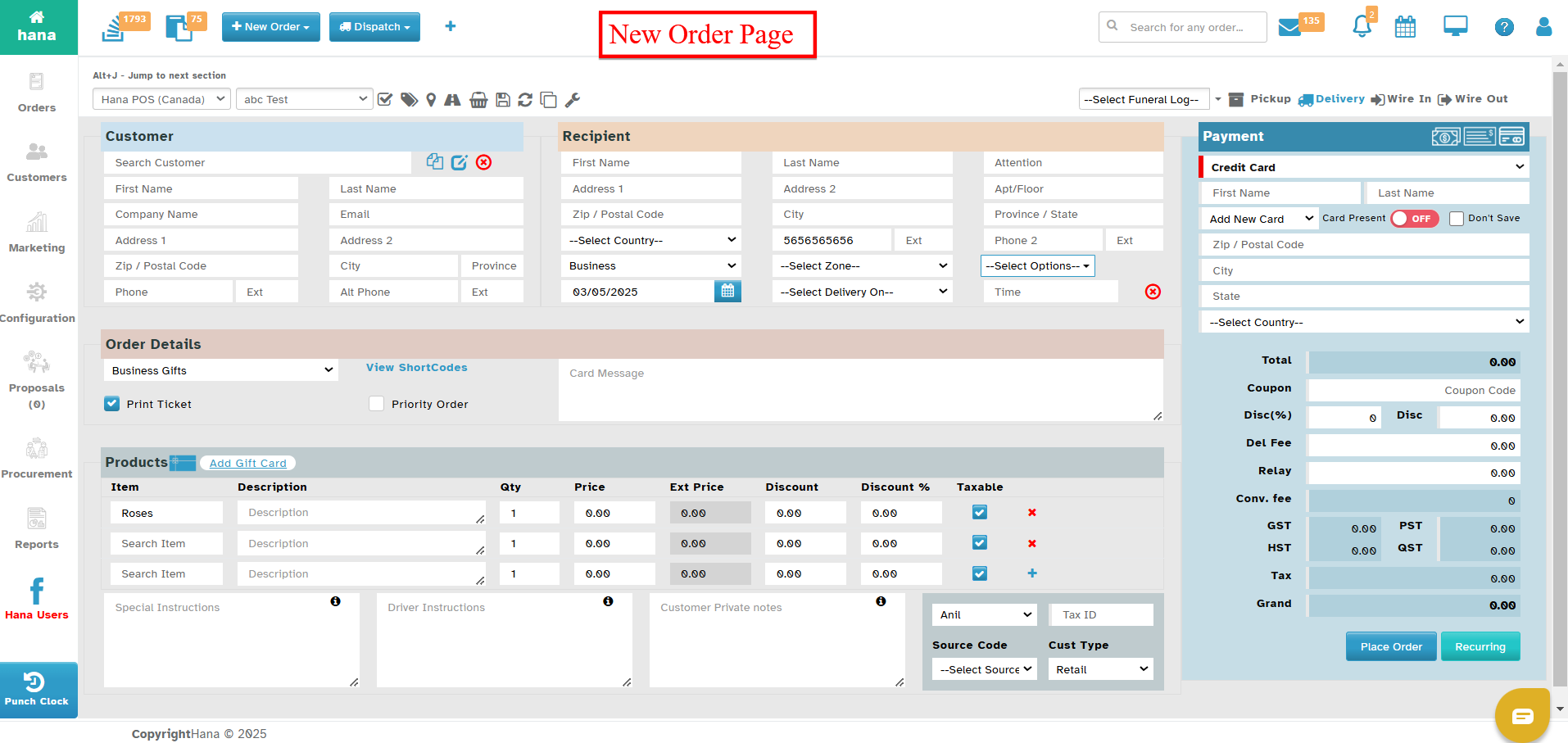
Navigate to the Products section.
Step 2: Open the Gift Card Sale Dialog
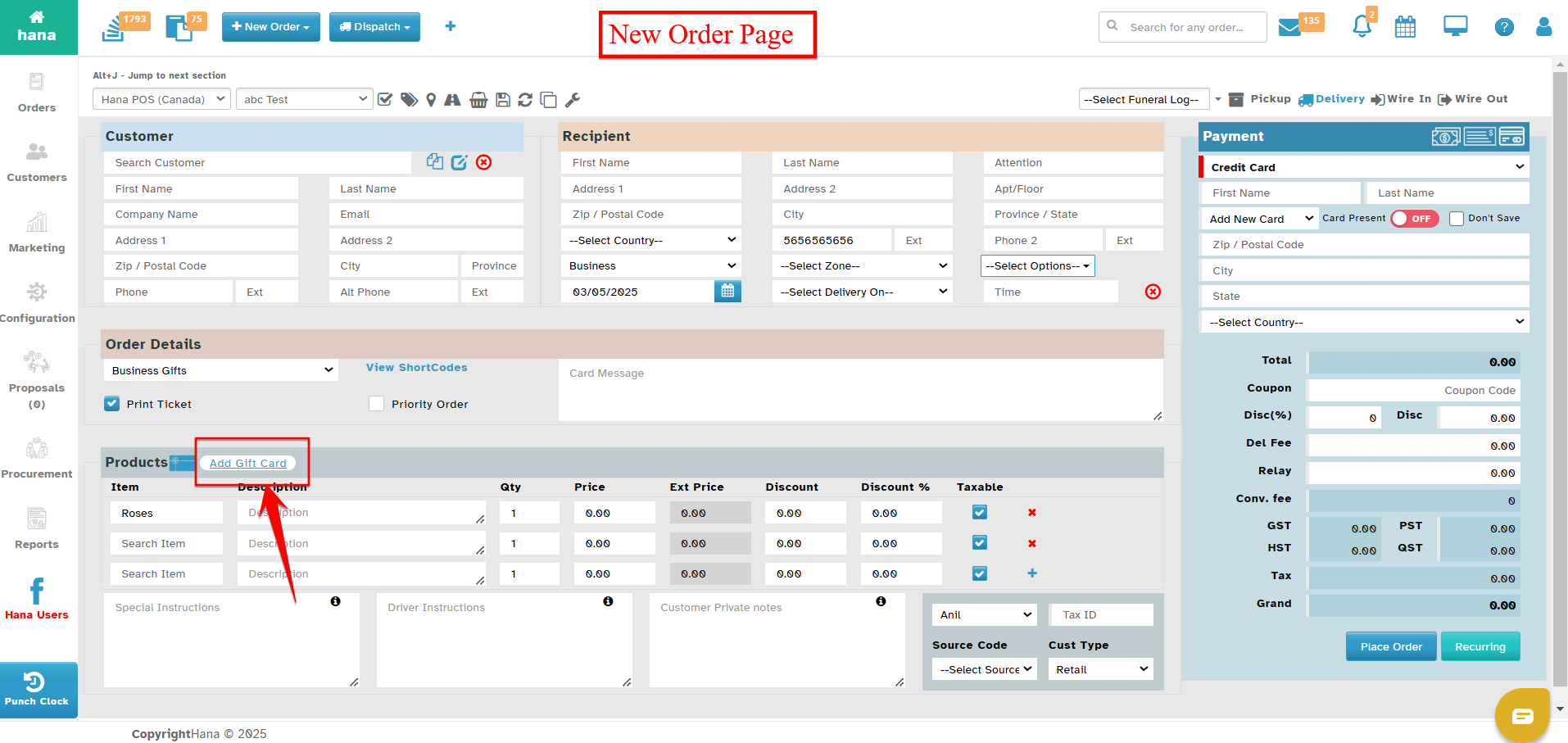
Click the gift card icon or the Add Gift Card link.
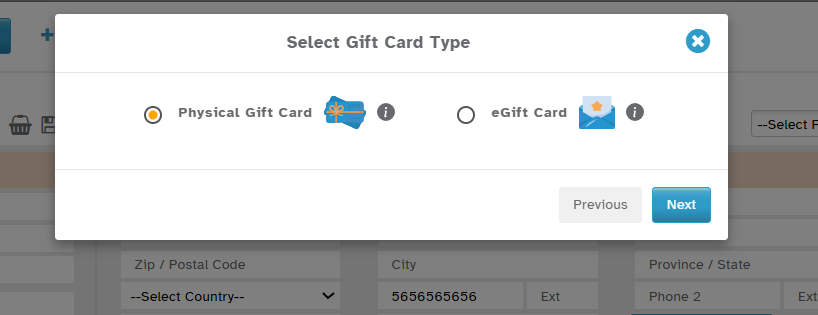
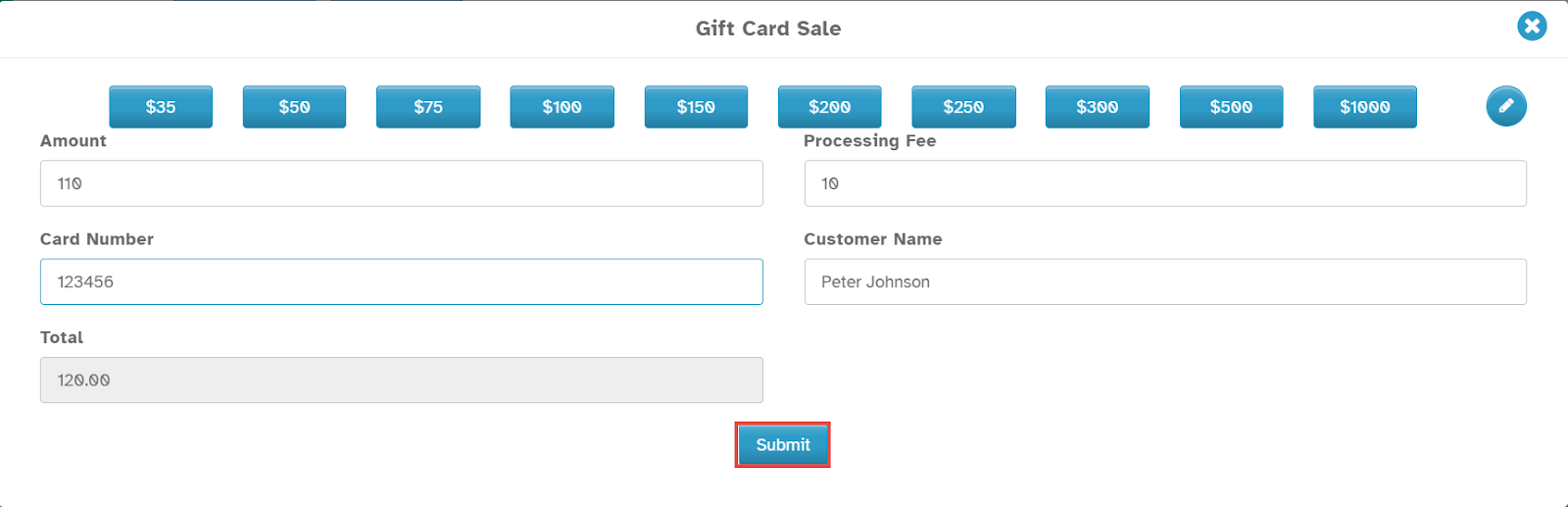
The Gift Card Sale dialog will be displayed.
- Select Gift Card Type: Physical Gift Card/e-Gift Card :
- Physical Gift Card is a tangible, plastic card that can be purchased in-store or online and is usually mailed or handed to the recipient. It contains a unique code and can be swiped or entered manually at checkout.
- An e-Gift Card (Electronic Gift Card) is a digital version sent via email or text message. It includes a unique code that the recipient can use for online or in-store purchases without needing a physical card.
Both serve the same purpose but differ in their format and delivery method.
Step 3: Select or Configure Gift Card Denominations
Choose a predefined gift card denomination from the available options:
$35, $50, $75, $100, $150, $200, $250, $300, $500, or $1000.
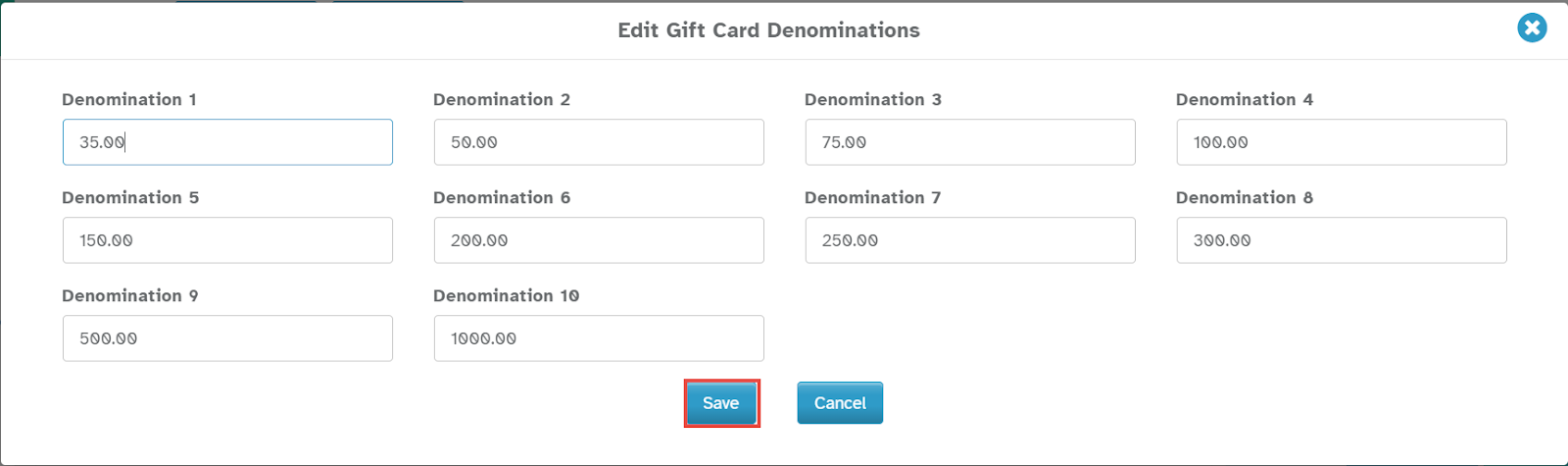
To customize denominations, click the edit icon.
The Edit Gift Card Denominations dialog will appear.
Enter the preferred denomination values in the respective fields.
Click Save to confirm the new denominations.
Step 4: Enter Gift Card Details
If a denomination is selected from the list, it will automatically appear in the Amount field. If not, manually enter the desired amount.
Enter the processing fee associated with the gift card in the Processing Fee field.
Input the gift card number in the Card Number field.
Enter the customer’s name in the Customer Name field.
Step 5: Complete the Gift Card Sale
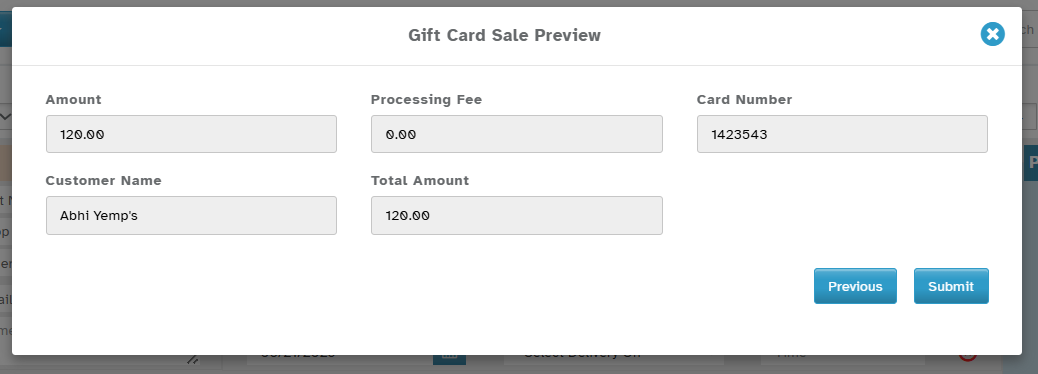
The system will automatically calculate the Total Amount (sum of the amount and processing fee).
Click Submit to finalize the gift card sale.
The gift card details will now be saved, and the card can be used for future purchases.
Was this article helpful?
That’s Great!
Thank you for your feedback
Sorry! We couldn't be helpful
Thank you for your feedback
Feedback sent
We appreciate your effort and will try to fix the article