Shortcodes are a useful feature in the card message area of the order entry page. They allow for quick and consistent message entry by inserting predefined messages instead of manually typing them out. This saves time and ensures accuracy. You can view, add, or delete shortcodes as needed.
This guide outlines the steps to add or manage shortcodes in Hana POS.
TABLE OF CONTENTS
Steps to Add a Short Code
Step 1: Access the Order Entry Page
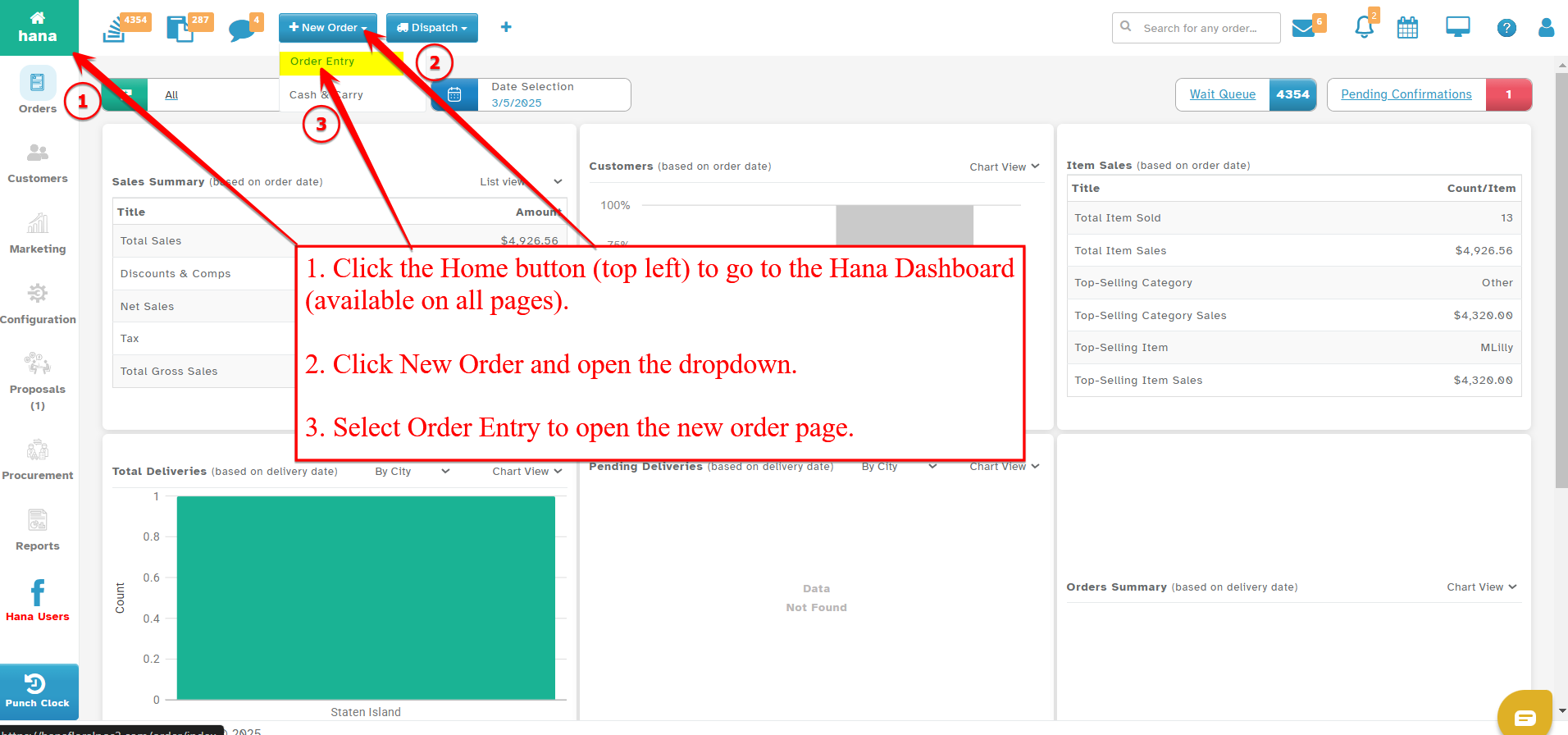
On the Dashboard, click New Order and select Order Entry from the dropdown list.
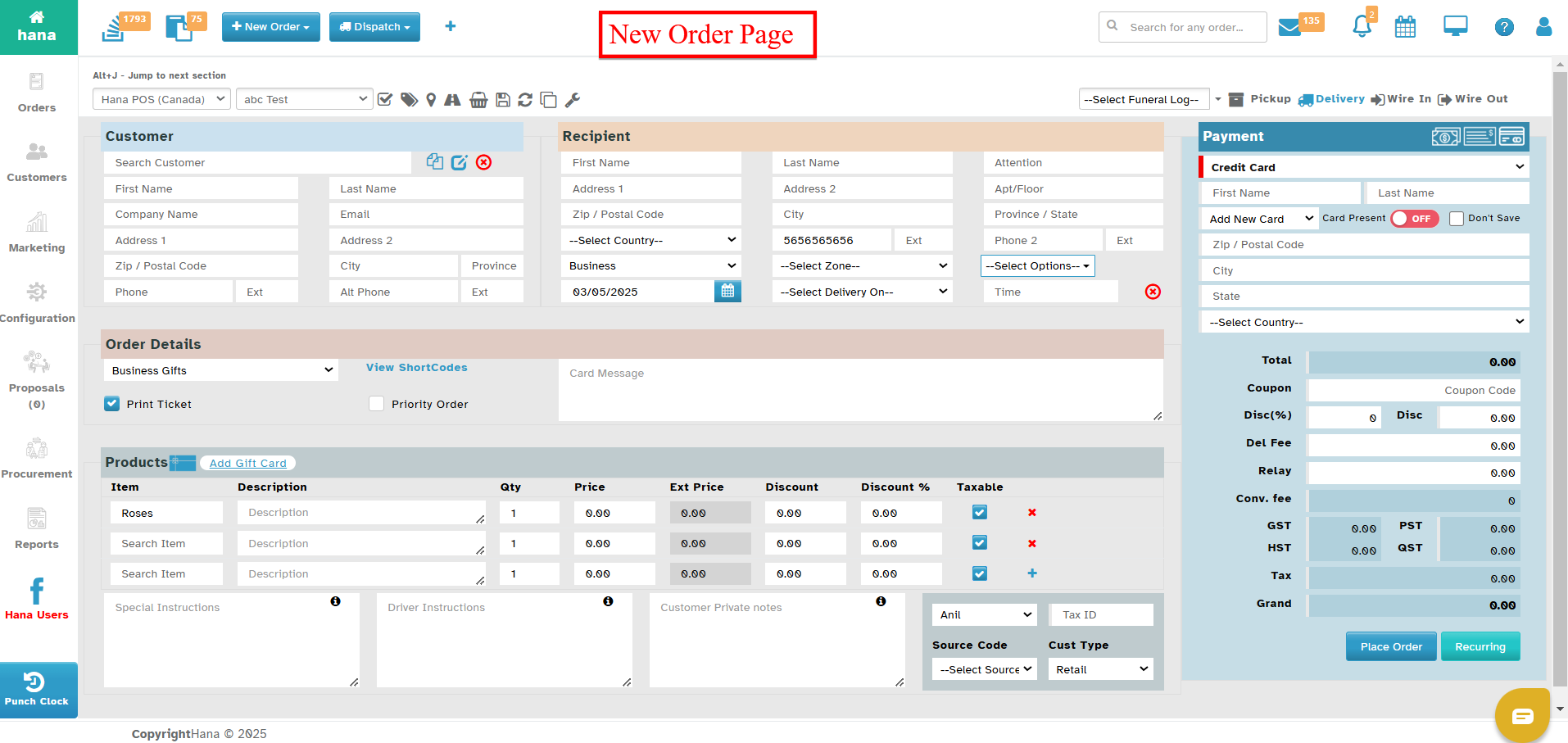
Navigate to the Order Details section.
Step 2: Open the Short Codes Dialog
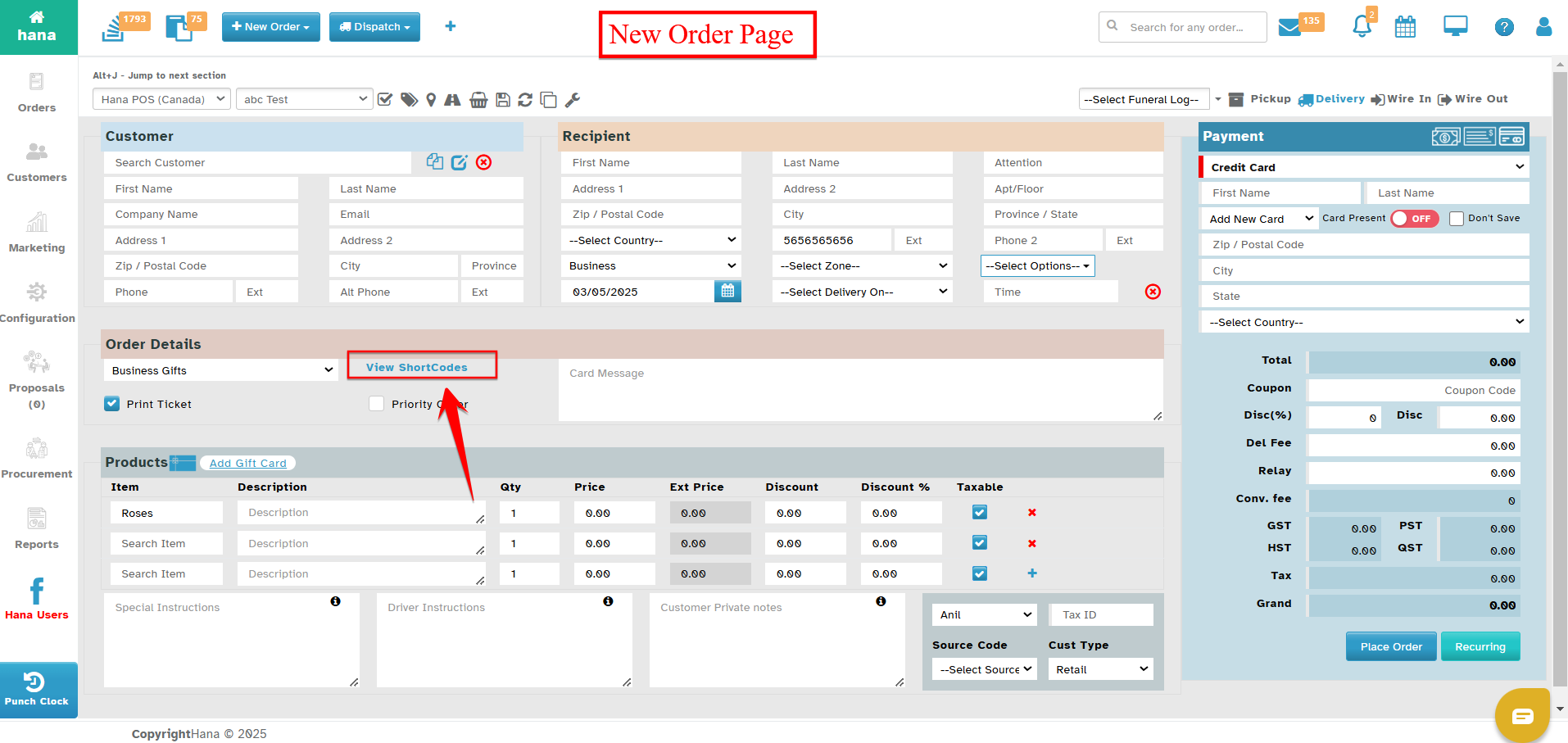
Click View ShortCodes to open the Short Codes dialog.
Step 3: Add a New Short Code
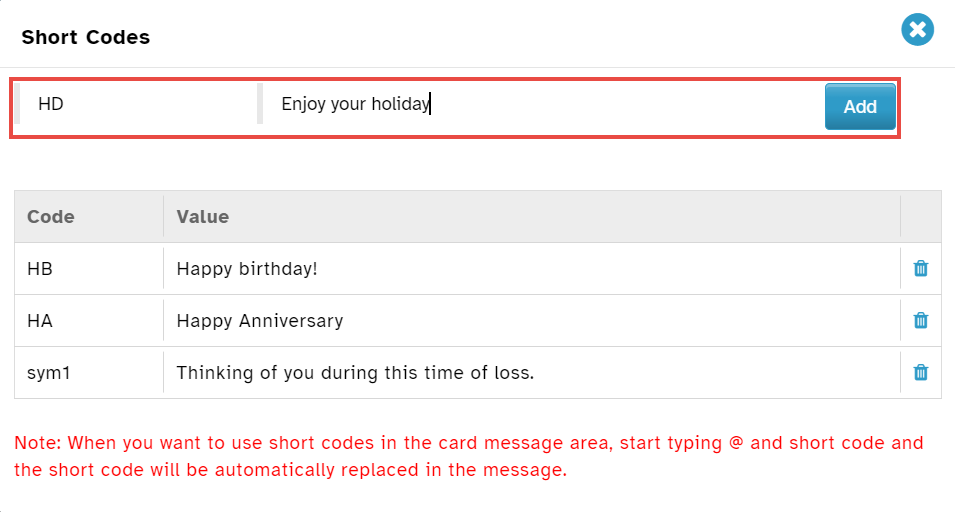
Enter the desired shortcode in the Code field.
Input the corresponding message in the Value field.
Click Add to save the shortcode to your list.
Step 4: Delete an Existing Short Code
To remove a shortcode, click the delete icon next to the specific entry.
Using Short Codes in Card Messages
Note: To use a shortcode in the card message area, type
@followed by the shortcode. The system will automatically replace it with the corresponding message.
Was this article helpful?
That’s Great!
Thank you for your feedback
Sorry! We couldn't be helpful
Thank you for your feedback
Feedback sent
We appreciate your effort and will try to fix the article