Generating customer monthly statements is essential for managing house accounts and accounts receivable.
Payment terms include Net 0, Net 15, Net 30, and Net 60, where the number indicates the days before the invoice is due. For example, Net 15 means the customer has 15 days from the statement generation date to pay before a late fee applies.
Remember that an invoice's due date is set ONLY after you generate statements.
TABLE OF CONTENTS
Steps to Generate Customer Statements
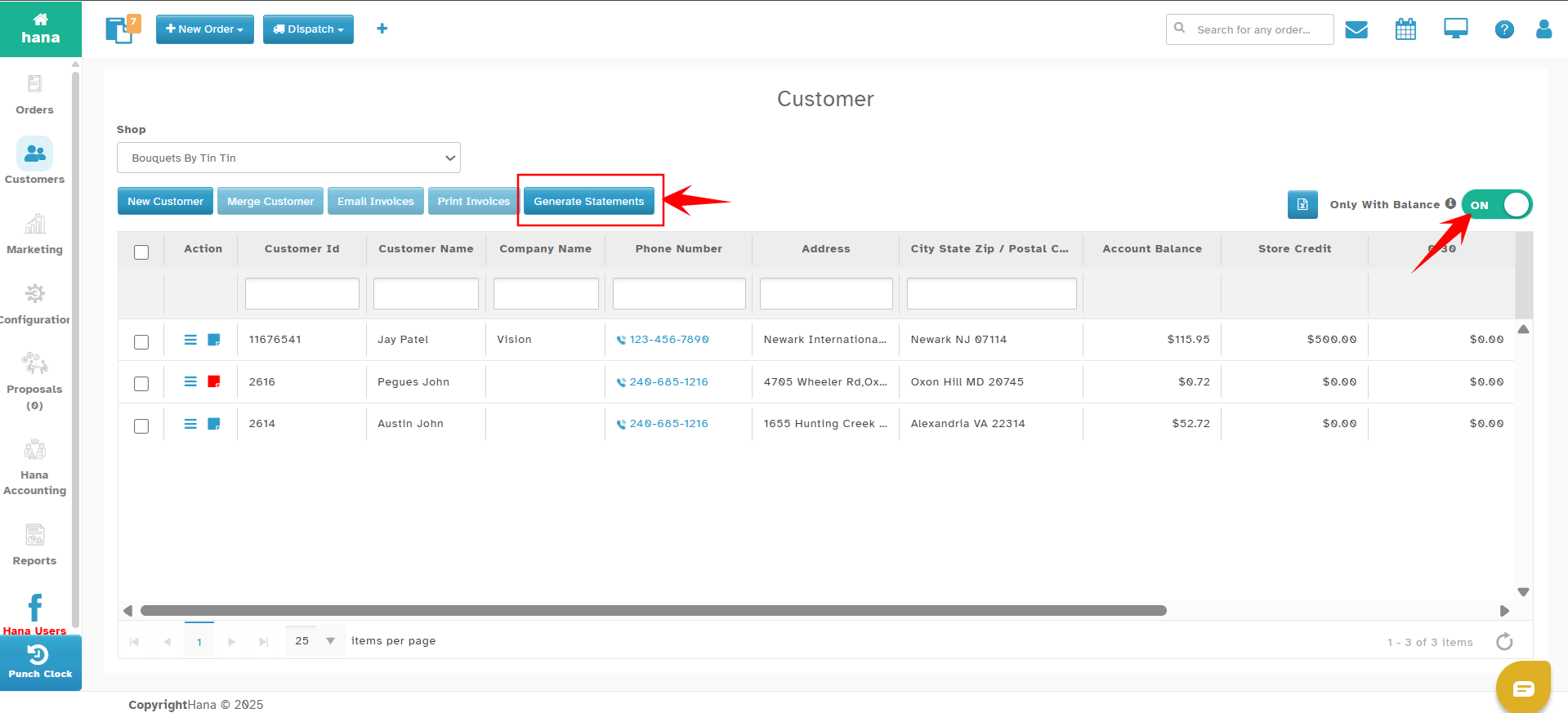
Step 1: Navigate to Customer Page
Go to Hana POS > Select Customers to open the Customers page.
Click on the Generate Statements button as shown below.
Step 2: Configure Statement Options
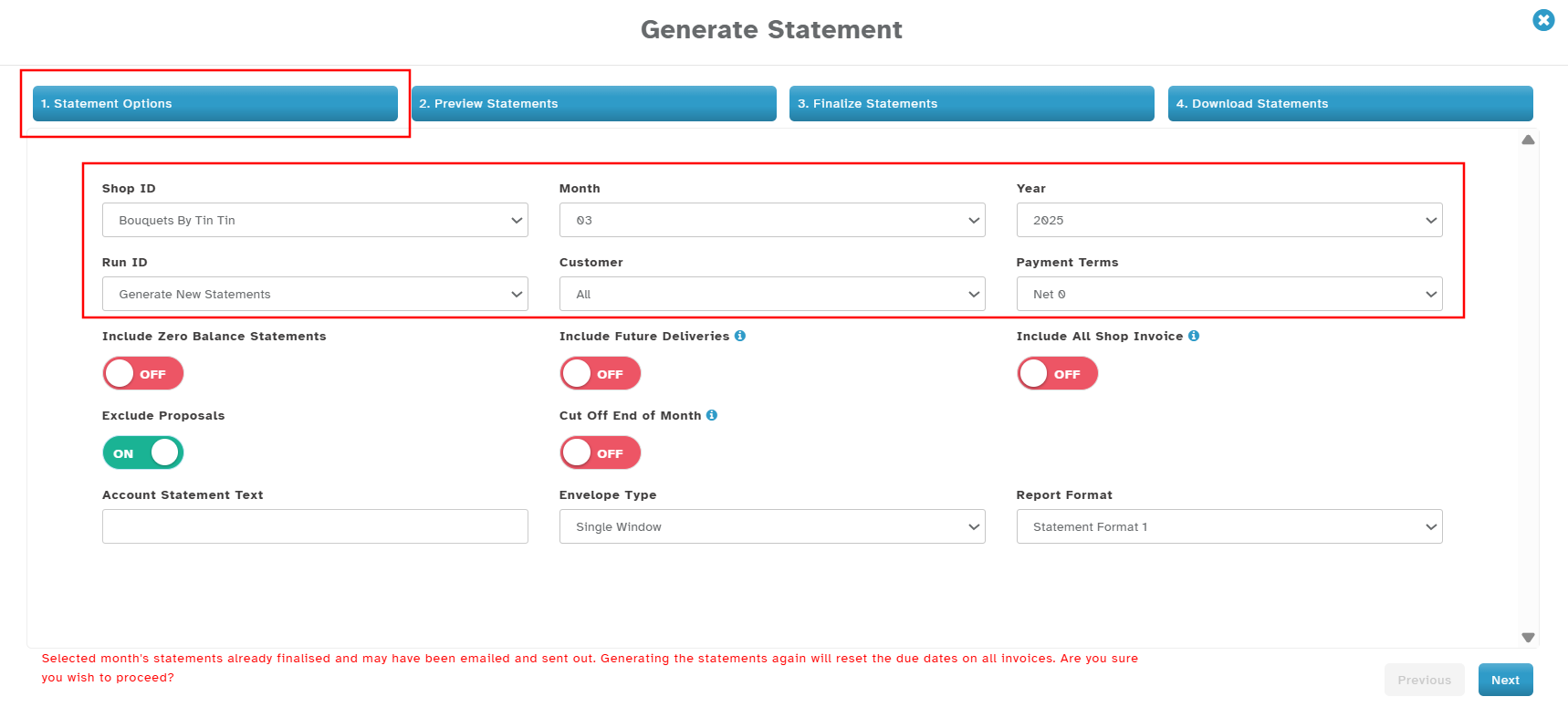
The Generate Statement page will now be displayed. Complete the following fields:
Shop ID: Select your shop from the dropdown.
Month Dropdown: Select the month for which you are generating statements.
Year Dropdown: Select the year for which you are generating statements.
Run ID: By default, it will be auto-generated.
If you generated statements earlier and want to continue and finalize the previous run, you can choose the run ID from the drop-down.
Statement Run IDs help you save your work and continue later. For example, suppose you looked through several customer accounts, adjusted some accounts, and removed a few accounts from the statement generation, but would like to continue later. In that case, you can save, exit, and continue where you left off by choosing the previous Run ID.Customer Dropdown: Select either All Customers or a specific customer.
Payment Terms: Based on your business model, choose Net 0, Net 15, Net 30, etc.
Step 3: Configure Additional Options
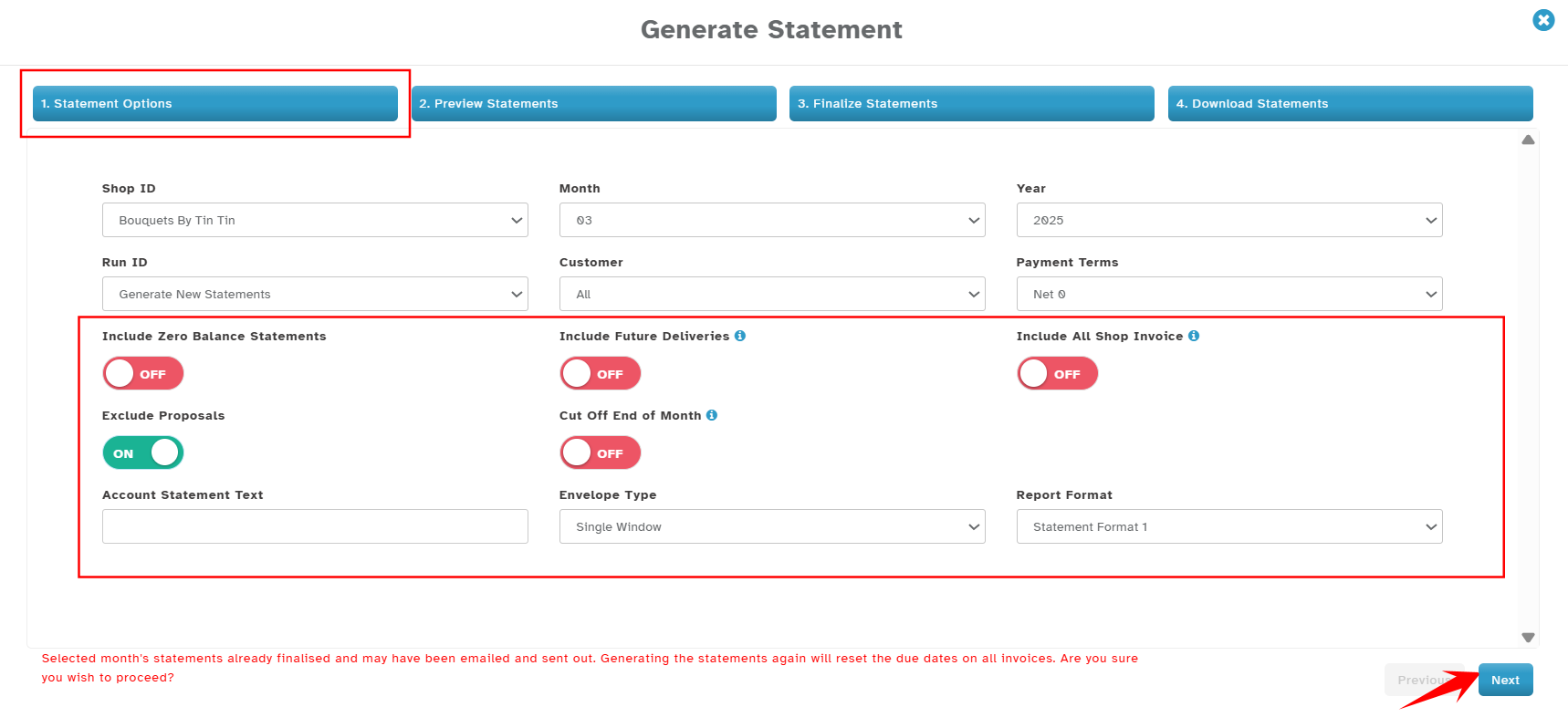
Toggle the following options as needed:
Include Zero Balance Statements: Generate statements even for customers with zero balances.
Include Future Deliveries: Include orders placed within the billing period but not delivered.
Include All Shop Invoices: If enabled, a single statement per customer will be generated, consolidating transactions from all shops. This feature helps multi-shop operations to send a single consolidated statement for each customer.
Please contact Hana Support to enable this feature for your Corporate account before using it. Hana Support also needs to set up your Shops for Consolidated Statements before you use this feature.Exclude Proposals: Exclude wedding and event proposals from statements.
Cut-Off End of Month: Include only deliveries made within the calendar month.
Envelope Type: Select either single window or double window envelope format.
Report Format: Choose the statement format. Hana POS offers several different statement formats. Please review and choose the format that fits your needs.
Account Statement Text: Enter a custom message to be displayed on all the statements (e.g., "Thank you for your business! Payment is due within 15 days.").
Account statement text can also be configured at the shop level so that you need not enter it each month.
Account statement text can be configured for each month following navigation below.
Configuration > Customer Management > Month based Statement Text
Click Next to proceed.
Step 4: Preview Statements
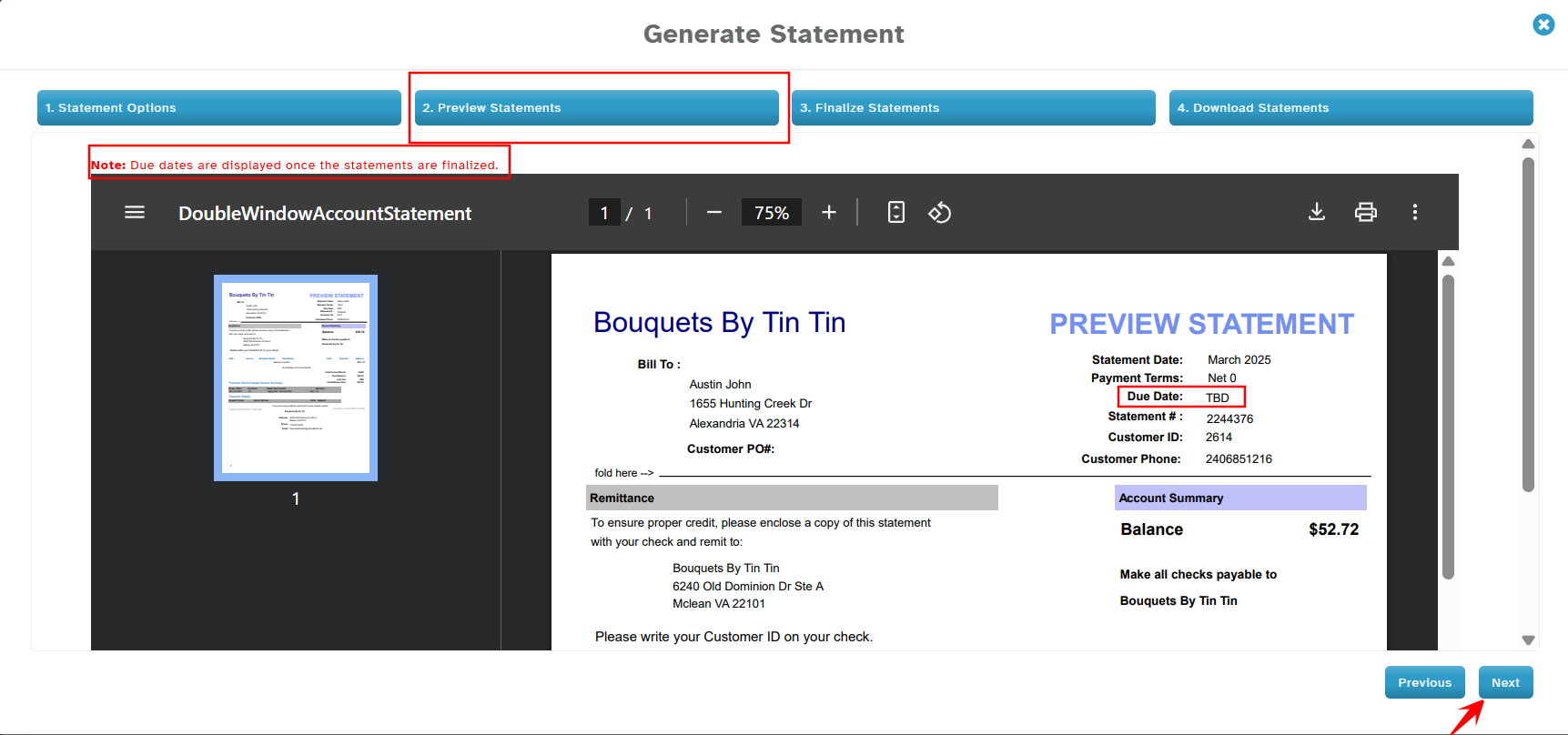
The preview page will display the statements.
Note: Due dates are assigned when you finalize the statements and are not displayed in preview.
Please look over the details and click Next to continue.
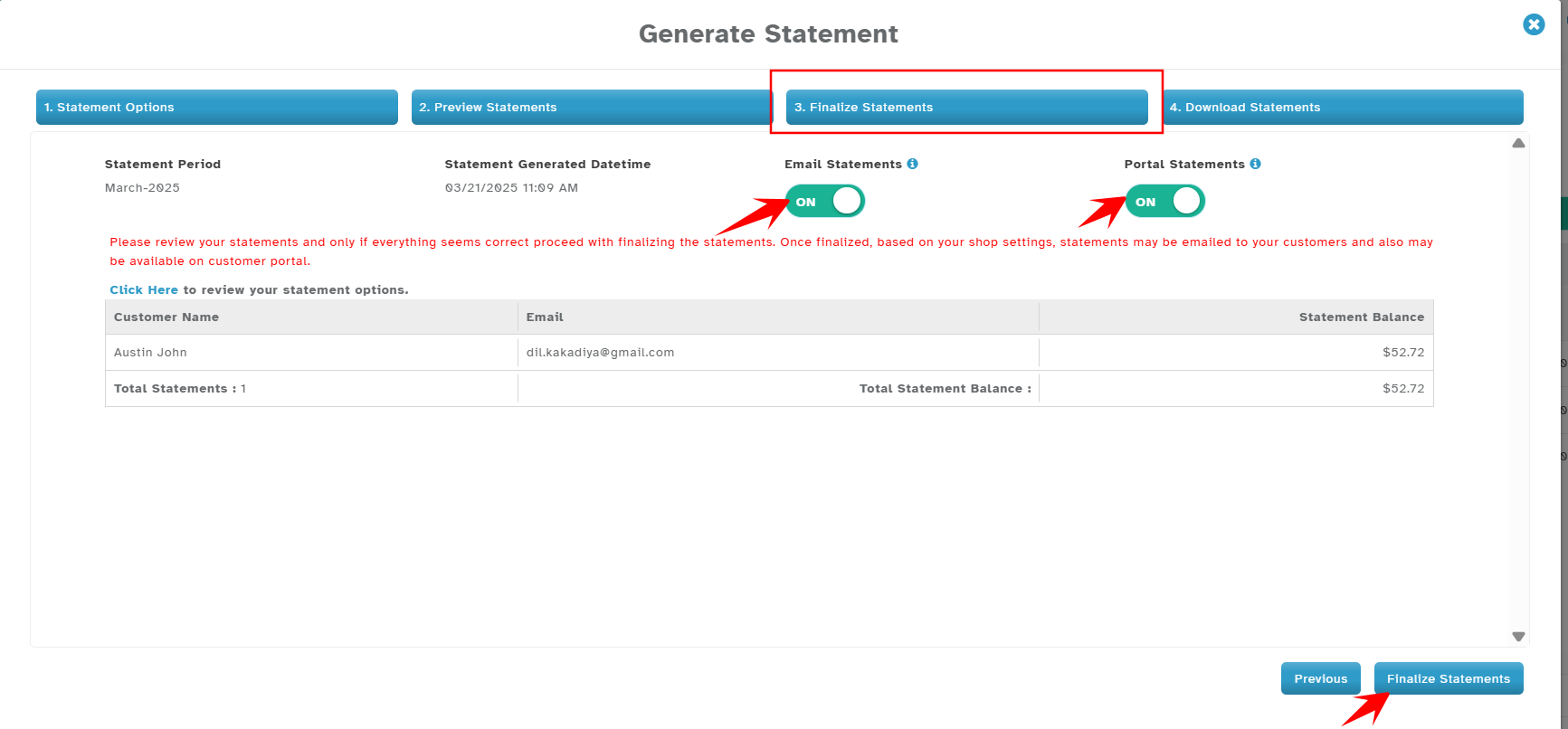
Step 5: Finalize Statements
A final summary of customer statements is displayed.
Statement Delivery Options:
Email Statements: Enable the automatic emailing of statements to customers.
Portal Statements: Enable customers to access their statements via the online portal.
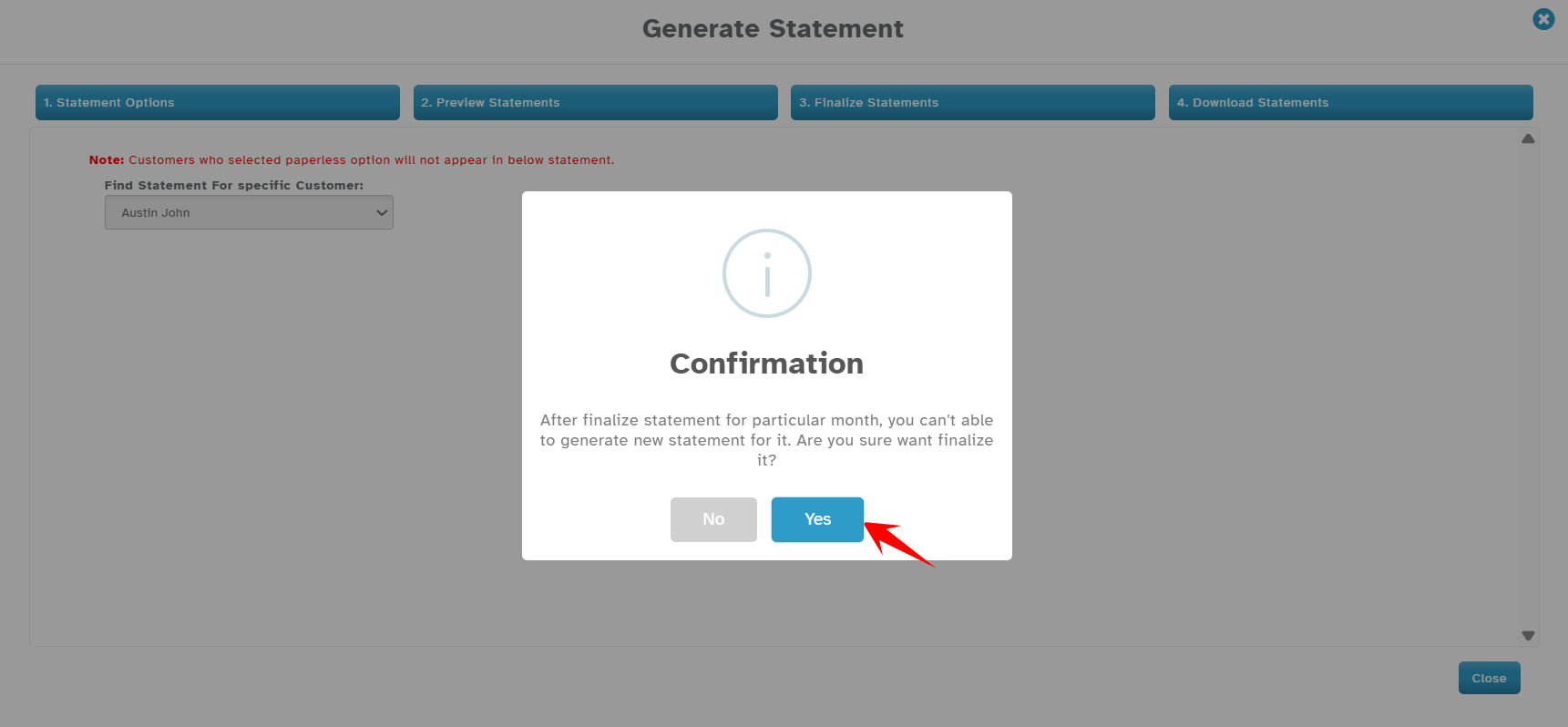
Click Finalize Statements, and follow the on-screen instructions.
Step 6: Download and Print Statements
Once finalized, due dates will be set based on the selected Net terms.
Options available:
Download PDFs of statements.
Print statements.
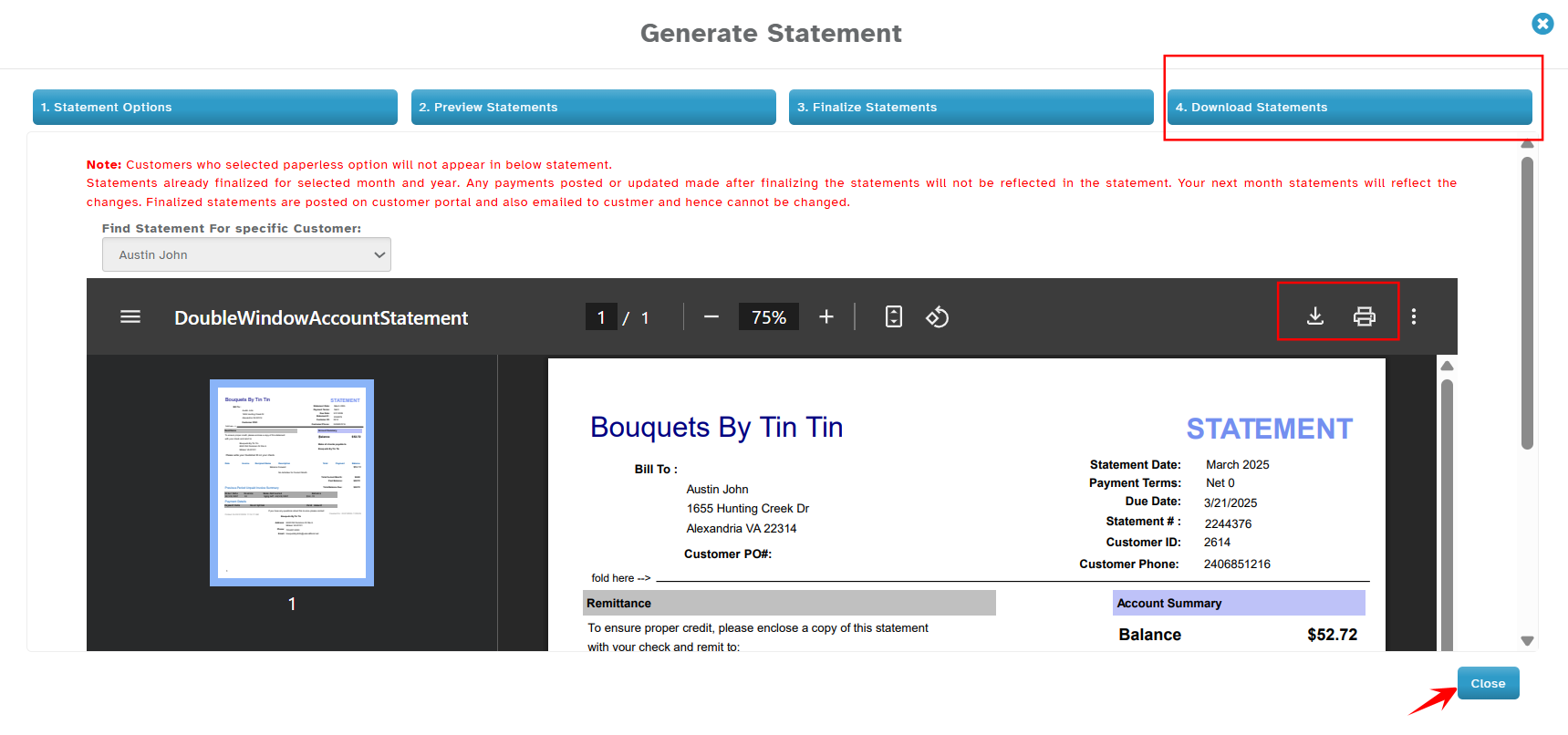
The process is now complete, and customer statements are ready for distribution. Once you have completed the process, click "Close."
FAQs – Generate Customer Statements
Basic “How-To” Questions
Q1. How do I generate customer statements in Hana POS?
Go to Customers > Generate Statements, select the month, year, and customers, configure the options, preview the statements, and click Finalize Statements.
Q2. Where do I go to generate statements?
Navigate to:
Hana POS > Customers > Generate Statements
Q3. What details do I need before generating statements?
You need to select:
- Shop ID
- Month and Year
- Customer (All or specific)
- Payment Terms (Net 0, Net 15, etc.)
Q4. What is the correct order of steps to generate statements?
- Go to Customers page
- Click Generate Statements
- Configure options
- Preview statements
- Finalize statements
- Download or print
Run ID / Regeneration Questions
Q5. Do I need to create a new Run ID every time?
No. A Run ID is created automatically. You can reuse an existing Run ID to continue or regenerate the same statements.
Q6. How do I regenerate the same statements again?
Select the previously generated Run ID from the dropdown and proceed. This will regenerate the same statements without starting over.
Q7. I started generating statements but didn’t finish. What should I do?
Select the same Run ID and continue from where you left off.
Preview & Finalization Questions
Q8. Can I check statements before sending them?
Yes, the Preview page allows you to review all statements before finalizing.
Q9. What happens when I click “Finalize Statements”?
- Due dates are assigned based on payment terms
- Statements are locked in
- You can download, print, or send them
Q10. Can I edit statements after finalizing them?
No. Once finalized, statements cannot be edited. You will need to generate them again if changes are required.
Common Mistakes / Confusions
Q11. I generated statements but nothing happened. What did I miss?
You may not have clicked Finalize Statements. Statements are only completed after finalization.
Q12. Why are my statements not showing all customers?
Check:
- If you selected a specific customer instead of “All Customers”
- Filters applied
- Customers with zero balance (if excluded)
Q13. Why do I need to preview statements?
Preview helps you verify:
- Correct customers
- Correct balances
- Missing or extra invoices
before finalizing.
Q14. Can I generate statements for a past month?
Yes, you can select any previous month and year to generate statements.
Delivery Questions
Q15. How do I send statements to customers?
During finalization, enable:
- Email Statements to send via email
- Portal Statements for online access
Q16. Can I generate statements without sending them?
Yes. Simply finalize without enabling email or portal options, then download or print manually.
Advanced / Practical Usage
Q17. When should I generate statements?
Typically at the end of each month, after all orders and invoices are completed.
Q18. What happens if I generate statements twice for the same month?
You may create duplicate runs unless you reuse the same Run ID. It’s best to reuse the existing Run ID if you want the same data.
Q19. Can I stop in between and complete later?
Yes. Use the Run ID to save your progress and continue later.
General Questions
Q1. What happens if I don’t generate statements?
If statements are not generated, invoices will not have a due date, and payment terms (Net 15, Net 30, etc.) will not be applied. This can delay collections and impact accounts receivable tracking.
Q2. Can I generate statements for only one customer instead of all customers?
Yes, you can select a specific customer from the Customer dropdown instead of choosing “All Customers.”
Q3. Can I regenerate statements for the same month?
Yes. You can either create a new run or select an existing Run ID to continue or finalize a previous statement run.
Q4. What is a Run ID and why should I use it?
A Run ID saves your progress. If you start reviewing or modifying statements but don’t finish, you can return later and continue using the same Run ID.
Payment & Due Date Questions
Q5. When are due dates actually assigned to invoices?
Due dates are only assigned after you finalize statements, not during preview.
Q6. Why don’t I see due dates in the preview?
This is expected. Due dates are calculated and applied only after finalization based on the selected payment terms.
Q7. What happens if I select Net 0?
Net 0 means payment is due immediately upon statement generation.
Q8. Can I change payment terms after generating statements?
No, once statements are finalized, the due dates are set. You would need to regenerate statements if changes are required.
Statement Content & Options
Q9. Why are some orders missing from the statement?
This may happen if:
- The order falls outside the selected billing period
- “Cut-Off End of Month” is enabled
- “Include Future Deliveries” is turned off
Q10. What does “Include Future Deliveries” mean?
It includes orders placed in the selected billing period but scheduled for delivery in the future.
Q11. Should I enable “Include Zero Balance Statements”?
Enable this if you want customers with no outstanding balance to still receive a statement (useful for record-keeping or transparency).
Q12. What does “Exclude Proposals” do?
It removes wedding/event proposals from statements, so only actual invoices are included.
Q13. What is “Include All Shop Invoices”?
This creates a single consolidated statement per customer across multiple shops.
Note: This must be enabled by Hana Support before use.
Multi-Shop / Corporate Questions
Q14. I have multiple shops. Can I send one combined statement to customers?
Yes, by enabling Include All Shop Invoices, but this requires setup by Hana Support.
Q15. Why don’t I see the consolidated statement option?
Your account may not be configured for it. Please contact Hana Support to enable it.
Customization Questions
Q16. Can I customize the message shown on statements?
Yes, you can enter custom text in Account Statement Text or configure it permanently under:
Configuration > Customer Management > Month based Statement Text
Q17. Do I need to enter the message every month?
No, if you configure it at the shop level, it will automatically apply.
Q18. Can I choose different statement formats?
Yes, Hana POS provides multiple report formats. You can select one that best fits your business needs.
Email & Delivery Questions
Q19. Can statements be emailed automatically to customers?
Yes, enable Email Statements during finalization.
Q20. What is “Portal Statements”?
This allows customers to log in and view their statements online through the customer portal.
Q21. What if a customer didn’t receive their statement email?
Check:
- Customer email address is correct
- Email option was enabled during finalization
- Spam/junk folder
You can also download and resend the statement manually.
Printing & Downloading
Q22. Can I download statements as PDFs?
Yes, after finalization, you can download statements in PDF format.
Q23. What envelope type should I choose?
Choose based on your physical mailing setup:
- Single window
- Double window
Troubleshooting / Common Issues
Q24: Can I reuse a previous Run ID instead of creating a new statement run?
Yes. Once a statement is generated, a Run ID is automatically created. If you want to generate the same statements again without creating a new run, you can simply select the existing Run ID from the dropdown.
This allows you to regenerate the same set of statements that were created earlier, without starting the process from scratch.
Q25. I finalized statements by mistake. What should I do?
You may need to regenerate statements with a new Run ID after correcting any issues.
Q26. Why are some customers not appearing in the statement list?
Possible reasons:
- No transactions in the selected period
- Filters applied (specific customer selection)
- Zero balance and “Include Zero Balance” is disabled
Was this article helpful?
That’s Great!
Thank you for your feedback
Sorry! We couldn't be helpful
Thank you for your feedback
Feedback sent
We appreciate your effort and will try to fix the article