Adding a customer is an essential step in managing orders efficiently. There are two ways to add a new customer:
Through the Order Entry Page – Ideal for quick customer addition during order processing.
Through the Customers Module – Provides more comprehensive customer details and settings.
This guide outlines both methods in detail to ensure smooth customer management.
TABLE OF CONTENTS
Adding a Customer from the Order Entry Page
On the Order Entry Page, you can either search for an existing customer or add a new one if they are not in the database.
Step 1: Access the Order Entry Page
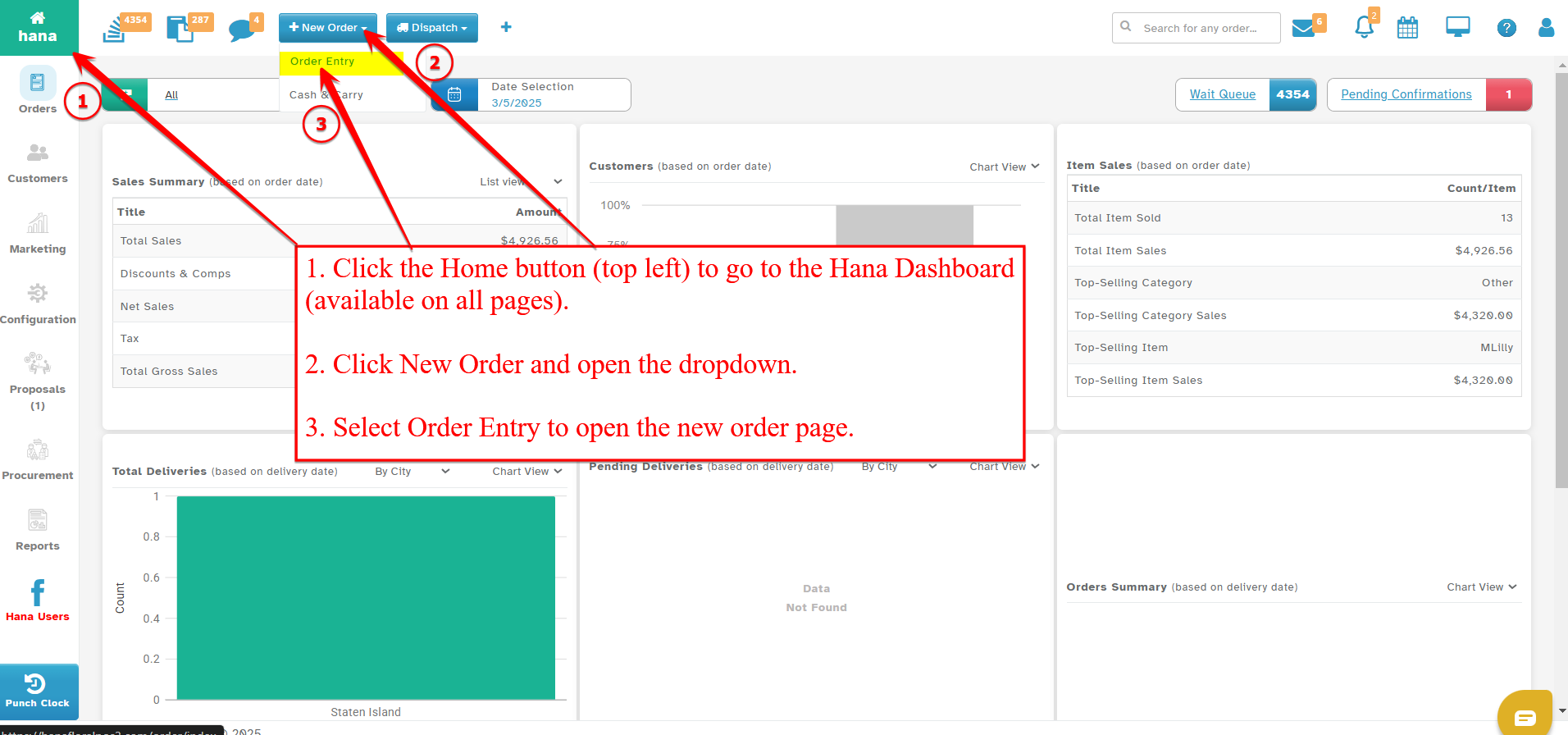
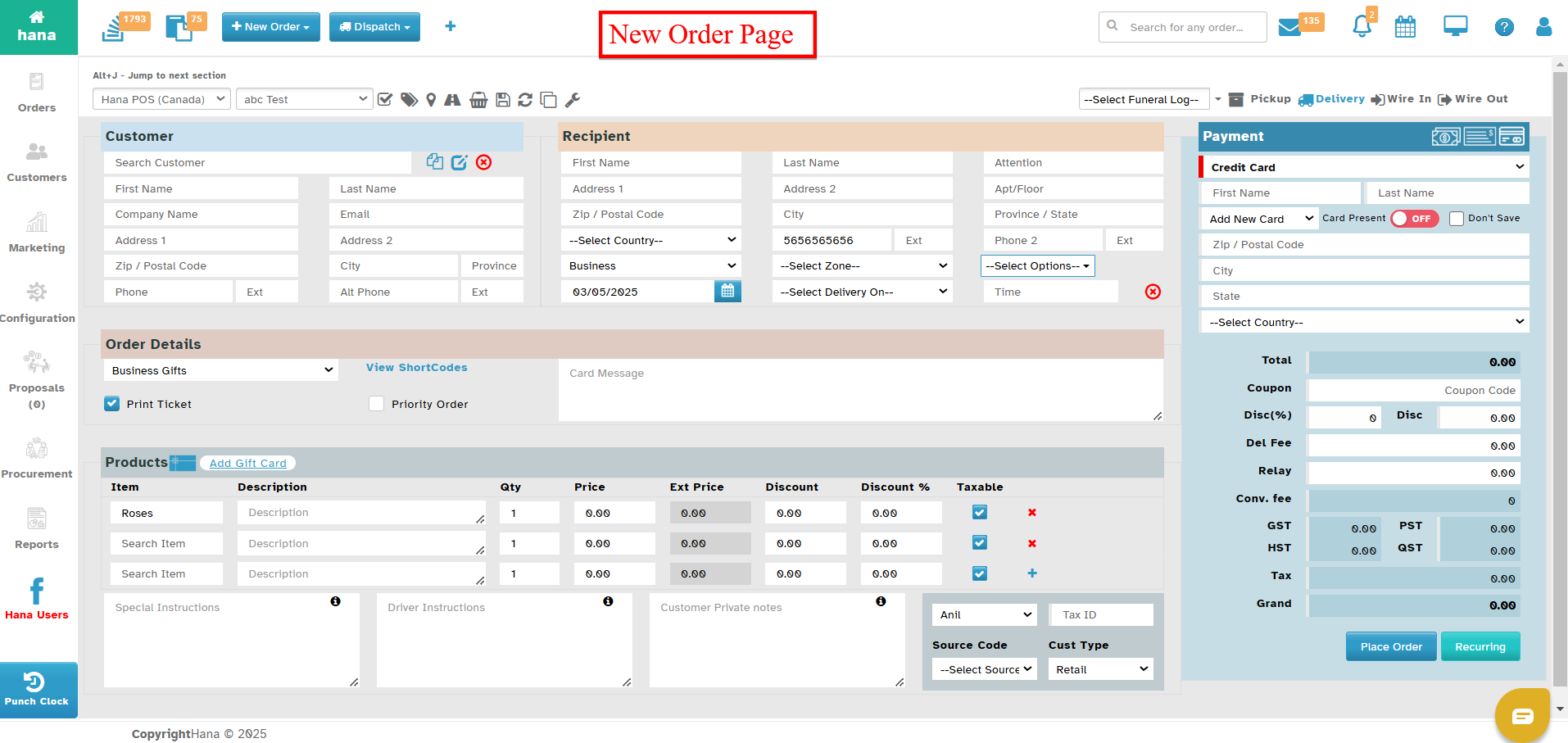
On the Dashboard, click New Order and select Order Entry from the dropdown list.
Step 2: Search for an Existing Customer
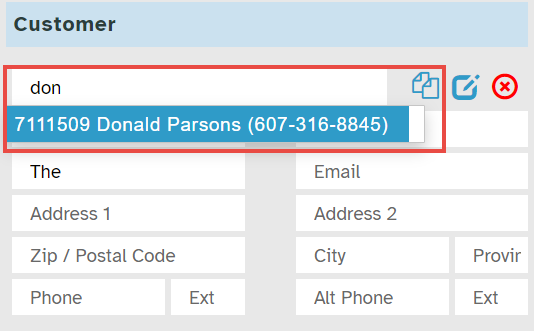
In the Search Customer field, enter the first few letters of the customer's name.
A list of matching customers will appear. Select the correct customer from the list.
Step 3: Add a New Customer
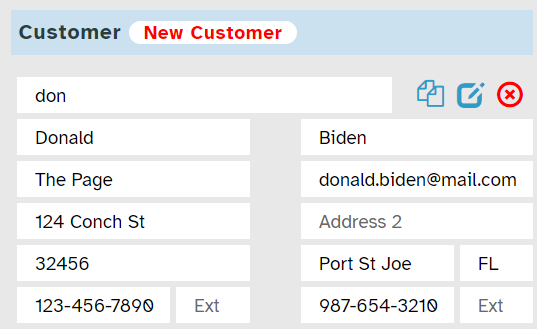
If the customer is not in the database, enter their details:
First Name (Mandatory)
Last Name (Mandatory)
Email (Mandatory)
Company Name (Optional)
Address (Optional)
Phone Number (Mandatory)
Note: A New Customer tag will appear to indicate a fresh entry.
Tip: The system is integrated with Google Maps, allowing for easy address selection by typing the first few letters.
Once the customer information is added, it is automatically saved for future use.
Adding a Customer from the Customers Page
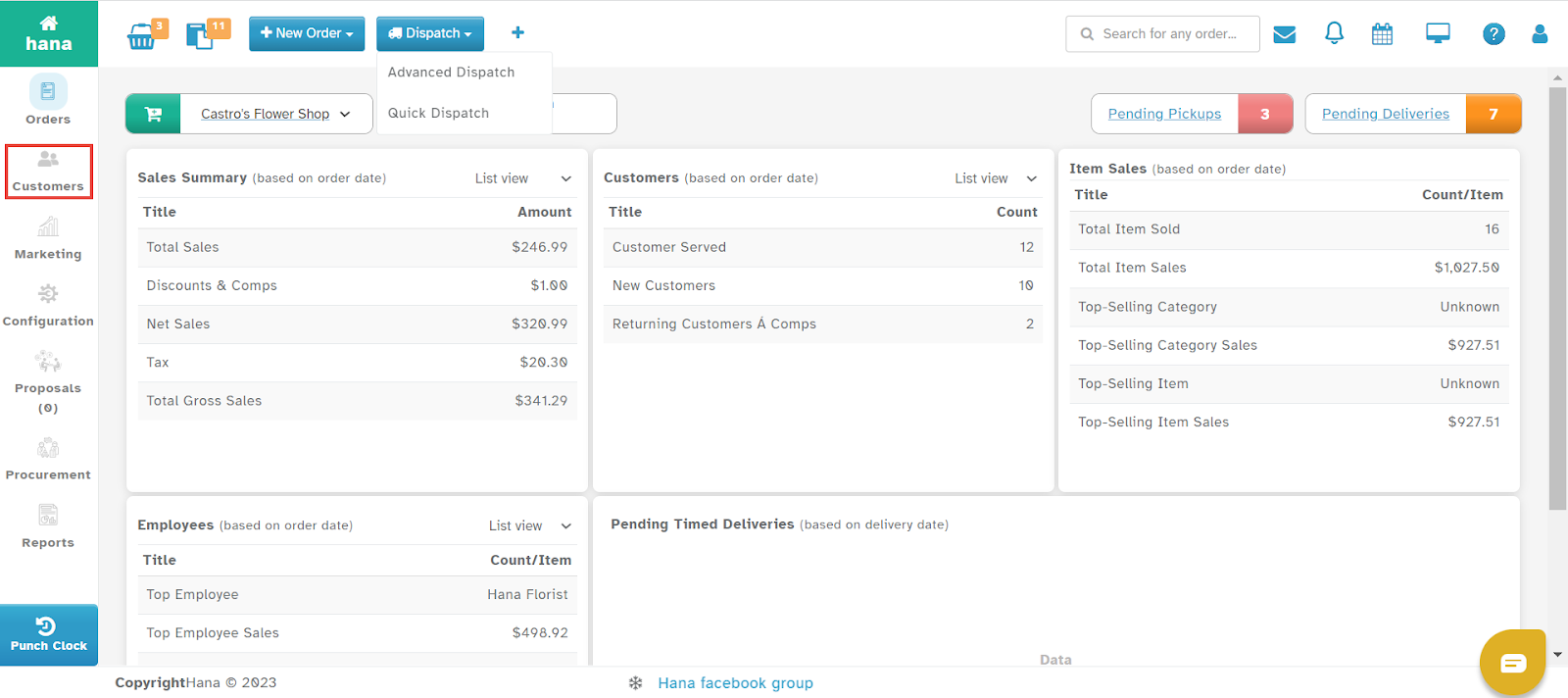
Step 1: Access the Customers Page
Navigate to Dashboard > Customers.
The Customer Page will be displayed.
Step 2: Add a New Customer
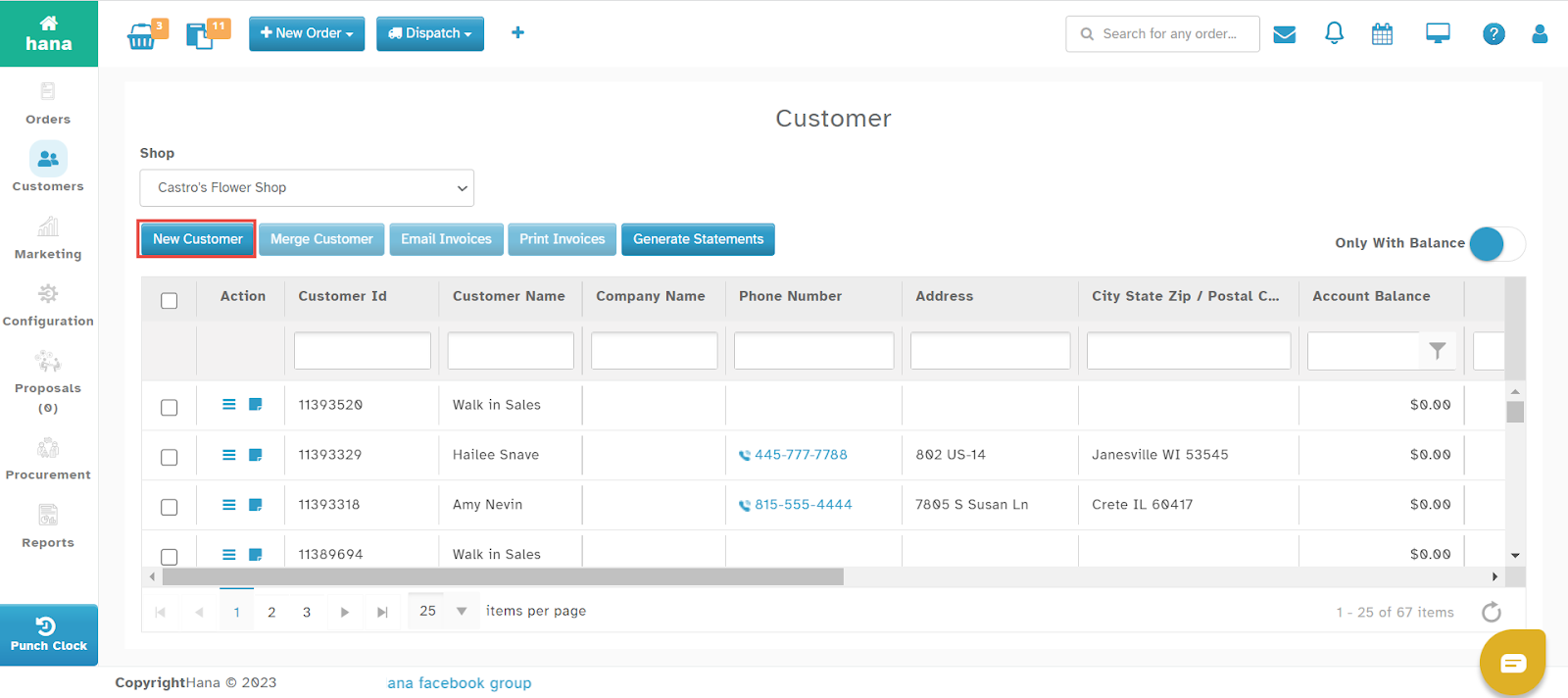
Click New Customer.
The Add New Customer Page will be displayed.
Step 3: Enter Customer Information
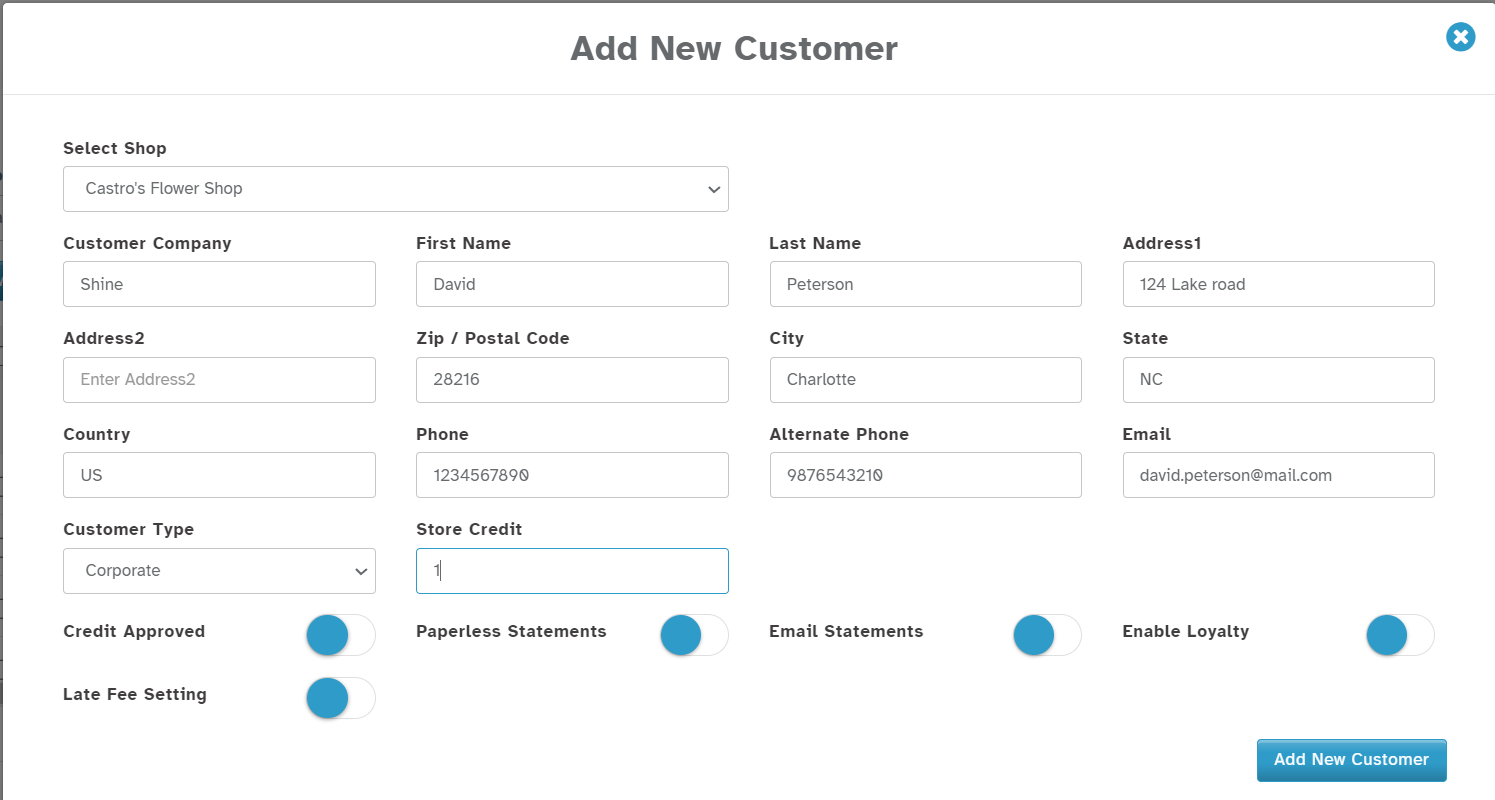
Select the Shop Name from the dropdown list.
Enter the Company Name (if applicable) in the Customer Company field.
Provide the following details:
First Name (Mandatory)
Last Name (Mandatory)
Address (Optional)
Phone Number (Mandatory)
Email Address (Mandatory)
Step 4: Configure Additional Customer Settings
Select the Customer Type from the dropdown list.
Enter the Store Credit value (if applicable).
Configure the following customer preferences by enabling the respective options:
Credit Approved – Enable if the customer qualifies for credit approval.
Paperless Statements – Enable if the customer prefers digital transactions.
Email Statements – Enable if the customer requires emailed statements.
Enable Loyalty – Enable if the customer is part of a loyalty program.
Late Fee Setting – Enable if late fees should be applied to this customer.
Final Step: Save the Customer
Click Add New Customer to save the information.
The customer is now successfully added and can be selected while creating orders.
FAQs – Searching for / Adding a Customer
Basic Questions
Q1. How do I search for a customer in Hana POS?
Go to the Search Customer field in Order Entry and type the first few letters of the customer’s name. Select the correct customer from the list.
Q2. How do I add a new customer?
You can add a customer:
- From Order Entry page (quick method)
- From Customers module (detailed setup)
Q3. Where should I add a customer from?
- Use Order Entry → for quick order processing
- Use Customers page → for detailed setup and preferences
Order Entry Customer FAQs (Most Common)
Q4. What is the fastest way to add a customer?
Add directly from the Order Entry page while creating an order.
Q5. What fields are mandatory when adding a customer?
- First Name
- Last Name
- Phone Number
Q6. Do I need to manually save the customer?
No. Customers added from Order Entry are automatically saved.
Q7. What does the “New Customer” tag mean?
It indicates the customer is being added for the first time and is not in the database.
Q8. Why is the system not finding my customer?
- Name spelling may be different
- Customer may not exist
- Try searching using fewer letters
Duplicate & Data Accuracy FAQs
Q9. How do I avoid creating duplicate customers?
Always search before adding a new customer using:
- Name
- Phone number
Q10. What happens if I create a duplicate customer?
It can lead to:
- Duplicate records
- Confusion in order history
- Incorrect reporting
Q11. Can I edit a customer after adding them?
Yes, you can edit customer details from the Customers page.
Address & Contact FAQs
Q12. How does address auto-fill work?
Hana integrates with Google Maps. Start typing the address and select from suggestions.
Q13. Why should I use the suggested address?
It ensures:
- Accurate delivery
- Proper routing in dispatch
- Fewer delivery errors
Q14. Can I add a customer without an address?
Yes, address is optional, but recommended for delivery orders.
Customers Page (Advanced Setup) FAQs
Q15. When should I add a customer from the Customers module?
When you need to:
- Set credit limits
- Configure preferences
- Manage corporate customers
Q16. What is Customer Type used for?
It categorizes customers (Retail, Corporate, Florist, etc.) for reporting and pricing.
Q17. What is Store Credit?
It allows customers to use preloaded credit for purchases.
Customer Settings FAQs
Q18. What does “Credit Approved” mean?
It allows the customer to place orders without immediate payment (on account).
Q19. What is “Paperless Statements”?
Customer will not receive printed statements—only digital ones.
Q20. What does “Email Statements” do?
Statements will be sent via email automatically.
Q21. What is “Enable Loyalty”?
Enrolls the customer in your loyalty/rewards program.
Q22. What is “Late Fee Setting”?
Applies late fees if the customer does not pay within the due period.
Common Issues (Very Important Section)
Q23. I added a customer but can’t find them later. Why?
- Data not entered correctly
- Searching with different spelling
- Duplicate created under another variation
Q24. Why is email mandatory?
Email is required for:
- Order confirmations
- Statements
- Communication
Q25. Why is phone number mandatory?
It is essential for:
- Delivery coordination
- Customer contact
Best Practices (Support Ticket Reducer)
Q26. What should I always check before adding a new customer?
- Search existing records
- Verify phone number
- Confirm email spelling
Q27. What is the best way to maintain clean customer data?
- Avoid duplicates
- Use proper naming format
- Always verify details
Q28. Should I use Order Entry or Customers page more often?
- Use Order Entry for daily operations
- Use Customers page for setup and management
FAQs – Merging Customers in Hana POS
Basic Questions
Q1. What does merging customers mean in Hana POS?
Merging customers combines duplicate customer records into a single profile, ensuring all order history and details are stored under one account.
Q2. Why should I merge customers?
To:
- Remove duplicate records
- Maintain clean customer data
- Ensure accurate order history and reporting
Q3. When should I merge customers?
When you notice:
- Same customer created multiple times
- Slight variations in name, email, or phone
- Duplicate accounts causing confusion
How-To Questions
Q4. How do I merge two customers?
Go to the Customers page, search for the duplicate records, select the merge option, choose the primary customer, and complete the merge process.
Q5. How do I choose which customer to keep?
Select the record that has:
- Correct contact details
- More complete information
- Most order history
Q6. What happens to the other customer after merging?
The duplicate record is removed, and all its data is transferred to the selected primary customer.
Data & Impact FAQs
Q7. Will I lose order history when merging customers?
No. All order history is combined into the final (primary) customer record.
Q8. What happens to store credit or balances?
All balances, credits, and transactions are merged into the final customer.
Q9. What happens to saved addresses?
Addresses from both records may be retained under the merged customer.
Common Mistakes / Warnings
Q10. Can I undo a customer merge?
No. Merging customers is permanent and cannot be undone.
Q11. What happens if I merge the wrong customers?
You may lose separation between records. You will need manual correction by support if possible.
Q12. Should I double-check before merging?
Yes, always verify:
- Name
- Phone number
- Order history
Duplicate Prevention FAQs
Q13. How can I avoid duplicate customers?
Always search using:
- Name
- Phone number
before creating a new customer.
Q14. Why do duplicate customers get created?
- Staff not searching before adding
- Different spelling variations
- Missing phone/email during entry
Best Practices
Q15. What is the best way to manage duplicates?
- Regularly review customer list
- Merge duplicates promptly
- Train staff to search before adding
Q16. Which record should I keep as primary?
Choose the one with:
- Most accurate details
- Active usage
- Maximum order history
Was this article helpful?
That’s Great!
Thank you for your feedback
Sorry! We couldn't be helpful
Thank you for your feedback
Feedback sent
We appreciate your effort and will try to fix the article