If your flower shop is located in Canada, it’s essential to configure your sales tax settings in Hana POS correctly.
Canadian sales tax rates vary by province. Some locations charge a Harmonized Sales Tax (HST), while others use separate Goods and Services Tax (GST) and Provincial Sales Tax (PST).
This guide provides step-by-step instructions on how to set up and update the correct tax rate in Hana POS.
Understanding Canada’s Sales Tax System
Before setting up your tax rates in Hana POS, it’s essential to understand the three different types of sales tax in Canada:
- HST (Harmonized Sales Tax) – A single combined tax rate used in certain provinces.
- GST (Goods and Services Tax) – A federal tax applied to most goods and services.
PST (Provincial Sales Tax) – A separate tax some provinces apply in addition to GST.
Hana POS will automatically apply HST if your shop is in an HST-eligible province.
However, if your province uses GST and PST separately, you must manually enter the correct rates.
Step 1: Enable Canada Tax Settings in Hana POS
To ensure Hana POS applies Canadian sales tax correctly, follow these steps:
Log in to Hana POS
Open your web browser and navigate to https://hanafloralpos3.com/
Enter your login credentials if required.
Go to Tax Settings
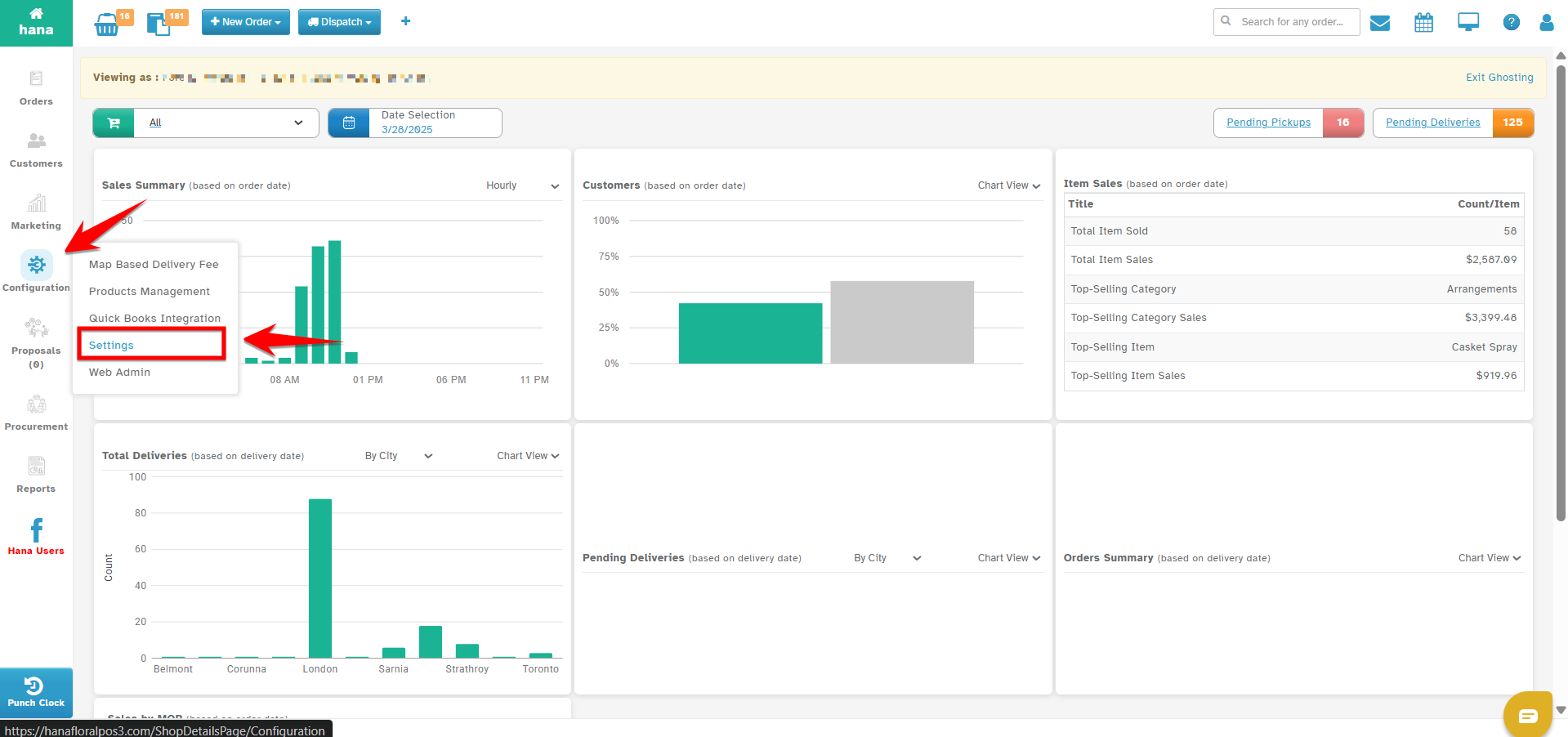
Click on Configuration and navigate to Settings in the left-hand menu.
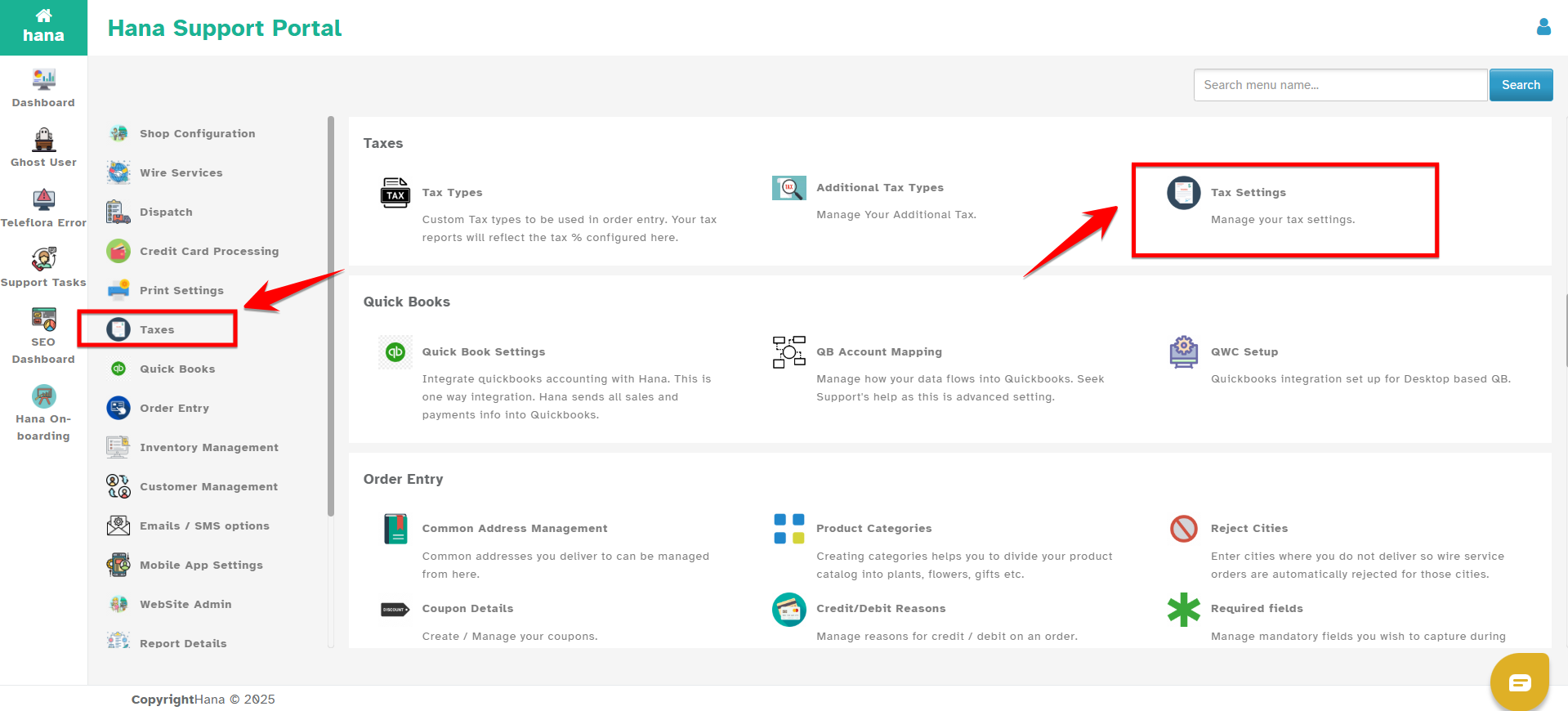
Navigate > Taxes.
Select Tax Settings.
Enable Canadian Tax Calculation
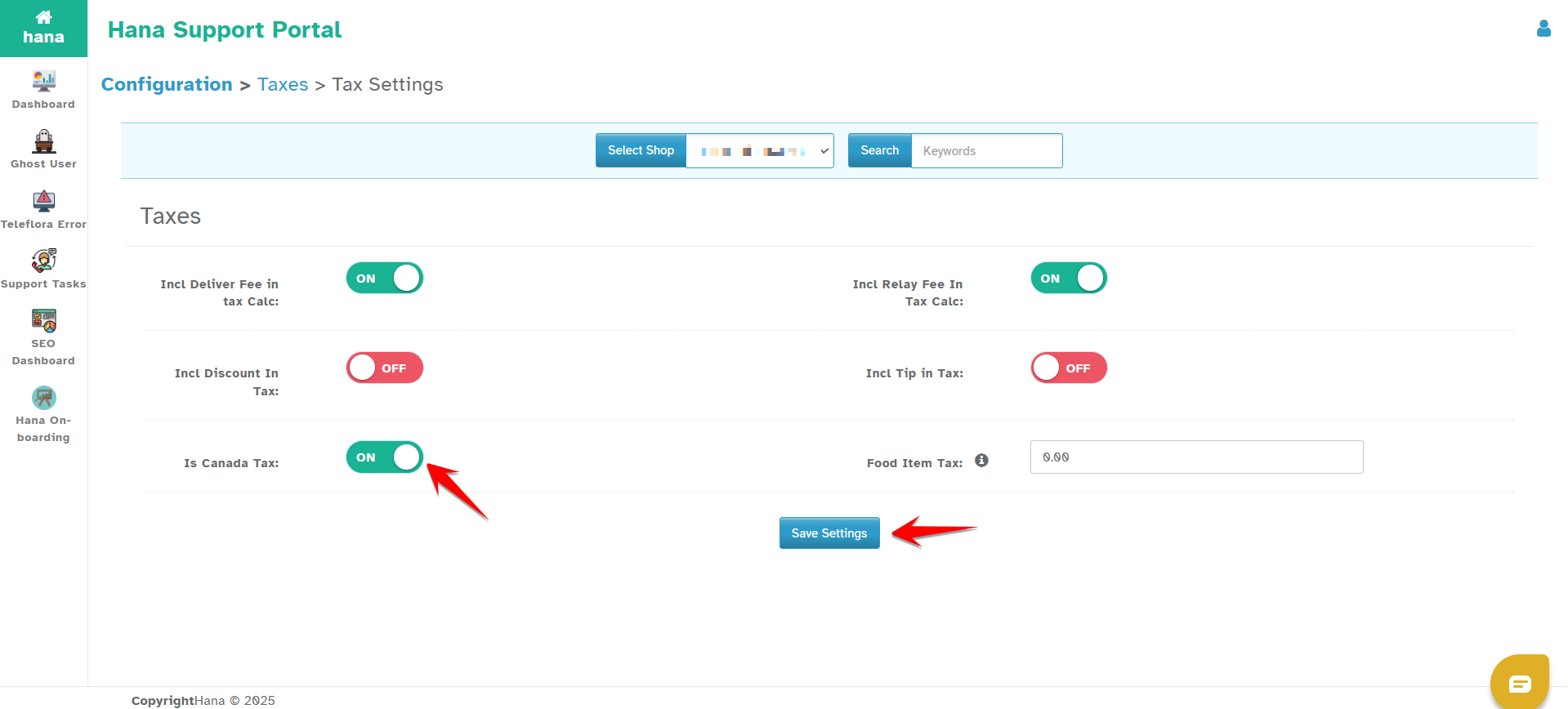
Locate the “Is Canada Tax” toggle.
Turn the toggle ON to enable Canadian tax settings.
Click Save Settings to apply changes.
If your province charges HST, Hana POS will automatically calculate and apply the correct tax rate.
Step 2: Configure GST and PST (For Non-HST Provinces)
If your shop is located in a province that uses GST and PST separately, you need to manually enter the tax rates.
1. Navigate to Delivery Settings
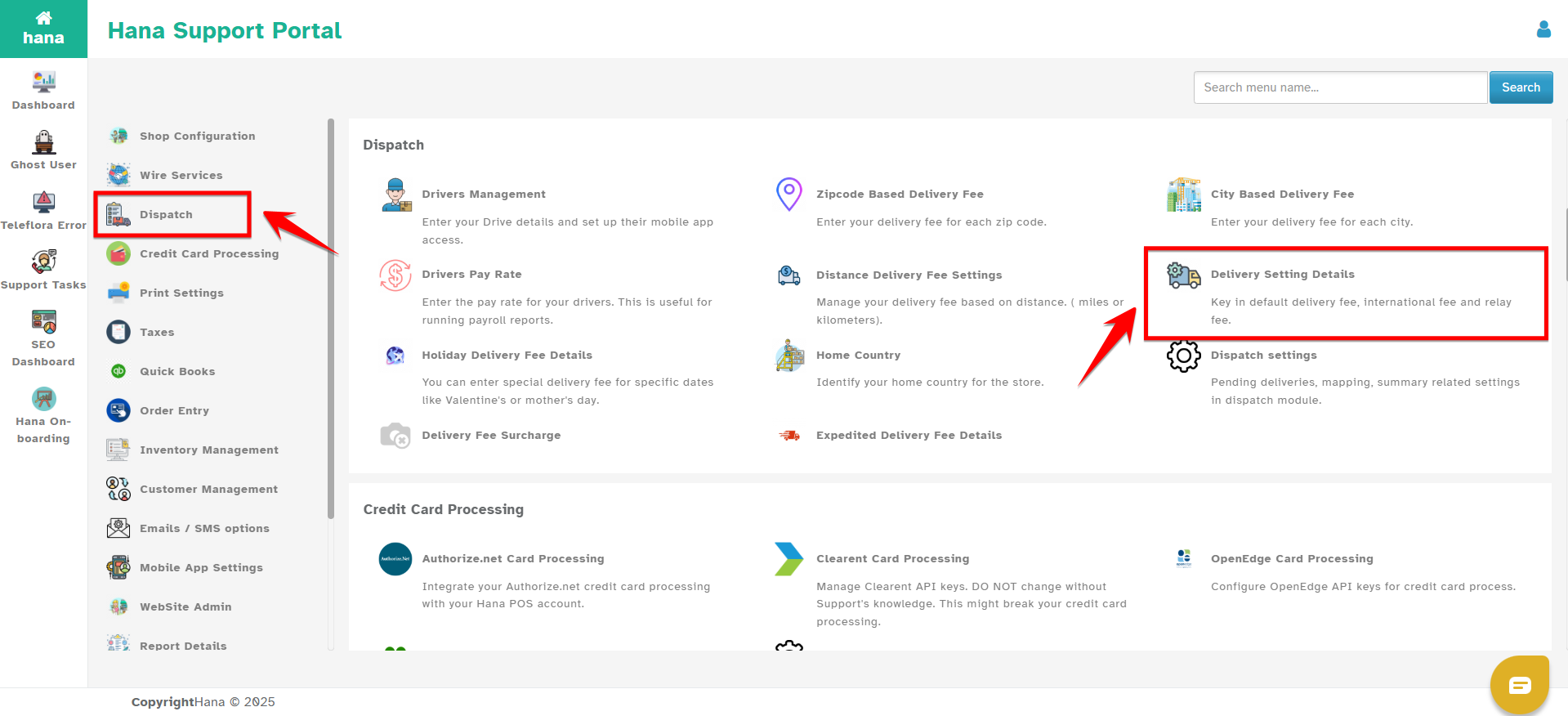
Click on Configuration > Settings.
Select Dispatch.
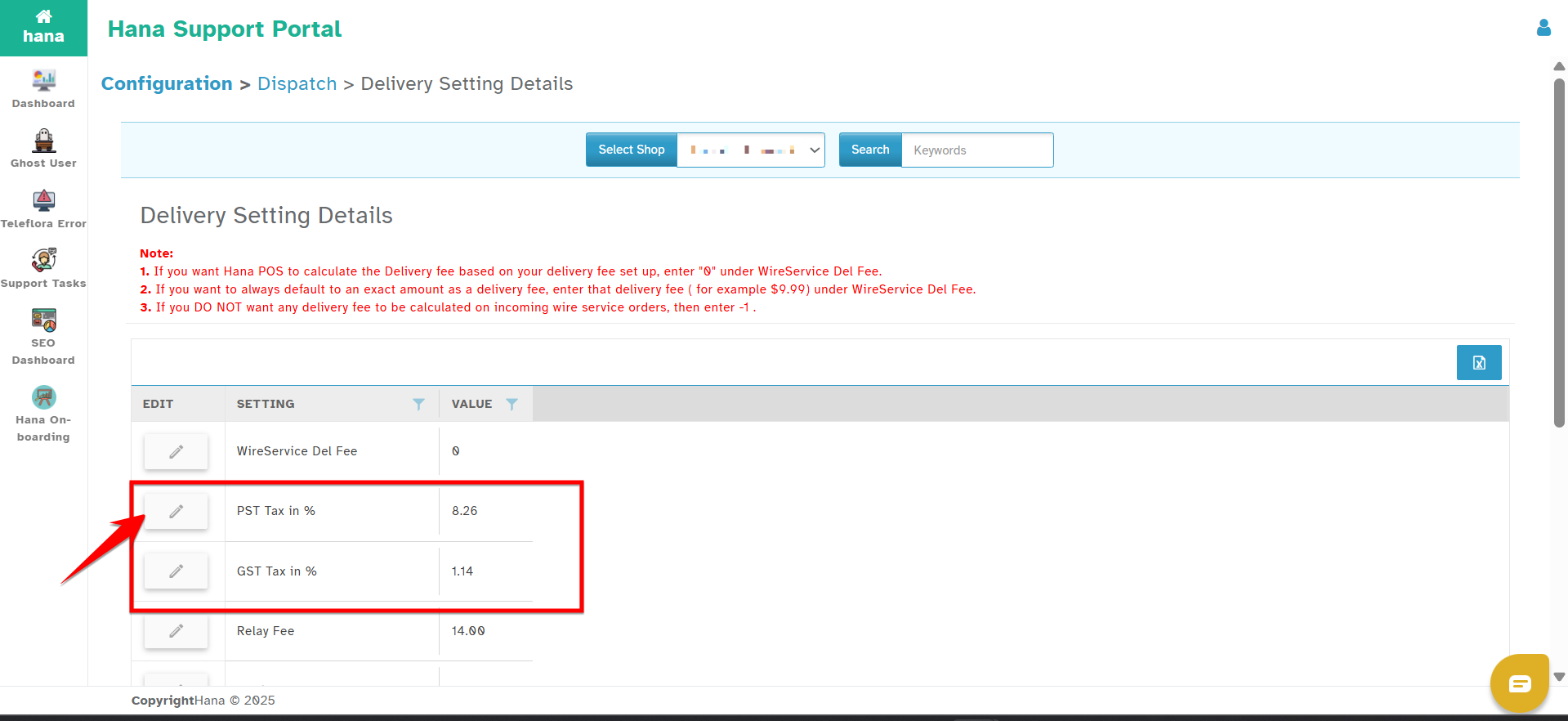
Click on Delivery Setting Details.
2. Update the GST and PST Tax Rates
Locate the fields labeled GST Tax in % and PST Tax in %.
Click Edit to modify the values.
Enter the appropriate tax percentage as a whole number (e.g., enter 5 for 5%).
3. Save Changes
Click Save Settings to confirm the updates.
Your tax settings are now configured according to your province’s tax structure.

Step 3: Verify Tax Settings on Orders
After updating your tax settings, it's a good practice to verify that the correct tax rates are applied to orders.
Go to Orders
Click on Orders from the main menu.
Select any recent or test order.
Check the Tax Breakdown
Look at the order summary to ensure the correct tax (HST or GST/PST) is applied.
If the tax calculation is incorrect, go back to Tax Settings and ensure the correct percentages are entered.
Frequently Asked Questions (FAQs)
1. How do I know if my province uses HST or GST/PST?
HST applies to Ontario, Nova Scotia, New Brunswick, Prince Edward Island, and Newfoundland & Labrador.
All other provinces use GST and PST separately or only GST.
2. What happens if I enter the wrong tax rate?
Your invoices may show the wrong tax amounts if an incorrect tax rate is entered. To fix this, go back to Tax Settings and update the percentage.
3. Do I need to update tax settings every year?
Tax rates in Canada may change occasionally. You should check your province’s tax rates annually and update them in Hana POS if needed.
By properly configuring your Canada Tax Settings in Hana POS, you ensure that customers are charged the correct tax rate, and your sales records remain compliant with tax regulations.
If you need any more help, please contact Hana POS Support.
Was this article helpful?
That’s Great!
Thank you for your feedback
Sorry! We couldn't be helpful
Thank you for your feedback
Feedback sent
We appreciate your effort and will try to fix the article