Setting up the correct sales tax rate in your Hana POS account ensures that the proper taxes are applied to customer orders. Follow this step-by-step guide to add or update the sales tax rate for your POS account.
Steps to Manage the Sales Tax Rate
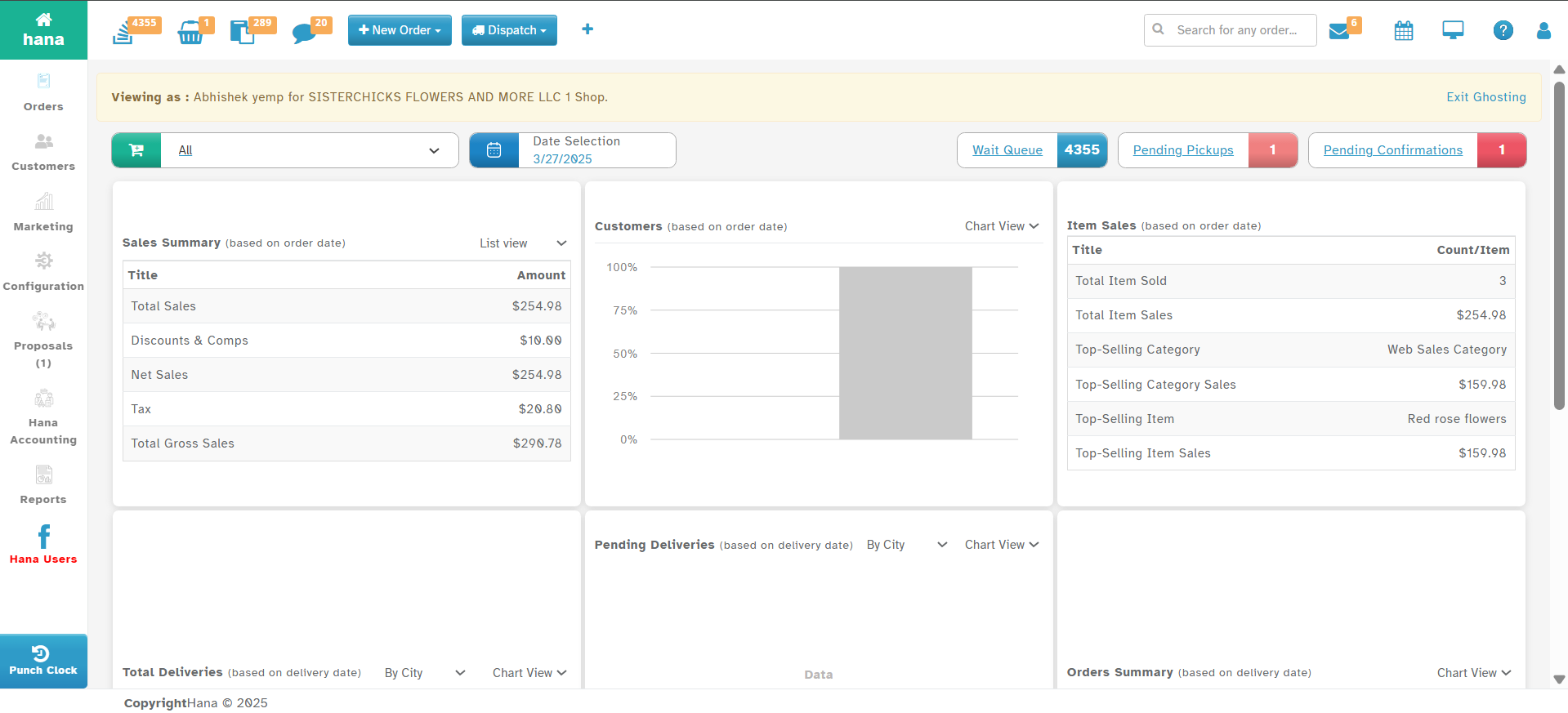
Log in to Hana POS
Navigate to https://hanafloralpos3.com and log in with your credentials.
Access Settings
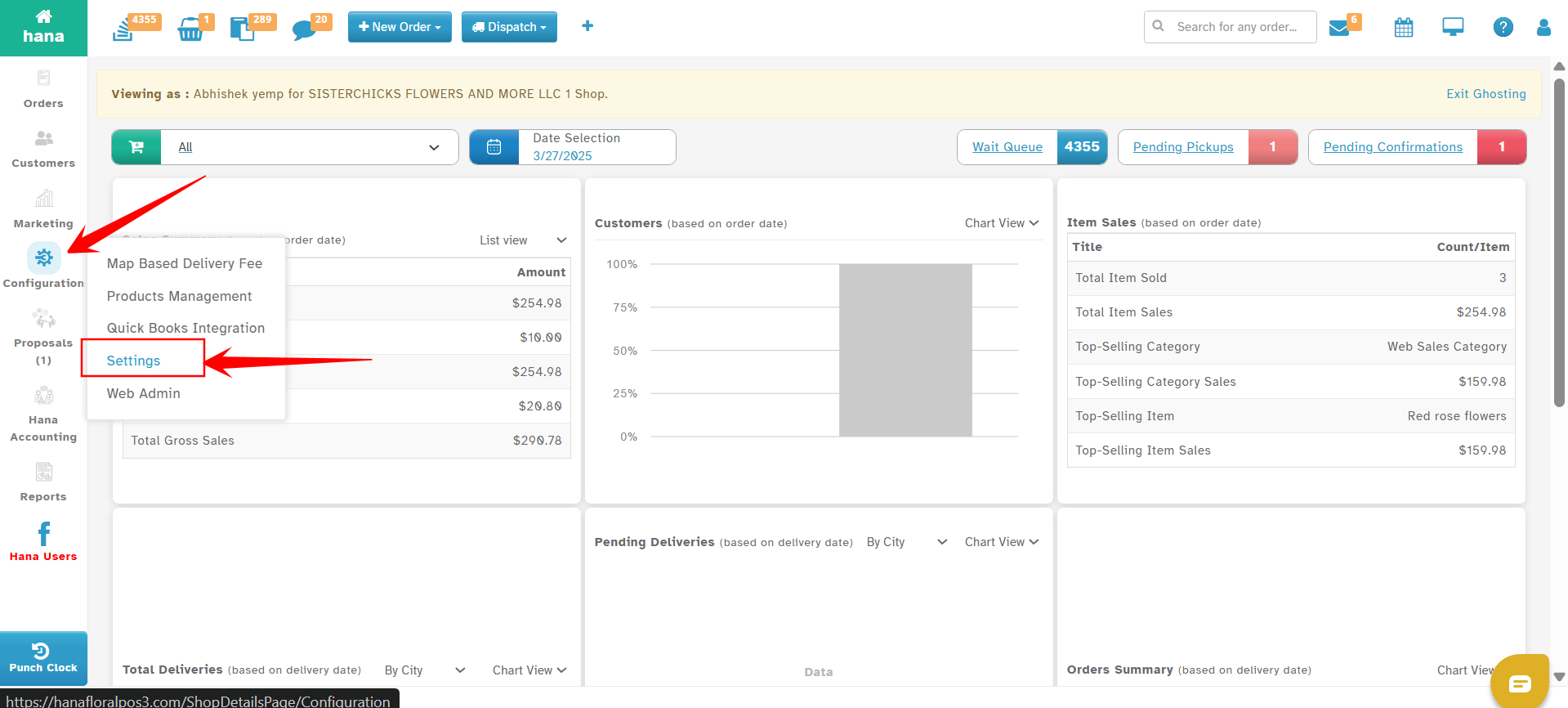
Click on Configuration from the left navigation bar.
Select Settings from the dropdown menu.
Go to Dispatch Settings
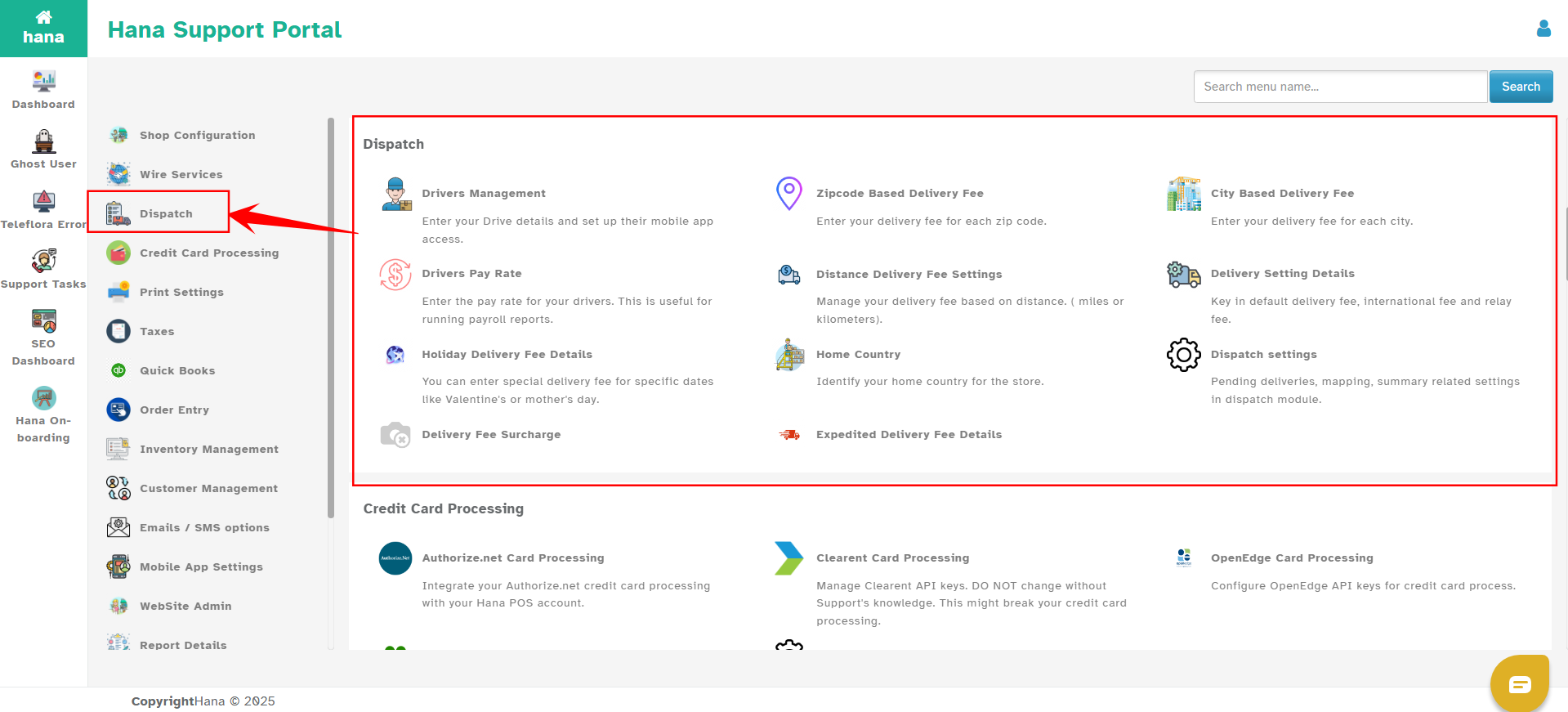
Click on Dispatch to access delivery-related settings.
Open Delivery Setting Details
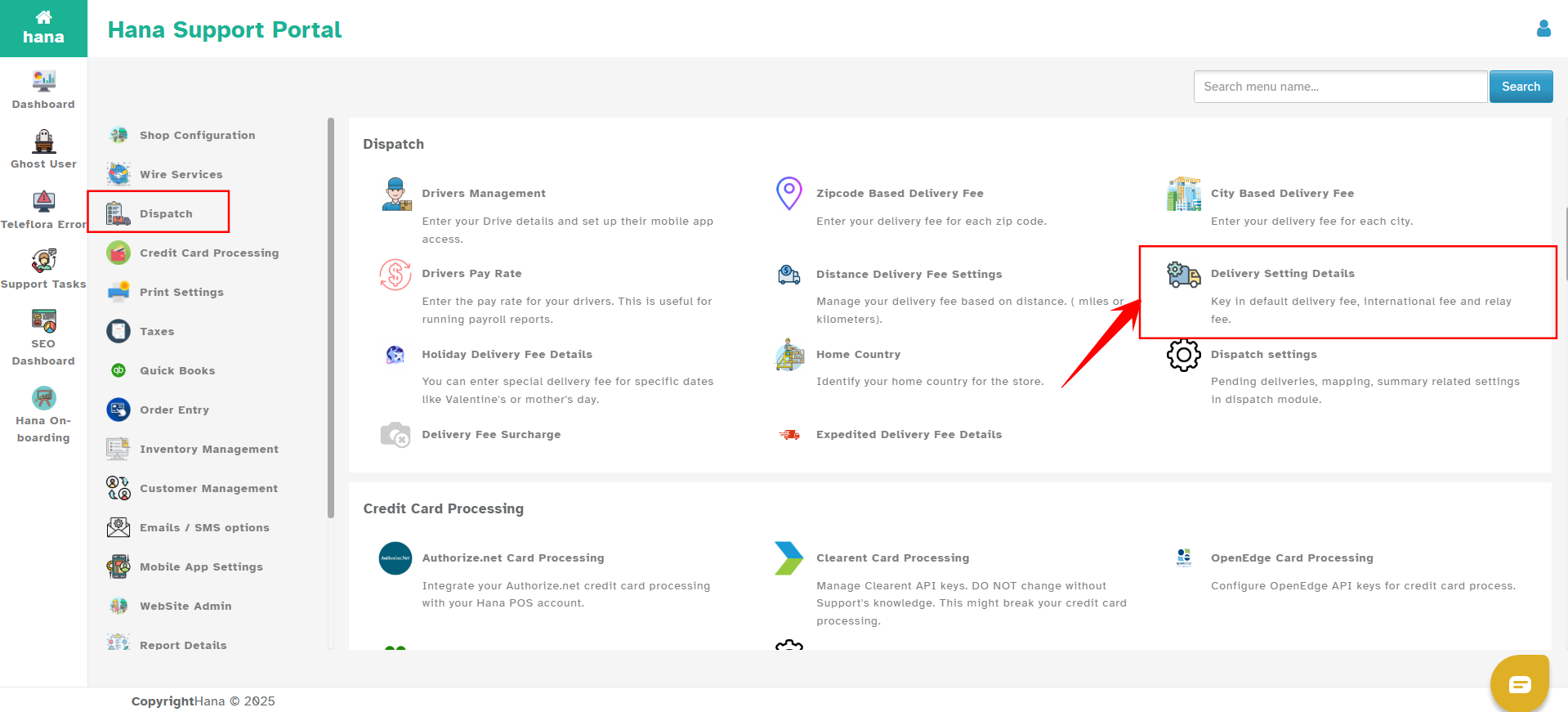
Locate and click on Delivery Setting Details to configure tax-related settings.
Enter the Sales Tax Rate and save it
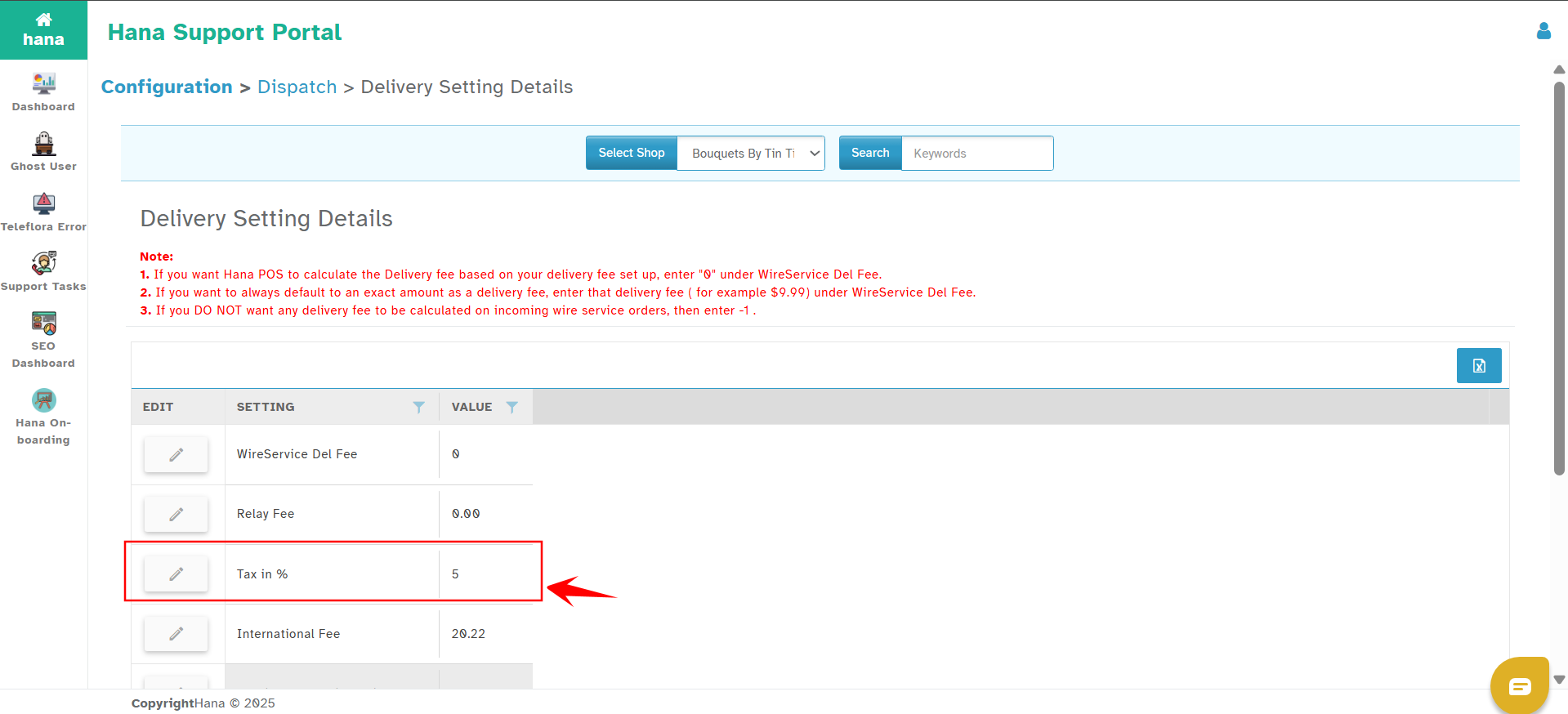
In the Tax in % field, click the edit icon to input your state's sales tax rate. This will open the Sales Tax % window. Enter the sales tax as a whole number.
Example: If your tax rate is 11.5%, enter 11.5 (Do not include the percentage sign or decimal conversion like 0.115).
Click Submit

Update or Edit the Sales Tax Rate
To change the tax rate, click the Edit button and enter the correct rate.
Save the changes to apply the new rate to future transactions.
Additional Notes
Could you make sure the tax rate entered meets your local tax regulations?
If you happen to have any problems, please contact Hana Support for help.
By following these steps, you can efficiently manage the sales tax rate in your Hana POS system, ensuring accurate tax calculations for every order.
Was this article helpful?
That’s Great!
Thank you for your feedback
Sorry! We couldn't be helpful
Thank you for your feedback
Feedback sent
We appreciate your effort and will try to fix the article