Hana's dispatch system allows a maximum of 24 orders per trip. To dispatch more than 24 orders in a single trip, Hana provides integration with Routific, an advanced route optimization tool. This integration helps dispatch a large number of orders efficiently while optimizing routes for multiple drivers.
This guide outlines the step-by-step process to use Routific for dispatching orders through Hana Advanced Dispatch.
Steps to Dispatch Orders Using Routific
Step 1: Navigate to Advanced Dispatch
Open the Hana Dashboard.
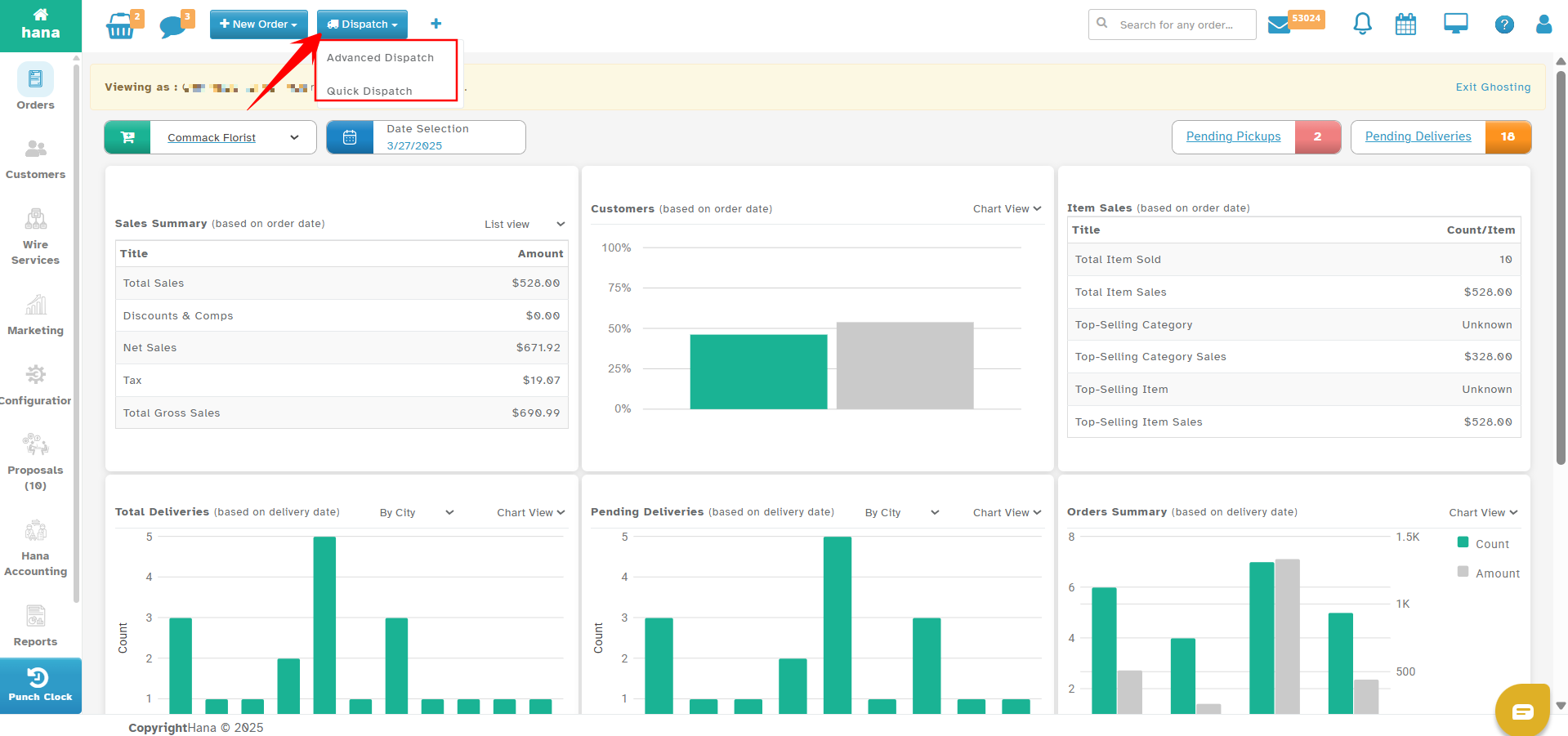
Click the Dispatch tab at the top.
Select Advanced Dispatch
Step 2: Open Routific Route Page
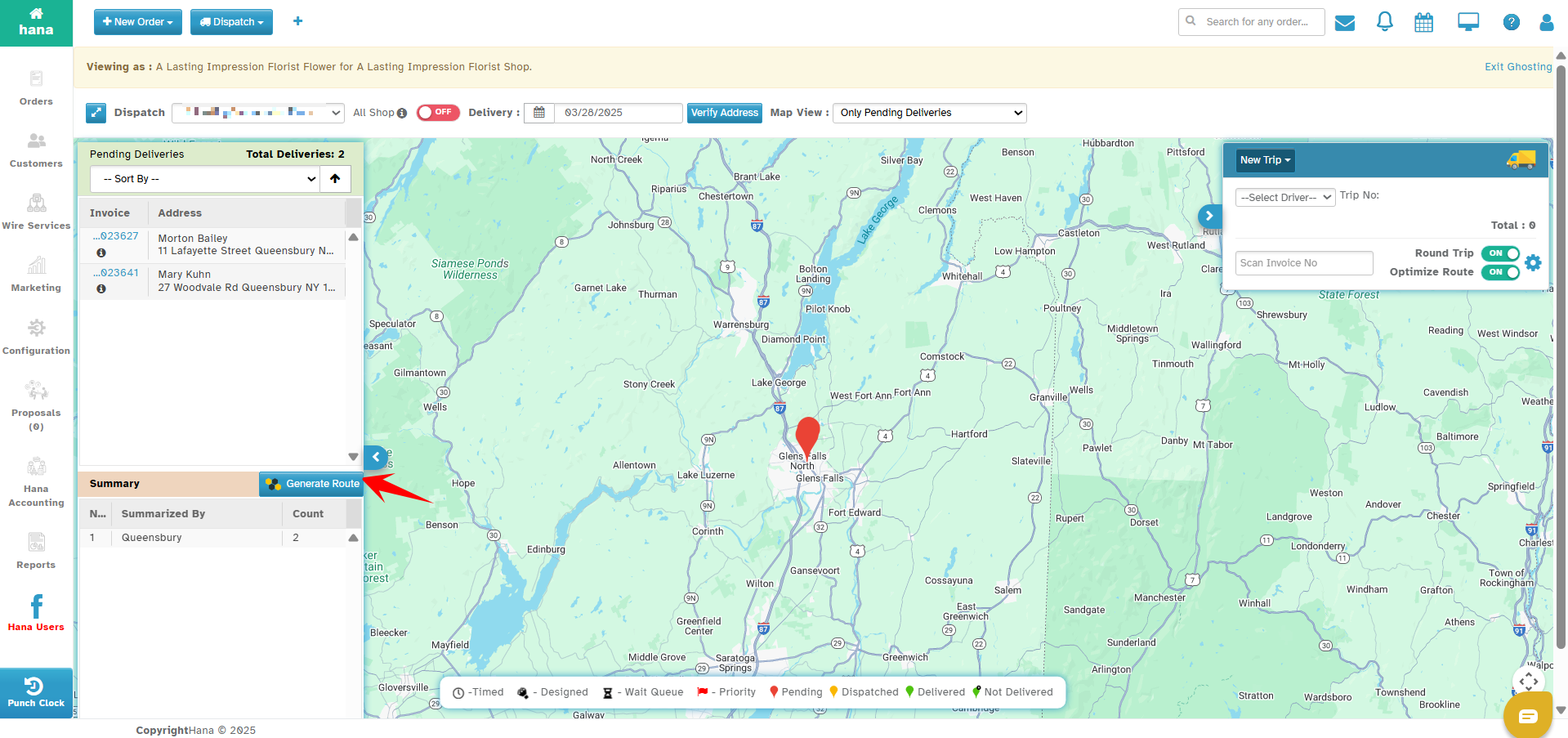
In the Advanced Dispatch window, click on the Generate Route tab.
This will open the Routific Route Page, where you can configure the trip details.
Step 3: Select the Number of Drivers
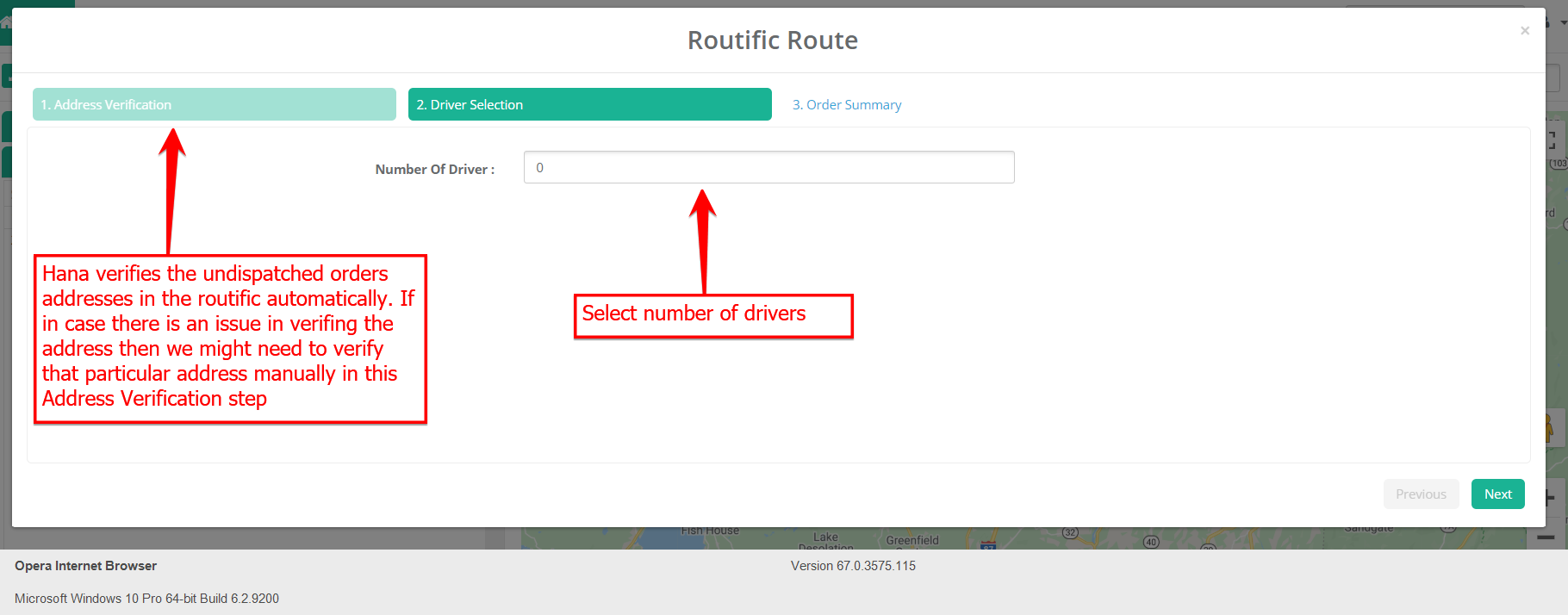
In the Routific Route Page, choose the number of drivers for the trip.
The number of drivers you can select depends on your Routific vehicle/driver subscription.
Ensure you have the required subscription level to assign multiple drivers.
Step 4: Review & Finalize Order Summary
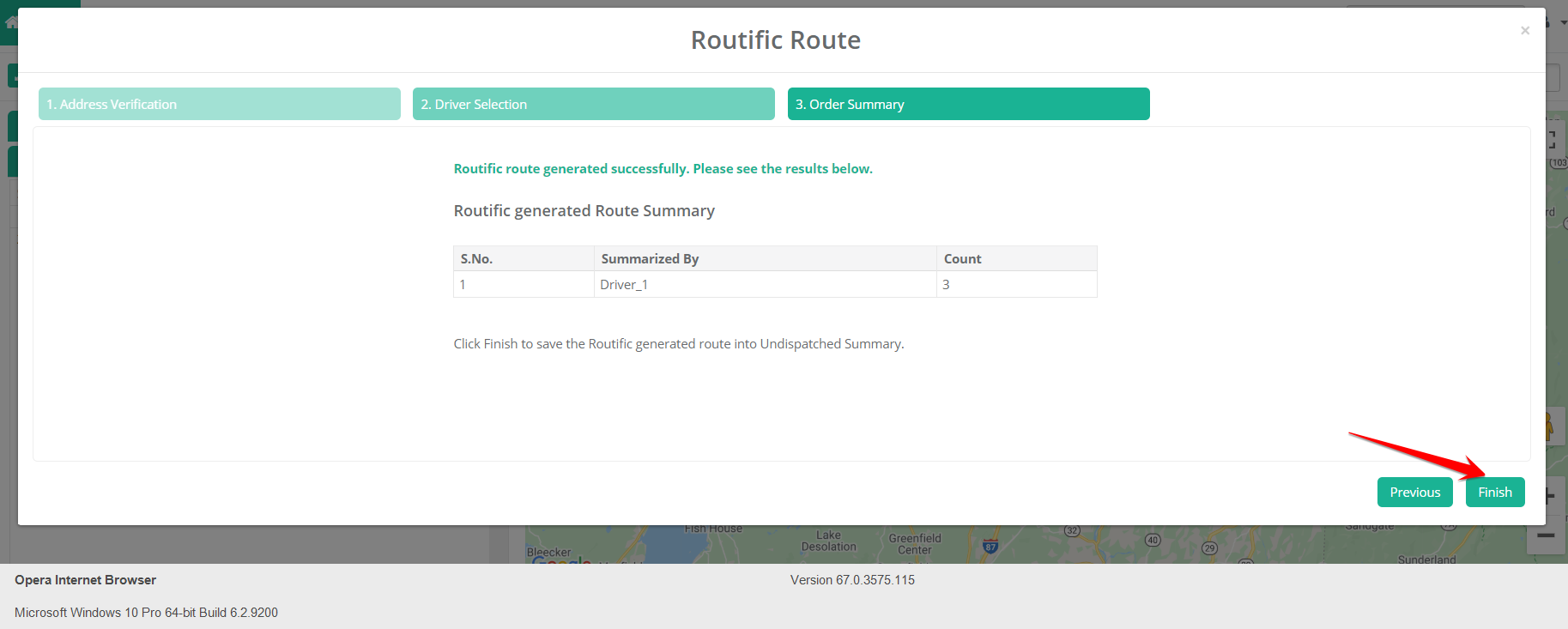
Review the Order Summary to check if all necessary orders are included.
Once verified, click on Finish to proceed.
Step 5: Assign Drivers from the Summary Window
In the Orders Summary, the system will display driver groups created by Routific, labeled as Driver_1, Driver_2, etc., based on the number of trips created.
Click on the desired driver group to assign all associated orders to the trip.
Once selected, all orders within that group will be automatically added to the trip.
Review the assigned orders to ensure accuracy before finalizing the trip.
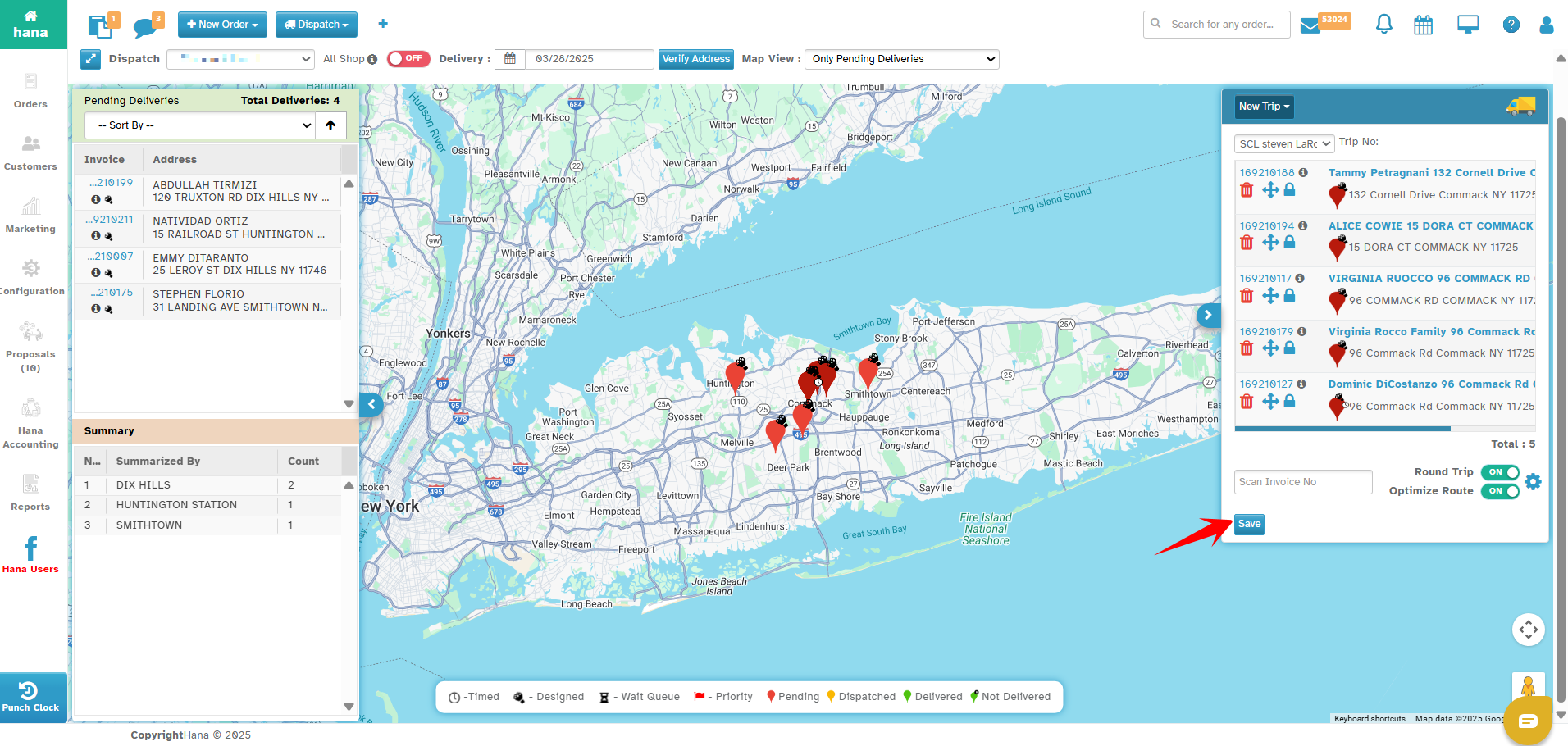
Step 6: Save & Optimize the Route
Once all orders are assigned to the driver, click Save.
The route will be saved and optimized using Routific.
Was this article helpful?
That’s Great!
Thank you for your feedback
Sorry! We couldn't be helpful
Thank you for your feedback
Feedback sent
We appreciate your effort and will try to fix the article